
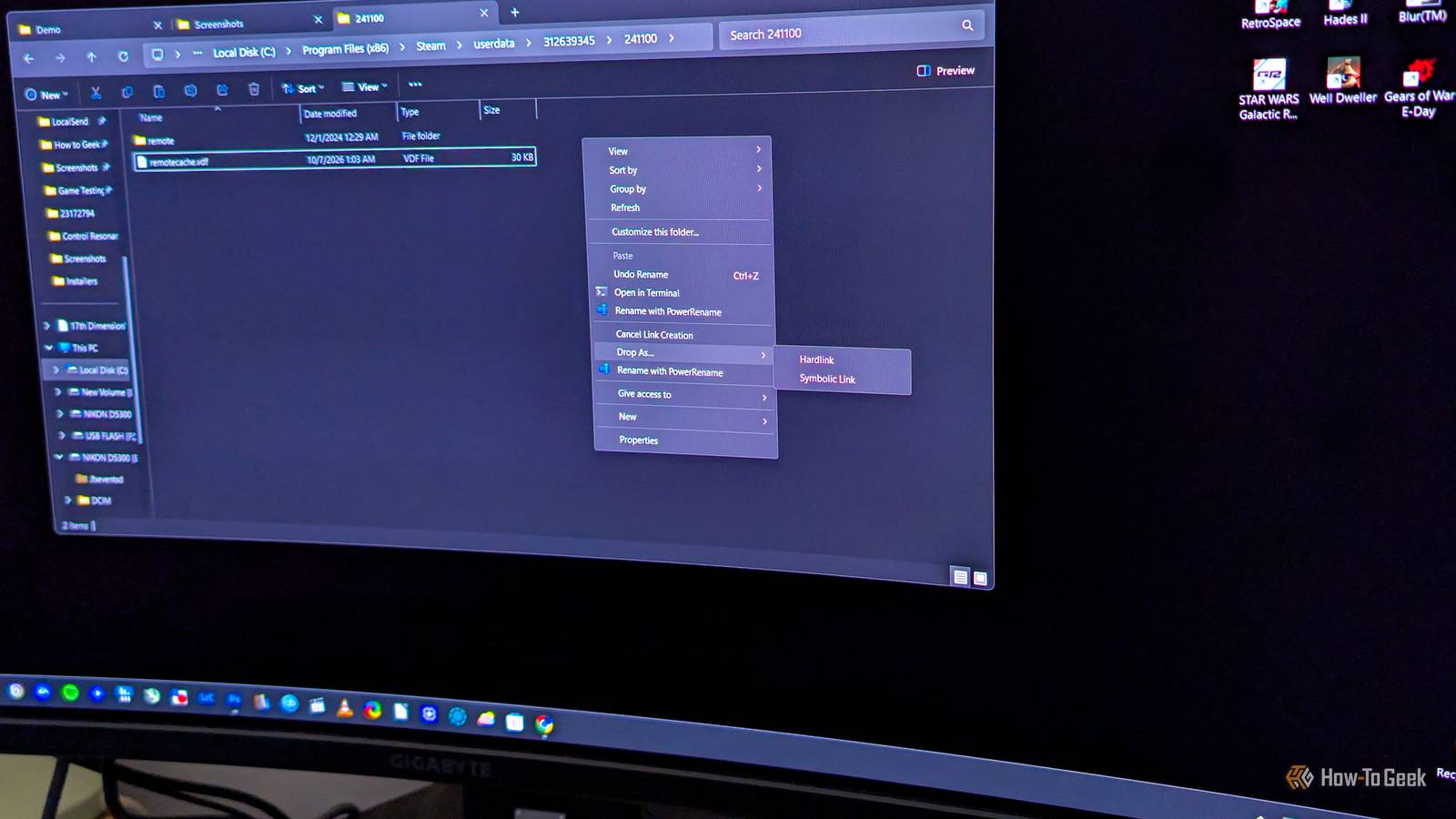
Published Oct 25, 2026, 4:00 PM EDT Ever since he got his first smartphone, the legendary Nokia 6600, back in 2005, Goran became obsessed with technology. This obsession had only gotten worse after he received his first gaming PC a couple of months later. He fell in love with video games in the early '90s, shortly after embarking on his gaming journey with the Sega Master System II and SNES. Since then, he has built dozens of PCs, played thousands of games, and authored hundreds of articles about PC hardware, gaming hardware, and video games. He knows everything there is to know about the PC gaming and PC hardware space, and while his console gaming knowledge isn't as comprehensive, he considers himself a console veteran. Goran has almost a decade of experience writing about tech and video games for numerous web publications including TechSpot, TechPowerUp, and EsportsHeadlines. He has been writing for How-To Geek since December 2022. When he isn't gaming or deciding which component of his PC to upgrade next, you can find him strolling around Novi Sad while listening to music and contemplating what to play next. Say you want to copy a file to another folder on your Windows PC, but not for backup purposes. If you just want to have the same file appear in multiple folders, you don’t have to copy it the usual way, where each copy takes up the full amount of storage space. What you can do instead is hard link it, which makes the same file show up in another folder, indistinguishable from the original, with the benefit of this “copy” not using any extra storage. Here's how hard links work File names are just pointers to the actual file, and hard linking creates another file name Hard links have been a part of Unix since its very beginning. Because of that, Unix-like desktop operating systems such as macOS and Linux support hard links as well. As for Windows, support for hard links arrived with Windows NT 3.1, the first version of Windows to ship with the NTFS file system. However, the support was limited for years. Microsoft allowed regular Windows apps to create hard links with Windows 2000, and Windows Vista was the first version to include an easy, built-in way for users to create them. A hard link is nothing more than another name for a file that’s kept on your storage drive. What’s important is the file itself. In the case of Windows and NTFS, every file has a record in the Master File Table (MFT), which is a core database of the NTFS file system. The name of that file is a pointer that directs the operating system and apps to the file’s record in the MFT. So when you hard link a file, you don’t copy the actual data. You just create another name for it, which points back to the same file. This is why hard linking a file doesn’t use any extra storage. In fact, the original name of the file is also a hard link, since all it does is point to the file’s record in the MFT. When you copy a file, though, you actually create a new file with its own record in the MFT and its own copy of the data. If you copy it to another NTFS drive or partition, it goes into that drive’s own MFT. Since you create a new file, it uses up the same amount of storage as the original, while a hard link doesn’t, since it’s simply another name for the same file, not a new file itself. The catch is that hard links come with a few limitations Since hard linking a file just creates a new name that points to the exact same file, and doesn’t create a new file like copying does, hard linking allows a single copy of a file to be present in multiple places on the same NTFS partition without using any extra storage. You can create dozens of hard links to a file in various folders across the partition, and they won’t take up any extra space. So, for example, if you have a 5GB video from your 2025 vacation in a folder named “2025,” you can hard link it to another folder, say, the "Videos" folder, and the video in the "Videos" folder won’t use any extra space, since it will just be another name that shows Windows and apps where to find the actual file. As soon as you create a hard link, Windows won’t distinguish between the names, nor will it see the first name as special. Each name is seen as an equal hard link, with only a single real copy of the file existing. You can delete the original video from the “2025” folder, but the file will still be present because there’s a hard link to it in the Videos folder. The actual file is deleted only when you delete the last hard link. You can also rename each hard link without affecting other hard links; their names will stay the same. Conversely, if you have multiple hard links of the same file, you can edit any of them and they will all show the change. So if you open one hard link of a text document and add a paragraph, as soon as you save the changes, every hard link will open the same, updated document. When you copy a file, on the other hand, each copy is a separate file, and editing one won’t affect the others. For this reason, hard links can’t be used as backups. If the file gets corrupted, each hard link will open the same, corrupted file. Hard links have other limitations as well. For instance, you can only hard link a file within the same drive or partition, which has to use the NTFS file system. You can’t hard link it to another drive or partition. Other file systems in use on Windows, such as FAT32 and exFAT, don’t support hard links at all. You also can’t hard link folders, only individual files. It’s also worth noting that some apps save edits by creating a brand-new file and swapping it in, instead of saving changes to the same file. This quietly breaks the hard link, so the other links still open the old version. By default, you have to use Command Prompt or PowerShell to create hard links This method can be really tedious, though Another limitation of hard links is that you have to use Command Prompt or PowerShell to create them, since Windows doesn’t have a native GUI tool for creating hard links. The procedure might be tedious, especially if you aren’t used to the command line, but at least it’s relatively straightforward, and you don’t need administrator rights. If you prefer using Command Prompt, you need to type the following: mklink /H "path of new hard link" "path of existing file" Let's say I want to hard link the Rufus executable, which is located in the Installers subfolder of my Downloads folder, directly to the root of the Downloads folder. In that case, I need to type the following: mklink /H "C:\Users\Administrator\Downloads\rufus-4.9.exe" "C:\Users\Administrator\Downloads\Installers\rufus-4.9.exe" Once I hit Enter, Command Prompt confirmed that the hard link was created, and as you can see in the screenshot at the top of this section, the Rufus executable now shows up directly in the Downloads folder. Just keep in mind that the mklink command only works in Command Prompt, so it won’t work if you type it in PowerShell. If you prefer PowerShell, the appropriate command is: New-Item -ItemType HardLink -Path "path of new hard link" -Target "path of existing file" In my Rufus example, the command would look like this: New-Item -ItemType HardLink -Path "C:\Users\Administrator\Downloads\rufus-4.9.exe" -Target "C:\Users\Administrator\Downloads\Installers\rufus-4.9.exe" Link Shell Extension lets you create hard links with just a few mouse clicks While Microsoft hasn’t bothered to make a GUI tool for hard linking, developer Hermann Schinagl created a tiny free tool for the job, and it works great in Windows 11. Link Shell Extension integrates into the right-click menu in File Explorer, and it also works in Total Commander. I didn’t test it in other Windows file managers, but it should work in them as well. Using Link Shell Extension is super simple. All you have to do is install the app and let it restart Explorer.exe (make sure you’re not copying or moving files in File Explorer at the time). Once the app’s installed, right-click any file, click Show more options, and then click Pick Link Source. Now go to wherever you want to hard link the file, right-click an empty space, click Show more options, then select Drop As, and click Hardlink. Every hard link of the file, including the original, gets a red arrow, so you’ll always know which files are hard links. Even though Windows can’t hard link folders, Link Shell Extension lets you hard link every file in a folder, along with any subfolders it may contain. All you have to do is right-click any folder, click Show more options, click Pick Link Source, then go to the destination, select Drop As and click Hardlink Clone. This will create a new folder with the same name as the original, with hard links to every file in it. Hard links can’t replace real copies, but they’re still handy As long as you bear in mind that hard links aren’t real copies, they can be pretty useful. While you can’t use them for backups, you can use hard links for various other purposes. For instance, you can keep the same large file in multiple locations without wasting storage, share game files between several emulators or media files between different apps, organize files without having to create new copies, and more. Just make sure all the files are on the same NTFS drive or partition.
This 30-year old Windows feature lets you duplicate a file without wasting any storage
Full Article
Original Source
Read the full article at Howtogeek →KhanList aggregates and links to publicly available news content. We do not host full articles from third-party sources. Always verify important information with original sources.