
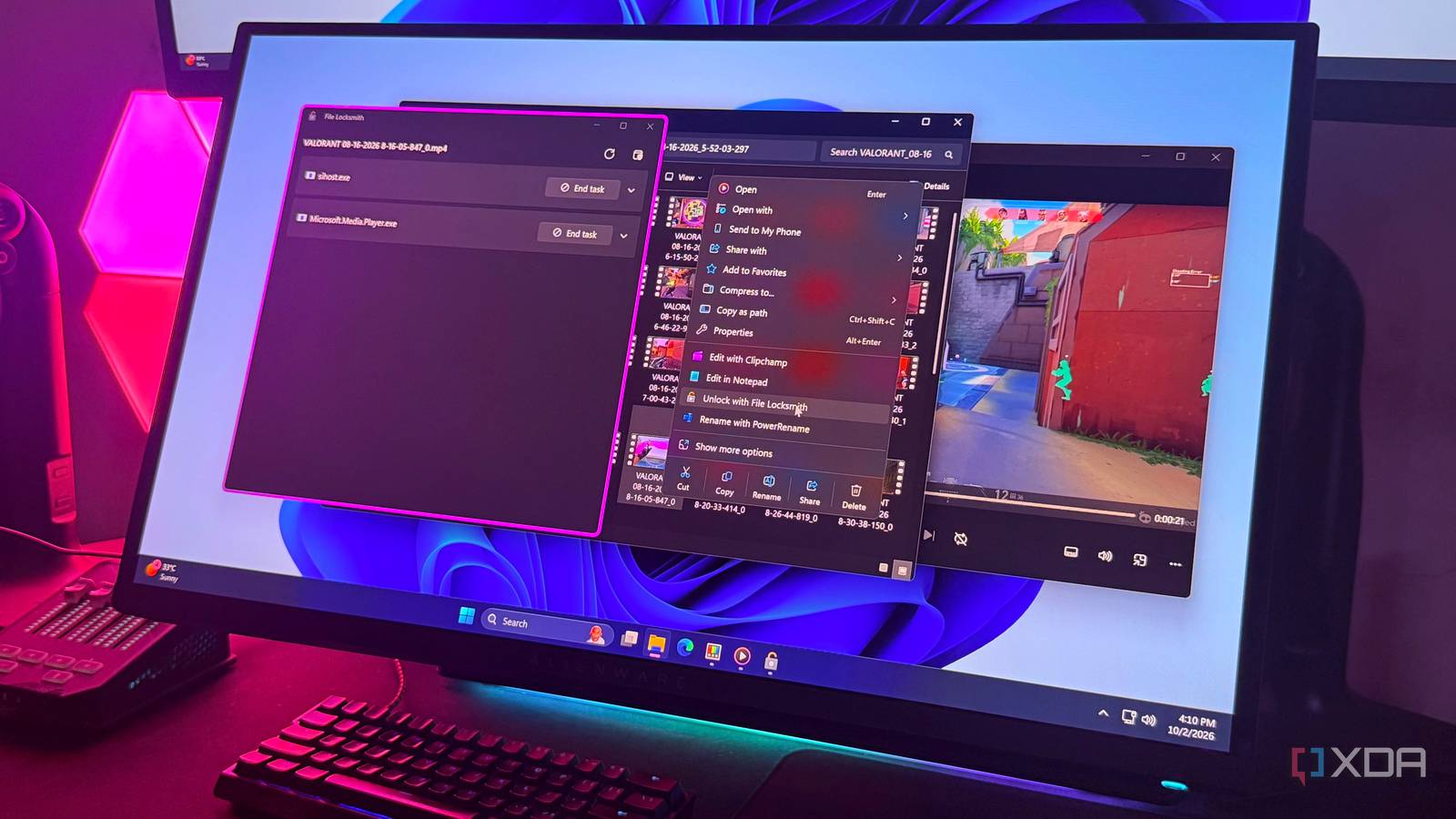
Published Oct 4, 2026, 7:31 AM EDT Hamlin has been in the tech field for over nine years. Since 2017, his work has appeared on MakeUseOf, Android Police, OSXDaily, Beebom, and more. He served as the Senior Editor at Valnet's MakeUseOf for over two years before joining XDA. He uses a high-end gaming rig for desktop use and a MacBook for traveling, but dislikes some of the quirks of macOS. You're more likely to catch him at the gym or on a flight than anywhere else. As someone who installed PowerToys for Command Palette and then ended up using its window management tools like FancyZones and Always On Top way more than I expected, I wish I had discovered File Locksmith sooner. So, you know how Windows doesn't let you delete, move, or rename a file when another program is using it? Sometimes Windows tells you which program has the file open, and that's an easy fix. But other times, it just vaguely says "another program," so you're left figuring it out yourself. Normally, I'd open Task Manager and start closing processes I thought might be responsible until Windows stopped giving me that message. And if that didn't work, I'd eventually give up and restart my PC, which almost always did the trick. File Locksmith basically gets rid of all that guesswork by showing me exactly which process is using the file, even if it's something obscure. In fact, I can even end that process right there without having to open Task Manager separately. File Locksmith skips the process-hunting spree And it's right there in the right-click context menu My favorite thing about File Locksmith is that, unlike most other PowerToys utilities, this one doesn't even need PowerToys running in the background. As long as you have it installed, you'll be able to find Unlock with File Locksmith in the right-click context menu since it's enabled by default. But if you don't see it for whatever reason, just go to PowerToys settings and toggle on File Locksmith from the list of utilities. This means whenever I run into a "file in use" error, I'm only a couple of clicks away from knowing exactly what's causing it. Once File Locksmith opens, it immediately scans the file and lists every process that's currently using it, and this is where it saves me from the process-hunting spree. Unless Windows tells me what program is using the file, there's really no easy way to know which of the dozens of processes running on my PC is responsible. Sure, if you've used Windows long enough, you can make an educated guess, but with File Locksmith, you don't even need to do that. And it's sort of like a mini Task Manager because you can just click End task and go back to whatever you were trying to do with the file or folder. You can expand its search if you need to Restarting it as administrator can reveal what it missed By default, File Locksmith only has access to processes running under the same user, so the process locking your file may not show up in the initial scan. So, if Windows says the file is open in another program, but File Locksmith comes back empty, you can just click the little shield icon in the top-right corner to restart it as administrator. This gives File Locksmith elevated permissions to scan processes from all users, so there's a better chance it'll find whatever is holding on to the file. I haven't had to do this myself since I don't have multiple user accounts on my PC, but I can see how useful this is if you share your PC with a roommate or sibling. If a process running under their account happens to be the one locking your file, you don't have to sign into that account and figure out what's running there. Besides that, administrator privileges can still come in handy when you need to end an elevated process. File Locksmith may surface it in the results, but you'll need to give it admin privileges before you can end the process. It's not like Windows doesn't name the program But it's inconsistent, so you're better off keeping File Locksmith just in case You probably won't need File Locksmith every time you run into this error. Windows is perfectly capable of telling you which program has the file open, and when it does, there's really no point opening another tool just to get the same answer. For instance, when I tried deleting Cyberpunk 2077's folder while it was auto-updating because I had Steam open, Windows straight up told me the file was open in Steam right before it could finish the deletion. Unfortunately, Windows doesn't always do this. There have been times when I had a folder open in CMD, and Windows didn't name Command Prompt when it gave me the error. It just showed "the folder or a file in it is open in another program," which is exactly the kind of vague message that made me scroll through Task Manager. And that's really why I think File Locksmith still deserves its place in my context menu. It's just quick and efficient, and there's no downside to leaving it enabled, especially considering it doesn't need PowerToys running in the background. When you need it, you'll be glad it's there Unlike the other PowerToys utilities that I use regularly, File Locksmith is one of those tools that you may use once in a blue moon. But when you really need it, you'll be glad it's easy to access from the right-click context menu. It turns what's usually a minute-long ordeal into a couple of clicks. And if it means I never have to restart my PC just because Windows won't tell me what's holding onto a file, I'd say it's earned its place. I just wish Windows incorporated this feature natively, though. Microsoft PowerToys is a collection of free, open-source tools that can improve Windows productivity.
PowerToys can tell you which app is locking a file, and it ended every "file in use" error I've had
Full Article
Original Source
Read the full article at Xda-developers →KhanList aggregates and links to publicly available news content. We do not host full articles from third-party sources. Always verify important information with original sources.