
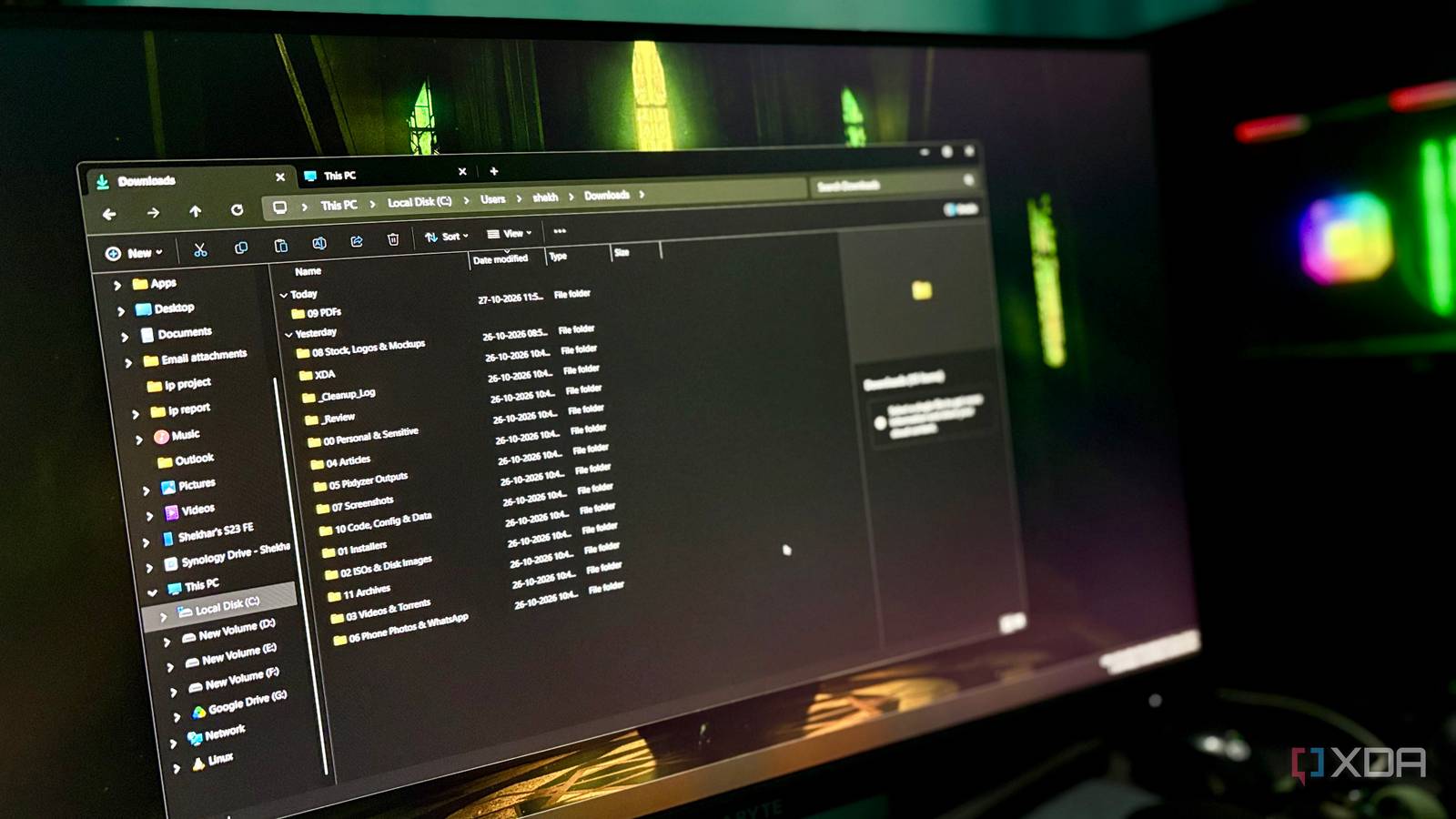
Published Oct 27, 2026, 2:00 PM EDT Shekhar Vaidya is a veteran technology journalist and computer science engineer. He is the founder of TechLatest, where he has spent years providing technical analysis on hardware and Windows ecosystems. Now a Computing Writer at XDA, Shekhar leverages his deep background in NAS, storage solutions, and PC internals to help readers master their tech. The Downloads folder is the universal dumping ground for anything that comes from the internet. App installers, archives, PDFs, and screenshots — most of these end up there and are rarely reused. Not because they are useless, but because searching for a file downloaded a month ago is nearly impossible. I was in the same situation. Deleting a few obvious files, like an installer or an ISO, is easy, but figuring out where everything belongs is tedious. So instead of doing it manually, I decided to hand it over to an AI agent. The result was something I didn’t expect. That weekend never came, so I handed the mess over with four rules Years of ‘I’ll sort it later’ and one prompt full of rules In my line of work, I download multiple assets for a single project. From .exe and dev files to stock images, screenshots, and physical product shots, everything ends up in the Downloads folder. And when I try to find an old file to reuse in a similar project, I almost never find it. The folder contained years’ worth of files, and honestly, I never sorted them. I always saw the mess and told myself, "I'll sort it when I get free time this weekend." But that weekend never came. And the Downloads folder became a mountain of unorganized files. I didn’t even know how many files and folders were there; I could only guess that there were thousands of files and folders. Since these days AI agents have become fairly advanced, and I was aware of Claude’s Computer use feature, I decided to hand over the tedious task to it. Even though I rarely save any sensitive files to the Downloads folder, I still made a few ground rules for Claude to follow. Use the Computer use feature Look at the folder and report Dry-run first and wait for approval Only move and never delete These four strict rules, plus a few minor ones like undo script, logs, etc. Computer use looked the folder over, then couldn’t move a single file The report looked perfect, until I opened the folder I wrote the prompt in simple words with brief details of what I wanted and the rules it needed to follow, and ran it. The agent instantly stopped and said it couldn’t perform everything I said in the prompt. The Computer use feature could only click and scroll but not rename, cut, and paste. So, with Computer use, it could only scout the folder but couldn’t sort anything. And that was the whole point of this experiment. Well, an AI being AI, it gave the solutions along with the problem. It gave me three options: first, only scout the folder and report; second, use the PC shell to do those tasks; and third, a hybrid run where both Computer use and shell work side by side. The hybrid run was the obvious choice, so I opted for it and gave the agent permission to access the Downloads folder, then ran the dry-run plan. It took a couple of minutes to complete the task. The generated output had the before-and-after picture of the folder. I was actually shocked by the numbers. There were 692 loose files plus 55 folders (747 items), about 28GB of loose files. It even showed which files held the most weight. A few ISO files and a custom ROM zip accounted for 21GB of that 28GB. This was all before I opened the Downloads folder. The report looked amazing. Then, I opened the folder, and my opinion changed. The agent had only touched the loose files and didn’t do anything with the existing folders. So I ran a follow-up prompt to organize the files inside the folders as well. It then sorted again and moved 54 existing folders. Once that was done, my Downloads folder looked completely different. The AI agent categorized the whole folder into 12 subfolders for the files and two folders for the log, undo script, and duplicates. It left behind one folder that I asked specifically. In the end, it moved 747 items into 14 folders. I thought nothing sensitive was in there until I opened the first folder It only read the filenames, and that got most of it right At first glance, it all looked good. I wanted to know whether it was worth keeping or if I needed to undo the whole thing and do it manually. I could only tell once I checked the subfolders myself. Before moving on to the manual check, I asked Claude how it sorted the files and folders out. Did it check each file by its content or just the file and folder names? It said it only checked the filename and organized them accordingly. It didn't open any files to check their content. The first folder was named 00 Personal & Sensitive. I opened it immediately because, as far as I remember, I didn’t have any sensitive files in the Downloads folder, so I wanted to see what it found. There were mostly Amazon invoices and old policy documents, but it also found three actual sensitive files: one payment gateway backup key and two web app credentials. Once I opened them, I checked and verified that they were old, used credentials, so there was no risk. After that, I opened each subfolder and checked the files. Most of them were neatly organized. But a few files landed in the wrong folders because of the filename rule, and it moved a few folders as-is. So, yes, the sorting-by-filename rule worked for the most part, but it came with a few hiccups. But I guess the trade-offs were worth the work it did. A great first draft, but not a finished job Coming back to what I was thinking before starting this experiment. Can the AI agent sort the years-old Downloads folder better than me? The answer is both yes and no. Yes, because it did a great job organizing the folder based on the filename alone. And no, because without seeing the contents, it put a few files in the wrong folders, and I could have done better. So, in the end, again, a hybrid mode would work best. The initial head start with an AI agent, and then me cross-checking and moving the files to the right folder.
I let an AI agent clean up my Downloads folder, and it did a better job than I’ve managed in a decade
Full Article
Original Source
Read the full article at Xda-developers →KhanList aggregates and links to publicly available news content. We do not host full articles from third-party sources. Always verify important information with original sources.