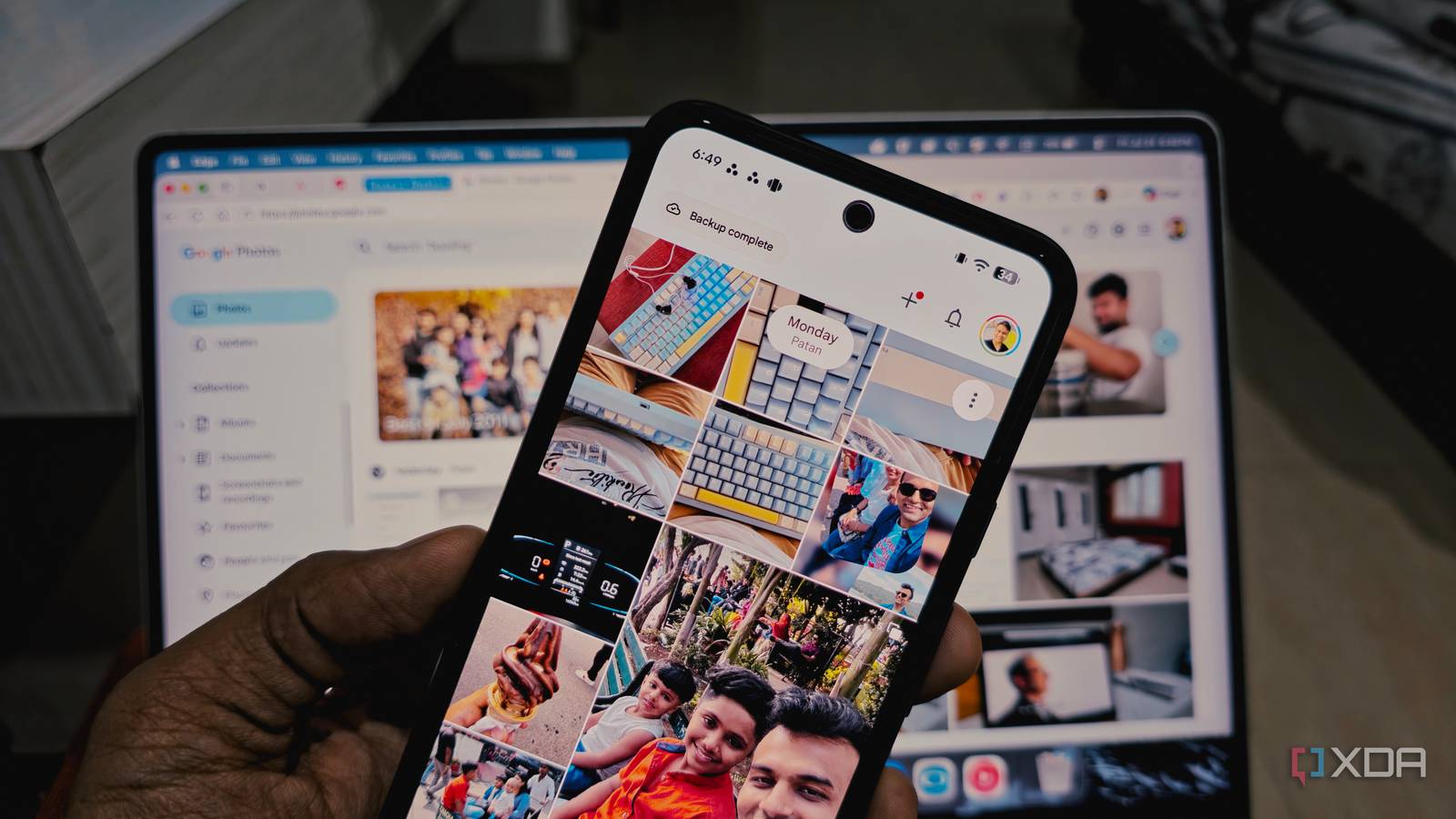
Published Jul 26, 2026, 3:30 PM EDT Parth, a seasoned tech writer, wields the keyboard (or pen) with finesse to unravel the intricacies of both Windows and Mac operating systems. He has covered evergreen content on mobile devices and computers for multiple publications over the last six years. You can find his work on AndroidPolice, GuidingTech and TechWiser. Whether it’s demystifying system updates, deciphering error codes, or exploring hidden features, Parth’s prose guides readers through the binary maze. When not immersed in tech jargon, you’ll find him sipping chai, pondering the next software review, and occasionally indulging in a friendly debate about mechanical keyboards. My Google account has been quietly inching toward its storage limit for months, and Google Photos was responsible for a large chunk of it. I considered the usual cleanup routine: deleting blurry shots, removing old screenshots, and hunting down oversized videos. But I did not want to sacrifice years of memories just to reclaim a few gigabytes. While exploring Google Photos on the web, I stumbled upon a lesser-known option that reclaimed a surprising amount of space without removing a single photo or video from my library. My Google Photos storage kept getting worse Deleting memories was not an option My Google Photos library did not fill up overnight. It happened slowly, one backup at a time. Years of camera photos, family videos, screenshots, edited images, and clips from multiple phones kept piling up until the storage warning became impossible to ignore. Since Google Photos shares space with Gmail and Google Drive, the problem was not limited to my gallery either. A crowded photo library started affecting the rest of my Google account. I tried the usual cleanup tools, but they barely made a dent. Removing a few blurry pictures, duplicate screenshots, or large videos helped temporarily, yet the storage meter kept creeping back up. I could have upgraded my Google One plan, but paying more every month felt like postponing the problem rather than solving it. I wanted a way to reclaim meaningful space without turning storage management into another subscription expense. The obvious solution was to start deleting old photos and videos, but that was easier said than done. My library contains years of family moments, travel memories, celebrations, and random clips that may look unimportant until I revisit them later. Even an imperfect picture can hold a detail or memory I do not want to lose. Manually reviewing thousands of files would also take hours, and I knew I would second-guess almost every deletion. I found the solution on the web What the switch actually changes I initially looked for a solution inside the Google Photos mobile app, since that is where I manage most of my backups. I checked the backup settings, storage manager, and account storage sections, but the option I needed was nowhere to be found. The setting is available only through Google Photos on the web. I opened Photos in a desktop browser, headed to settings, and expanded the Manage storage section. That is where I found Recover storage, a small option that is easy to miss. After clicking Learn more, Google asked me to confirm that I understood the compression could not be undone. It was exactly the tool I was looking for. Recover storage does not delete my photos, remove them from albums, or erase them from search results. It converts eligible photos and videos that I previously backed up in Original quality to Google’s Storage Saver format. My entire library remains accessible in the same place, but the files consume less space in my Google account. The trade-off is compression. Photos larger than 16MP may be resized, while high-resolution videos may be reduced to 1080p. When I confirmed my decision, Google Photos converted thousands of photos and videos to a storage saver and freed up space for my account. The visual difference was acceptable to me Who should avoid this trick I expected the compression to be obvious, especially because many of my older photos and videos had been uploaded in original quality. After the conversion, however, I struggled to notice a major difference during normal use. My pictures still looked sharp on my phone and laptop, and they remained perfectly suitable for sharing with family, posting on social media, or revisiting inside Google Photos. I don't regularly crop photos, produce large prints, or edit high-resolution footage, so preserving every pixel wasn't essential for me. I would not recommend this option to anyone who relies on Google Photos as the only home for their full-resolution originals. The conversion is permanent, so photographers, videographers, designers, and creators may regret it later if they need the untouched files for professional editing, detailed cropping, color correction, or large-format printing. The same warning applies to anyone who records a lot of high-resolution video and expects to reuse that footage in future projects. In those cases, I would first download the originals or preserve them on an external drive, NAS, or another cloud service before using Recover storage. Free up space without losing memories Google Photos had been eating through my account storage for years, and I assumed deleting old memories or paying for a larger Google One plan were my only options. The Recover storage feature gave me a much better middle ground. However, if you are tired of these compromises and want to get rid of Google Photos altogether, consider Immich. It’s one of the most effective self-hosting photo management services out there, and with version 3.0, the experience is even better.
I flipped one switch in Google Photos and cleared 15GB of space without deleting a single picture
Full Article
Original Source
Read the full article at Xda-developers →KhanList aggregates and links to publicly available news content. We do not host full articles from third-party sources. Always verify important information with original sources.