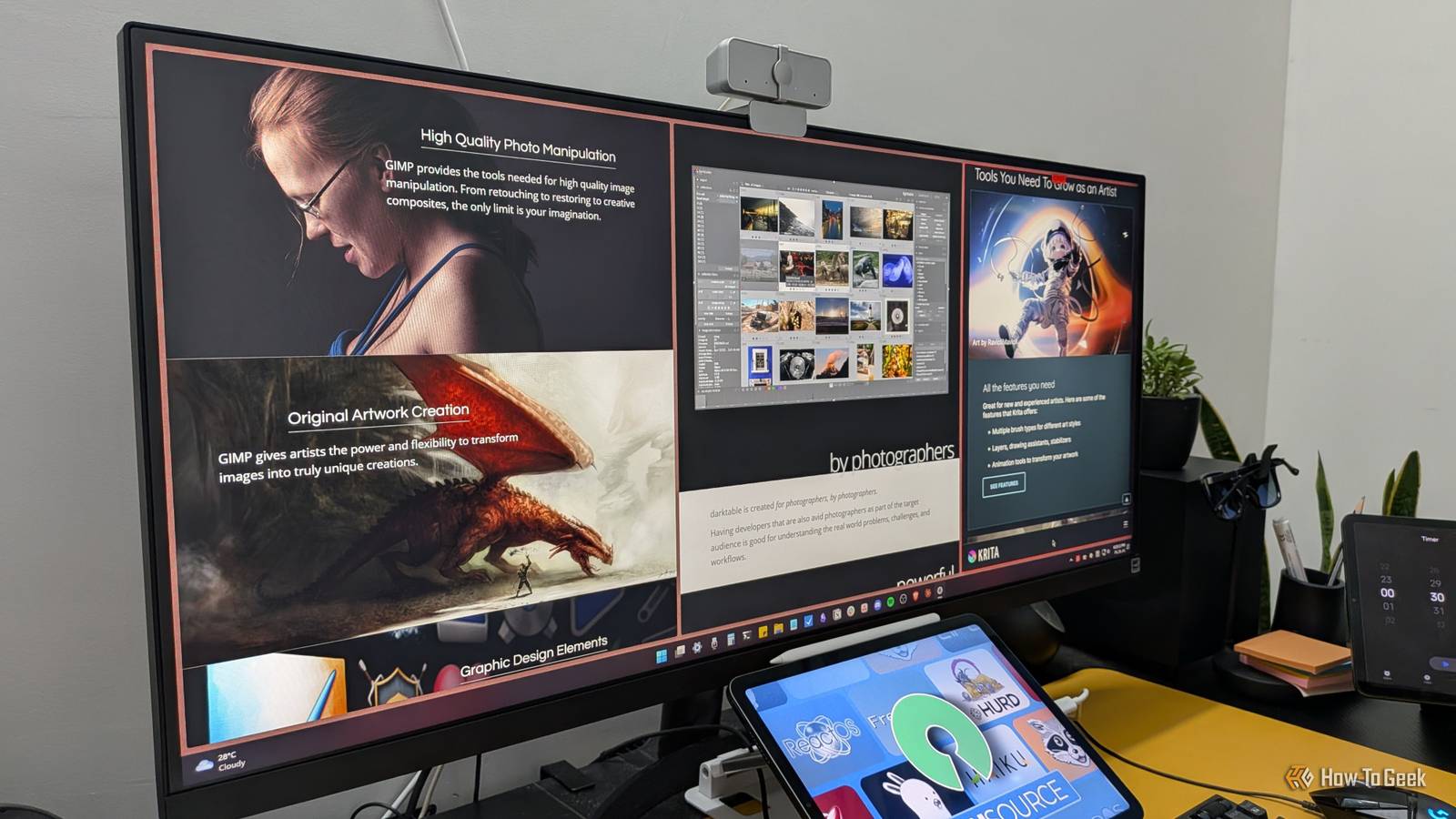
Published Jul 31, 2026, 9:30 AM EDT Dibakar Ghosh is a tech journalist at How-To Geek, where he focuses on Linux, Windows, and productivity tools. His goal is simple—help readers at every skill level get more done with the tech they use every day. He began his writing career in 2016 with WordPress tutorials, later moving into digital marketing, where he spent years reviewing complex tools for marketers. His work has also appeared on Authority Hacker, where he’s shared in-depth guides on digital workflows and online productivity. That experience now shapes his journalism, blending analytical depth with practical, real-world advice. When he’s not writing or testing software, Dibakar is usually watching movies or playing video games. He’s a huge Christopher Nolan fan and a strong proponent of the theater experience. In gaming, he has sunk hundreds of hours into Insomniac’s Spider-Man series, Returnal, Prototype, Darksiders, and Final Fantasy titles. Photoshop is one of the hardest apps to find a good free, open-source (FOSS) alternative for. It's genuinely powerful, has decades of history behind it, is familiar to professionals across the industry, and its interface just works. And truth be told, at the time of writing, there's no single FOSS app that can do everything Photoshop does. But use three FOSS apps together, and they can cover most of what people use Photoshop for day to day. Sure, you give up some convenience—but you save a lot of money in the process. GIMP It’s gotten a lot better since the last time you tried it GIMP has always been touted as "the" FOSS alternative to Photoshop, and for good reason—it's got a genuinely solid collection of tools for photo editing and retouching. But it's also been the punching bag of the "free software isn't good enough" crowd for just as long. People have called it short on features, clunky, and years behind Photoshop, and honestly, a lot of that criticism used to be fair. Right now, though, it's really not lagging that far behind. GIMP 3.2 landed with non-destructive layers, which was one of the biggest feature gaps keeping it from feeling like a modern editor. You also get a new Overwrite paint mode, better text tool controls, and support for importing Photoshop patterns and even using Photoshop's own Curves and Levels presets directly inside GIMP. It can export to Photoshop's PSB format now too, improving overall compatibility when collaborating with Photoshop users. Another major improvement comes in the form of PhotoGIMP—a community-made patch that modifies GIMP's interface to match Photoshop's. This is also huge because muscle memory has always been a major deal-breaker for people migrating from Photoshop to GIMP. Not to mention, GIMP's default layout can look and feel a bit dated. But this patch solves that in a matter of minutes. Now, as a professional writer (not an image editor), I don't have heavy photo-editing needs. I just need a reliable tool for cropping, resizing, annotating screenshots, and putting together featured images for articles and social posts. For that, GIMP has proven more than enough. In fact, I'd go as far as saying GIMP can replace Photoshop for most casual users and even some professional editors. It's anecdotal, but I know wedding photographers who make good money using GIMP as their primary editor and invest the money they save on Photoshop subscriptions into better gear. All that said, I should mention that Photoshop still has the edge in a few places. It's still the better tool if you rely on AI features like Generative Fill or Generative Upscale. While some community plugins can add some of these capabilities, they're not integrated into GIMP itself. Furthermore, the performance would directly depend on what AI image model you’re using. GIMP OS Windows Individual pricing Free GIMP is an open source Photoshop alternative that is free and gives you many of the same features. Krita Proof that free software can still feel premium Credit: Corbin Davenport / How-To Geek / Krita If your Photoshop workflow revolves around illustration, concept art, comics, matte painting, or digital painting, then switching to Krita is one of the easiest recommendations I can make. While Krita can handle basic photo editing workflows, it was built first and foremost for creating digital art. Everything from the interface to the brush engine is designed to keep you focused on the canvas instead of digging through menus or constantly switching tools. One of Krita's biggest strengths is its outstanding brush engine(s). It ships with hundreds of professionally designed brushes, and nearly every aspect of their behavior can be customized to match your preferred drawing style. Features like brush stabilizers, wrap-around mode for seamless textures, perspective assistants, layer masks, animation tools, and an extensive collection of artist-focused shortcuts make the entire drawing experience feel incredibly polished. The interface itself also feels clean, modern, and highly customizable. You can rearrange nearly every panel, create dedicated workspaces for different tasks, and hide anything you don't need, so the canvas remains the center of attention. At no point does Krita feel like a compromise simply because it's free and open source. If anything, it's one of those rare applications that makes you wonder why software of this quality doesn't cost hundreds of dollars. That said, while it has some basic photo editing tools, I wouldn't rely on it for that. The ideal workflow is to create your illustrations in Krita and then, if necessary, move them over to GIMP for additional fine-tuning or layer work. You lose the convenience of doing everything from a single interface that Photoshop offers. But in exchange for a slightly more fragmented workflow, you get a completely free toolchain. Darktable More control than you probably wanted—in a good way Credit: Jorge Aguilar / HowToGeekJorge Aguilar / How To Geek Technically speaking, Darktable isn't a Photoshop replacement—it's an Adobe Lightroom alternative. That said, I know many people who use Photoshop to develop RAW photos they shot on their DSLR or mirrorless cameras before doing compositing work. They simply prefer handling everything from a single interface. However, if you're willing to split up your workflow, Darktable gives you far more powerful RAW development tools, and it's completely free. Once you're done, you can move the developed image into GIMP for any additional editing or compositing. Darktable comes with a remarkably comprehensive feature set, including: Non-destructive RAW editing Highlight and shadow recovery Advanced color grading Lens correction Denoising and sharpening Powerful local masking tools The Tone Equalizer module Color calibration Batch processing Tethered shooting support for compatible cameras Catalog management for organizing large photo libraries It's also built around a modern scene-referred workflow, giving photographers exceptional control over dynamic range and tonal adjustments. Its feature set doesn't just rival Photoshop's RAW editing capabilities—it goes toe-to-toe with Adobe Lightroom as well. While Lightroom still has advantages in areas like AI-powered editing tools, cloud synchronization, and ecosystem integration, Darktable offers everything most photography enthusiasts—and even many professionals—need to produce professional-quality results without paying for a subscription. The only real drawback is the steep learning curve. The interface can feel overwhelming at first because it exposes a huge number of controls instead of hiding them behind simplified menus. But once you become familiar with it, that complexity becomes one of its biggest strengths. Rather than relying solely on what you see on your monitor, Darktable provides detailed histograms, clipping indicators, scopes, and other analytical tools that help you make technically sound editing decisions based on objective image data. It might not be seamless—but it’s free Photoshop is a genuinely powerful, versatile application. It's the tool many people reach for when they're working on an image—whether they're editing photos, creating digital art, or developing RAW files from a dedicated camera. But if you're willing to separate those workflows and give up the convenience of a single application, you can delegate each task to a dedicated tool: GIMP for image editing, Krita for digital art, and Darktable for RAW development. Together, they can handle almost everything most people use Photoshop for while saving you a considerable amount of money.
You don't need Photoshop anymore if you use these 3 free apps
Full Article
Original Source
Read the full article at Howtogeek →KhanList aggregates and links to publicly available news content. We do not host full articles from third-party sources. Always verify important information with original sources.