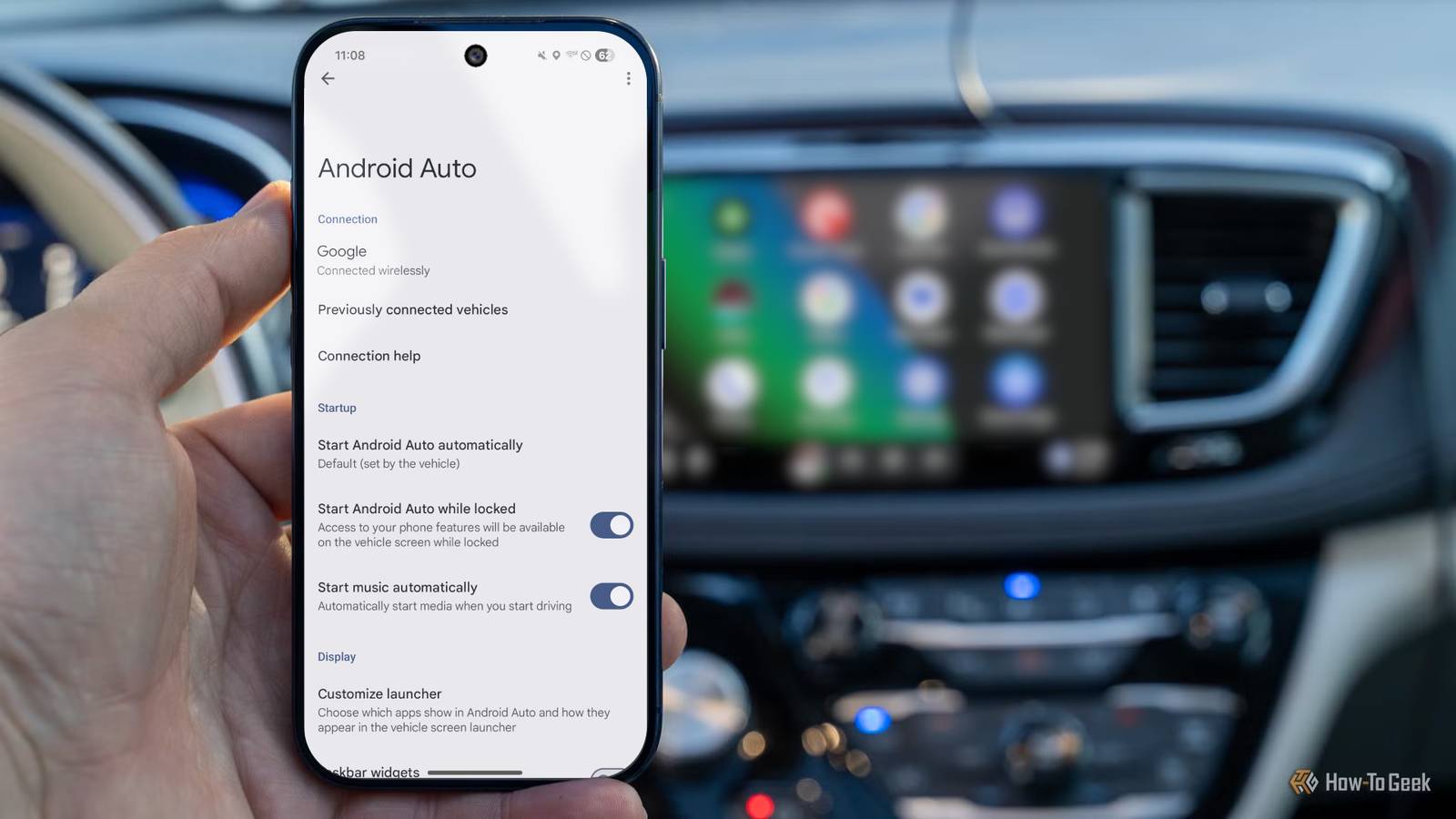
Published Jul 30, 2026, 9:45 AM EDT Cory Gunther is a senior author and Newsletter Editor at Valnet, covering cutting-edge tech, Android, and more for How-To Geek. He's covered Android, cars, and technology for over a decade. When he's not reviewing the latest gadget, you can find him off-roading in his Toyota truck, fixing said truck, or doing something outdoors with friends and family. He's covered CES, SEMA, and MWC and reviewed countless phones, TVs, speakers, EVs, e-bikes, and more. Before Valnet, Cory worked for GottaBeMobile. His writing has also appeared on SlashGear, InputMag, and AndroidCentral. He's written over 9,000 articles. Wireless Android Auto is great, especially when you have a long drive or need navigation instructions. You jump in and go, and your phone instantly pairs with and takes over the infotainment display. But if you've ever wondered why it turns on your Wi-Fi, that's because Wireless Android Auto needs more than Bluetooth to work. No fumbling with cables, it just works. Part of the reason your phone might get a little warm while using wireless Android Auto is that the entire wireless system requires two simultaneous connections: Bluetooth and Wi-Fi. How wireless Android Auto connects Each technology serves a specific purpose When you get in the car, turn it on, and Android Auto starts wirelessly, both Bluetooth and Wi-Fi are required for the system to work. Neither option alone can complete the task. Naturally, wired Android Auto handles almost everything via USB, but when you're using a wireless setup, two things happen: Bluetooth performs the initial connection and handshake with your vehicle, pairs the two, and then shares the information required to launch, pair, and connect Wi-Fi between the two devices. Bluetooth is incredibly energy-efficient, uses little power, and works well in the background to make connections, stream audio, or take phone calls. In fact, Bluetooth's primary role in Android Auto is to establish the connection, pair your phone with your vehicle, and handle hands-free calling. Almost everything else takes place over a secure Wi-Fi Direct connection. Wireless Android Auto requires a peer-to-peer 5GHz connection, which is confirmed via Bluetooth. Once that local Wi-Fi connection between the two devices is complete, which happens almost instantly, you're all set to stream music, fire up Google Maps, and do anything else you'd like with Android Auto. Why wireless Android Auto needs both Bluetooth can't handle the graphical load Credit: Lucas Gouveia/How-To Geek | PrasitRodphan/Shutterstock Without Wi-Fi, wireless Android Auto running over Bluetooth wouldn't be all that useful. See, Bluetooth is a low-power protocol that isn't designed for big tasks. Bluetooth doesn't have enough bandwidth to make the connection, stream audio, and handle all the graphics at the same time. As Google explains, a 5GHz Wi-Fi Direct connection handles literally everything else. That's what allows your car to project the phone interface on your infotainment display, handle high-quality audio streaming from your favorite apps, and share Maps data like GPS, speed, and navigation instructions, not to mention voice commands, touch inputs, and more. If your phone doesn't support 5GHz or is so old it runs on Android 11 or earlier, it won't work with wireless Android Auto. Essentially, Bluetooth starts things off and handles calls, while the more capable Wi-Fi connection handles the rest, and that's key. The downsides of wireless Android Auto Convenience for a small price Credit: Joe Fedewa / How-To Geek I absolutely love wireless Android Auto, but it does come with a few downsides you'll want to consider before deciding whether to use it over a cable. For example, your phone is constantly running both Wi-Fi and Bluetooth, which may drain your battery faster than a wired connection. That said, many appreciate the convenience. Additionally, if you use a built-in Wi-Fi hotspot feature in your car, you won't be able to connect to it and Android Auto at the same time. Perhaps the biggest downside is that you may have performance issues or hiccups if either Wi-Fi or Bluetooth has a temporary drop or experiences interference. This is more common with wireless Android Auto dongles, but it can still happen. And last but not least, wired Android Auto will charge your phone at the same time, albeit very slowly. But hey, that's better than nothing. How to add wireless Android Auto to your car One little dongle is all you need Credit: Cory Gunther / How-To Geek Many older or base-trim vehicles don't support wireless Android Auto, but that doesn't mean you can't use it. As long as your vehicle or stereo has wired Android Auto, you can easily upgrade to wireless with a variety of dongles on the market. Motorola's MA1 is a popular choice, but I've had a much better experience with the AAWireless TWO. These dongles connect to the car's wired Android Auto, then everything happens wirelessly between it and your phone. I have my dongle in the glove box, and it works great every time. And if you want one that supports both wireless Android Auto and CarPlay, consider the newer AAWireless TWO+. AAWireless TWO+ Dongle Type Android Auto & Apple Carplay adapter What's Included Adapter, USB-C to USB-A cable Easily add wireless Android Auto or CarPlay to your vehicle with this capable dongle that works with both platforms. Better together At the end of the day, what makes wireless Android Auto so great is that it uses both Wi-Fi and Bluetooth's strengths to deliver the best experience. You get to enjoy a hands-free experience for phone calls, listen to your favorite music or podcast, get turn-by-turn navigation instructions, view map data, see text messages, and more on the screen, letting you keep your hands on the wheel and your phone put away.
Wireless Android Auto needs both Bluetooth and Wi-Fi, and here’s why
Full Article
Original Source
Read the full article at Howtogeek →KhanList aggregates and links to publicly available news content. We do not host full articles from third-party sources. Always verify important information with original sources.