
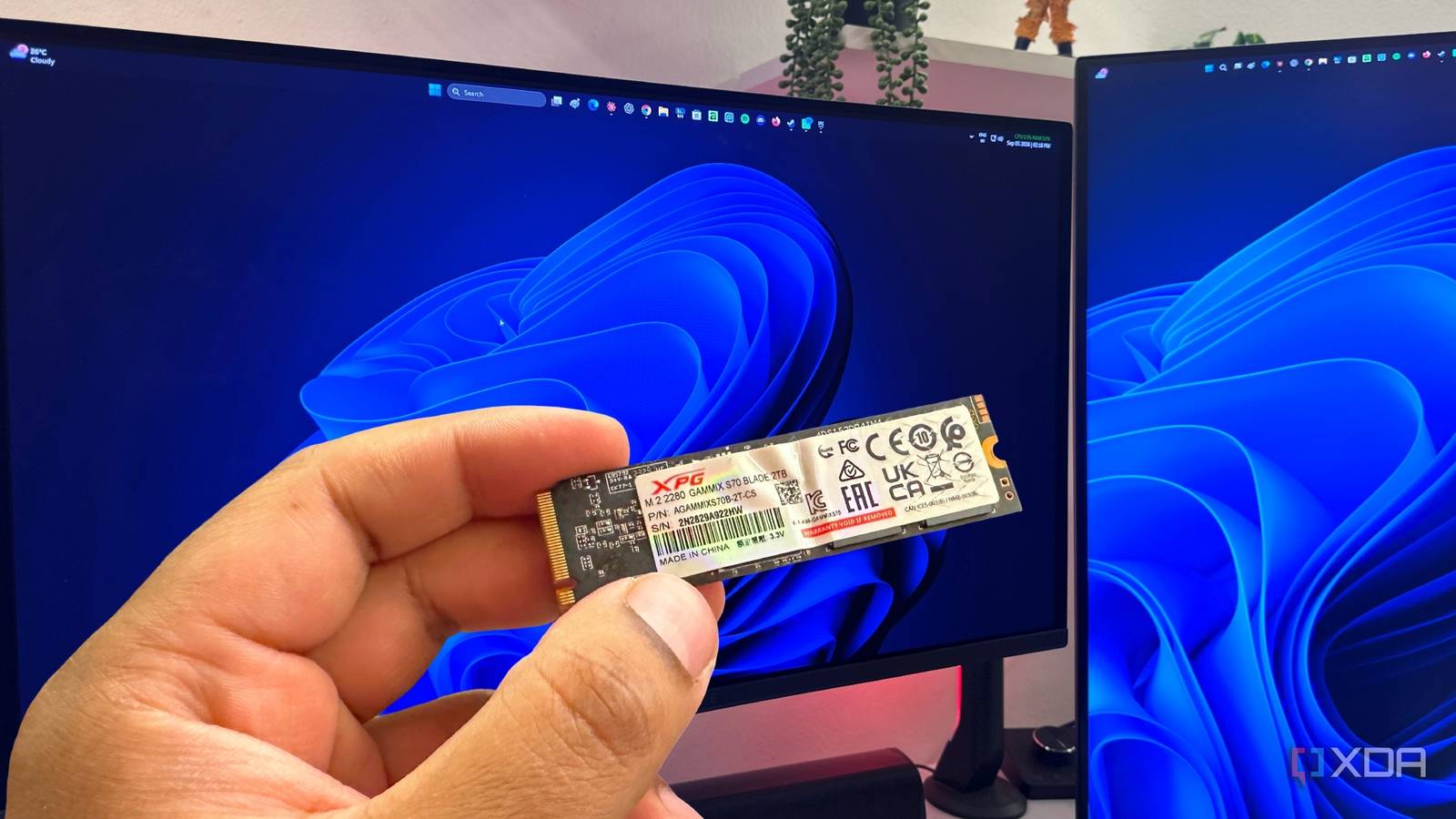
Published Oct 15, 2026, 5:30 PM EDT Anmol has been interested in tech for close to two decades now and has been covering all things tech for more than a decade. He started his journey with a blog post, when Google Blogger used to be cool and has covered everything from Windows Phone to Windows 11. Anmol has written for MSPoweruser and Neowin in the past, and is always keen to get his hands on the latest gadgets. When not doomscrolling, you would find him playing video games, reading or catching up on football. Windows 11 has been out for a while, and it does a decent job of delivering a good overall user experience. However, certain settings and the way Windows 11 is set up out of the box could force you to trade convenience for your SSD's lifespan. With the current AI surge driving up hardware prices, it may be a good idea to review your settings and make sure Windows 11 isn't eating away at your SSD's life. Hibernation writes a huge file to your boot drive Fast Startup rewrites it every time you shut down Microsoft introduced hibernation mode with Windows 98 in 1998, and the feature has since gone through several iterations and improvements, including the introduction of Fast Startup with Windows 8. The feature works by creating a snapshot of everything stored in RAM and saving it to your drive so you can restore it when you log in. This lets you return to the exact state you left your PC in without putting the system to sleep, which consumes power and can cause you to lose data if there is a power outage. On Windows 11, hibernation data is stored in hiberfil.sys, which is overwritten and read every time you use the feature. Usually, the file takes up about 40% of the computer's total RAM, so in my case, it's around 13GB for 32GB of RAM. Fast Startup also uses the same file, but it only stores the Windows Kernel and drivers instead of taking a full snapshot of your computer. So, with Fast Startup enabled, your system reads and writes the same file every time you shut down and reboot. While Fast Startup only writes a couple of GBs, if you boot your PC every day, it adds up over time and reduces your drive's lifespan. On Windows, you can check if Fast Startup is available by opening the Command Prompt or terminal as admin, typing in the following command, and pressing Enter: Powercfg /a If Fast Startup is turned on, it will show up under the "The following sleep states are available on this system" section. If you are looking to turn it off, you can run the command below in the terminal admin window: powercfg /hibernate off This serves a dual purpose, as turning off hibernation also deletes the hiberfil.sys, freeing up storage on your C drive. In exchange, you lose both hibernation and Fast Startup, but I haven't noticed a huge difference, since most modern computers boot into Windows in a few seconds. That said, if you are looking to keep Fast Startup but turn off hibernation, then you can run the following command, which shrinks the file size, allowing Windows Kernel and drivers to still be saved for Fast Startup but disabling hibernation: powercfg /h /type reduced Search indexing can be trimmed without losing search The index was built for slower drives Windows Search builds a database and indexes all the data on your drive so it can retrieve a file or folder when you search. The index also updates whenever something changes, i.e., a file/folder is modified. Microsoft built a Search index when HDDs were in use, which were slow to search for files/data. However, new-gen NVMe or SSDs are much faster and benefit less from the Search index. The feature updates the index every time there is a change, so it adds up over time and may reduce your drive's health. Disabling indexing across the board isn't ideal either, but you can disable it per folder, since download folders or Steam/game libraries don't necessarily need indexing. The same applies if you have a VM setup with other operating systems that are constantly getting modified but don't really need indexing. Thankfully, Microsoft themselves have a guide on how to exclude drives or folders from indexing. You need to go to Settings -> Privacy & security -> Search -> Find my files. You will have two options here: Classic and Enhanced. Switch to Classic, then click "Customize search locations" to add folders you don't want to index. Once excluded, Windows will stop indexing those folders, but you can still search for data; in my experience, it was slightly slower than before. However, the extra few seconds or a minute was worth the tradeoff for me, and your mileage may vary. Windows already sends TRIM, so leave Optimize Drives on Windows doesn’t defragment an SSD The old advice was to keep defragging your HDDs to increase performance on Windows. While that tip still holds true for HDDs, it's not really required for SSDs or NVMe drives. Windows already has a system called TRIM that tells the SSD which data blocks aren't needed, so the drive can clean them up in the background. You can confirm if TRIM is enabled for your drive by running the following command in the Windows terminal: fsutil behavior query DisableDeleteNotify If the command returns a 0 value, then TRIM is enabled on your system and will work in the background to maintain your drive. You can also run it manually if needed. To do so, press the Windows key, type Defragment and Optimize Drives, and press Enter. Select your SSD from the list, then click Optimize to run TRIM manually. You can also check if scheduled optimization is enabled on the same page and can click on Change settings to amend the schedule. Modern SSDs have plenty of endurance, so does any of this matter? Your drive will probably outlast your PC For most people, SSDs may outlast their PC, thanks to their robust endurance. Personally, I have been using my 970 EVO Plus for over three years and have reached about 38TB on it, while the drive is rated for 600TBW by Samsung, so I'm nowhere near wearing it out or breaching Samsung's limits. However, the aforementioned changes cost nothing. You don't need to pay for them, and they don't really affect your device's performance; plus, you can reverse all of them if you are not happy. They matter even more if you have a small-capacity drive, like 256GB or 512GB. Windows 11 default settings aren't half bad, but you can improve your drive's lifespan with a few small tweaks that go a long way toward keeping it running. With the current AI boom, SSD prices have gone through the roof, so changes that help preserve your drive can save you from spending a lot of money to replace a failed drive.
Windows 11's default settings are quietly wearing out your SSD and turning them off can extend its life
Full Article
Original Source
Read the full article at Xda-developers →KhanList aggregates and links to publicly available news content. We do not host full articles from third-party sources. Always verify important information with original sources.