
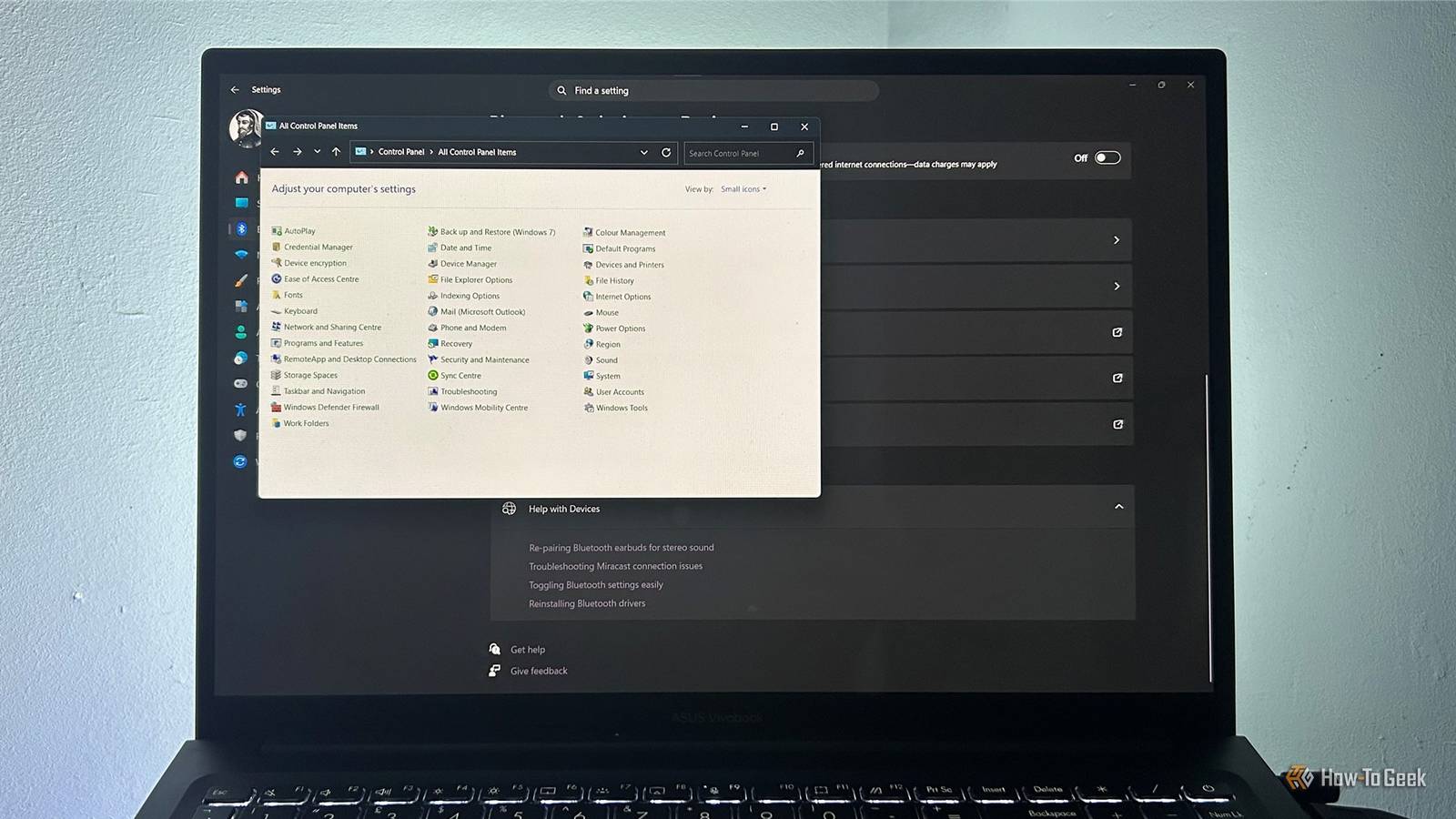
Published Oct 27, 2026, 4:00 PM EDT Tony Phillips is an experienced Microsoft Office user with a dual-honors degree in Linguistics and Hispanic Studies. Prior to starting with How-to Geek in January 2024, he worked as a document producer, data manager, and content creator for over ten years, and loves making spreadsheets and documents in his spare time. Tony is also an academic proofreader, experienced in reading, editing, and formatting over 3 million words of personal statements, resumes, reference letters, research proposals, and dissertations. Before joining How-To Geek, Tony formatted and wrote documents for legal firms, including contracts, Wills, and Powers of Attorney. Tony is obsessed with Microsoft Office! He will find any reason to create a spreadsheet, exploring ways to add complex formulas and discover new ways to make data tick. He also takes pride in producing Word documents that look the part. He has worked as a data manager in a secondary school in the UK and has years of experience in the classroom with Microsoft PowerPoint. He loves to encounter problems in Microsoft Office and use his expertise and legal-level training to find solutions. Outside of the Microsoft world, Tony is a keen dog owner and lover, football fan, astrophotographer, gardener, and golfer. Windows 11 looks considerably more modern than its predecessors, with a redesigned Start menu, rounded corners, and a Settings app that brings many controls together. But spend enough time using it, and the fresh coat of paint starts to give way to familiar bits of older Windows. From legacy Control Panel windows to context menus that feel like they belong to another era, the operating system doesn't always feel like one joined-up experience. Five years after launch, I still find myself wondering why so much of Windows 11 feels unfinished. Windows 11 still sends you back to Control Panel Settings can't do everything yet One of the strangest things about Windows 11 is how often its modern Settings app sends me looking for older interfaces to finish a task. Microsoft has spent years refreshing the operating system, yet some related controls still live in entirely different places. Take power plans. On my desktop, if I want to create a custom power plan, there's no option in Settings under System > Power & battery. Instead, searching the Start menu for "Choose a power plan" takes me to the classic Power Options window, where I can select "Create a power plan." Other routes are similarly unexpected. Under Settings > Bluetooth & devices > Devices, scrolling down to "Related settings" and clicking "More devices and printer settings" opens the familiar Control Panel window. And while the modern Sound settings page gives me access to volume, audio format, enhancements, and spatial sound, some advanced controls still require me to click "More sound settings" and open the older Sound dialog. There's a fair case for keeping legacy tools around for compatibility. The trouble is how arbitrary the handoff feels. I'll be clicking through sleek, modern Settings pages, only to be sent straight to an interface that looks like it was built for Windows 7, just to wrap up the same task. I still need "Show more options" quite a lot I understand why Microsoft simplified the Windows 11 right-click menu. A shorter list of commands looks cleaner and makes the most common actions easier to find. But when I need something outside that selection, I regularly have to click "Show more options" to open the older context menu. That's where I find familiar commands like "Print" and "Send to," alongside options such as "Scan with Microsoft Defender." For files stored in OneDrive or SharePoint, I may also see cloud-related commands such as "View online" or "Version history." Depending on the file and its location, useful parts of an everyday workflow can be buried one level down. The problem isn't that every command belongs on the top level—a cleaner menu makes total sense on paper. It's that I have to remember which version of the menu contains the command I want, then take an extra step to reach it. Splitting routine file-management tasks across two menu levels just gets in the way. I can still get to the commands I need, so Microsoft hasn't removed the functionality altogether. But having to open a second menu to reach familiar file-management tools adds friction to an action I perform regularly. Some windows follow your preferences; others don't Dark mode doesn't apply consistently across Windows Windows 11 has a dark mode, which I switch to when I work long hours, especially into the evening. File Explorer and Task Manager follow that preference, giving me dark backgrounds and a consistent appearance while I work. But when I open some older Windows tools, the visual experience changes abruptly. For instance, Devices and Printers still opens in a bright white window, while File Properties sticks to a pale, off-white gray. Neither window is broken, and a light background isn't inherently a design flaw. But the sudden contrast is jarring: switching between dark and light interfaces on the same screen undermines the consistency you'd expect from a system-wide theme. This is another example of Windows 11 feeling like several generations of Windows living side by side. The newer parts of the operating system have a recognizable visual style, but not every window follows it. That doesn't mean Microsoft needs to redesign every dialog simply to make it look fashionable. It does mean that a system-wide preference feels less comprehensive when the result depends on which part of Windows I'm using. Windows 11 has modernized plenty, but the experience remains uneven Five years should be enough to join the dots Windows 11 is more modern today than it was at launch, and Microsoft has made plenty of improvements along the way. But modernizing individual parts of Windows isn't quite the same as making the whole experience feel coherent. Having to jump from Settings to Control Panel, open a second context menu to find familiar commands, or switch between dark and light windows might seem like a collection of minor annoyances. None makes Windows unusable, and each has its own explanation. Together, though, they make the operating system feel less consistent than you'd expect from a mature product. Microsoft doesn't have to rebuild every legacy dialog or make every corner match pixel for pixel. But the handoffs between old and new should feel deliberate. Using Windows 11 shouldn't feel like an archaeological dig to see which era of Windows handles the setting you clicked. A fresh coat of paint only goes so far Windows 11's inconsistencies aren't always easy to fix using Microsoft's built-in settings, but that doesn't mean you have to live with every interface decision. I use a $5 app called StartAllBack to change several things I've never liked about Windows 11, including its taskbar, Start menu, and right-click menu. It's a useful workaround, but I'd still rather see Microsoft bring the operating system's different parts together properly. Five years on, Windows 11 still doesn't feel like one cohesive operating system.
Why Windows 11 still feels chaotic 5 years later
Full Article
Original Source
Read the full article at Howtogeek →KhanList aggregates and links to publicly available news content. We do not host full articles from third-party sources. Always verify important information with original sources.