
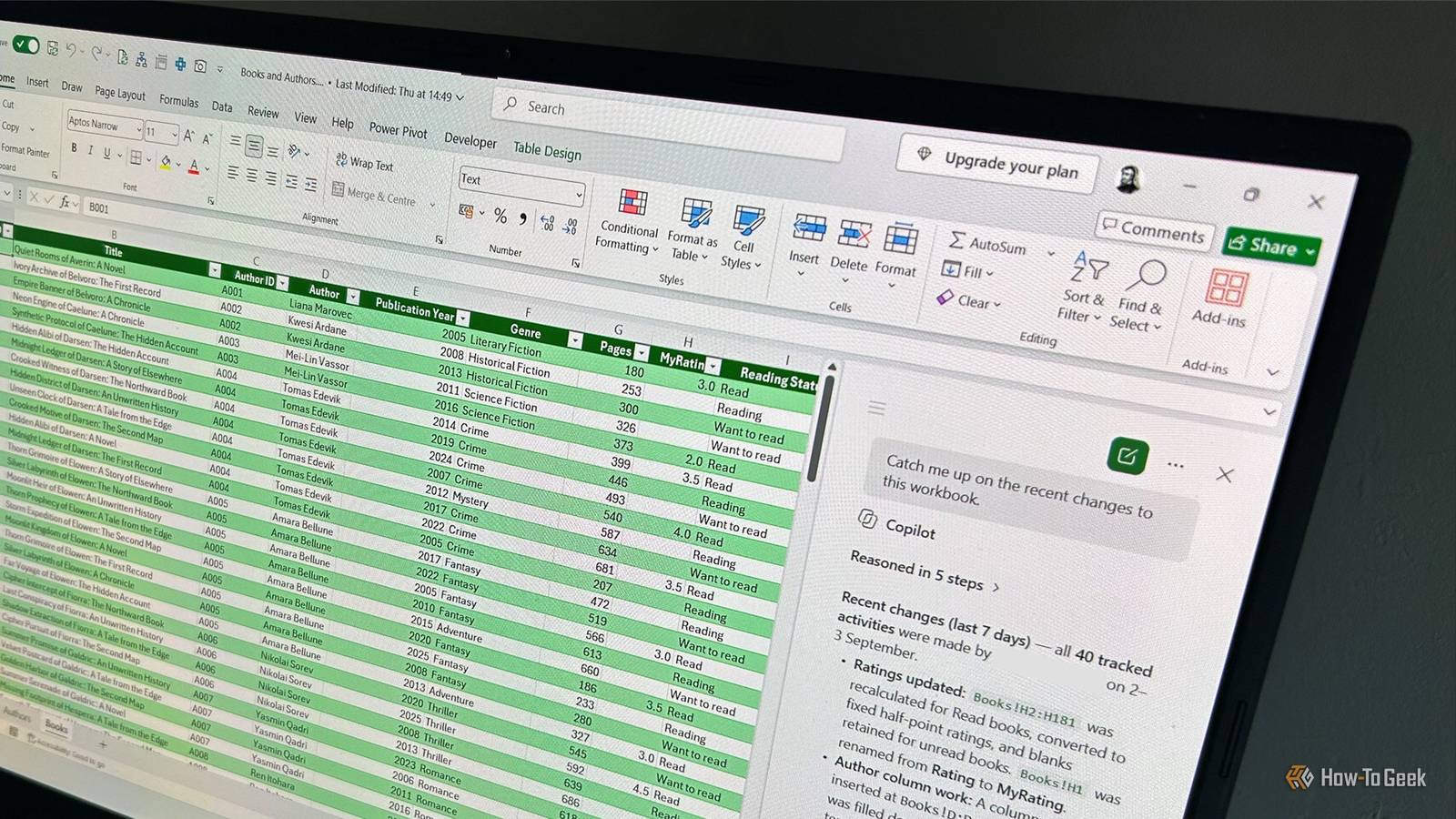
Published Sep 7, 2026, 7:00 AM EDT Tony Phillips is an experienced Microsoft Office user with a dual-honors degree in Linguistics and Hispanic Studies. Prior to starting with How-to Geek in January 2024, he worked as a document producer, data manager, and content creator for over ten years, and loves making spreadsheets and documents in his spare time. Tony is also an academic proofreader, experienced in reading, editing, and formatting over 3 million words of personal statements, resumes, reference letters, research proposals, and dissertations. Before joining How-To Geek, Tony formatted and wrote documents for legal firms, including contracts, Wills, and Powers of Attorney. Tony is obsessed with Microsoft Office! He will find any reason to create a spreadsheet, exploring ways to add complex formulas and discover new ways to make data tick. He also takes pride in producing Word documents that look the part. He has worked as a data manager in a secondary school in the UK and has years of experience in the classroom with Microsoft PowerPoint. He loves to encounter problems in Microsoft Office and use his expertise and legal-level training to find solutions. Outside of the Microsoft world, Tony is a keen dog owner and lover, football fan, astrophotographer, gardener, and golfer. I often open an Excel spreadsheet and wonder what has changed since the last time I used it. Sometimes I've made the changes myself and simply forgotten what I did, and other times, someone else has edited the workbook. Either way, figuring out what happened can mean digging through the spreadsheet's history. Excel already has a couple of ways to keep track of changes in a workbook. Version History lets you look back at earlier versions of a workbook, while Show Changes gives you a more detailed record of individual edits. They're both useful, but a new feature makes it much easier to find out what happened. Excel has a better way to find out what changed No comparing versions or digging through edit lists One problem with Version History and Show Changes is that they can leave you doing a lot of the detective work yourself. With Version History, you have to click through different iterations of the workbook to find the one you need, meaning you can end up with multiple windows open. And with Show Changes, a workbook with lots of small edits can result in a very long list that takes time to work through. That's where Copilot's change history capability comes in. Rather than making you work through the history yourself, you can ask Excel to investigate the changes and tell you what it finds. Microsoft says the change history skill is "now generally available." Access depends on your Microsoft 365 subscription and organization settings. You can start with a broad prompt like: Catch me up on the changes to this workbook. Instead of giving you another long list to work through, Excel can summarize the key changes, including who made them and when. You can also ask about a particular period, worksheet, range, or cell when you want to narrow things down: Explain any important changes Laura made to the Venue column in the Rounds worksheet since last Friday at 4 p.m. That alone makes the history much easier to work with, but you can go even further with this tool. For example, you can ask Excel to highlight changes made by different people (or by Copilot) using different colors. This is useful because you can then see the changes directly in the worksheet, rather than having to keep switching between the spreadsheet and a list of edits, and you can review each change in its original context: Highlight all the changes made by Mike in yellow and all the changes made by Sara in green. You can also take action on the changes you've found, like asking Excel to undo Copilot-assisted changes made by a particular person while keeping that person's manual edits: Undo all the changes Dave made using Copilot this morning, but keep all his manual changes. Where this tool becomes particularly useful is when something goes wrong. If a formula breaks, Copilot can help trace the changes that led to the problem, explain what happened, and restore a previous working formula: The formula in the Profit column of the T_Sales table worked yesterday but is now broken. Identify the change that caused this break, explain how that resulted in a broken formula, and revert the formula back to the one that worked. Copilot doesn't replace Excel's existing history tools You still have more detailed options when you need them Copilot's change history skill makes it easier to get an overview of what happened, but there are times when you need to see the underlying history for yourself. If you need to restore an older version of a workbook, Version History is still the tool to use. You can open previous versions, compare them with the current workbook, and restore the version you want. And Show Changes is still useful when you want to inspect the underlying change history yourself. It shows who changed a cell, when the change was made, and, where available, the previous value. It's worth bearing in mind that some changes may not appear in Excel's change history, including formatting, chart and shape edits, and PivotTable changes. Copilot can only report changes available in that history, so its summary isn't a complete record of everything that has happened in a workbook. Finally, Microsoft notes that "Excel tracks supported changes for up to 365 days." For me, the three tools work well together. Copilot gives me the quickest way to get an overview of what happened, while Version History and Show Changes give me the detailed evidence when I need to dig deeper. Copilot is finally becoming useful I'll admit that I was previously one of Copilot's biggest critics, especially when it came to Excel. But as I explained when I recently put it through its paces with things like building dashboards, creating complex formulas, and turning data tables into individual reports, I'm finding more reasons to keep it around. The change history skill is yet another string to its bow.
This new Excel feature saves me from digging through change history
Full Article
Original Source
Read the full article at Howtogeek →KhanList aggregates and links to publicly available news content. We do not host full articles from third-party sources. Always verify important information with original sources.