
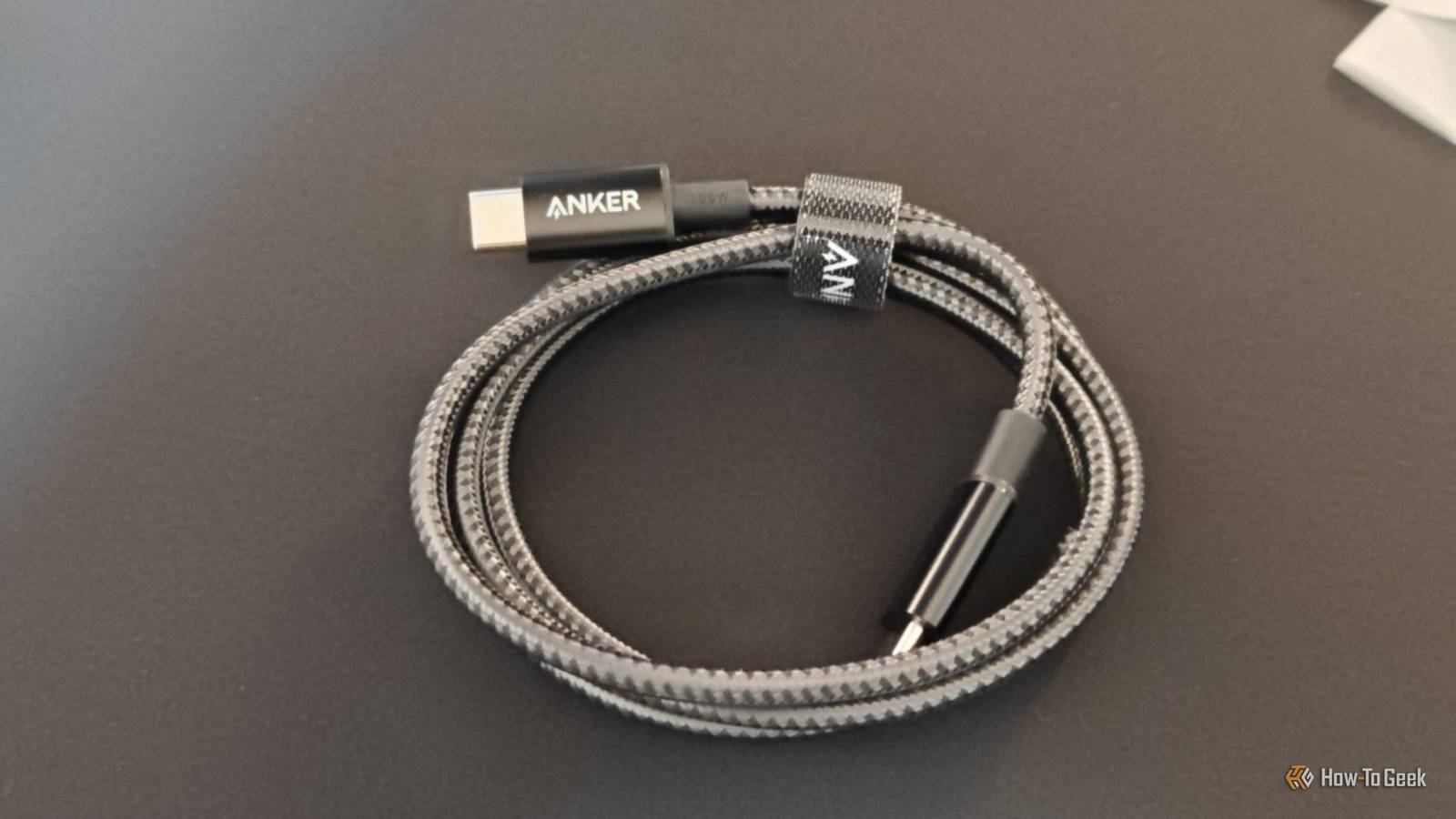
Published Sep 13, 2026, 7:30 AM EDT Arol is a tech journalist who currently works as a contributor at How-To Geek since 2022. He first began writing online for the short-lived portal of Spanish-language gaming forum Emudesc in 2013. Years later, in 2017, he got his true start in tech journalism working for a small Google-focused site called Pixel Spot. He transitioned to a news and feature writer role at XDA Developers that same year, where he worked until 2021 before making the jump to other websites. Arol brings nearly a decade of writing experience, and the occasional hot take, to his writings. While he's a technology lover at heart, he holds computer hardware and smartphones particularly close to heart. You'll normally find him covering news, although he has also written the occasional deal, buyer's guide, how-to post, and round-up. He's also written for Android Police and MakeUseOf. He's also a Political Science student. When he's not writing, you'll probably find him hitting the gym, trying to ace a new hobby, reading his textbooks, or traveling. You can reach him at me@arolwright.com. Two USB-C cables can look identical, fit the same port, and behave completely differently on your computer. One charges a laptop at full speed and transfers files in seconds; the other barely keeps a phone topped up. Baffling, I know. But you'd be surprised by how much stuff can differ between two cables full of copper. Why don't they work? USB-C is a connector, not a promise USB-C only standardizes the shape of the plug and the fact that it works either way up. It says nothing about what's actually built into the cable itself, which is why a cheap unbranded cable and an expensive one from a known manufacturer can share an identical connector while negotiating completely different link speeds with a device. Some cables carry only enough wiring for basic USB 2.0 data, topping out at 480 megabits per second, while others carry the full set of high-speed lanes needed for 40 gigabits per second and simultaneous video output. Some cables might have the wiring, but don't really know how to use it. The component responsible for telling your PC and charger what a cable can actually do is the e-marker chip, a small chip embedded in the plug that communicates with the host and charger over the cable's configuration channel wire. A cable only needs this chip if it's rated above USB 2.0 speeds or above 60 watts and 3 amps of power. Without it, both ends of the connection assume the safest possible configuration. That means a cable lacking an e-marker will cap out at 60 watts of charging, 480 megabits per second of data, and no video output at all, regardless of what the charger or laptop is capable of on its own. This is also why the cable bundled with a phone often disappoints when used elsewhere: it was built exactly to the modest specification it was sold for, not as a defective product. A fully capable cable, by contrast, can carry up to eighteen internal wires across a twenty-four pin connector, and losing even a few of those wires is enough to break video output or high-speed transfers while charging still works fine. The solution: check what cables you're buying Buy by capability, not by connector shape USB-C cableCredit: Monica J. White / How-To Geek The fix starts before the cable ever reaches your desk. Instead of assuming any USB-C cable will work for any task, match the purchase to what the job actually requires: the charging wattage your laptop or handheld console needs, the data speed your external drive is rated for, and whether you need video passthrough for a monitor. A charging-only cable can look identical to a full-featured display cable while lacking the wiring or e-marker data needed for stable video, so shape alone tells you nothing. Look for cables that explicitly state their specifications on the packaging or product listing rather than relying on generic "USB-C" branding. That includes a wattage figure, a data speed in gigabits per second, and, where relevant, Thunderbolt or USB4 certification. USB-IF certification specifically means a cable has been tested against the industry's official standards for reliability and performance, which is a stronger signal than price or appearance. Power needs deserve particular attention. Laptops, power banks, and gaming handhelds that require 65 watts or more of charging need a cable built with an e-marker to reach those speeds, and a cable without one will silently cap charging well below what the charger is capable of delivering. The same logic applies to displays: a cable needs to explicitly list video support, DisplayPort alternate mode, or USB4 compatibility before it can be trusted to drive an external monitor. Buying based on the heaviest task the cable will ever need to handle, rather than the cheapest option that physically fits, avoids most of these problems before they start. Is there something you can do if you already have the cables? Test what you already own before tossing it Credit: Nick Lewis / How-To Geek Cables already sitting in a drawer don't have to be a mystery. On Windows, Device Manager can show how devices are connected, but it displays the hierarchy of the connection rather than the actual negotiated speed. For a more accurate reading, Microsoft's own USBView utility, part of the Windows SDK, shows the real speed being negotiated on each port, while a free third-party tool called HWiNFO displays each port's maximum supported speed alongside what speed a connected device is actually running at. On a Mac, the same information is available by checking the USB section of System Information. When a device that should run at full speed is instead falling back to something much slower, the cause could be anywhere along the connection. Microsoft specifically documents USB 2.0 hubs and underspecified cables as common reasons a SuperSpeed-capable device falls back to slower operation, so the most reliable way to isolate the problem is to change one variable at a time: try a different cable with the same device and port, then the same cable on a different port, until the bottleneck reveals itself. For anyone who wants a definitive answer without guesswork, dedicated hardware testers exist for exactly this purpose. Continuity testers built for USB-C can confirm which data speeds a cable actually supports and detect whether an e-marker chip is present inside it. If a cable consistently underperforms no matter what it's paired with, that's a clearer signal to retire it than any amount of further troubleshooting. The cable matters as much as the port USB-C's universal shape created an illusion of universal capability. In reality, what's wired inside each cable decides whether a connection reaches its full speed, charges at full power, or drives a display at all.
This is the real reason some USB-C cables just don't work with your PC
Full Article
Original Source
Read the full article at Howtogeek →KhanList aggregates and links to publicly available news content. We do not host full articles from third-party sources. Always verify important information with original sources.