
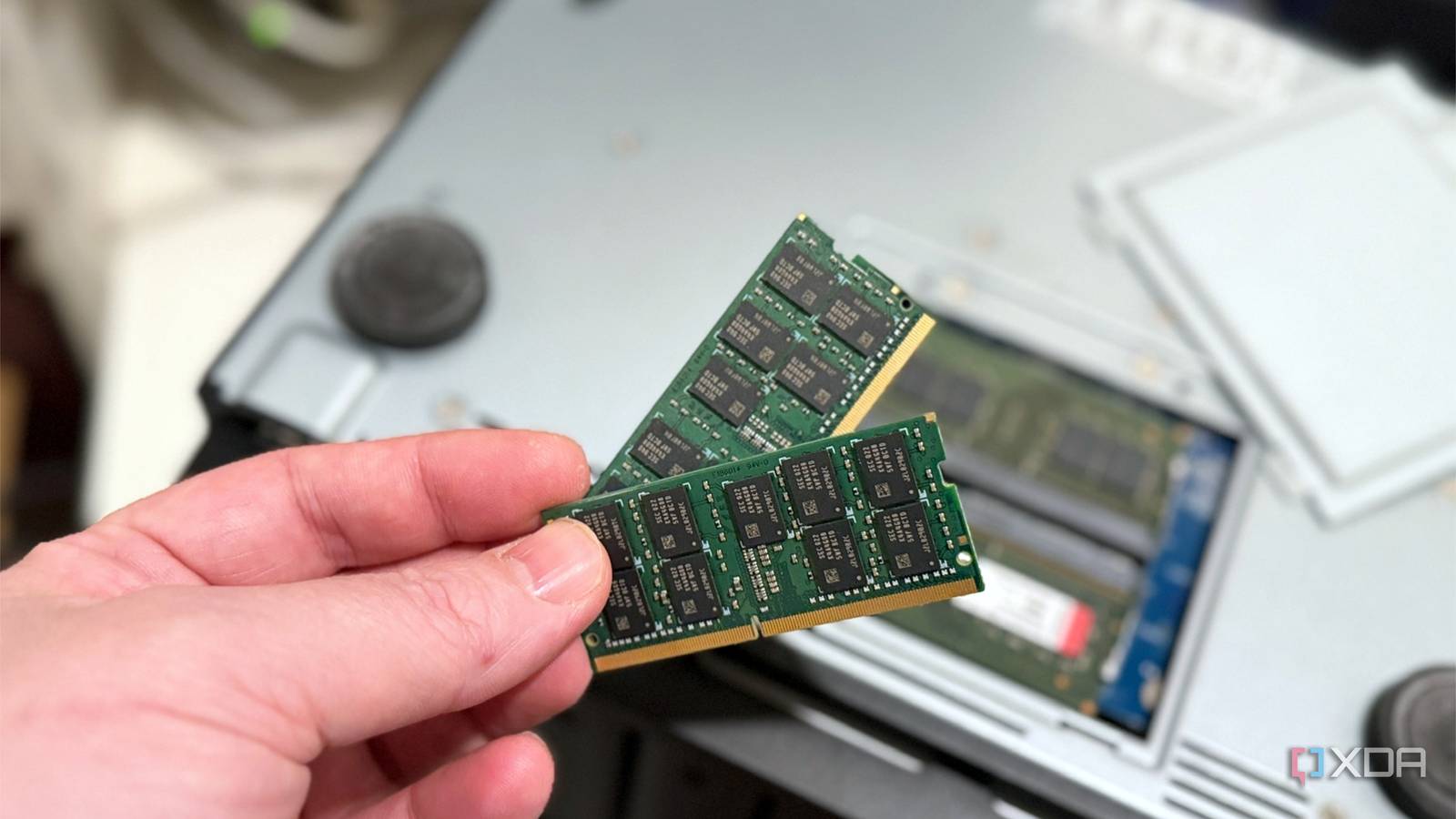
Published Oct 7, 2026, 10:00 AM EDT Maker, meme-r, and unabashed geek, Joe has been writing about technology since starting his career in 2018 at KnowTechie. He's covered everything from Apple to apps and crowdfunding and loves getting to the bottom of complicated topics. In that time, he's also written for SlashGear and numerous corporate clients before finding his home at XDA in the spring of 2023. He was the kid who took apart every toy to see how it worked, even if it didn't exactly go back together afterward. That's given him a solid background for explaining how complex systems work together, and he promises he's gotten better at the putting things back together stage since then. My Synology DS1621xs+ got its first upgrade years ago, and it wasn't the obvious one. I filled both M.2 slots with 500GB Gen4 NVMe drives and set them up as an SSD cache because the spec sheet said that's what the slots were for. The RAM upgrade, from the stock 8GB to 32GB, came later. I can't say I've ever filled the memory up, and I bought those two modules based on the maximum my NAS would support. I've since tested SSD caching in my NAS properly, and I've had it backward the whole time. For most home setups, memory does the job people buy a cache for, and does it faster. There are a few cases where the cache still earns its slot, though, and they're worth knowing before you spend money on either. Your NAS already has a cache, and it's made of RAM You just won't find it in Storage Manager Every major NAS operating system runs on Linux, including Synology DSM, QNAP QTS, UGREEN UGOS, Unraid, and TrueNAS SCALE. Linux treats any memory that apps aren't using as a read cache, called the page cache. Open a file once, and it stays in RAM until something else needs the space, so the second read never touches a drive. That cache is faster than any SSD you can put in an M.2 slot; it needs no setup, and it doesn't show up as a cache anywhere in DSM. Resource Monitor just calls it "Cached" memory. So the real question isn't RAM or cache. It's whether your NAS needs a second, slower cache on top of the one it already has. ZFS users figured this out years ago. The standard advice on the TrueNAS forums is to max out the RAM before adding L2ARC, its SSD read cache, and XDA's own guide to using a spare SSD for L2ARC on TrueNAS says the same. A Synology box plays by the same rules. It just doesn't advertise it. Your containers want more memory, not cache Swap on hard drives is a slowdown that's rarely tested The average user might be using a stock NAS running Plex, a couple of Docker containers, Synology Photos, and a backup task. None of those are heavy on their own, but together they can push memory use to the limit. When that happens, DSM starts moving memory to swap on the hard drives, and a swapped-out app waits on spinning platters every time it wakes up. One popular Synology Docker guide warns that DSM "will begin using swap on disk and killing services when everything is competing for it," even while it shows free memory, and recommends at least 8GB, ideally 16GB or more. An SSD cache doesn't address this problem. It speeds up reads from your volume, not the memory pressure making everything else crawl. When your hot data fits in memory anyway A read cache only helps with data you read more than once. On a home NAS, that's usually a small set: the folders you browse every day, photo thumbnails, a Plex or Jellyfin database, and the file system's own metadata. For one household, that hot set is often a few gigabytes, which fits comfortably in 16GB or 32GB of RAM. Picture someone scrolling through a big photo library over SMB. The first pass pulls thumbnails and directory listings off the hard drives. With enough RAM, every pass after that comes from memory, and an SSD cache would just be keeping a second, slower copy of the same data. Memory wins this one because it would serve those reads before the SSD could. My own testing hinted at this. When I finally put that empty NVMe slot on my NAS to work, a read-only Optane cache hit 64% and quadrupled synthetic random read speed. But container starts, database work, and file extraction all ran the same or slower. Those numbers were also measured with the RAM cache deliberately switched off, which is why the SSD looked impressive. When you mostly stream and store data Synology's own SSD cache documentation says the SSD cache only accelerates random I/O and skips sequential transfers like video streaming. Movies, music, Time Machine backups, and big file copies are mostly sequential, so they go straight to the hard drives as if the cache wasn't there. To be fair, more RAM isn't a miracle here either, since hard drives and the network set the pace for big transfers. But the extra memory still buffers incoming writes and keeps metadata handy, and it costs nothing to configure. If your NAS is mainly a media library and a backup target, an SSD cache is two M.2 slots doing very little. When a big cache eats a small NAS's memory The cache needs RAM to run Here's the part almost nobody mentions. Synology's SSD cache keeps a map of what's on the SSD in system memory, roughly 400KB of RAM for every gigabyte of cache. DSM also limits the cache to 25% of installed memory, according to Synology's cache creation guide. I've got 32GB in my Synology, so that overhead is noise. On a stock DS224+ or DS423+ with 2GB, it comes out of the same small pool your apps and page cache are already fighting over. So the people most tempted to add a cache instead of RAM are the ones for whom it costs the most. ZFS has the same catch, since L2ARC keeps its index in RAM too. A read-write cache can lose data, but RAM can't A read-only cache is safe, because everything on it already lives on the hard drives. A read-write cache is different. New writes sit only on the SSDs until DSM flushes them, which is why Synology requires two drives in RAID 1 and still warns that you can lose data if more SSDs wear out than the array can tolerate. RAM has no equivalent failure mode. If a module dies, replacing it keeps your storage volume untouched. Upgrading is easier too. DSM runs third-party ECC memory with an "unsupported" notice, while Synology still won't let you create a new SSD cache with third-party NVMe drives on its 2025 models. Where an SSD cache still wins Databases don't care how much RAM you have It wouldn't be fair to stop there. Databases and VM disks don't just write data; they force it onto permanent storage before moving on, with a call named fsync. RAM can't speed that up without turning off the safety net that keeps your database from corrupting after a power cut. That's where a read-write cache shines. In my testing, a read-write Optane cache cut a Postgres container's cold start from 33.1 seconds to 7.2 seconds and more than tripled database throughput, from 109 to 366 transactions per second. No RAM upgrade would have done that. The other case is a NAS that's already at its memory limit, with lots of users and a hot set bigger than RAM, where a read cache is the only way to add another fast tier. Even then, I'd consider an NVMe storage pool for the databases first. You get the same write speed without risking your main volume. Check your memory graph before buying SSDs If you're weighing the two, open Resource Monitor or whatever shows you memory usage on your NAS first. Swap in use or memory pinned near full means it's time to upgrade your NAS RAM. If databases or VMs are slow, look at the write path with a read-write cache or an NVMe volume. And only consider a read-only cache once the RAM is maxed and your re-read data still doesn't fit. The only caveat is memory pricing, so don't overbuy if you are expanding: 16GB is plenty for most users with prebuilt NAS enclosures.
I upgraded my NAS with an SSD cache, then realized more RAM would have solved everything
Full Article
Original Source
Read the full article at Xda-developers →KhanList aggregates and links to publicly available news content. We do not host full articles from third-party sources. Always verify important information with original sources.