
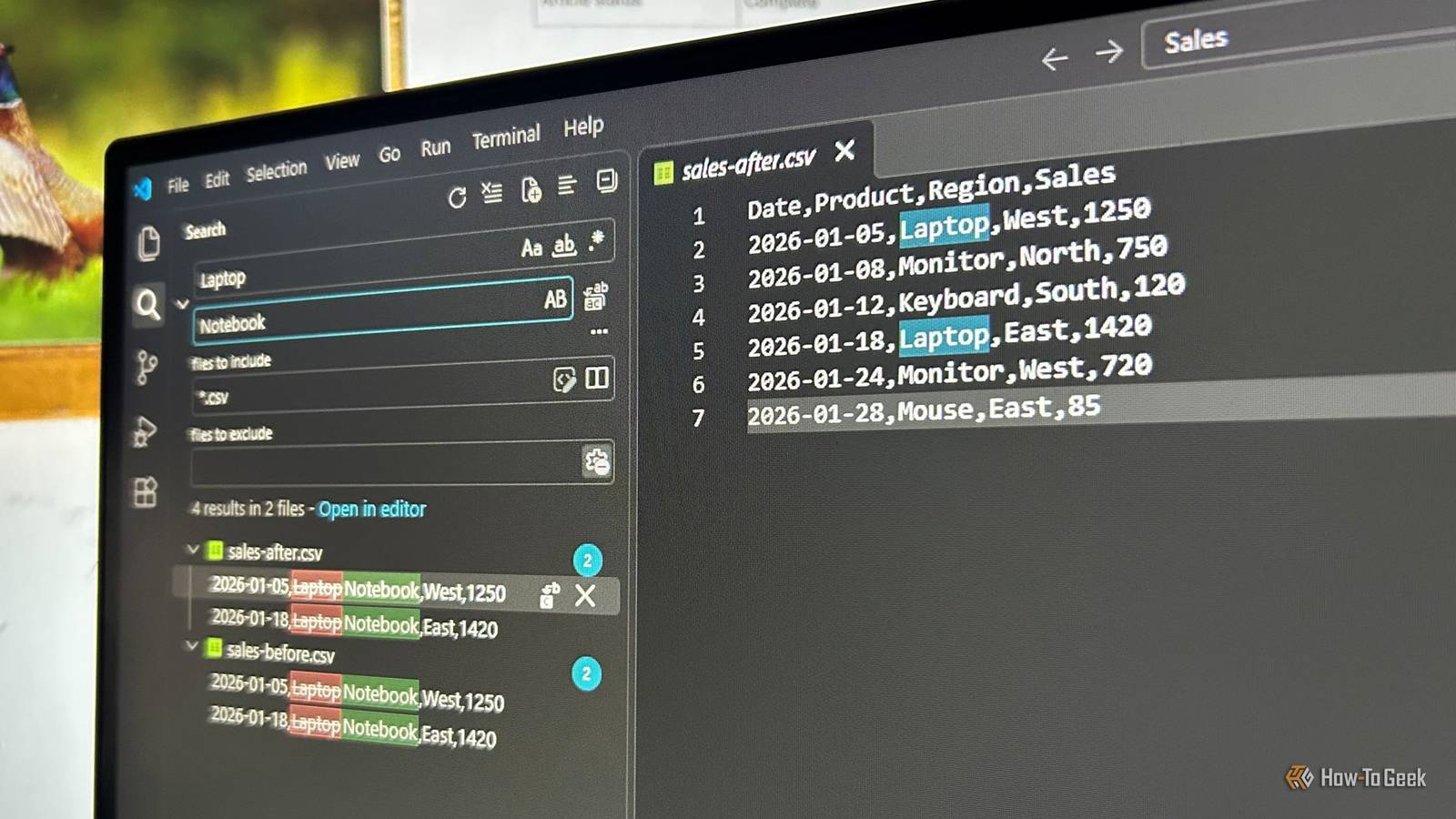
Published Oct 7, 2026, 1:30 PM EDT Tony Phillips is an experienced Microsoft Office user with a dual-honors degree in Linguistics and Hispanic Studies. Prior to starting with How-to Geek in January 2024, he worked as a document producer, data manager, and content creator for over ten years, and loves making spreadsheets and documents in his spare time. Tony is also an academic proofreader, experienced in reading, editing, and formatting over 3 million words of personal statements, resumes, reference letters, research proposals, and dissertations. Before joining How-To Geek, Tony formatted and wrote documents for legal firms, including contracts, Wills, and Powers of Attorney. Tony is obsessed with Microsoft Office! He will find any reason to create a spreadsheet, exploring ways to add complex formulas and discover new ways to make data tick. He also takes pride in producing Word documents that look the part. He has worked as a data manager in a secondary school in the UK and has years of experience in the classroom with Microsoft PowerPoint. He loves to encounter problems in Microsoft Office and use his expertise and legal-level training to find solutions. Outside of the Microsoft world, Tony is a keen dog owner and lover, football fan, astrophotographer, gardener, and golfer. For years, I've thought of a CSV as something I open in Excel. Rows, columns, filters, formulas—that's the point, right? Except a CSV isn't really a spreadsheet at all. It's a text file that Excel happens to be very good at turning into one. That distinction suddenly became useful when I discovered Visual Studio Code (VS Code). It's a free code editor from Microsoft, but I don't use it to program. I use it alongside Excel when I need to work with the CSV itself, doing things that make much less sense once Excel has turned it into a spreadsheet. Work with CSVs bigger than an Excel worksheet Sometimes Excel isn't invited I recently had a CSV file with more than 2.2 million rows that I wanted to inspect before doing anything with it in Excel. That's a problem because an Excel worksheet tops out at 1,048,576 rows, so if I open the file as a worksheet, some data is truncated. But because VS Code treats the CSV as a text file, I could open the entire file, search through it, and inspect records without hitting Excel's worksheet limit. Once I've checked the source file and made any necessary changes, I'd use Power Query to load it into the Data Model for analysis. VS Code lets me see and work on the whole file first; Excel can then get on with the spreadsheet work. Change values in multiple CSVs at once One change, every file I was surprised by how useful VS Code's search and replace became when I had several CSVs containing the same value. Instead of opening each file in Excel, I could open the folder in VS Code (File > Open Folder) and press Ctrl+Shift+F to search across all the files at the same time. The results show the filename and matching text, and clicking one takes me straight to that occurrence in the CSV, where I can review or edit it. Ctrl+Shift+H takes this a step further, opening search and replace across the folder. I can limit the search to *.csv, check the matches in the preview, and then replace every occurrence at once. Because VS Code is searching the text rather than understanding my CSV's columns, a replacement can also affect partial matches or values in other fields. If I want to be more selective, I can open the individual CSVs from the search results and deal with particular matches separately. There's an important caveat: Replace All changes everything within the search scope, so the preview and warning are worth taking seriously. It also makes good file organization more important. I like keeping related CSVs together while putting unrelated files, or finished versions, elsewhere. That way, the files I want VS Code to work on are naturally grouped within the same scope. Compare two CSVs without building a comparison in Excel Find the differences in seconds I've used conditional formatting and Power Query to compare datasets in Excel, and both have their place. If I'm auditing data or need a repeatable comparison, I'd still go to Excel. But sometimes I have two similarly named CSVs and simply want to know what changed. VS Code has a wonderfully direct answer. With one CSV open, I can open the Command Palette (Ctrl+Shift+P), choose File: Compare Active File With, then select the other CSV. VS Code opens them side by side and highlights changed, added, and deleted lines. Clicking a highlighted area takes me straight to the relevant part of the file. This works best when the two files have the same structure and row order. If the rows have been rearranged, VS Code can show many apparent changes simply because the lines no longer match up. Excel compares datasets. VS Code compares the files themselves. Edit a CSV without Excel interpreting it Make one change and leave everything else alone Changing one value isn't a good reason to abandon Excel. I've been doing that for decades. The difference is that Excel sees a CSV as data and may interpret what it finds as numbers, dates, or other data types. Sometimes that's exactly what you want, but other times you need the source text left alone. That's where VS Code has an advantage. It opens the CSV as plain text, so 00123 stays 00123, a long identifier such as 12345678901234567890 keeps all its digits, and a date-like value stays exactly as it appears in the file. I can find the text I want, change it, save the file, and leave everything around it untouched. This is particularly useful when I'm making a small correction to a CSV that another application will read later. I don't need to import the data, worry about how Excel has interpreted it, make my change, and then export it again. I can edit the source file directly and hand it back in the same text format. Fix a CSV when the encoding is wrong When José suddenly becomes Jos� VS Code is a useful escape hatch when characters in a CSV look broken. Different programs and older systems don't always use the same text encoding, so a file containing names such as José or Montréal can display garbled characters when it's opened using the wrong encoding. VS Code shows the file's current encoding in the bottom-right of the status bar. Click it and choose Reopen with Encoding, then select a different encoding to see whether the original characters reappear. For example, when I opened a Windows-1252 CSV as UTF-8, José appeared as Jos�. Reopening the file with Western (Windows 1252) restored the original characters. The important thing is not to save the file while you're viewing it with the wrong encoding. If you save it in that state, you can write the replacement characters into the file itself, and the original characters may no longer be recoverable. Reopen it with the correct encoding first, check that the text looks right, and then save it. Excel also lets you specify a file's encoding through Data > From Text/CSV, but VS Code lets me inspect and repair the source file without importing it first. Excel still does the spreadsheet work I came to VS Code for a handful of CSV jobs, and I've found it useful because it lets me work with the file itself. Excel still does the spreadsheet work, while VS Code gives me another way to deal with the files around it. If you're new to it, it's worth seeing what else VS Code can do outside of CSVs, because you may find other ways to make it a useful Excel companion.
VS Code is the overlooked Excel companion I didn't know I needed
Full Article
Original Source
Read the full article at Howtogeek →KhanList aggregates and links to publicly available news content. We do not host full articles from third-party sources. Always verify important information with original sources.