
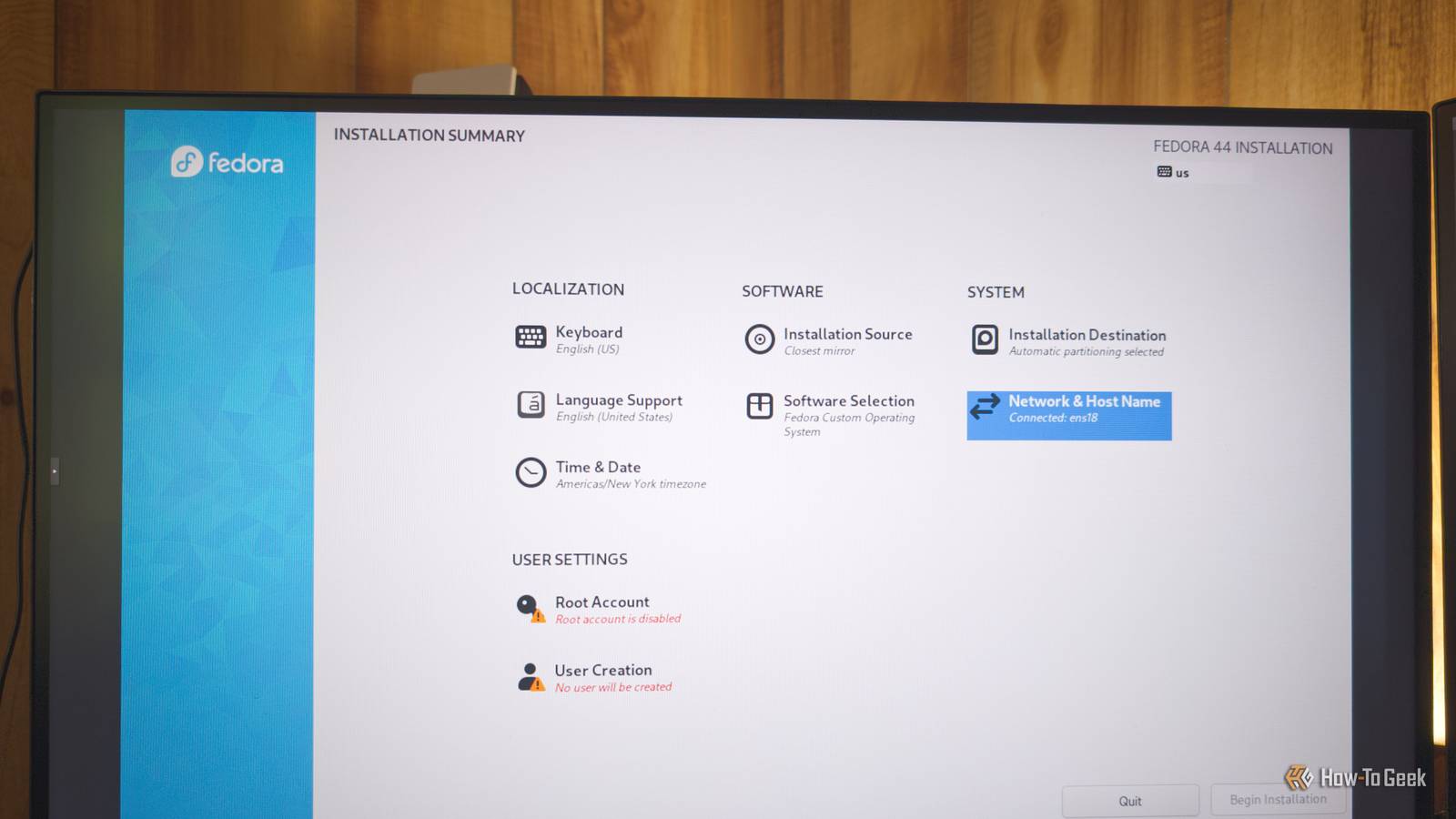
Published Sep 27, 2026, 8:00 AM EDT Nick Lewis is an editor at How-To Geek. He has been using computers for 20 years --- tinkering with everything from the UI to the Windows registry to device firmware. Before How-To Geek, he used Python and C++ as a freelance programmer. In college, Nick made extensive use of Fortran while pursuing a physics degree. Nick's love of tinkering with computers extends beyond work. He has been running video game servers from home for more than 10 years using Windows, Ubuntu, or Raspberry Pi OS. He also uses Proxmox to self-host a variety of services, including a Jellyfin Media Server, an Airsonic music server, a handful of game servers, NextCloud, and two Windows virtual machines. He enjoys DIY projects, especially if they involve technology. He regularly repairs and repurposes old computers and hardware for whatever new project is at hand. He has designed crossovers for homemade speakers all the way from the basic design to the PCB. Nick enjoys the outdoors. When he isn't working on a computer or DIY project, he is most likely to be found camping, backpacking, or canoeing. Sign in to your How-To Geek account Almost every Linux distro makes certain decisions for you in the interest of "completeness." That usually means that you'll wind up with a bunch of apps that you'll never use, taking up space on your PC. Worse yet, some of them are basically redundant. If you want to cut the bloat and have more control over which apps are installed on your Linux PC, you should consider Fedora Everything. Fedora Everything has almost nothing A network installer that builds your system piece by piece Most standard Linux ISOs are basically predetermined snapshots that copy the OS and a menagerie of apps to your PC. Except for a handful of choices during the installation, what you get is what the ISO includes. Fedora Everything takes a very different approach. Rather than packing everything into an ISO, Fedora Everything uses a net installer ISO. It boots right into the Anaconda installer and allows you to pick and choose what packages you'd like to include during the OS installation process. As a result, the ISO is less than half the size of the regular Fedora ISO—only 1.1GB compared to 2.7GB. The most important part of the process is the Software Selection screen. While you can choose standard base environments like Workstation or Xfce, you also have one bare-bones option: Fedora Custom Operating System. You can then use the add-on groups on the right to select the development tools or admin utilities you want to include. You also require an internet connection to use Fedora Everything since it must download the packages you select. A minimal installation will omit things you don't think about You'll probably find yourself missing things The Everything approach sounds great in theory, but in practice, I found that I significantly underestimated just how many defaults I had become accustomed to without thinking about them. The big one that is likely to trip you up is the desktop itself; Fedora Everything requires you to pick a desktop environment if you want one. If you want a command-line interface, that's fine, but it is tough as a daily driver. There is also no live session, which means you can't really test anything with your hardware before committing to an install. Fortunately, Fedora's requirements are generally pretty forgiving, so performance isn't likely to be a problem on most PCs. I also found that I was missing several things I use regularly: Basic editors aren't included. Many multimedia codecs aren't included by default. Drivers for peripherals, including Bluetooth drivers, aren't included. The Wi-Fi NetworkManager plugin doesn't install by default. Most of those glaring gaps only crop up if you pick Fedora Custom Operating system. I'd recommend selecting a few specific add-on groups: Common NetworkManager submodules Editors Administrator tools Those groups cover most of the pain points I stumbled into, though Bluetooth and Power Profiles will need to be installed later. As with almost every Fedora-based distro, codecs require RPM fusion. If you need a GUI, you can pick a lighter environment like Xfce instead of Minimal install, then add those same groups. Make sure to configure your root password too. Building up is still easier than stripping a heavy OS Despite those annoyances, I found that assembling a light distro piece by piece is far easier than removing components from Fedora Workstation to achieve the same end result. Because of how Linux package dependencies and packages tend to work, removing one thing will sometimes have unexpected consequences for other apps. Unless you know how they all interact—and no one has every dependency memorized—you're going to inadvertently remove one thing that removes three other things. It is practically unavoidable. Building up a distro, while also a bit tedious, is much less prone to that kind of problem. If you try to install something and you're missing a dependency, DNF will almost always provide a list of missing dependencies and prompt you before installing them. Everything gives you Fedora exactly how you want it Fedora Everything took me somewhere between 30 minutes and an hour to get set up the first time, but the time spent was probably worthwhile—I have a lot of use cases that call for minimalist installations. And I get to keep the Fedora foundation, which is excellent. You could also automate the process if you plan to deploy several specific installs to multiple devices. Fedora Everything lends itself to Kickstart files because it uses Anaconda. You could also just write a Bash script that automatically downloads and installs a list of packages and applications using the DNF package manager once the OS is installed. Both work, but the Bash script approach is probably easier. If you want to see the difference in packages, run rpm -qa | wc -l on both your Fedora Everything installation and a standard Fedora Workstation installation. The difference can be enormous.
I tried Fedora Everything, now I have a Linux desktop without any bloat
Full Article
Original Source
Read the full article at Howtogeek →KhanList aggregates and links to publicly available news content. We do not host full articles from third-party sources. Always verify important information with original sources.