
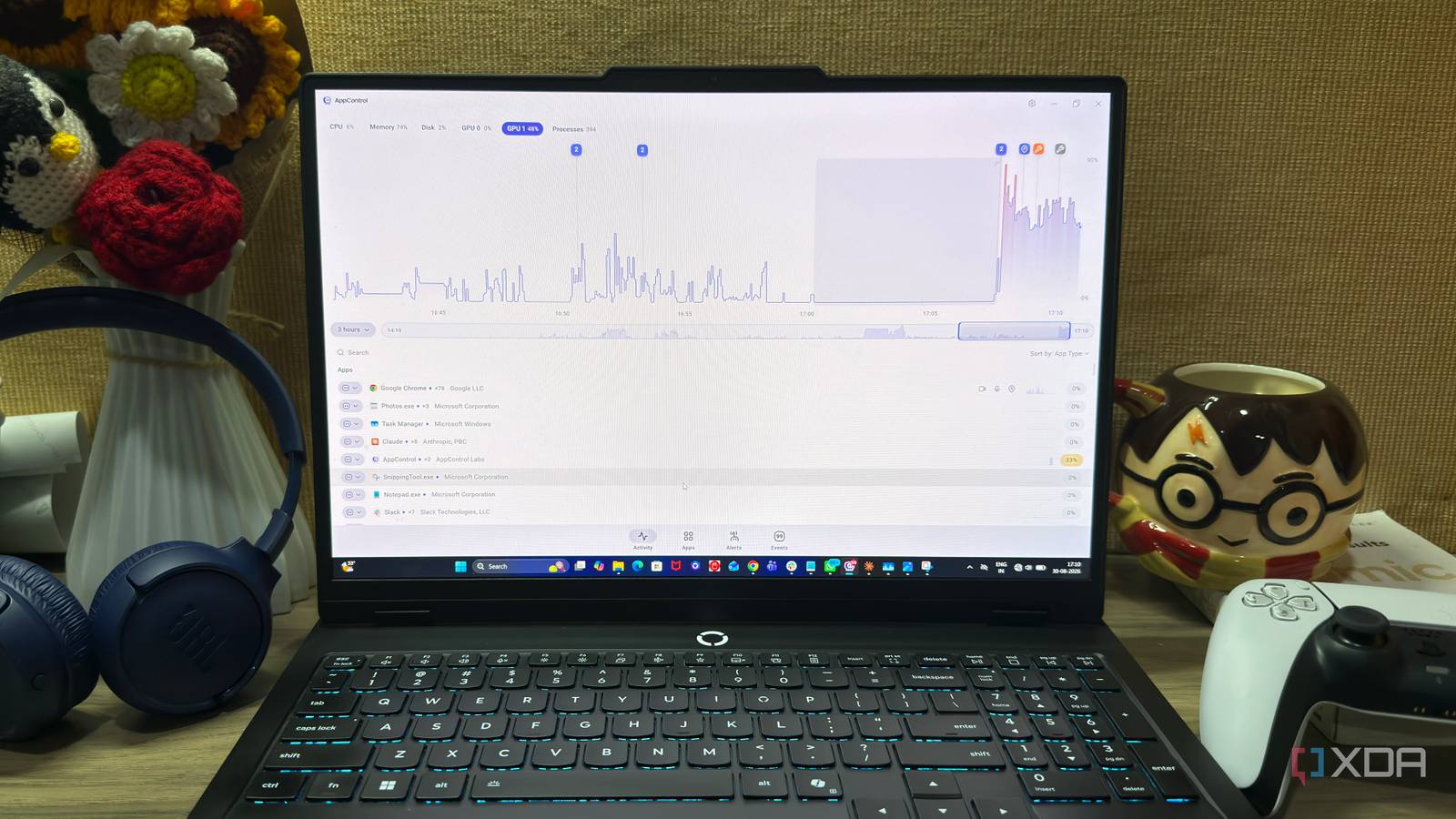
Published Sep 7, 2026, 5:00 PM EDT Beginning his professional journey in the tech industry in 2018, Yash spent over three years as a Software Engineer. After that, he shifted his focus to empowering readers through informative and engaging content on his tech blog – DiGiTAL BiRYANi. He has also published tech articles for MakeTechEasier. He loves to explore new tech gadgets and platforms. When he is not writing, you’ll find him exploring food. He is known as Digital Chef Yash among his readers because of his love for Technology and Food. My Windows PC has a habit of slowing down at the worst possible time. A browser starts taking longer to respond, an app suddenly freezes, or everything feels slightly sluggish for no obvious reason. I've spent enough time dealing with these little slowdowns to know that restarting isn't always the answer. So I decided to try something different. Instead of relying entirely on the tools Windows already gives me, I looked for a free utility that could help me understand what was happening on my PC. That's how I ended up trying AppControl. After using it for a while, I found myself reaching for it whenever Windows started behaving strangely. Task manager gives me numbers But not much context When my PC starts feeling slow, Task Manager is usually the first place I check. It gives me a quick snapshot of CPU, memory, disk, and network usage, so I can see which resources are under pressure. But those numbers don't always tell me what I need to know. A process might use a lot of CPU, but that doesn't necessarily mean it's causing the slowdown. The same problem comes up with memory and disk usage. I can see that something is busy, but I don't always get enough information to understand what that activity means. I often sort processes by different columns, watch the numbers change, and try to connect those changes to what I'm experiencing. It works for obvious problems, but it becomes frustrating when the cause isn't immediately clear. That's where I felt Task Manager started to fall short. It gives me plenty of raw information, but I still have to piece the story together myself. AppControl gives me a different view of Windows A simpler way to see what Windows is doing The first thing I noticed about AppControl was that it felt different from Task Manager. It wasn't just another screen filled with numbers and columns. Instead, it gave me a clearer way to look at the software and Windows components on my PC. I could move through the different sections and get a better idea of how my system was set up. I didn't have to dig through several Windows menus to find basic information, which made the process much easier. What I liked most was that AppControl wasn't only useful when something went wrong. I could open it while my PC was working normally and get a better sense of what was happening. The interface also didn't make me feel like I needed to understand every technical detail first. I could explore the different options at my own pace and focus on the information that mattered to me. That made AppControl feel less like another complicated Windows utility and more like a practical way to understand my system. It helps me find the background processes I usually ignore The processes hiding in plain sight AppControl made these things easier for me to spot. I could look through what was running and see software that I had completely forgotten about. Some of it came from apps I had installed months ago, while other items were part of Windows itself. This was useful because I could connect some of what I saw with the software I actually use. If I didn't recognize something, I could take a moment to find out what it was instead of simply assuming it was important. I also liked being able to look at these background items without waiting for my PC to slow down. It gave me a better idea of what was quietly active during normal use. I wasn't trying to stop everything from running. I just wanted to know what was there, and AppControl made that much easier. I can finally do something about the clutter I don't have to guess what needs attention Once I found an app that was causing trouble, I wanted an easy way to deal with it. AppControl gives me a few options instead of leaving me to restart the PC and hope for the best. If an app is using too many resources, I can try closing it normally first. If it's frozen or doesn't respond, I can kill the process and see whether the system settles down. For apps that repeatedly cause problems, I can also disable them. That gives me a way to stop the same issue from coming back while I figure out what is wrong. I also like that I can see whether my actions have actually made a difference. If closing an app frees up resources and the PC starts responding normally again, I have a much better idea of what caused the issue. I don't treat these controls as an excuse to remove or disable everything I don't recognize. Windows has plenty of components that serve a purpose. I only change something when I understand what it does and have a reason to change it. My PC doesn't feel like a mystery anymore AppControl didn't magically make my PC faster, but it changed how I deal with slowdowns. Instead of guessing or restarting Windows, I can see what might be causing the problem and decide what to do next. Task Manager is still handy for quick checks, but AppControl gives me more useful information when I need to dig deeper. For a free Windows tool, that's enough to earn a permanent spot on my PC. AppControl AppControl is a free third-party system monitoring tool designed to replace or supercharge the default Windows Task Manager.
I replaced the Windows Task Manager with a free tool that actually tells me what's slowing my PC down
Full Article
Original Source
Read the full article at Xda-developers →KhanList aggregates and links to publicly available news content. We do not host full articles from third-party sources. Always verify important information with original sources.