
Published Oct 23, 2026, 2:31 PM EDT Jasmine is Software and PC Hardware Author at XDA with years of tech reporting experience ranging from AI chatbots right down to gaming hardware, she's covered just about everything. Whether it's breaking news about the latest AMD NPUs or creating video tutorials on social media platforms, Jasmine has contributed to the world of AI and tech in a variety of ways including interviewing the CEO of Razer, AMD's Director of Product Marketing and the VP of Lenovo. Passionate about gaming and PC technology, she has built countless computers, keyboards and other peripherals - knowing them inside and out. Sometimes, even when you're streaming a high-bitrate 4K Blu-ray remux or a heavy game stream from a local server like Plex or a PC VR setup, you might still encounter random micro-stutters, frame drops, and audio sync issues despite having a modern Wi-Fi 6 router. You'll easily troubleshoot everything before you can determine the actual root cause: the invisible bottleneck sitting in the router is a wireless configuration. Most Wi-Fi 6 routers ship out of the box with conservative 5GHz channel-width settings, typically locked to 80MHz to ensure broad compatibility, leaving massive performance headroom untapped (or, conversely, struggling with a narrow slice of spectrum). By digging into your router's wireless settings and aligning your 5GHz channel width configuration, you can double your theoretical link rate, clear out packet queuing delays, and completely eliminate local streaming stutter. Your channel width settings can impact your LAN How does channel width actually work? To understand why these settings matter, you need to know what channel width means for local data throughput. It doesn't just impact your internet connection; it can impact your LAN connection too. If you think of channel width like lanes on a highway, a standard 20MHz or 40MHz channel is a narrow road, whereas an 80MHz channel is a standard multi-lane highway. A 160MHz channel, or even a well-managed 80MHz block, acts like a wide-open superhighway. When you see it that way, it makes sense to choose those wider channels so you can let more through. For example, doubling your channel width from 80MHz to 160MHz doubles your physical-layer link rate, jumping from 1,200Mbps to 2,400Mbps on a 2x2 Wi-Fi 6 client. However, it also widens your receiver's net, making it more vulnerable to neighborhood interference and raising the noise floor if not tuned correctly. That's something that you have to keep in mind. Your throughput will go up, but you'll trade off against interference, especially in congested areas like apartment buildings or busy suburbs. How to fix your channel width settings It's a simple adjustment High-bitrate local streaming can choke on default settings. Default router configurations fail these heavy local workloads because a true 4K HDR Blu-ray remux can spike past 80 to sometimes even 100+Mbps during intense action sequences. When background interference causes micro packet drops on a restricted channel width, the TCP retransmissions cause immediate buffering and playback stutter. There's a big danger with over-congested frequencies. If your router's auto channel selection forces you into a crowded lower band spectrum using wide channels, co-channel interference from neighboring networks will tank your frame pacing (even if your raw signal bars look full). If you want to fix your wireless stutter, start by auditing your RF environment. You can use a Wi-Fi analyzer tool on your mobile phone to check which 5GHz channels are the least congested in your home. I find the best way to do this is to move around my house and take readings from different areas of my home. That way, I can see where interference is worst and where there might be a safer area. Once you have this information, you can access your advanced wireless settings by logging into your router's administrative dashboard and going to the 5GHz wireless radio configuration page. Here you should find settings to adjust the channel width. You can toggle your 5GHz channel width from the default setting, which is usually stuck on auto or 80MHz (sometimes even lower), to 160MHz if your environment and hardware support it, or you can lock down a clean, non-overlapping 80MHz block paired with a clear channel. Once you've done this, it's time to test and verify that it works. You can use a Wi-Fi analyzer tool again to see if anything has changed and also fire up a high-bitrate 4K RMX on a local stream and monitor your frame pacing and throughput metrics to ensure stutter is entirely gone. Keep the practical hurdles in mind There may be some instances where wider isn't better As I mentioned earlier, there are hurdles with 160MHz, and one of the biggest is the apartment complex trap. By enabling 160MHz in a dense urban environment where every neighbor has a Wi-Fi 6 router, this can backfire on you immensely. Use a Wi-Fi analyzer to see which spectrums are overlapping. If you choose a heavily overlapping spectrum, then you can turn your brand-new wide highway into gridlock traffic. A better option, if you are in this environment and do have neighbors' signals interfering in your home, is choosing a clean non-overlapping 80 MHz block paired with that clear channel. A smaller, empty road is better than a bigger road covered in traffic. Another thing to consider is ensuring client device compatibility. Make sure all your streaming clients, whether they're high-end laptops, a dedicated media box, or a wireless VR headset, support that wide channel bonding. The majority of modern devices do, but some legacy devices don't. Don't stick to the default settings Make your router work for you Manufacturers ship routers with safe, conservative defaults that leave half your wireless performance on the table. Adjusting a single channel width setting can transform your network from an inconsistent bottleneck into a blazing-fast local streaming pipeline. Stop accepting micro-stuttering during movie night. Log in to your router's advanced settings and give your local streams the bandwidth highway that they were built for.
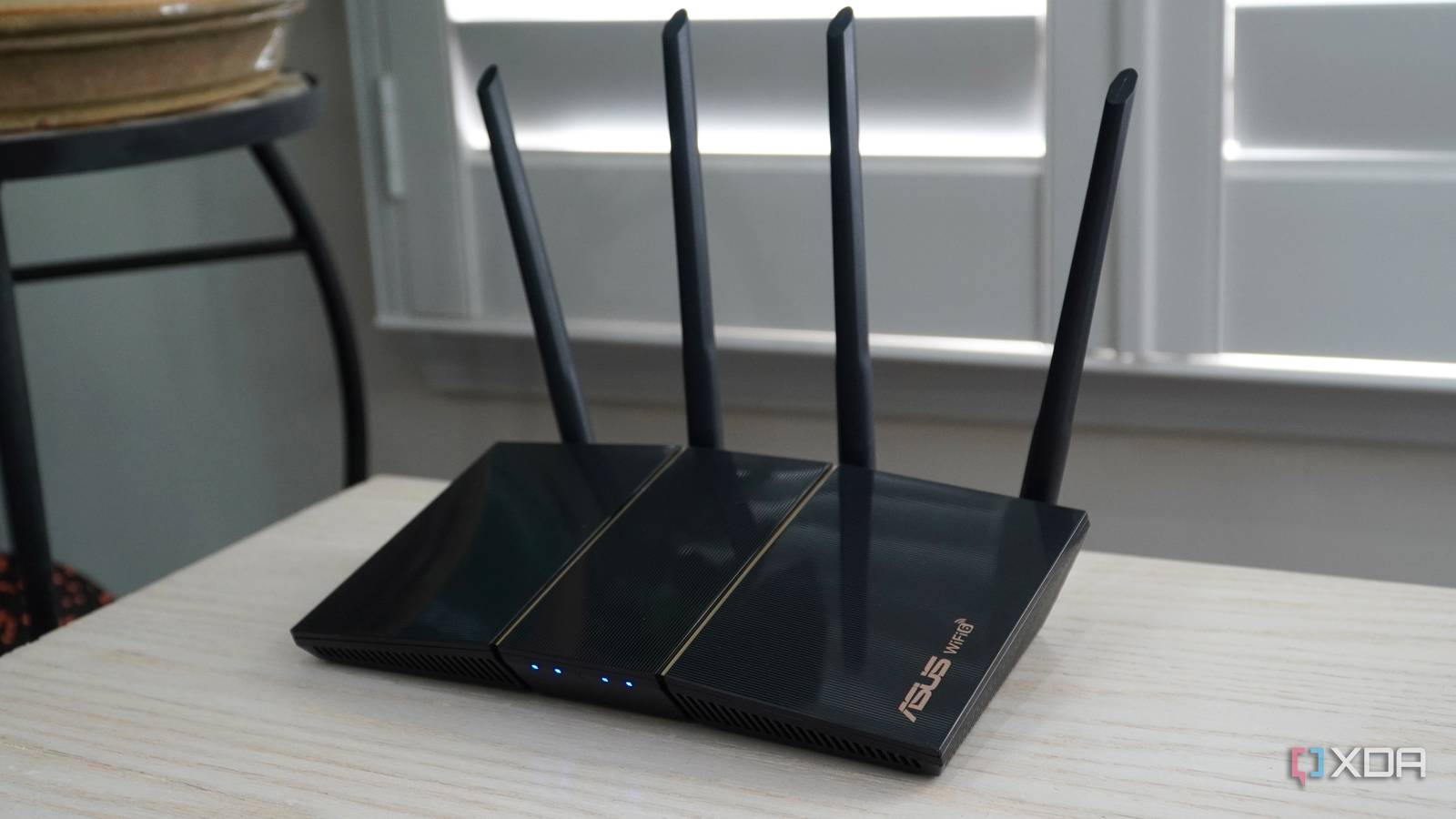
I changed one channel width setting on my Wi-Fi 6 router, and local streaming stutter completely stopped
Full Article
Original Source
Read the full article at Xda-developers →KhanList aggregates and links to publicly available news content. We do not host full articles from third-party sources. Always verify important information with original sources.