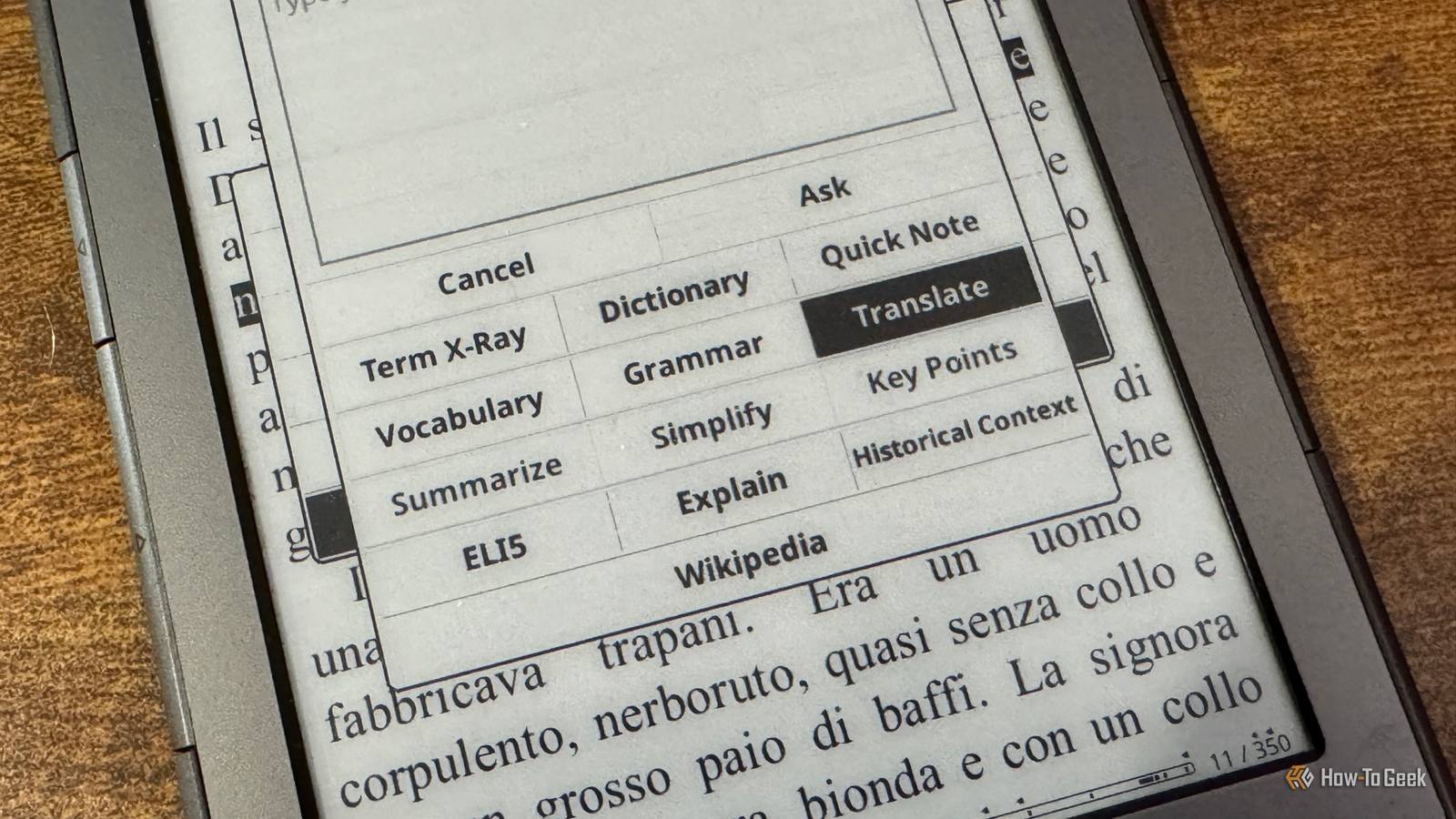
Published Jul 25, 2026, 3:30 PM EDT Adam has a degree in Engineering and has a life-long interest in technology. He has been writing for over a decade for various print and online publications, with a focus on consumer tech. He joined How-To Geek in 2024 while working at Pocket-lint. As well as being a long-term fan of Apple products, he also has a strong interest in smart home tech, running a Home Assistant server at home to automate all his smart home devices. He believes that the ideal smart home should work with minimal interaction from the user, with automations running as if by magic rather than requiring you to push buttons on a control panel. You can find more of his work on Muck Rack. Since I've jailbroken my ancient Kindle 4, I've been amazed by what I've been able to do with it. I've turned it into an E-Ink smart home dashboard, used it as a Pocket replacement, and even made it into a slow-refresh secondary monitor. I'd seen that you could add an LLM to KOReader, but I wondered if this was taking things too far. I thought adding AI to a Kindle would be a gimmick There's only so much AI you can take Credit: Adam Davidson / How-To Geek AI is incredible. We tend to take it for granted, but when you stop to think about what it can do, you can't deny that the technology is impressive. The problem is that companies try to shoehorn AI into everything. It drives me insane when major corporations add AI features that serve no real purpose. They haven't added them because they're useful; they've added them because they can make them work, and they want to cram as much AI into their products as possible. When I saw that you could add an LLM to the KOReader app, I was understandably skeptical. The beauty of an eReader is that it's mostly distraction-free. Did I really want to add an LLM to a device that was meant to let me read uninterrupted? In the interests of science, I decided to give it a try. I could always remove it again if necessary. Amazon Kindle (2024) Storage 16GB Screen Size 6-inches Even in the budget department, the Amazon Kindle is a stellar value, from its light and compact design, to its adjustable front light and 6-inch display. Setting up the LLM was fairly easy to do There's a dedicated KOReader plugin KOReader is a popular document viewer app that you can install on a jailbroken Kindle to replace the stock reading software. It's far more capable than using a standard Kindle; it can read more formats, provides far more customization, and it comes with a wide set of useful plugins. There is a whole set of community-developed plugins that you can add to KOReader. One of these plugins is Assistant, which is described as an AI helper plugin. Installing it is as simple as downloading and extracting the plugin and dropping it into the KOReader plugins folder on your Kindle. Before I did so, I needed to edit the configuration file to let the plugin know which AI service to communicate with. Unsurprisingly, requests aren't processed on the meager hardware of my Kindle. You can connect to AI services such as OpenAI, Claude, Gemini, DeepSeek, Groq, NVIDIA, and OpenRouter. You can also connect to Ollama running local models on your own hardware, which is the option I went for. I entered the relevant details for my Ollama instance in the configuration file before copying everything over to my Kindle. I can ask questions about words or phrases while I'm reading There are plenty of predefined options Once everything was copied over, I took the tool for a spin. Usually, when I highlight a word in a book and select it, I see options to look it up or add it to my vocabulary builder list. Now I have two new options: Wikipedia AI and Dictionary AI. Selecting either option used the LLM to provide information or definitions for the selected word. Even more powerful was selecting an entire phrase. This brought up an AI Assistant option, and selecting it opened a new dashboard with a wide range of options. I could type my own question about the selected passage to send to the LLM, but this can be a bit of a pain on my old Kindle, which doesn't have a touchscreen or keyboard. Thankfully, there is also a whole section of predefined options, including Dictionary, Vocabulary, Grammar, Summarize, Simplify, Key Points, Historical Context, and more. One of my favorites is ELI5. If I highlight a complex idea from a book, I can open the AI Assistant, select ELI5, and the LLM will "Explain Like I'm 5." It's a great way to get a simple explanation of complex topics. It's amazing for reading in another language A dictionary can't infer meaning Credit: Adam Davidson / How-To Geek One of the most useful features was one I didn't really think about until I tried it. I'm learning Italian, and reading books in the language is a great way to improve. I tend to choose books that are simple and that I already know well, such as the Harry Potter series. Despite knowing the books well, I still come across a lot of words I don't understand. There's a standard translation option in KOReader, but a literal translation doesn't always give the true meaning of a word or phrase. For example, the phrase "out of sight, out of mind" when translated into another language and back again can come out as "invisible, insane," which is clearly not the intended meaning. Using the LLM, I can select a phrase, open the AI assistant, and select the Translate option. Instead of just translating the words, the LLM can infer the meaning of the phrase, which has really helped when reading books in a foreign language. Adding an LLM to my Kindle was better than I expected I was pretty sure that I'd try out the LLM on the Kindle and then remove it. Much to my surprise, I'm keeping it set up. I'm using it far more than I ever expected.
I added an LLM to my jailbroken Kindle, expecting a gimmick—it became essential
Full Article
Original Source
Read the full article at Howtogeek →KhanList aggregates and links to publicly available news content. We do not host full articles from third-party sources. Always verify important information with original sources.