
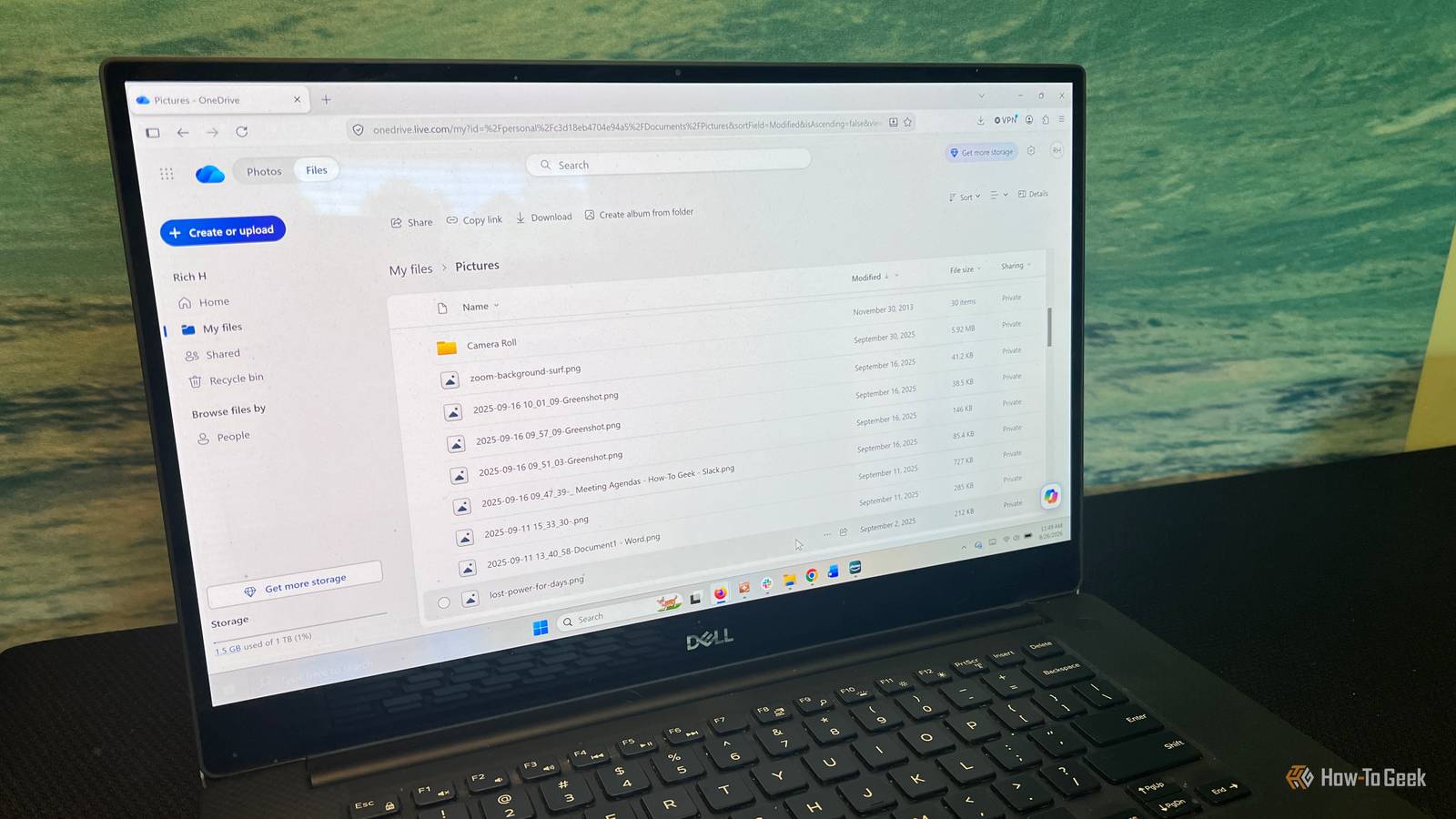
Published Aug 27, 2026, 9:45 AM EDT Rich Hein is a veteran technology journalist with more than two decades covering developer, consumer and enterprise topics. Rich's career has been dedicated to service journalism, connecting readers to content that informs and delights. Previously, Rich was vice president and editor-in-chief for Simpler Media Group, director of audience development for IDG and editor/writer for sites like CIO.com, ComputerWorld, CodeGuru and other tech-centric publications. He's received numerous accolades, including the IDG Summit and Azbee awards and has been covered by Medium for his work in audience development. When not at his desk, Rich lives in Daytona Beach with his wife and three dogs. He enjoys playing guitar, surfing and staying abreast of the latest in tech. Google Drive used to make it easy to send photos and videos from folders on your PC straight to Google Photos. That changed when Google removed the feature from Drive for desktop. You can still back up PC folders to Google Photos, but you now have to select and manage that destination directly within the Drive for desktop app settings rather than having Drive and Photos sync automatically. That doesn't mean you need to leave Google Photos. But if Google's change has you rethinking how you back up your pictures, this is a good time to look at the other options that are out there. You may already be paying for a service that handles the job just as well, or you might decide you'd rather keep a second copy locally. For most people, switching doesn't mean signing up for another subscription or moving everything to an unfamiliar service. The following services already include photo storage options, while an external drive gives you a simple way to keep a second copy locally without a subscription. Use OneDrive if you already pay for Microsoft 365 It's already built into Windows I'm not a huge fan of OneDrive, but it's hard to ignore if you're already paying for Microsoft 365. OneDrive is built into Windows, and Microsoft 365 Personal includes 1TB of storage, so there's a good chance you already have plenty of room for your photo library without paying for another service. OneDrive also makes the setup pretty painless. You can tell it to back up your Pictures folder, and your photos will then be available from other PCs, your phone, or the web. Files On-Demand also lets you see what's stored in OneDrive without keeping every file downloaded to your PC. Microsoft has been putting more emphasis on photos lately, too, with a dedicated OneDrive Photos experience in Windows. There are downsides. OneDrive has a habit of inserting itself into Windows more than I'd like, and its folder backup feature sometimes makes it less obvious whether a file is stored locally, in the cloud, or both. Changes also sync in both directions, so deleting a synced photo on one device isn't the same thing as keeping an independent backup somewhere else. Still, if you already pay for Microsoft 365, OneDrive is one of the easiest options to try before spending money on another service. Amazon Photos is hard to beat if you already have Prime You may already be paying for it Amazon Photos was a bit of a sleeper for me. I've had Amazon Prime for years, but I didn't realize until recently that unlimited full-resolution photo storage was included with it. If you're already paying for Prime, that makes Amazon Photos worth a serious look because there's no separate photo-storage subscription to add. Prime members get unlimited storage for photos, while videos and other files count against a separate 5GB limit. The desktop app also handles the part that matters here. You can choose folders on a Windows PC or Mac and have Amazon Photos back them up automatically. Once they're uploaded, you can get to them from the desktop app, a browser, or your phone. Amazon also uses image recognition to make photos searchable by people, places, objects, and dates, which makes it feel more like a proper photo library than a folder full of files in the cloud. The biggest downside is video storage. That 5GB allowance disappears quickly if you shoot a lot of video, and you'll need to pay for additional storage once you exceed it. Amazon Photos also isn't as tightly integrated with Windows as OneDrive or with Apple devices as iCloud, so it feels more like a separate service. Still, for Prime members who mainly want a place to back up a large photo collection, the unlimited photo storage makes a lot of sense. iCloud Photos makes sense if you're already in Apple's ecosystem It's especially useful if you're the family tech support Most of my computers run Windows, but I also have a Mac, an iPhone, and an iPad. I'm also the family tech guy, and my wife, mother-in-law, and stepfather all use iPhones. I keep their cloud storage on iCloud because it keeps things simple. If someone needs help finding a photo or checking whether something is backed up, I don't have to walk them through a separate service. That makes iCloud Photos a good fit for a certain kind of Windows user. You may still do most of your computing on a PC, but if your phone, tablet, and other family devices are Apple products, iCloud keeps everything tied to the ecosystem you're already using. Apple's iCloud for Windows app lets you access iCloud Photos from File Explorer and upload photos and videos from your PC, so you don't have to give up Windows to make it useful. The biggest drawback is storage. Apple only includes 5GB for free, and that space is shared with things like device backups, so you'll probably need an iCloud+ plan if you're storing a large photo library. The Windows experience also isn't as tightly integrated as it is on a Mac, and some photo features work better on Apple devices. If you're mostly a Windows household and don't already use iCloud, OneDrive probably makes more sense. But if you're already surrounded by iPhones and iPads, iCloud Photos keeps the setup familiar and cuts down on the number of services you have to manage. Note: If you use Advanced Data Protection, iCloud for Windows may need approval from a trusted Apple device before Photos will sync. An external drive is still the simplest way to keep a second copy You don't need another cloud service to make a backup Cloud storage is convenient, but I still like having a copy of important photos that isn't tied to an account or subscription. My wife and I keep backups of our favorite photos on USB drives in a small fireproof safe. It's simple, inexpensive, and gives us another copy that stays offline most of the time. The obvious downside is that external drives don't take care of themselves. You have to remember to copy new photos over, and a USB drive sitting next to your PC isn't much protection if both are damaged or stolen at the same time. Drives also fail, so I wouldn't make one external drive the only place you keep important photos. Still, for a second copy alongside cloud storage or the originals on your PC, it’s one of the simplest options. A local backup also gives you something cloud services don't: control. There are no storage limits to worry about beyond the size of the drive, no monthly fee, and no account to recover if you get locked out. The tradeoff is convenience. You won't get automatic syncing, remote access, or the photo-search features that services like OneDrive, Amazon Photos, and iCloud provide. Pick the backup method that fits what you already use There isn't one right answer here. If you already pay for Microsoft 365, Prime, or iCloud, using the storage you already have probably makes the most sense. If you don't want another cloud service involved, keeping a second copy on an external drive is still a perfectly good approach. What matters most is having your photos stored in more than one place, especially the ones you wouldn't want to lose.
Google Photos just killed automatic PC backups—here are 4 alternatives
Full Article
Original Source
Read the full article at Howtogeek →KhanList aggregates and links to publicly available news content. We do not host full articles from third-party sources. Always verify important information with original sources.