
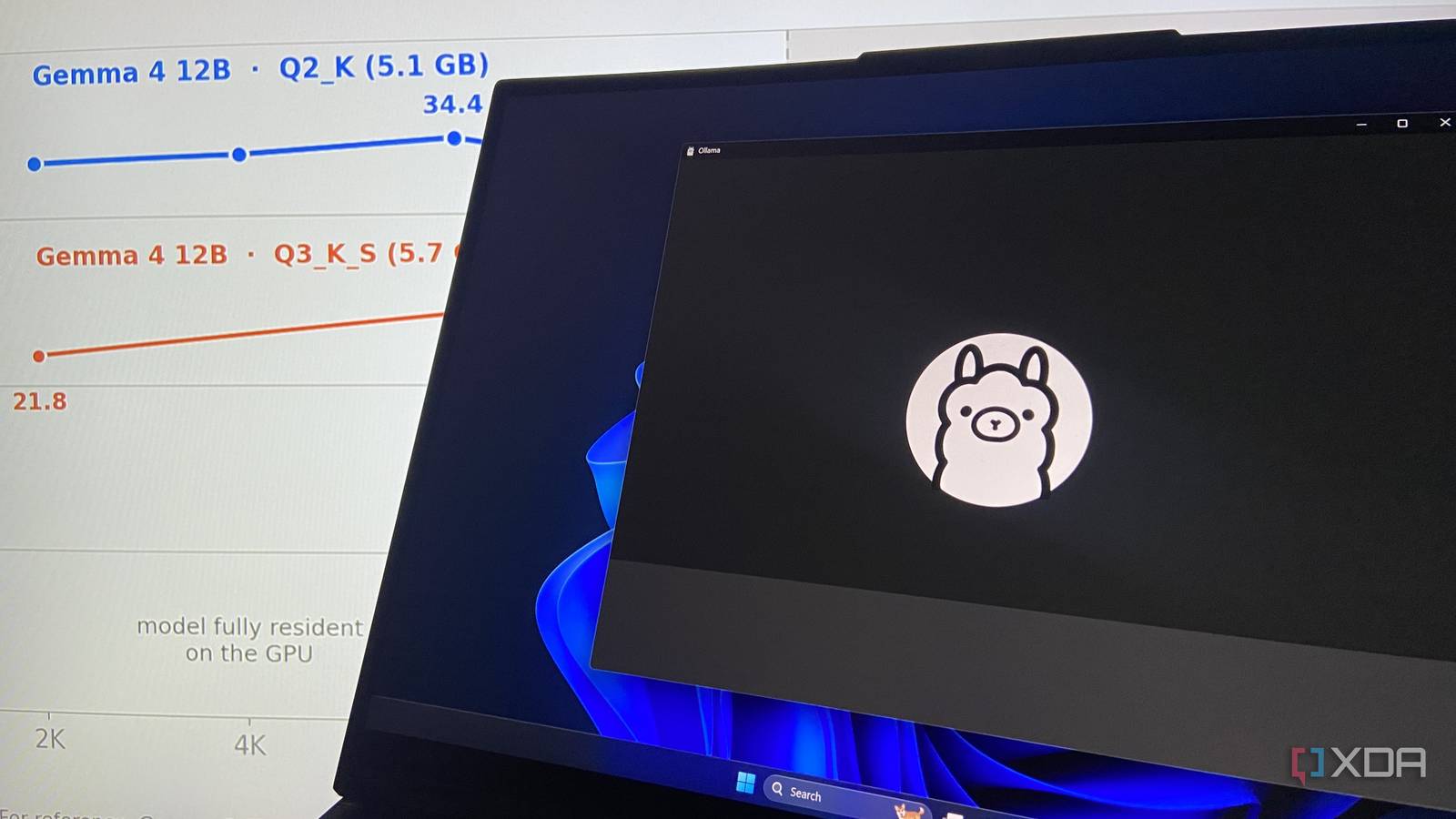
Published Aug 27, 2026, 12:30 PM EDT Abhinav pivoted from a career in banking to pursue his first love in writing. Even while working full-time, he continued contributing as an editor-at-large, a role he has held for more than 7 years. A lifelong tech enthusiast who has built three gaming and productivity powerhouse PCs since 2018, his passion for technology keeps him closely following the semiconductor industry, from NVIDIA and AMD to ARM. His MSc dissertation explored how artificial intelligence will reshape the future of work, reflecting his curiosity about the wider social impact of emerging technologies. Local AI models are highly sought-after among hundreds of thousands of people today, and the reason behind it isn't surprising. They run locally on your hardware, keep your data private, can be run completely free of cost, and boost your productivity. But running these models requires meeting a set of criteria, failing which they'd be tediously slow on any task, as happens with many users. How can a model that's painfully slow improve one's productivity at all? After all, loading fatigue is very real, and can often be more likely to slow one down than to provide a boost. I had the very same problem when running a particularly heavy open-weight model by Google, and thankfully, discovered a fix that can solve the dreadful workflow-breaking problem of yielding low tokens-per-second. What makes a local AI model "slow" to use on your PC? VRAM spillover to the system RAM makes your models crawl When it comes to determining the "speed" of open-weight models, there are a couple of things any user dabbling in local inference should know, ideally before they even download a model. A model's weights have to fit entirely on your dedicated GPU's VRAM to deliver a healthy tokens-per-second output. If it doesn't fit entirely inside your GPU, it will spill over to the system memory, where its speed will undoubtedly tank. This is something most people on an average will account for. If you ask for a large context, you will have committed that VRAM at load, whether you utilize it or not. In my case, it was really the weights + cache calculation that had been left unaccounted for while running Gemma 4 26B at Q4_K_M quantization on my RTX 4070 Ti Super, which comes equipped with 16GB of VRAM. Your model's weights aren't the only residents in your VRAM Most users forget to account for KV cache and compute buffer It also helps to know where your VRAM is spent. When you load a model, it is claimed by the weights, the KV cache, and a compute buffer which holds the activations as well as the attention work of the current step. The loader places the weights first, and then allocates the cache and compute buffer on top. The cache allocation surprises most people, just as it surprised me. The cache is directly proportional to your context length, which means that the greater the context, the more you can expect the size of the KV cache. On Ollama, it is not grown token by token as one types. Ollama reserves the whole thing up front, as one contiguous block sized to the context length set by the user before generation even occurs. This means that when a context length is configured, the engine pre-allocates a single memory buffer that's large enough to hold every token that context allows, and not the handful that you end up sending. If you were to set a 128K window but type 50–60 word prompts, the VRAM for all 128K tokens is reserved whether it is utilized or not. On lower-VRAM systems, this either forces a part of the model into the much slower system RAM, or if there is no room for it, fails with an out-of-memory (OOM) error. Currently, under 24GB of VRAM, Ollama defaults to a 4K context length even if the loaded model supports 128K or more. Between 24-48GB of VRAM, it defaults to 32K context and 256K context on 48GB VRAM or above. The fix to slow local models wasn't a bigger GPU It was a smaller context length, and my model was twice as fast I was running my local AI setup on a VRAM-constrained system myself to experiment with the bottlenecks, which included a Lenovo Legion 5 Pro with 8GB of VRAM on an RTX 3070. The model I picked was Gemma 4 12B, pulled through Ollama as a cut-down Q2_K build at 5.1GB, making it small enough to sit entirely on the VRAM. What most people generally get wrong is that, they would often set a large context window or leave a rather generous default in place to send out small prompts with tasks such as summarization, email or text generation, or perhaps explaining concepts. The model, in effect, reserves VRAM for a context they will never fill, pays for it dearly in speed, and leave the user with a horrendous user experience as a result. Context (num_ctx) Tokens/sec Processor split Reserved VRAM 2K 33.3 100% GPU 5.8 GB 4K 33.6 100% GPU 5.8 GB 8K 34.4 100% GPU 5.8 GB 16K 32.3 100% GPU 5.8 GB 32K 30.2 15% CPU/ 85% GPU 6.7 GB 64K 23.1 23% CPU/ 77% GPU 6.8 GB 128K 14.4 34% CPU/ 66% GPU 7.1 GB As you can see, up to 16K context, the model stayed entirely on the GPU and generated between 32 to 34 tokens per second, which is a comfortable pace given the hardware. 32K was the tipping point here, as the model did not fit cleanly into the free VRAM, at which point raising the context length yielded sharply diminishing returns. Therefore, capping the num_ctx to the "sweet spot" (here, 16K) provides the best balance between context and speed, while keeping Gemma 4 12B fully resident in the VRAM, providing a decent 32–33 tokens per second, effectively more than double of the 14.4 measured at 128K. Configuring your models is just as important as choosing the right one It's also worth noting that the converse is true as well. Currently, if you are running a GPU with under 24GB VRAM, Ollama will default the context to 4K, and while that's snappy, a 4K window is easy to overrun in long chats. Nothing will warn you, but the model's responses will silently keep losing track of the thread. This is why it is quite important to configure the local models you use to tailor them to your needs, no matter whether it's speed or context-awareness.
My local AI model was wasting VRAM by default, and changing one setting doubled its speed
Full Article
Original Source
Read the full article at Xda-developers →KhanList aggregates and links to publicly available news content. We do not host full articles from third-party sources. Always verify important information with original sources.