
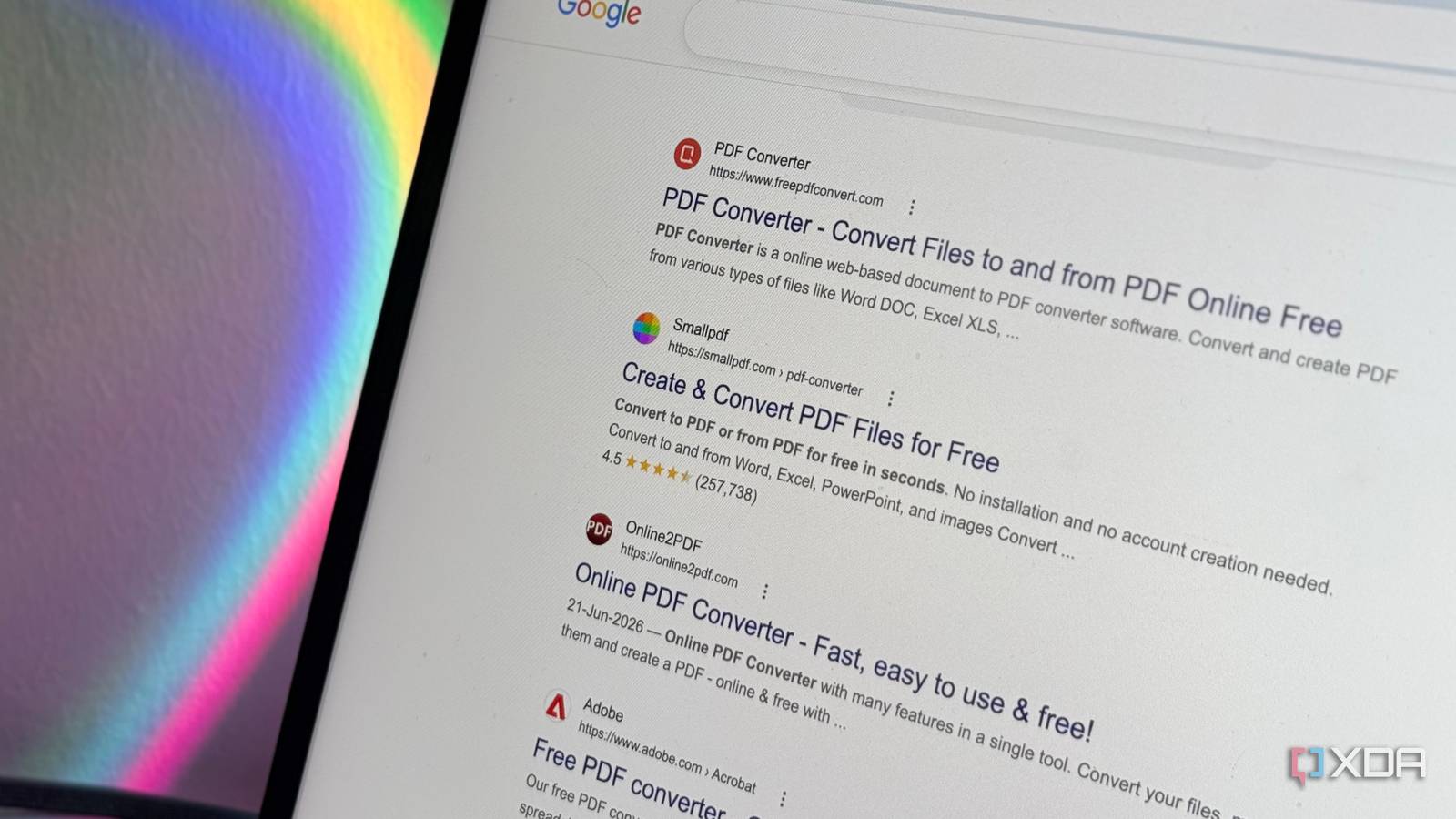
Published Aug 27, 2026, 12:30 PM EDT Mahnoor Faisal is a tech journalist covering AI and productivity tools with bylines at XDA, SlashGear, MakeUseOf, Laptop Mag, and Android Police. She's been writing professionally since she was sixteen, and has since penned hundreds of articles. This includes in-depth coverage of AI tools like NotebookLM to breaking news across the AI space. Her passion for technology started when she received her first iPod Touch (4th generation) on her 8th birthday, and she's been deep in the tech world ever since. Currently pursuing a degree in computer science, Mahnoor brings both a journalist's eye and a technical foundation to her coverage of how AI is reshaping the way we work and learn. A while ago, I decided I was done paying Adobe an absurd amount of money month after month for a tool I didn’t really use to its full potential. Sure, Adobe Acrobat has its uses, and if you work with PDFs all day, the subscription might be easy to justify. However, the way I used Acrobat was vastly different. There were times when I'd open the app just to merge a couple of files, delete a page, compress something before uploading it, or simply convert a PDF into another format. After canceling my subscription, I fell into a pretty predictable habit. Whenever I needed to do one of the tasks I mentioned above, I'd Google whatever I was trying to do, open one of the first PDF tools that showed up, and upload my file without thinking too hard about where it was actually going. This worked fine for documents that didn't contain anything particularly sensitive, but the more I thought about it, the stranger the habit started to feel. I was essentially handing files over to websites I knew nothing about. I finally stopped uploading PDFs to random websites once I found a free desktop app: Stirling PDF. Stirling PDF is an all-in-one PDF app that keeps your files local Everything I used to Google is already here I've tried a lot of Adobe Acrobat replacements in the past, and Stirling PDF is the one I keep coming back to. It's completely free to use, and it packs over 55 tools covering everything from merging and splitting PDFs to compression, conversion, signing, redaction, and OCR. Essentially, every little PDF task I would typically search for a separate online tool to handle is already built into one place. Stirling PDF is open-source, and the best part is that the tool is being maintained pretty actively. In fact, it recently got a massive overhaul with version 2.0, which introduced a cleaner interface, native desktop apps for Windows, macOS, and Linux, and a much more polished overall experience. Stirling PDF also has a fairly good web browser version, so you don't necessarily have to install anything to use it. More importantly, though, you can self-host your own instance and access it through a browser, which gives you the convenience of an online PDF tool without handing your files over to some random third-party service! The desktop app is even better if privacy is the main reason you're using Stirling PDF in the first place. By default, it runs Stirling's backend locally on your computer, which means supported PDF operations are processed on your own machine rather than being uploaded somewhere else. If you try to use a feature that requires server-side processing, Stirling doesn't quietly send the file off in the background either. Instead, it prompts you to connect to Stirling Cloud or your own self-hosted server. This is where Stirling PDF really shines While you'd expect a completely free tool to offer a somewhat limited feature set, Stirling PDF is surprisingly packed. As mentioned above, it has over 60 tools for practically every PDF-related task you can think of. The basics are all there, including merging and splitting PDFs, rotating or removing pages, compressing large files, and rearranging pages within a document. However, it goes quite a bit beyond those everyday tools. You can convert PDFs to different formats, extract images, add watermarks and page numbers, edit metadata, compare two documents, add signatures, redact sensitive information, and run OCR on scanned PDFs. There are also smaller tools for things like sanitizing PDFs, adding annotations, and extracting individual pages when you only need a small portion of a much larger document. One workspace, way less back-and-forth With online PDF tools, what always frustrated me beyond just privacy was having to bounce between different tools whenever I wanted to make more than one change to a document. Even if one website offered all the features I wanted, I'd find myself using one feature, downloading the file, and then uploading it all over again just to make the next change. That entire process gets tedious very quickly, especially when you're doing something as simple as removing a page, rearranging a few others, and compressing the final file. Stirling PDF has something called the Multi-Tool Workspace, which is designed specifically to avoid that back-and-forth. It lets you make several changes to the same PDF within one workspace, so you can remove or reorder pages, rotate them, split or insert files, and keep working without repeatedly downloading and re-uploading the document. The Mobile Scanner is surprisingly useful My phone finally stops being part of the problem Back when I was using random PDF tools, I'd be constantly moving files between my phone and computer whenever I needed to scan something. I'd take a picture on my phone, send it to myself somehow, download it on my Mac, and only then upload it to whatever PDF tool I was using. Or I'd open yet another random PDF tool on my phone, upload the image there, convert it into a PDF, and then move the finished file back to my computer anyway. Neither option was particularly difficult, but it was a lot of unnecessary back-and-forth for something that should have taken seconds! Stirling PDF's Mobile Scanner cuts out most of that process. It generates a QR code that you can scan with your phone, which opens a simple upload page. From there, you can either take a picture of a document or upload an image that's already on your phone, and it'll appear directly in Stirling PDF on your computer. This is a relatively small feature compared to everything else Stirling PDF can do, but it's another reason I rarely need to reach for a separate PDF tool anymore! Ultimately, if you're looking to finally ditch whatever expensive PDF tool you use and stop relying on random websites for the smaller stuff, Stirling PDF is one of the easiest alternatives to recommend. It covers practically every PDF task I regularly need, keeps most of the work local, and does all of it without asking me to pay a monthly subscription.
I stopped uploading PDFs to random websites after finding this free desktop app
Full Article
Original Source
Read the full article at Xda-developers →KhanList aggregates and links to publicly available news content. We do not host full articles from third-party sources. Always verify important information with original sources.