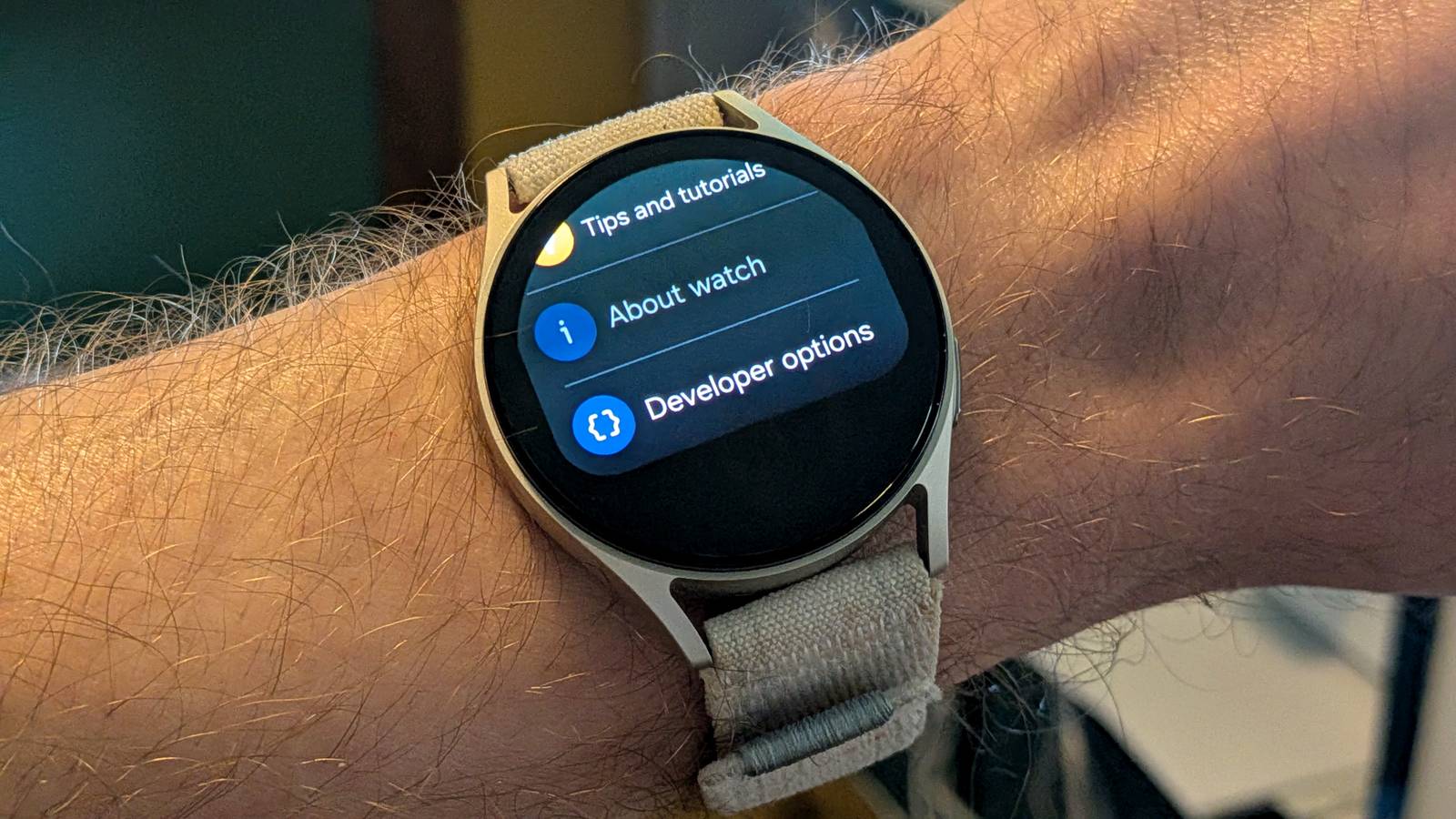
Published Jul 27, 2026, 4:45 PM EDT Joe Fedewa has been writing about technology for over a decade. Android and the rest of the Google ecosystem have been a focus for years, as well as reviewing devices, hosting podcasts, filming videos, and writing tutorials. Joe loves all things technology and is also an avid DIYer and food blogger. He has written thousands of articles, hundreds of tutorials, and dozens of reviews. Before joining How-To Geek, Joe worked at XDA-Developers as Managing Editor and covered news from the Google ecosystem. He got his start in the industry covering Windows Phone on a small blog, and later moved to Phandroid where he covered Android news, reviewed devices, wrote tutorials, created YouTube videos, and hosted a podcast. From smartphones to Bluetooth earbuds to Z-Wave switches, Joe is interested in all kinds of technology. After several years of jailbreaking and heavily modifying an iPod Touch, he moved on to his first smartphone, the HTC DROID Eris. He's been hooked ever since. A rite of passage for every Android user is unearthing the secret Developer Options menu. You may have already done this on a phone, but Samsung Galaxy Watches also have it. But there’s no reason to enable developer mode if there’s nothing cool to toggle on—here are a few things to try. The process for enabling developer mode on a Galaxy Watch is similar to that of phones, but slightly different. It has to be done from the watch itself. First, open the Settings app on your watch and scroll down to “About Watch.” From here, go to “Software information,” find the “Software version,” and tap it repeatedly until a message pops up and says “Developer mode turned on.” You did it! Now that developer mode has been enabled, you’ll find a new “Developer options” section at the very bottom of the main watch Settings. This is where you’ll find all the stuff mentioned in the list below. Keep your watch awake while charging For a mini bedside clock Many of the options in the developer menu are a bit vague, but a toggle labeled “Stay awake while charging” doesn’t leave much up to interpretation. That is exactly what it does—while the watch is charging, the display doesn’t turn off. Why might you want to enable “Stay awake while charging”? There are two reasons why I use it. First, if I’m in the mood for a bedtime clock, I’ll switch to a minimal watch face and enable this setting. It’s better than the stock charging screen. Second, when I’m playing around with custom watch faces, I find it helpful to keep the screen awake so it maintains a connection to Android Studio. Pump up the animation scale The classic phone trick works on watches, too In the early days of Android, there was one specific reason why people enabled developer mode: Animation scale. Essentially, Android has a default speed for every animation you see. That includes apps opening and little things you probably don’t think about, like the transition between screens. So, you can make your device feel faster by shortening the length of these animations. There are three animation scale settings to tweak: “Window animation scale,” “Transition animation scale,” and “Animator duration scale.” The default number is “1x”—I recommend stepping down to “.5x.” You can even turn animations completely off if you want. Force better location accuracy Make your watch follow you closer A common complaint among people who use smartwatches—not only the Galaxy Watch—is inaccurate location tracking. This is about much more than just seeing a running route displayed on a map. It’s how your watch knows how far you’ve gone, and that can be incredibly important. If you feel like your Galaxy Watch is lacking in the location accuracy department, there’s a toggle in the developer menu called “Force full GNSS measurements” that may help. By default, Android devices cycle the GNSS (Global Navigation Satellite System) and GPS hardware on and off to save battery. This setting simply keeps them on at all times. It’ll improve location accuracy, but worsen battery life. Enable wireless debugging for sideloading apps Or for trying your hand at development Lastly, like your Android phone, it’s possible to sideload apps on a Galaxy Watch. Sideloading is the act of manually installing apps from outside of the Google Play Store. In order to do this, you need to download the raw app file (APK) and get it on your watch. That last part is the trickiest, but there are apps that make it easy. There are two developer settings you’ll need to enable in order to do this: ADB debugging and Wireless debugging. Essentially, this will allow your phone to communicate with your watch on a deeper level. It’s also necessary to toggle these on if you want to do some Android development. Android Studio can talk to your phone wirelessly, which is super helpful. Admittedly, it’s not a long list The list of developer options on an Android phone is very long, and many of them are genuinely useful for even the average user. It’s not too surprising that the list is much smaller on a smartwatch—the list of worthwhile settings is even smaller. Hopefully, these few suggestions give you a reason to venture into the hidden space on your Galaxy Watch. Samsung Galaxy Watch 9 Operating System One UI 9.0 Display Size 1.34 Inches Colors Graphite, Cream Strap size 40mm or 44mm Weight 1.09 ounces Samsung Galaxy Watch 8 $290 $350 Save $60 Brand Samsung Operating System Wear OS CPU Exynos W1000 (5 Core , 3nm) RAM 2GB Storage 32GB
Your Galaxy Watch’s hidden developer mode unlocks these 4 features nobody talks about
Full Article
Original Source
Read the full article at Howtogeek →KhanList aggregates and links to publicly available news content. We do not host full articles from third-party sources. Always verify important information with original sources.