
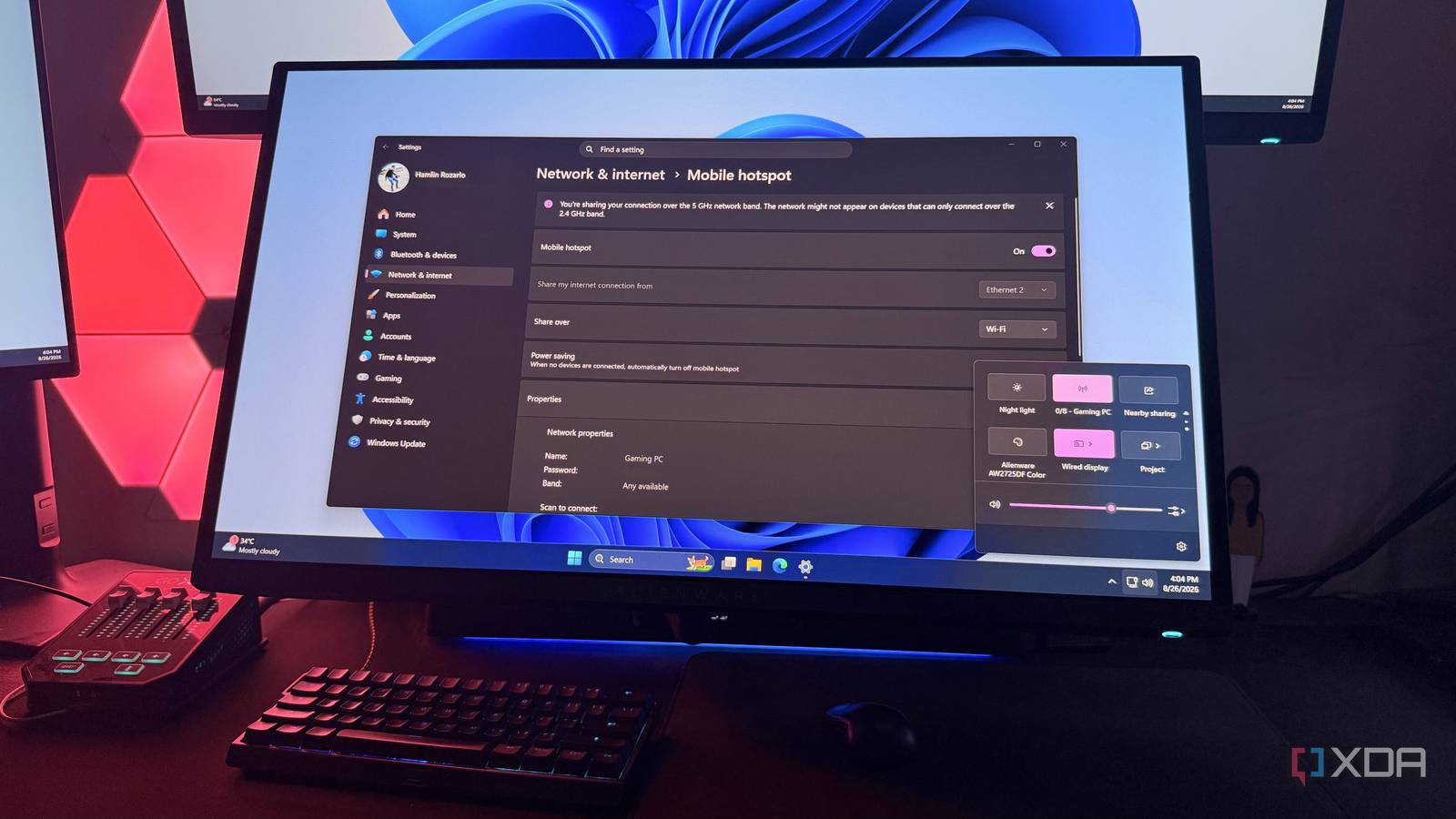
Published Aug 29, 2026, 5:00 PM EDT Hamlin has been in the tech field for over nine years. Since 2017, his work has appeared on MakeUseOf, Android Police, OSXDaily, Beebom, and more. He served as the Senior Editor at Valnet's MakeUseOf for over two years before joining XDA. He uses a high-end gaming rig for desktop use and a MacBook for traveling, but dislikes some of the quirks of macOS. You're more likely to catch him at the gym or on a flight than anywhere else. When you already have a Wi-Fi router and mobile devices with 5G or LTE, there's almost no reason to even think about the hotspot feature on any of your devices unless your ISP is down. But recently, I faced a completely different issue. My Wi-Fi router stopped working altogether, but my internet connection itself was perfectly fine. I got my PC back online by plugging the Ethernet cable from the fiber ONT directly into my motherboard's Ethernet port, but that still left my MacBook and iPad without Wi-Fi. Of course, I could just use the hotspot feature on my phone, but since 5G reception is poor inside my house, I wouldn't call it ideal. That's when I remembered Windows has its own hotspot feature, and I could use my PC to share the fiber connection it was already getting over Ethernet. This isn't quite the same as using a dedicated wireless access point, but for what most people want to do, the result is pretty much the same. So as long as your PC has a Wi-Fi adapter, you're set. It's easy to miss this setting But setting it up is as easy as it is on any other device The reason why I say Windows hides this feature is because you won't find it unless you're actively looking for it. If you open the Quick Settings panel on Windows 11, you won't see it sitting next to the Wi-Fi and Bluetooth toggles by default. You have to scroll down to the second page to find the Mobile hotspot toggle. Of course, now that I've used it, I've dragged it to the first page for convenience. You can also find it in Settings -> Network & internet -> Mobile hotspot. To set it up, just turn it on, but you'll want to configure a few things first by right-clicking the toggle and choosing Go to settings. There, you can change the network name, password, and even the band it uses. Depending on the Wi-Fi adapter you have, leaving it set to Any available may use the 5GHz band by default, which means the network may not show up on older devices that only support 2.4GHz. If your PC is connected to the internet over Ethernet, you can share that over Wi-Fi as I did, but you can also share a Wi-Fi connection over Wi-Fi. This isn't just an emergency workaround There are actually more use cases than you'd think It took a dead router for me to try this feature for the first time, but looking back, it's probably something I could've used much sooner. For instance, say your PC is connected over Ethernet but sits far from the router in a room with a weak Wi-Fi signal. You could simply use your PC to give devices like your phone or tablet another way to stay online. Of course, you could buy a Wi-Fi extender, but when you already have a free solution right in front of you, I'd at least try that first. Another good use case is when you're traveling with a laptop. Say you've already connected your laptop to Wi-Fi at a hotel or airport, where you have to go through a portal before you can get online. Instead of repeating that process on your other devices, you can share the connection already running on your laptop. You also have Windows laptops with cellular connectivity these days, so you could easily share that connection with your other devices just like you would with your phone's hotspot. Of course, it's not a replacement for a router or extender But that's not really the point of using this feature anyway As useful as this hotspot feature can be, I'm not leaving my PC running 24/7 just so the rest of my devices can stay connected to the internet whenever I'm home. The last thing I want is to lose connection every time I restart my PC for updates or anything else, really. That's why it can never replace a Wi-Fi router. You'll also get much better range from a dedicated router or range extender, since the Wi-Fi adapter on your motherboard was never designed to cover your entire home. Still, none of those downsides really matter when you just want a quick and temporary solution. Whether you're having router issues or the Wi-Fi signal is weak where your PC is, having another way to get your devices online can be incredibly useful. The fact that you don't need to buy extra hardware is a win in my books. For something I can use for free, I don't expect it to be the best option. In my experience, those external antennas that come with motherboards these days are more than enough to get a decent signal across a couple of rooms. I'll probably forget about it until I need it again It has been a year since I last used this feature on my PC, so it's not something I rely on. As long as my router is working fine, there's no reason to bother with it. But I'm glad Windows at least gives me this option because you never really know when it can come in handy. You may get more use out of it if you're using it as a workaround for range issues. Regardless, it's one of those Windows features worth knowing about, even if you forget it exists until the day you actually need it.
Windows can turn your PC into a Wi-Fi hotspot, but it buries the setting where nobody looks
Full Article
Original Source
Read the full article at Xda-developers →KhanList aggregates and links to publicly available news content. We do not host full articles from third-party sources. Always verify important information with original sources.