
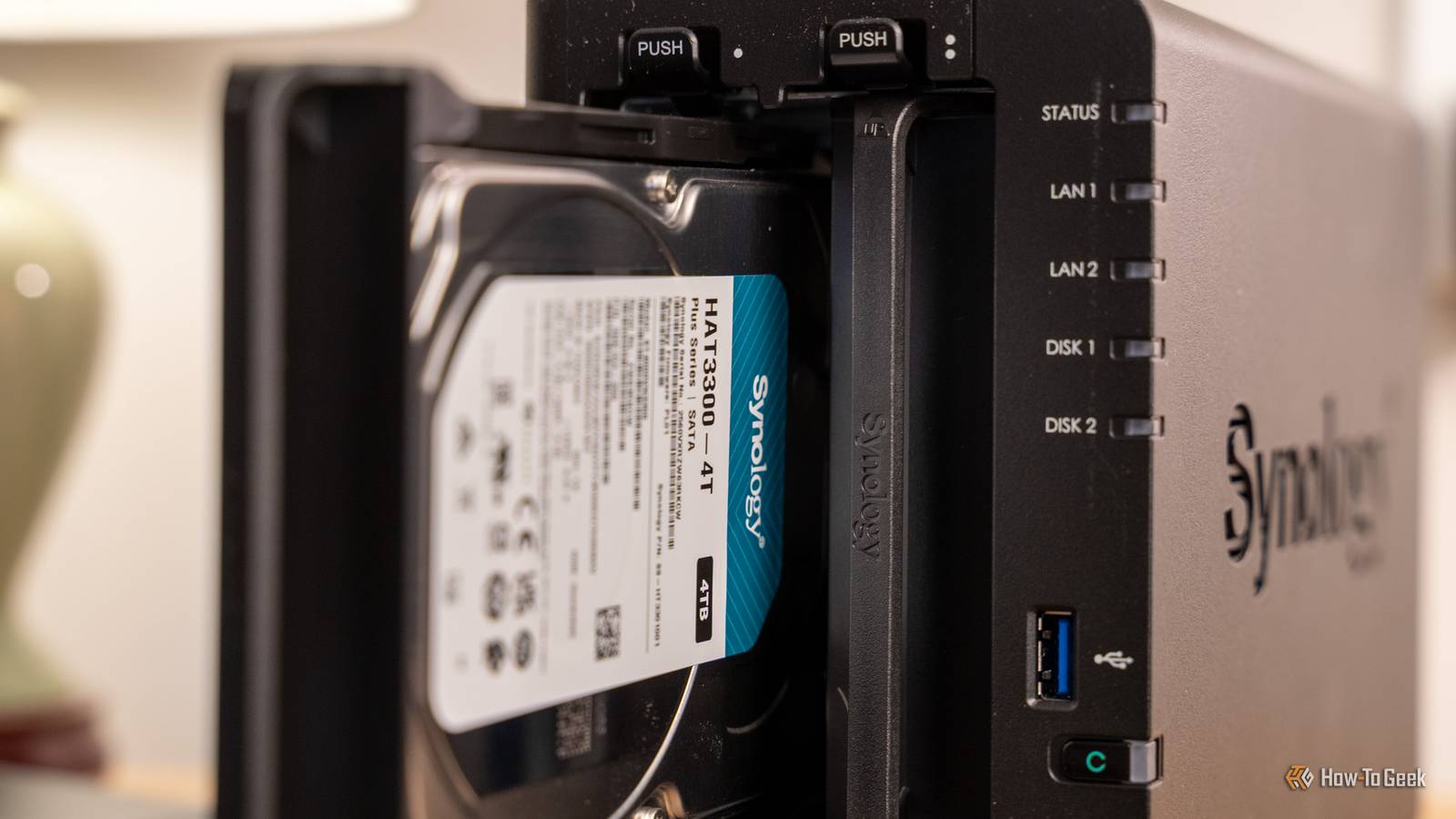
Credit: Patrick Campanale / How-To Geek Published Sep 25, 2026, 7:30 AM EDT Arol is a tech journalist who currently works as a contributor at How-To Geek since 2022. He first began writing online for the short-lived portal of Spanish-language gaming forum Emudesc in 2013. Years later, in 2017, he got his true start in tech journalism working for a small Google-focused site called Pixel Spot. He transitioned to a news and feature writer role at XDA Developers that same year, where he worked until 2021 before making the jump to other websites. Arol brings nearly a decade of writing experience, and the occasional hot take, to his writings. While he's a technology lover at heart, he holds computer hardware and smartphones particularly close to heart. You'll normally find him covering news, although he has also written the occasional deal, buyer's guide, how-to post, and round-up. He's also written for Android Police and MakeUseOf. He's also a Political Science student. When he's not writing, you'll probably find him hitting the gym, trying to ace a new hobby, reading his textbooks, or traveling. You can reach him at me@arolwright.com. Sign in to your How-To Geek account Hard drives rarely announce their flaws on day one. A new disk can sail through setup, then fail weeks later with your data on it. That's why I spend a fair amount of time stress-testing every new HDD first before I put it somewhere important. Here's what burn-in is, how it works, and whether you should bother. What do you mean by burning in? Stress-testing a new drive before it holds anything important Burn-in is an idea borrowed from electronics manufacturing: run a new component hard, for a long time, before you trust it, so any defects show up while sending it back is still easy. For a NAS, that means putting a brand-new hard drive through sustained writing and reading of every sector, plus the drive's own diagnostics, before it joins your storage pool or holds a single file you care about. The reason why this is a good idea is simple. Engineers have long described failure rates over a product's life as a bathtub curve: a spike of early failures, a long stable stretch, then a rise as parts wear out. Burn-in targets the left-hand edge of that curve, the so-called infant mortality period. A drive with a weak read head, a marginal patch of platter, or a flaky connection is far more likely to reveal itself during a few days of constant punishment than during light everyday use. Finding that out on the bench, with nothing stored on the disk, costs you some waiting and a return request. Finding it out after you've copied years of photos onto the array costs considerably more, even with redundancy, because a degraded array is a stressful place to be. It's worth being clear about what burn-in isn't. It doesn't improve a drive or extend its life, and it can't promise a disk won't die next year. It's a filter, not a fix. Its job is to catch the obvious lemons: drives that develop bad sectors, throw read or write errors, or report worrying SMART attributes under sustained load. Most new drives pass without incident, which is exactly the result you're hoping for. When one doesn't, you find out while the return window is still open. How does it work? Write every sector, read it back, then check SMART Credit: Patrick Campanale / How-To Geek A typical burn-in has three stages, and it all happens with the drive empty, because the core test is destructive. It starts with a SMART baseline: you pull the drive's health report with smartctl, note the serial number, and record the starting values of the key attributes. Then you run a short SMART self-test, which takes a couple of minutes and checks the basics. The heavy lifting comes next, and it's usually done with badblocks, a long-standing Unix utility, in its write mode. Instead of reading what's already on the disk, it writes a series of test patterns to every block, then reads each one back and compares it with what was written. Any mismatch means the drive can't reliably store data in that spot. This stage is slow. Forum users report roughly five days of badblocks time on 8TB drives and around 166 hours per 12TB disk, even with several drives running at once. Finally, an extended SMART self-test has the drive scan its own surface using its firmware, after which you compare the SMART data with your baseline. The attributes to watch are reallocated sectors, reallocated event count, current pending sectors, and offline uncorrectable sectors (IDs 5, 196, 197, and 198), which should all still read zero. Backblaze's fleet data has also tied non-zero values in several of these attributes to drives that went on to fail. You don't have to assemble this by hand. A widely used open-source script, disk-burnin.sh, chains a short test, badblocks, and an extended test, then logs everything to a file named after the drive's model and serial number. Run it inside tmux or screen so a dropped connection doesn't kill a multi-day job, and double-check the device path before you hit enter, because a destructive test aimed at the wrong disk will erase whatever is on it, including a drive that's already in your pool. Should you do it too? Worth the wait for most, though not essential for everyone Credit: Patrick Campanale / How-To Geek For most people building a NAS, I'd say yes, with some honesty about the tradeoffs. The strongest argument to take into account here is timing. A new drive is typically covered by both a retailer's return window and a manufacturer warranty, and it holds no data yet, so a failure costs you very little. Once it's in a pool and full of files, the same failure means a degraded array, a rebuild that stresses the remaining disks, and an anxious wait. If you're buying several drives at once, often from the same batch, catching a dud before the array is built is even more valuable. There are fair counterarguments. Backblaze has tracked failures across a huge fleet for years, and its latest analysis suggests the classic bathtub curve no longer describes its drives well, with reliability improving and drives lasting longer. Manufacturers also test drives before shipping. So the odds of catching a lemon are lower than they once were, and a week of testing is a real cost. It ties up the drives and, if you don't have a separate machine for it, your NAS can be out of action for days. It's also noisy and generates heat, so make sure the drives get decent airflow. If a full multi-day run feels excessive, there's a middle path. Run the SMART short and extended tests, do a single write-and-read pass, and check the attributes afterward. Many NAS operating systems can trigger extended SMART tests from their interface. Any testing beats none, but none of it replaces backups. Burn-in lowers the odds of an early failure; it doesn't turn RAID into a backup, and it won't protect you from failures that arrive years later. Quiz 8 Questions · Test Your KnowledgeInteresting and unique NAS use casesTrivia challengeBeyond basic backups — how well do you know the surprising things a NAS can do?MediaHome LabBackupNetworkingAutomationBegin Which popular open-source media server software is commonly self-hosted on a NAS to stream personal video libraries to any device?AVLC Media PlayerBKodiCPlexDInfuseCorrect! Plex is one of the most popular apps for turning a NAS into a personal Netflix-style streaming server. It organizes your media with artwork and metadata and can transcode video on the fly for different devices and connections.Not quite — the answer is Plex. While Kodi and VLC are great media players, Plex is specifically designed as a client-server platform that lets you stream your NAS library to phones, smart TVs, and browsers from anywhere in the world.Continue What is the name of the widely recommended data protection strategy that involves keeping three copies of data, on two different media types, with one copy offsite?ARAID redundancy ruleB3-2-1 backup ruleCDouble-parity protocolDMirror-and-sync methodCorrect! The 3-2-1 backup rule is a cornerstone of data protection strategy. A NAS plays a central role by acting as the second on-site copy, while cloud sync or an offsite drive satisfies the third copy requirement.Not quite — the answer is the 3-2-1 backup rule. RAID is often mistaken for a backup, but it only protects against drive failure, not accidental deletion or ransomware. The 3-2-1 rule is the gold standard precisely because it covers multiple failure scenarios.Continue A NAS running a hypervisor or container platform like Docker can host a Pi-hole instance. What does Pi-hole primarily do?AMonitors hard drive temperatures across the networkBBlocks advertisements network-wide at the DNS levelCEncrypts all outgoing internet trafficDManages IP address assignments via DHCPCorrect! Pi-hole acts as a DNS sinkhole, blocking known ad-serving and tracking domains before they ever reach your devices. Hosting it on a NAS via Docker means it runs 24/7 without needing a dedicated Raspberry Pi.Not quite — the answer is that Pi-hole blocks ads at the DNS level. Rather than installing an ad blocker on every single device, Pi-hole protects your entire network, including smart TVs and phones, by intercepting ad domain requests before any data is loaded.Continue Many NAS manufacturers offer dedicated surveillance software packages. What is the primary function of these applications?AMonitoring CPU and RAM usage across the local networkBManaging and recording footage from IP security camerasCScanning network traffic for intrusion attemptsDAutomating firmware updates on connected IoT devicesCorrect! Synology Surveillance Station and QNAP's QVR Pro are examples of NAS-based NVR (Network Video Recorder) solutions. They let you manage multiple IP cameras, set motion-triggered recording, and review footage without paying for a cloud subscription.Not quite — the answer is managing and recording IP camera footage. A NAS can replace a dedicated NVR appliance entirely, storing days or weeks of footage locally. This is a compelling use case since it avoids ongoing cloud storage fees while keeping footage on hardware you control.Continue Which self-hosted application, commonly run on a NAS, automatically downloads TV show episodes and movies by integrating with torrent or Usenet indexers?ARadarr and SonarrBBazarr and LidarrCOverseerr and RequestrrDProwlarr and ReadarrCorrect! Radarr handles movies and Sonarr handles TV shows — together they form the backbone of a self-hosted media automation stack. They monitor release groups, grab new episodes automatically, and pass files directly to your Plex or Jellyfin library.Not quite — the answer is Radarr and Sonarr. While Bazarr handles subtitles and Prowlarr manages indexers, Radarr and Sonarr are the core apps for automating movie and TV downloads respectively. They integrate with your NAS download client and media server for a seamless pipeline.Continue A NAS can be configured as a VPN server so that remote users can securely access the local network. Which VPN protocol, known for being modern and extremely fast, is supported by newer NAS operating systems like Synology DSM?APPTPBL2TP/IPSecCWireGuardDOpenVPNCorrect! WireGuard is a modern VPN protocol praised for its lean codebase, high speeds, and strong encryption. Synology added WireGuard support to DSM, making it easier than ever to securely tunnel into your home network from anywhere without exposing your NAS directly to the internet.Not quite — the answer is WireGuard. PPTP is outdated and considered insecure, while OpenVPN and L2TP/IPSec are reliable but more resource-intensive. WireGuard achieves better throughput with less overhead, which matters on the modest CPUs found in many NAS devices.Continue Nextcloud is a self-hosted platform frequently deployed on a NAS. Which major commercial cloud service does it most directly aim to replace?AAmazon AWS S3BGoogle Drive and Google WorkspaceCMicrosoft Azure Active DirectoryDDropbox BusinessCorrect! Nextcloud provides file sync, document editing, calendar, contacts, and video calls — a direct alternative to Google Drive and Google Workspace. Running it on a NAS means your data never leaves your own hardware, which is a major privacy and cost advantage.Not quite — the answer is Google Drive and Google Workspace. Nextcloud replicates the full productivity suite experience: shared folders, collaborative document editing, and mobile sync. When paired with a NAS, it becomes a powerful private cloud that rivals Google's offering without any subscription fees.Continue Some photographers and videographers use a NAS as the central hub for a collaborative editing workflow. Which protocol, natively supported on macOS and optimized for high-bandwidth file access, makes a NAS behave like a fast local drive for video editing?AFTPBWebDAVCSMBDAFP or SMB with MultichannelCorrect! For video editing workflows, SMB Multichannel (or historically AFP on older Macs) allows a NAS to deliver the kind of sustained throughput needed to scrub through high-bitrate footage without copying files locally first. Pair this with a 2.5GbE or 10GbE network and a NAS can rival a dedicated SAN for small creative teams.Not quite — the answer is SMB with Multichannel (or AFP on legacy Macs). FTP and WebDAV are too slow and latency-prone for real-time editing. SMB Multichannel bonds multiple network connections to boost throughput, which is why NAS vendors like Synology specifically market this feature to creative professionals editing 4K and 6K footage.See My Score Challenge CompleteYour Score/ 8Thanks for playing!Try Again Burn-in is cheap insurance against early drive failure Burn-in costs days of waiting and a bit of electricity, and it can't prevent future failures. But it exposes defective drives while returns are simple and your data is safe. For anyone building a NAS, that trade is usually worth making.
Why I always "burn in" new HDDs before adding them to my NAS
Full Article
Original Source
Read the full article at Howtogeek →KhanList aggregates and links to publicly available news content. We do not host full articles from third-party sources. Always verify important information with original sources.