
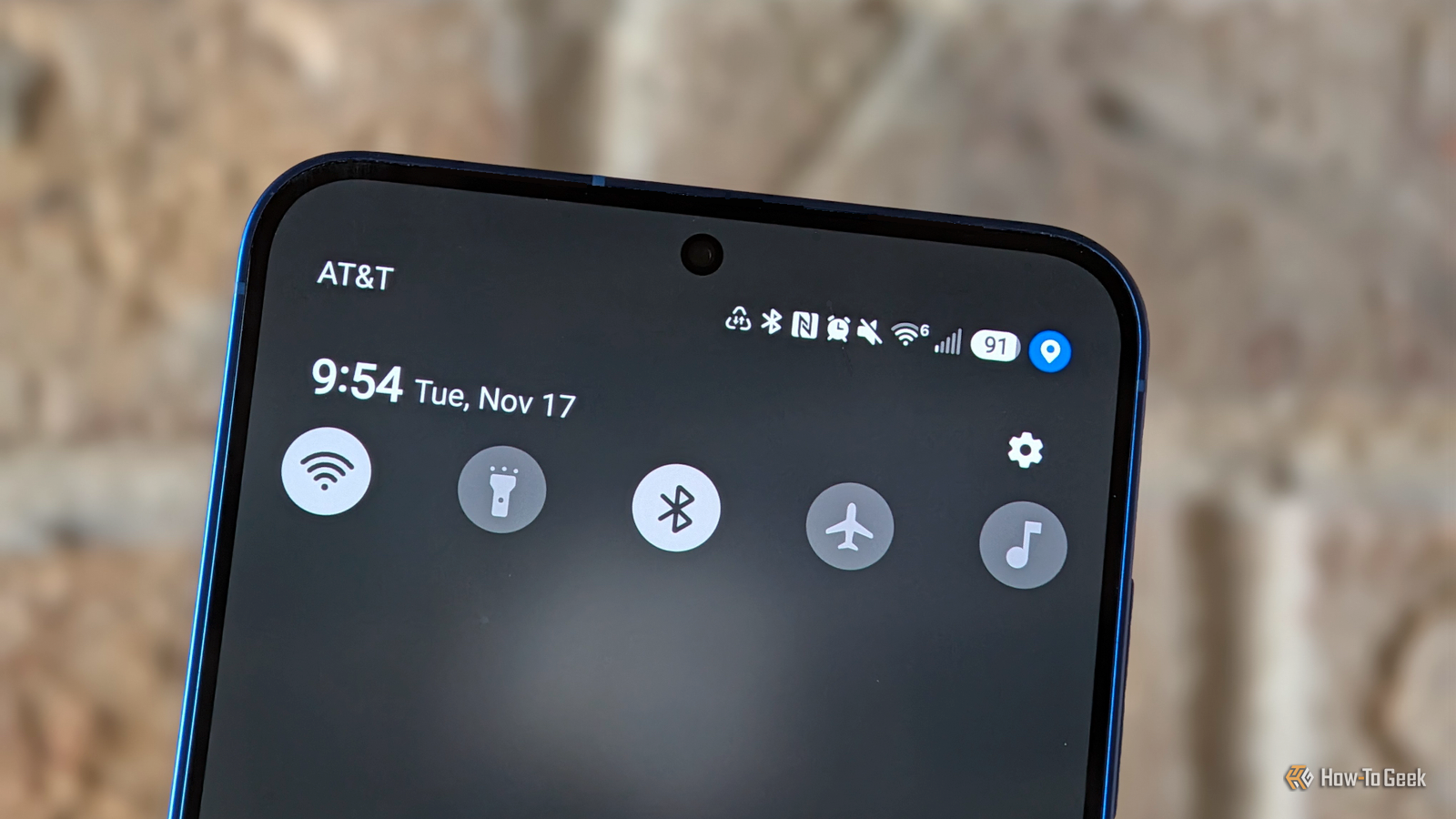
Published Nov 18, 2026, 6:30 AM EST Cory Gunther is a senior author and Newsletter Editor at Valnet, covering cutting-edge tech, Android, and more for How-To Geek. He's covered Android, cars, and technology for over a decade. When he's not reviewing the latest gadget, you can find him off-roading in his Toyota truck, fixing said truck, or doing something outdoors with friends and family. He's covered CES, SEMA, and MWC and reviewed countless phones, TVs, speakers, EVs, e-bikes, and more. Before Valnet, Cory worked for GottaBeMobile. His writing has also appeared on SlashGear, InputMag, and AndroidCentral. He's written over 9,000 articles. Have you ever glanced at your Android phone's status bar and spotted a little icon that you didn't recognize? There are dozens of icons that can appear at the top of your screen, and you shouldn't ignore them. Those little symbols are trying to tell you something, and if you recently spotted a triangle icon on your Galaxy, here's what it means. I've been a Galaxy user for over 14 years, so I typically recognize all the status bar icons. However, I recently noticed a weird triangle logo with tiny arrows inside and was a bit confused. Below, we'll walk you through what it means, how to disable that specific feature, and situations where it might come in handy. That triangle icon is for Data Saver mode And that's why most of your apps aren't working If you're seeing that little triangle icon with tiny up/down arrows somewhere in the status bar on your Galaxy phone, it means you somehow managed to turn on Data saver mode. On stock Android, it's usually a circle with a + symbol inside, and I've seen that one before. But when I saw a warning triangle, I was a bit confused. Turns out, my toddler got ahold of my phone for a few moments and somehow managed to fumble through the settings menu and turn it on. That's my only guess, because I certainly didn't enable it. I'm on Wi-Fi at home, and I've had unlimited data for over a decade, so I've never really needed to use this feature. As a result, it was completely new to me. So, how does it work? Samsung's Data Saver is a feature that reduces mobile data usage by blocking apps from sending or receiving data in the background. When you notice that icon, you may see fewer notifications and reduced activity, and apps might misbehave; that's because they're not getting any mobile data until they're actively being used. When enabled, applications can only use mobile data while you are actually viewing them on your screen. In the background, they're completely restricted. This means you won't get notifications, such as from social media or Gmail. All those background notifications get paused. It also pauses background activity, including cloud sync, email fetching, and similar tasks. How to turn off Data Saver on your Samsung phone A few taps in settings If you accidentally enabled Data Saver, apps aren't working, and you see that triangle icon at the top of your Galaxy phone, it's easy to turn it off. Head to Settings > Connections > and scroll down to Data usage. Now, tap on Data saver and flip the switch to Off. Now, the triangle icon should disappear when you pull down the notification tray, and all of your apps, notifications, and data usage should continue as expected. Again, I have no need for Data saver, so I had no clue how or why it was enabled. That said, it is worth noting that this is a very useful feature, especially for those who don't have unlimited data, or when you're traveling overseas and don't want to rack up roaming data charges. Many Samsung Galaxy owners will want to use Data saver while on a cruise ship, traveling overseas, or anytime when they'd like to keep data usage to an absolute minimum — while still being able to use their phone. Additionally, that same settings menu will let you set exceptions so apps keep working. Once you turn on Data saver, there's a secondary button that says "Apps that can always use data." Tap on that, then toggle any app you'd like to ignore data saver mode for and continue working. That way, you can block everything from running in the background, but essential apps like Messaging or email can still come through. That triangle icon isn't a concern In the United States, triangle symbols on road signs and such are usually for warnings, hazards, or to yield. As a result, it's easy to see a weird triangle at the top of your Samsung Galaxy and begin to worry. Thankfully, it's nothing more than an Android feature designed to limit data usage. Turn it off, then go back to enjoying your phone as usual. This is just one of many types of icons you could see in the status bar. Sometimes people get confused by the multiple odd phone (landline) icons, a speaker with a line through it, or other icons.They're usually nothing to worry about and mean some feature, mode, or control is turned on somewhere. In closing, it's easy for the status bar to get overly cluttered, and here's how to remove a bunch of them.
What that mysterious triangle icon on your Samsung Galaxy status bar means
Full Article
Original Source
Read the full article at Howtogeek →KhanList aggregates and links to publicly available news content. We do not host full articles from third-party sources. Always verify important information with original sources.