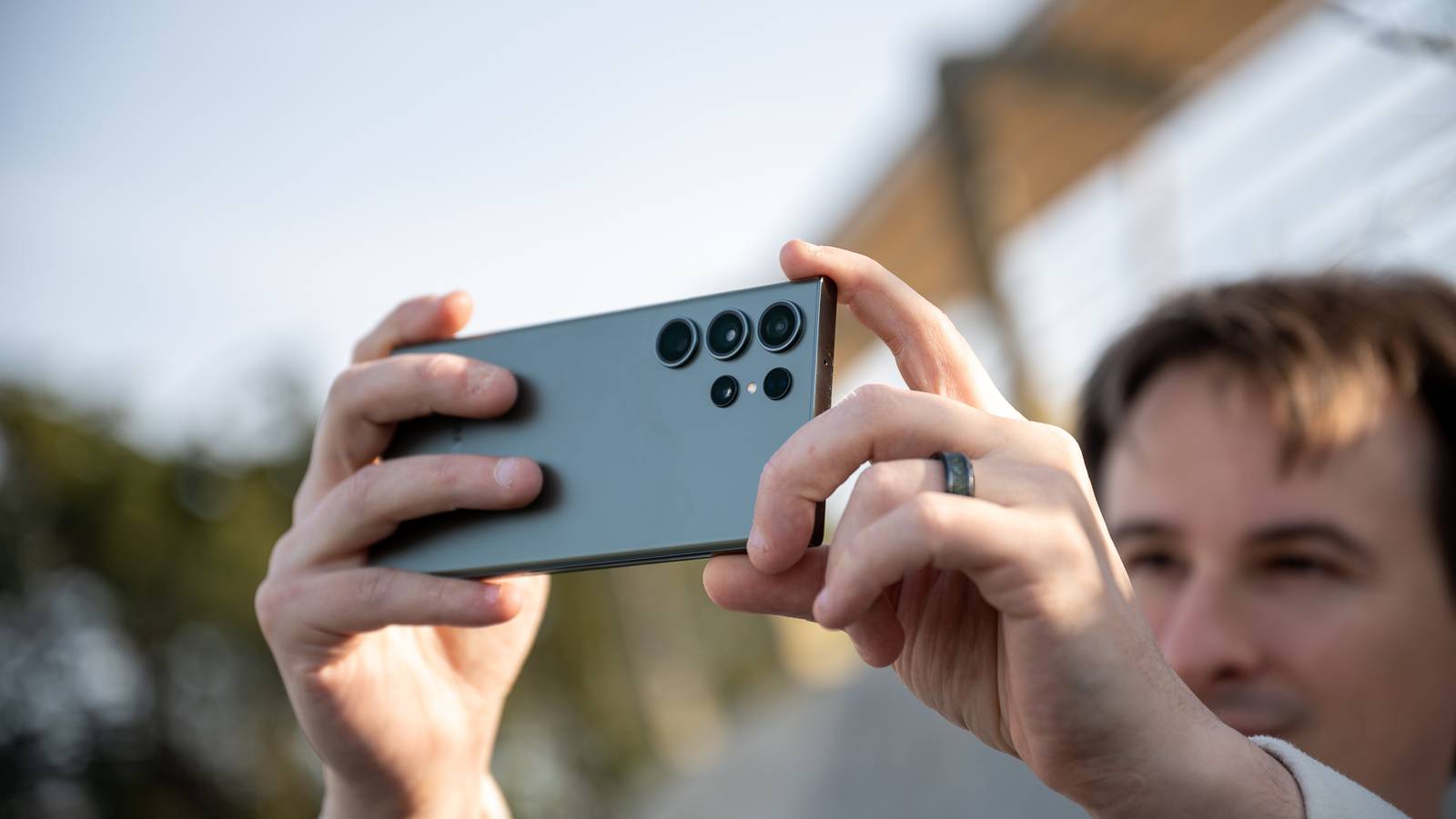
Published Jul 26, 2026, 10:30 AM EDT Cory Gunther is a senior author and Newsletter Editor at Valnet, covering cutting-edge tech, Android, and more for How-To Geek. He's covered Android, cars, and technology for over a decade. When he's not reviewing the latest gadget, you can find him off-roading in his Toyota truck, fixing said truck, or doing something outdoors with friends and family. He's covered CES, SEMA, and MWC and reviewed countless phones, TVs, speakers, EVs, e-bikes, and more. Before Valnet, Cory worked for GottaBeMobile. His writing has also appeared on SlashGear, InputMag, and AndroidCentral. He's written over 9,000 articles. Smartphones have great cameras, and Samsung Galaxy phones are some of the best, but I always end up tweaking a few settings for an even better camera experience. If you're looking for the easiest, fastest way to instantly improve all your photos and videos, you'll want to turn on one setting. Your Samsung Galaxy phone has endless customization options and is packed with underrated features. Unfortunately, many of those aren't enabled by default and go unnoticed. The same is true of the camera app powering all those sensors on the back. And while tweaking camera settings won't magically turn your phone into an expensive DSLR setup, there's one that'll put you in a position to capture better photos every time. The perfect alignment with grid lines and more I've been buying and reviewing Galaxy devices for over 14 years, and with each new release, the cameras get better, photo processing improves, and now we're getting a ton of AI goodies for editing. And while that's all great, the alignment, angle, and how you take photos are just as important. That's why one of my favorite Galaxy camera options is the "Composition guide" in the settings menu. You can have all the megapixels and zoom possible, but the way you compose the photo is everything. Whether you're trying to follow the rule of thirds in photography, center the subject, shoot top-down, or simply take photos and videos of a person, a pet, a product, or a plant, your placement is key. The way you compose the shot makes all the difference. One option in the camera settings adds grid lines, a level, or both to your Samsung Galaxy. Additionally, many other phone brands have similar grid lines that you can enable. How to turn on Samsung's Composition Guide If you want to take better photos and videos, you want them to be level, the subject in a great position, and the entire shot in an ideal composition. So, let the software make it easy for you. Here's how: To be more specific, this isn't in your phone's settings menu. Instead, it's in the camera app's settings menu. So, fire up the camera on your phone, then, depending on your model, tap on the little 4-dot quick controls setting icon at the bottom right of your viewfinder. This opens a bunch of additional controls. Tap the Settings icon and scroll down to Composition Guide. Flip the switch to On, and you're all set; or tap the option to choose between grid lines and a level, grid lines only, or just the level indicator. I use both. In fact, I recently let a family member use my phone to take some photos, and he said, "Whoa, this looks like I'm playing a flight simulator. What's with all the lines and levels?" I explained that I had grid lines and the level enabled to help get centered, balanced, and clean photos. Grid lines, or the Composition guide, are among the first things I enable on a new phone, and it always feels foreign to me when someone doesn't have them. Once you use grid lines, you'll never go back. It helps follow the rule of thirds, keeps subjects or the horizon straight, and improves overall balance. Better photos on your Samsung Galaxy phone Adding all of this to the camera view on your Galaxy phone might be a bit jarring at first, feel out of place, or may seem like a distraction. However, once you get familiar with it, take a few great photos, and enjoy the results, you'll quickly understand the benefits and appreciate all it has to offer. It's that easy. Head into settings and give it a try. You'll be glad you did. It's also worth mentioning that you'll find a ton of useful controls in that pop-out quick menu mentioned above. Use it to adjust the aspect ratio of your photos, change the resolution, adjust the megapixel count, and more. There's also a wildly powerful pro mode that keeps improving with each update. Other helpful Galaxy features include using the volume keys to zoom in or out, enabling a tracking autofocus mode, saving space with the HEIF format, adding a watermark, adjusting FPS, and much more. Samsung phones are among the most customizable on the market, and that extends deep into the cameras, too. And finally, for those unaware, the fastest way to open your Galaxy camera is to enable a feature that lets you double-tap the power button to quick launch the camera, even when the screen is off. Samsung Galaxy S26 Ultra Brand Samsung SoC Snapdragon 8 Elite Gen 5 Get the new Galaxy S26 Ultra with AI smarts and an all-new privacy display. It's big, powerful, packed with AI, and you'll love the S-Pen stylus.
This Samsung Galaxy camera feature completely changed how I take photos
Full Article
Original Source
Read the full article at Howtogeek →KhanList aggregates and links to publicly available news content. We do not host full articles from third-party sources. Always verify important information with original sources.