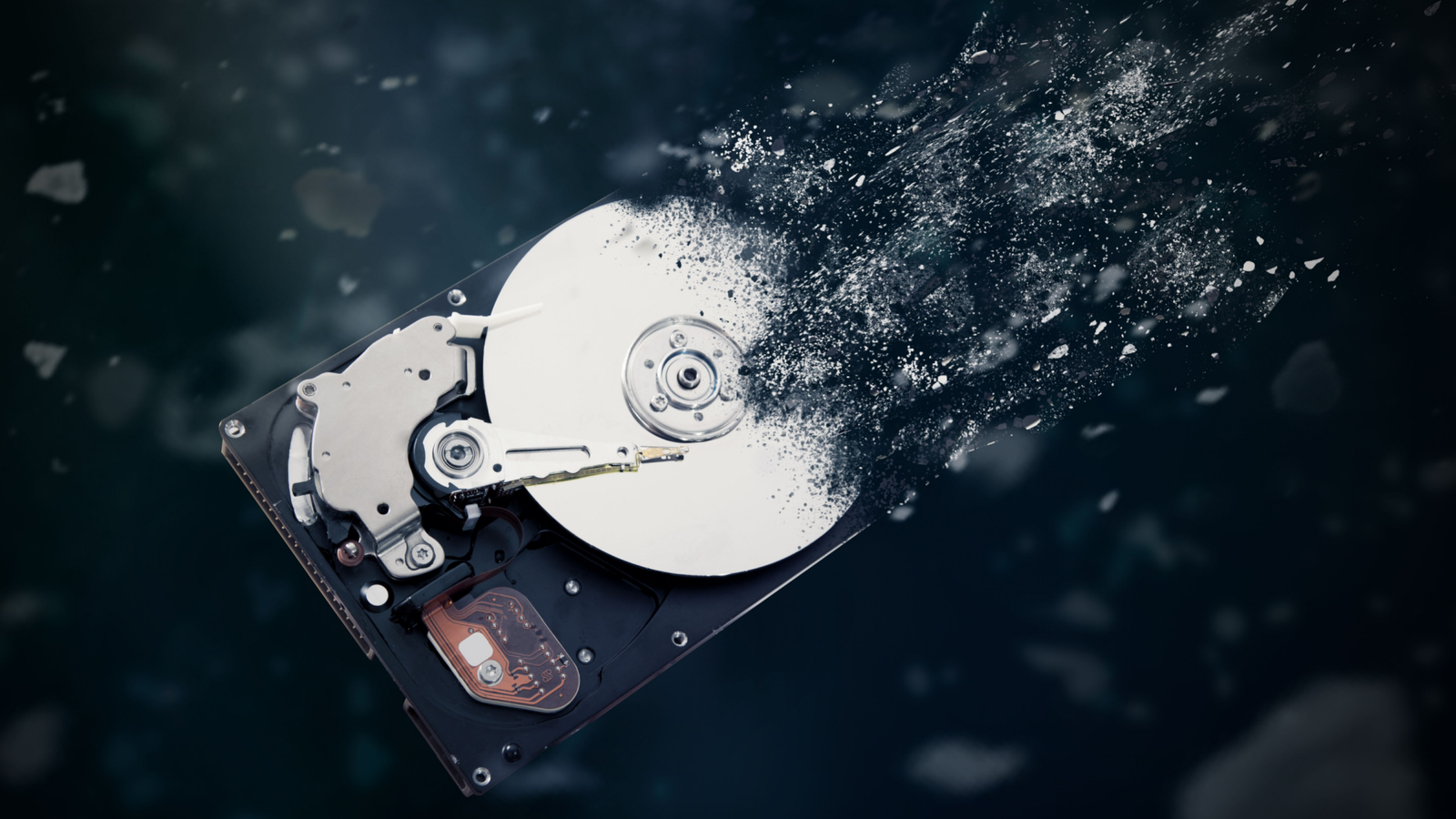
Published Jul 26, 2026, 11:00 AM EDT Sydney Butler is a technology writer with over 20 years of experience as a freelance PC technician and system builder and over a decade as a professional writer. He's worked for more than a decade in user education. On How-To Geek, he writes commerce content, guides, opinions, and specializes in editing hardware and cutting edge technology articles. Sydney started working as a freelance computer technician around the age of 13, before which he was in charge of running the computer center for his school. (He also ran LAN gaming tournaments when the teachers weren't looking!) His interests include VR, PC, Mac, gaming, 3D printing, consumer electronics, the web, and privacy. He holds a Master of Arts degree in Research Psychology with a minor in media and technology studies. His masters dissertation examined the potential for social media to spread misinformation. Outside of How-To Geek, he hosts the Online Tech Tips YouTube Channel, and writes for Online Tech Tips, Switching to Mac, and Helpdesk Geek. Sydney also writes for Expert Reviews UK. He also has bylines at 9to5Mac, 9to5Google, 9to5Toys, Tom's Hardware, MakeTechEasier, and Laptop Mag. It's happened to all of us at some point. You're cleaning up your PC, or uninstalling something, and then you realize you've deleted something important. It's not in the recycle bin, it's not in any of your cloud drives, and you don't have any backups. So what to do? While they aren't that popular anymore, this is where data recovery apps come into play, and Piriform's Recuva is probably one of the best known. I've been using it almost since it launched back in 2007, and overall it's saved my derrière more than a few times before the age of cloud computing, but using it makes it obvious that when you actually want your files to be gone, it takes more effort than you expect. I recommend you download Recuva from its official site or from the Windows Store. If you Google it, you'll find various websites brazenly using the name to trick you into downloading other recovery software and going to the correct source is the best way to avoid a dodgy copy. Deleting a file usually doesn't delete the file It's a little bit of false advertising Credit: H_Ko/Shutterstock.com It all comes down to what happens when you actually "delete" a file from a mechanical HDD on Windows. The actual data is left completely untouched. What Windows actually does is mark that area of the disk as free to use. So, as long as no other disk operation overwrites that section of the drive, it's trivial to recover it using the right software. This is why the standard advice when you accidentally delete a file is to stop whatever you're doing and immediately run your recovery app. This minimizes the chances that your data will be permanently overwritten. Recuva can recover files you thought were gone forever, but the results can be surprisingly unsettling Dredging up painful memories Credit: Ismar Hrnjicevic / How-To Geek The problem is that Recuva is too good at its job sometimes. That's not its fault, of course, it's doing what it promised to do. However, when I was working as a freelance PC technician on the side, I used Recuva to save the data of dozens of people. Lost PhD theses, family photos, you name it, people accidentally delete that stuff all the time. However, I also saw it recover things that I'm sure the person who asked me to help didn't want me to see, and, of course, I didn't open files without their permission, but that was a voluntary concession on my part. It can be pretty unsettling when you run a program like Recuva and realize that not only are the files you deleted a few minutes ago still there (yay!) but also some files that you deleted months or even years ago. Which means that anyone with this app could take your drive and dig up data that you explicitly wanted to remove. Recuva also has a "deep scan" mode where you can recover files that don't show up in the basic scan, and even recover parts of files, so you might still get half a Word document that still has some sensitive info in it. Why SSDs make Recuva much less effective A totally different technology Recuva was developed when SSDs in home computers weren't really a thing, and works by exploiting the quirks of the Windows file system and the nature of mechanical hard drives as a medium. That's still relevant because we all use mechanical HDDs for mass storage. In fact, it's actually worse now because sensitive data has a bigger chance of being on an HDD than an SSD, because we tend to reserve SSD storage for the OS and applications that benefit from the additional speed. That said, Recuva is still perfectly capable of finding deleted files on an SSD, just as you can see here when I ran it on my external SATA SSD. However, SSDs do not work at all like mechanical hard drives. Most modern SSDs support a feature called TRIM. When you delete a file, the OS tells the SSD which blocks are no longer useful. The SSD can then erase those blocks during its background maintenance, making future writes faster and improving drive longevity. This means that you don't have an infinite window period to save your files if deleted from an SSD, assuming that it is a model that supports and runs TRIM or any other garbage-collection maintenance. That's bad if you need to recover something, and you've waited too long, but it's better from the perspective of data you wanted to be gone, actually being unrecoverable. Do not use HDD data shredding software on an SSD. The repeated random overwrites only serve to shorten the life of the SSD, and may not actually erase all data. Instead, use a data shredding tool designed for SSDs that can issue secure erase commands to SSDs. If you really want files gone, you need to erase them properly So how do you ensure that your files are gone? It's much harder than it sounds, and it depends on how motivated your antagonists might be to get that data. Even physically destroying a hard drive might not be enough when, with enough time and money, data recovery specialists can rebuild and recover those drives. However, if you aren't worried about a three-letter organization looking at the contents of your drives, then a more sane and practical approach is to use one of the secure erasure methods suitable for the storage device you're getting rid of. For example, you can use ShredOS booted from a USB stick to securely wipe your drives.
This app recovered files I deleted years ago—and it creeped me out
Full Article
Original Source
Read the full article at Howtogeek →KhanList aggregates and links to publicly available news content. We do not host full articles from third-party sources. Always verify important information with original sources.