
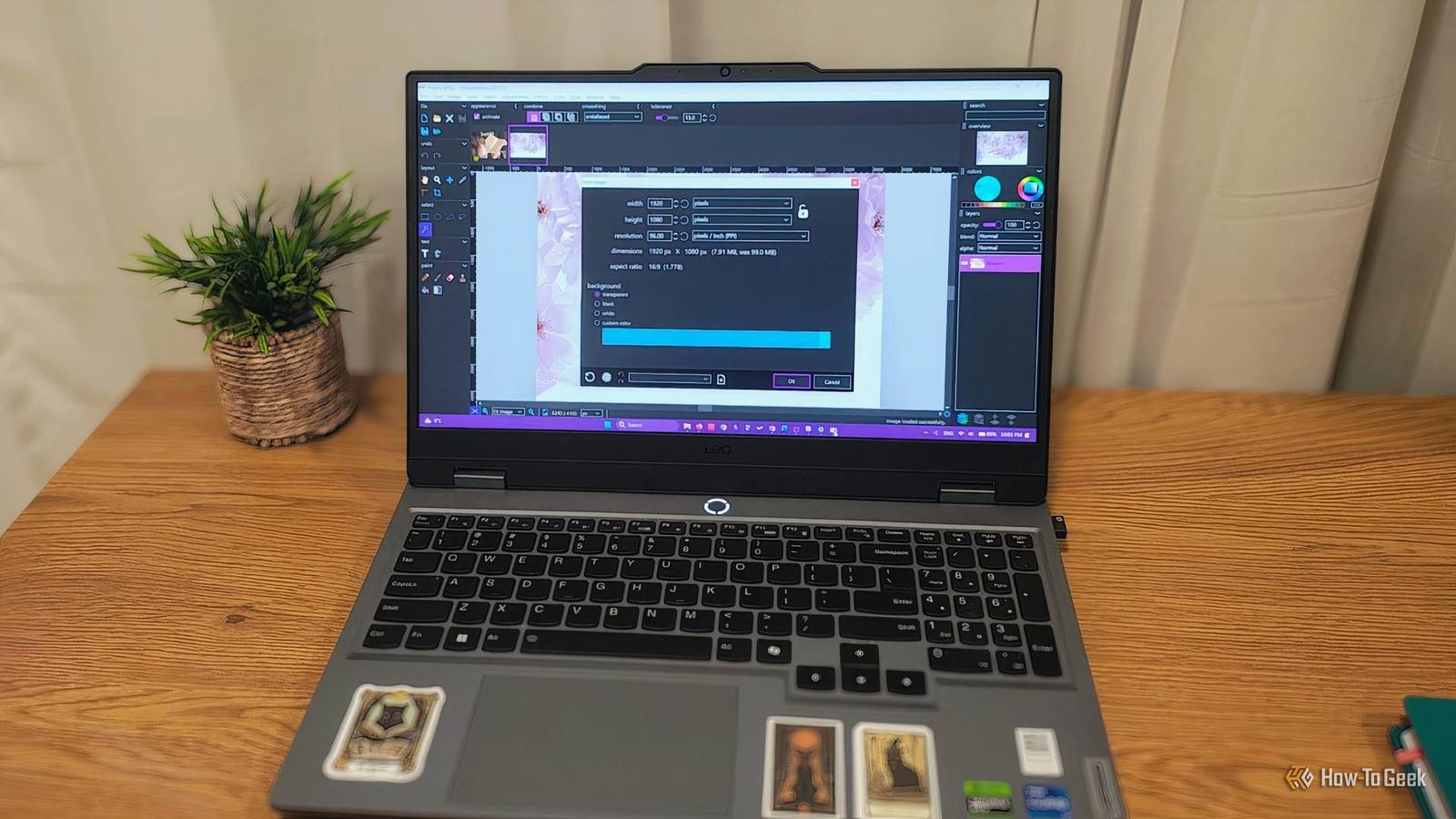
Published Oct 27, 2026, 7:00 AM EDT Diana's interest in technology spans many years. Her favorite areas include consumer software, everything Windows-related, VPNs, and graphic design tools. She's always on the lookout for tools and features that make tasks easier, boost creativity, and improve everyday life. When she finds something interesting, chances are she'll have something to say about it. ArtCraft, a free alternative to Adobe's creative suite built with AI-assisted coding, is making people question whether they should pay for creative apps anymore. One of the apps in this new creative suite, PhotoCraft, recreates the Photoshop experience and includes many of the same features without the price tag. It's not a one-to-one copy, but it's very close. Even though some people raise concerns about some tools that don't work exactly as expected and some stability issues, the project is ambitious and admirable. While it's an interesting experiment worth keeping an eye on, it's not the first open-source alternative to Adobe Photoshop. While PhotoCraft aims to recreate much of the Photoshop experience, established open-source alternatives have their own spin on photo editing. They cover fundamental photo editing needs, but through their own approaches. Some of them integrate a wide range of tools, just like Adobe's app, while others focus on a few specialized tasks. GIMP The one that does a bit of everything GNU Image Manipulation Program (GIMP) is the closest established open-source alternative to Photoshop, judging by the range of tools and use cases. It caters to a variety of needs and projects, from advanced photo editing and graphic design projects to digital painting. While the standard interface calls for some adjustments, the learning curve isn't huge, and you can integrate some add-ons that can make your workspace and toolset more similar to Photoshop's. For raster-based editing, GIMP offers a good deal of tools that are familiar to anyone who uses Photoshop. There is a strong overlap that lets you do familiar tasks for graphic design projects, such as background removal, transparency, combining multiple images in a single, layer-based composition, isolating and moving objects, and adding supporting text. It also has familiar blending mode controls that let you decide how layers interact. The options for retouching and photo editing are also strong. GIMP includes tools for healing, cloning, removing blemishes, and applying blur. You can also adjust levels, brightness, apply filters, and adjust color balance. The open-source editor's 3.2 version introduces some nondestructive features, such as Link Layers, which let you reference external image files and update them when the source changes. This is somewhat similar to Photoshop's Smart Objects, but GIMP's workflow is still limited in comparison. This means you may have to spend more time to make sure edits are reversible, and you can also have trouble importing PSD files that use masking and smart objects. If you work on projects for print, you should also note that GIMP doesn't support CMYK out of the box. The only color profile available is RGB, but you can integrate some CMYK support through integrations such as Cyan. GIMP also lacks generative AI-powered editing tools and features, but I wouldn't flag this as a dealbreaker. You can use plugins and add-ons to integrate tools like Generative Fill or in-app image generation. All in all, GIMP lets you do a lot of things for free that Adobe charges for. Sure, they're not 100% the same, and GIMP falls short when it comes to specific workflows and nondestructive editing. You can go a long way if you integrate some plugins, and GIMP's plugin library is far from limited. PixiEditor Different editing modes for various art styles PixiEditor is an open-source 2D editor with 4 different modes: Pixel Art, Painting, Vector, and Adjustments. Each mode comes with a distinctive toolset, and you can quickly switch between them within the same project without losing any progress. The interface is somewhat similar to Photoshop, with a left-hand toolset panel, a right-hand panel for further adjustments, and a canvas-based workspace in the middle. While it doesn't have as extensive a toolset or as in-depth editing capabilities as Photoshop, you can still do a good deal of editing that goes beyond what template-based tools like Canva can do. I wouldn't call it a professional-grade editor, but it's a solid middle ground. The Pixel Art mode includes a simple pen tool, a selection tool, text boxes, and shape tools. If you switch to Vector, you get a more complex pen tool, with scalable paths and vector-based shapes. This is useful if you need more control over your paths and could work for creating minimalist logos or illustrations. Adjustments include basic image editing for brightness, smudging, color correction, sharpening, and blur. These adjustments are basic compared to Photoshop, leaving a lot to be desired if you have to do advanced photo retouching. Beyond the built-in tools, you can also install extensions. The range is much more limited compared to what GIMP can integrate, but you can still find useful additions for specialized tasks, such as texture creation and advanced pixel art. PhotoDemon Essentials-focused photo editing in a portable app PhotoDemon is a free, portable photo editor for Windows. Despite its small footprint, it offers a solid set of basic editing tools for raster graphics and photography. Its minimalist, retro-looking user interface resembles a stripped-down version of Photoshop that focuses on the basic tools you would reach for when you need quick photo editing. You have a toolbar on the left, where you can find a color picker, a crop tool, and a move tool for positioning elements. When it comes to selections, you work freehand, select a rectangle, or use a magic wand tool. You can also do some drawing and painting with tools like a pencil and paintbrush. There is also some room for very light retouching with a stamp tool. It includes a range of photography adjustment tools as well, such as color editing, filters, white balance, and levels. PhotoDemon is also layer-based and integrates familiar blending modes. This photo editor is pretty versatile when it comes to file formats, as it is compatible with Photoshop (PSD) files, AVIF, TIFF, and more. Not all the information from a PSD file will transfer seamlessly, but it does give you the possibility to open and edit the files to some extent. PhotoDemon's main strength is that it packs a good deal of useful photo editing features into a lightweight, portable app. It covers all the essentials, and if you are familiar with Photoshop, there's pretty much no learning curve. Photoshop isn't your only option anymore Open-source photo editors come with a solid toolset that allows you to work on projects ranging from photo editing to digital painting and graphic design. Whether you can fully replace Photoshop comes down to what type of work you do. If you need in-depth photo editing or create designs for print, you might have a harder time finding a reliable replacement. Simple adjustments and graphics for the web can, however, be done to a similar capacity using a free Photoshop alternative.
These 3 open-source apps gave you "Photoshop for free" before vibe coders slopped their way through it
Full Article
Original Source
Read the full article at Howtogeek →KhanList aggregates and links to publicly available news content. We do not host full articles from third-party sources. Always verify important information with original sources.