
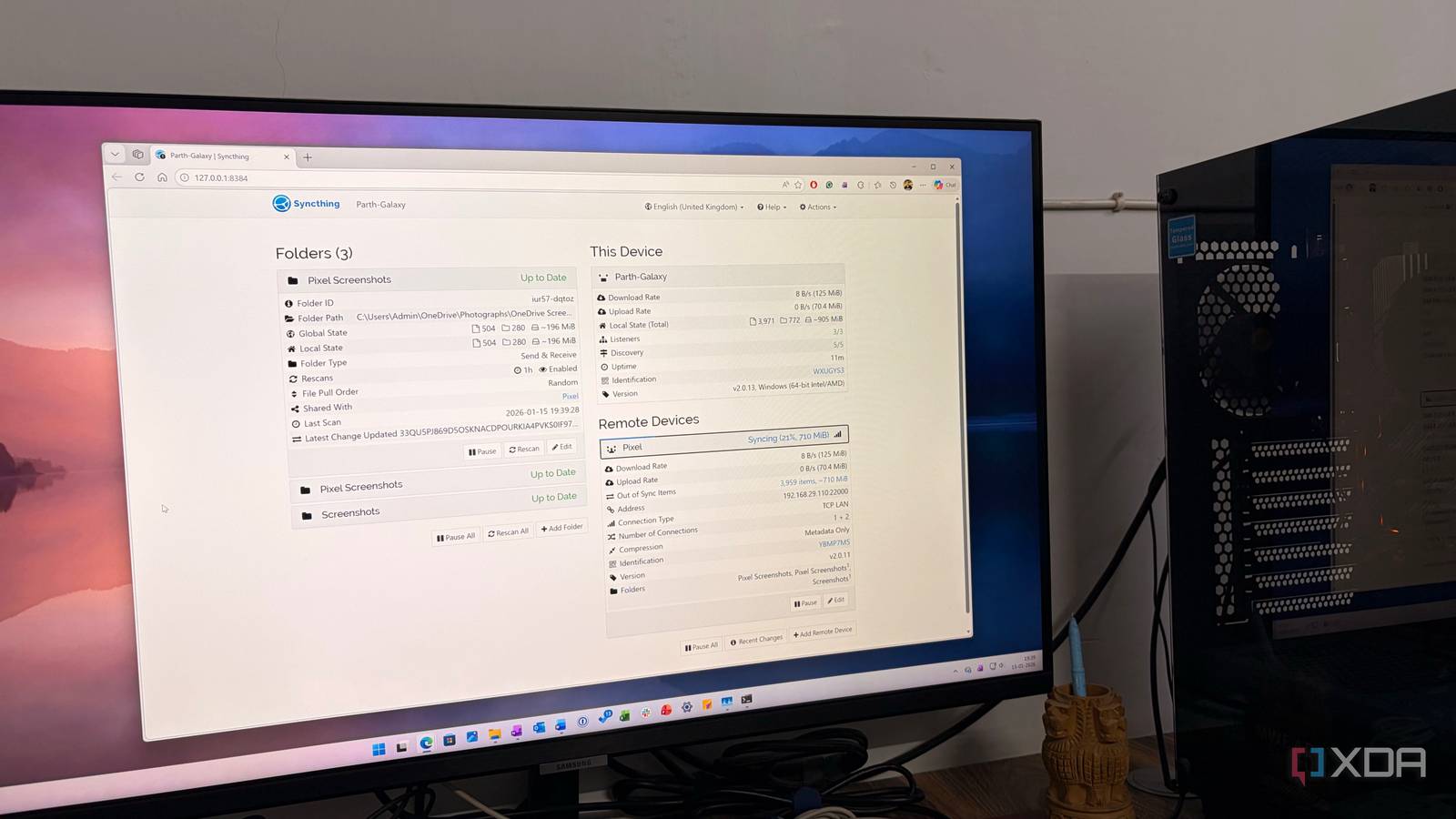
Published Sep 10, 2026, 5:30 PM EDT Parth, a seasoned tech writer, wields the keyboard (or pen) with finesse to unravel the intricacies of both Windows and Mac operating systems. He has covered evergreen content on mobile devices and computers for multiple publications over the last six years. You can find his work on AndroidPolice, GuidingTech and TechWiser. Whether it’s demystifying system updates, deciphering error codes, or exploring hidden features, Parth’s prose guides readers through the binary maze. When not immersed in tech jargon, you’ll find him sipping chai, pondering the next software review, and occasionally indulging in a friendly debate about mechanical keyboards. I used to think building a private cloud meant installing something massive like Nextcloud, configuring a dozen services, and turning a cheap server into another full-time project. I was wrong. I only needed three small Docker containers to cover most of what I actually wanted from the cloud: keeping my files in sync, storing my documentation and notes, and managing my passwords. The setup is lightweight, easy to maintain, and runs well on modest software. Syncthing The quiet backbone of my cloud Syncthing is the container that makes this entire private-cloud setup click for me. I have files across my Windows desktop, laptops, phone, and server, and I don’t want to manually copy them around every time I make a change. With Syncthing, I can pick the folders I care about, connect my devices, and let it handle the rest in the background. That simplicity is what I like most about it. I can have a work folder on my Windows PC automatically synchronized with my server, for example. If I add a document, edit an article draft, rename a folder, or delete something, Syncthing can replicate those changes to the other connected devices. In another example, I use Syncthing to sync my Pixel 8 screenshots folder to my Mac. That way, my screenshots are already there on my MacBook Pro, and I can easily upload them to my drafts. Syncthing also gives me much more control over how each folder behaves. The standard Send & Receive mode works exactly as I would expect, but I can also create Send Only or Receive Only folders. That is useful when I want my server to act more like a destination rather than another machine where I edit files. Syncthing has a web interface where I can see my folders, connected devices, sync status, transfer activity, and whether anything is out of sync. For me, that is why Syncthing is such a crucial part of this setup. Docmost and Vaultwarden add specific services to my private cloud, but Syncthing handles the thing I need constantly: making sure my important files are where I need them. Once that happens automatically in the background, my cheap server starts feeling like infrastructure I can depend on every day. Docmost Where all my knowledge now lives I use Docmost as my private documentation hub where I can store project notes, setup guides, ideas, reference material, and anything else that matters in my work and homelab. The interface is one of the main reasons I like it. Docmost feels much closer to a modern workspace like Notion than an old-school wiki. I can create different spaces for separate areas of my life and work, nest pages underneath them, add tables, code blocks, attachments, comments, and organize everything without making the structure complicated. The built-in diagram tools are another big plus for me. Docmost supports Draw.io, Excalidraw, and Mermaid, so I can create flowcharts, network diagrams, or quick visual explanations directly alongside my documentation. Docmost also supports Bases that add Kanban boards and complex databases to the documents. However, it’s limited to paid plans only. Most importantly, the whole thing runs on my own server. Syncthing gives me control over my files, while Docmost gives all that information structure and context. Vaultwarden The smallest container guards everything Vaultwarden is probably the most sensitive container in this entire setup because it stores the keys to almost everything else I use. Instead of relying on third-party password vaults like 1Password or LastPass, I can keep my passwords, logins, secure notes, and other credentials on my own server while still using the familiar Bitwarden ecosystem. I don’t have to give up the convenience of browser extensions, mobile apps, desktop clients, or the web vault just because I want to self-host. Vaultwarden is compatible with Bitwarden clients, so that experience still feels polished and familiar. I can save new logins, generate storage passwords, organize credentials, and access them from the devices I use every day. I also like how lightweight the whole setup is. I don’t need to deploy a huge identity-management stack just to host my password vault. Of course, self-hosting passwords is one area where I can’t take shortcuts. I keep Vaultwarden updated, use HTTPS, protect the account with strong authentication, and treat backups as mandatory. It may be a tiny container, but in terms of importance, it is easily one of the biggest services running on my server. No subscriptions, no storage limits I don’t think a private cloud needs to start with a giant server, a complicated dashboard, or ten containers running at once. Syncthing, Docmost, and Vaultwarden cover a huge part of what I expect from a personal cloud. Immich is next on my list because moving away from Google Photos will be the hardest part of this entire transition. If you are thinking about building your own private cloud, start small. Pick two or three services you will genuinely use, get comfortable with them, and expand only when you actually need more.
The 3 tiny Docker containers that turned a cheap server into my private cloud
Full Article
Original Source
Read the full article at Xda-developers →KhanList aggregates and links to publicly available news content. We do not host full articles from third-party sources. Always verify important information with original sources.