
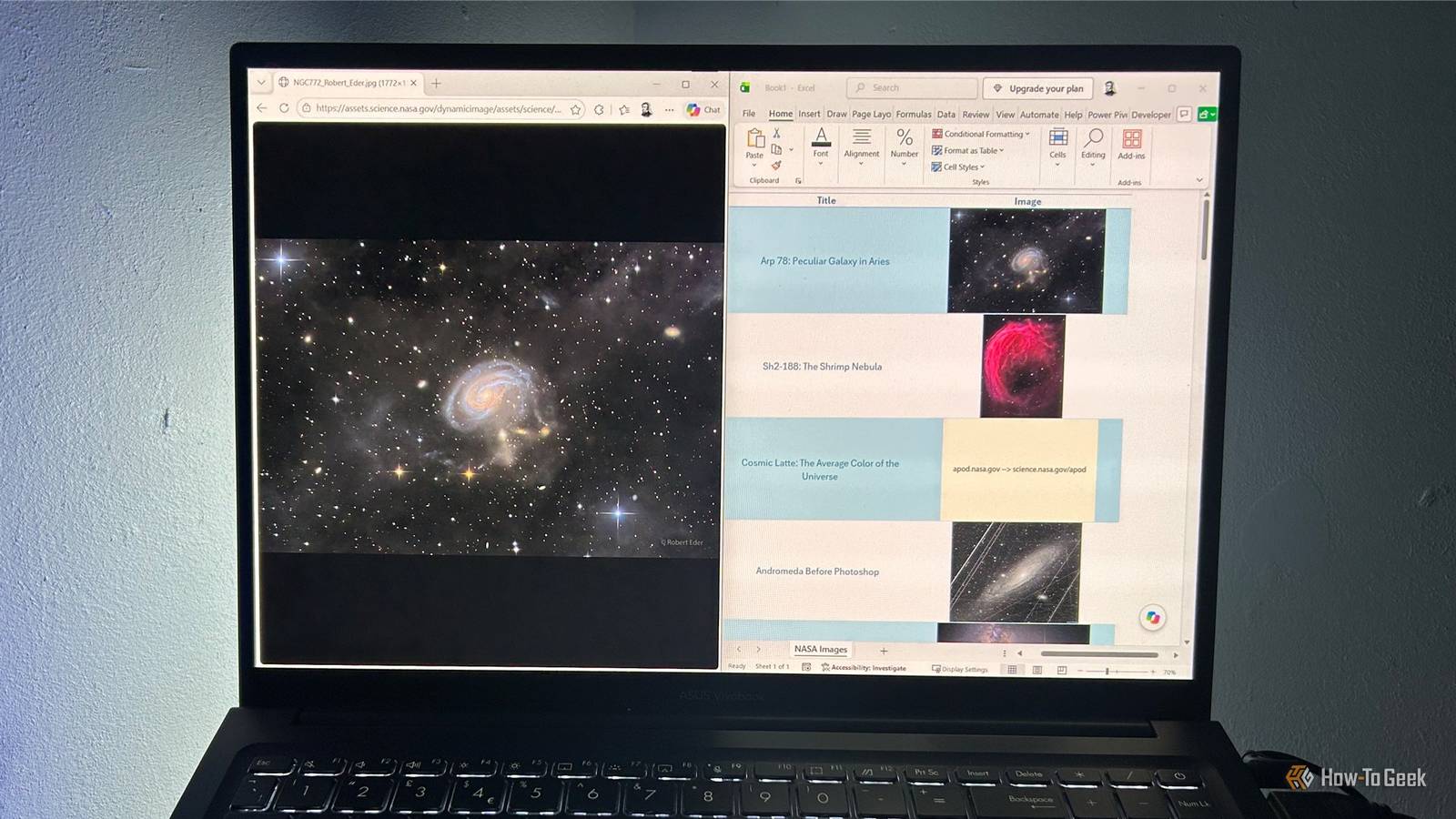
Published Oct 2, 2026, 7:00 AM EDT Tony Phillips is an experienced Microsoft Office user with a dual-honors degree in Linguistics and Hispanic Studies. Prior to starting with How-to Geek in January 2024, he worked as a document producer, data manager, and content creator for over ten years, and loves making spreadsheets and documents in his spare time. Tony is also an academic proofreader, experienced in reading, editing, and formatting over 3 million words of personal statements, resumes, reference letters, research proposals, and dissertations. Before joining How-To Geek, Tony formatted and wrote documents for legal firms, including contracts, Wills, and Powers of Attorney. Tony is obsessed with Microsoft Office! He will find any reason to create a spreadsheet, exploring ways to add complex formulas and discover new ways to make data tick. He also takes pride in producing Word documents that look the part. He has worked as a data manager in a secondary school in the UK and has years of experience in the classroom with Microsoft PowerPoint. He loves to encounter problems in Microsoft Office and use his expertise and legal-level training to find solutions. Outside of the Microsoft world, Tony is a keen dog owner and lover, football fan, astrophotographer, gardener, and golfer. Sign in to your How-To Geek account If you've been staring at Excel all week at work, the last thing you probably want to do this weekend is open another spreadsheet. Except Excel gets surprisingly interesting when you connect it to other things. This weekend, put that idea to the test with three projects that take Excel somewhere a little different. Turn NASA's daily pictures into an Excel gallery Give your spreadsheet something new to show you every day Excel doesn't have to spend its entire life staring back at you from a grid of numbers. With a little help from Power Query and NASA, you can turn it into a refreshable photo gallery that pulls in new pictures whenever you refresh it. NASA's Astronomy Picture of the Day is particularly well suited to this because the data includes everything you need: the picture's date, title, description, credit, and a direct URL to the image. Excel can pull those details into a table, then use the IMAGE function to display the pictures. First, retrieve and transform the data. In a blank Excel workbook, open the Data tab and click From Web. Paste https://science.nasa.gov/wp-json/wp/v2/apod-basic/?api_key=DEMO_KEY, and click OK. When Power Query displays the results as a list of records, click To Table in the Transform tab. If the To Table dialog appears, leave the settings unchanged and click OK. Expand the records so you can see the individual fields for each NASA picture. Keep date, title, and hdurl, which are the essential fields for this project. Keep url, too, if you want a link to more information about the image. Now, send it back to Excel and turn it into a gallery. Click the top half of the split Close & Load button in the Home tab to bring the transformed data into Excel. Add a new column to the table and head it Image. In the first cell of the Image column, type =IMAGE(, select the first cell in the hdurl column, close the parentheses, and press Enter. If Excel displays two security warnings, click Paste everything in the first and Enable in the second. Excel will use each direct image URL to display the corresponding NASA picture. Resize the Image column and the table rows so the pictures display nicely. Click Data > Refresh All whenever you want to update the gallery. Excel will go back to NASA, retrieve the latest available APOD data, and update the table and images. Alternatively, you can set the query to refresh automatically whenever you reopen the workbook. The result is much more interesting than a list of URLs. You get a visual feed of the latest available NASA pictures right there in Excel, complete with titles and descriptions. You can also hide the hdurl column to keep the finished worksheet tidy if you wish. If Excel keeps changing your carefully adjusted column widths when you refresh, select any cell in the output table, go to Table Design > Properties, and in the External Data Properties window, uncheck Adjust column width. And NASA is only one example. Once you've seen how Power Query can pull structured information from the web, you can start experimenting with other sources, too. News, sports, weather, and plenty of other data can be brought into Excel using the same basic idea. Turn an Excel list into an interactive Google My Maps map Give your spreadsheet a geographic dimension An Excel spreadsheet can tell you what's on your list, but sometimes you need to see where everything is. Google My Maps can take the locations in an Excel file and turn them into clickable markers on an interactive map. This is particularly useful for lists of places you want to explore, visit, track, or organize. You can customize the markers, add photos and other information, create multiple layers, and share the finished map with other people. Start with an Excel file containing one location per row. Make sure your worksheet has clear headings and enough location information, such as Name, Address, City, State, and Country. Save the workbook as an XLSX file. Open Google My Maps and click Create a New Map. Under the first layer, click Import. Select your Excel file and wait for My Maps to upload it. When prompted, select the columns that contain your location information. For example, choose Address, City, State, and Country, then click Continue. Choose the column you want to use as the marker name, then click Finish. Once your markers are in place, you can customize their icons, add photos or other details, create additional layers, or share the finished map. You can also import another Excel file as a separate layer if you want to bring another set of locations into the same map. The clever part is what happens to your spreadsheet when you import it. Your rows become something you can explore on a map, making patterns, distances, and clusters of locations much easier to see. The imported data can also be edited directly in My Maps. If you later make changes to the original Excel file, you'll need to reimport it rather than expecting those changes to appear automatically. Turn a Microsoft Forms form into a live Excel workbook Let other people put the data into your spreadsheet Here's a different way to make Excel more useful: don't fill it in yourself. Create a Microsoft Forms form, send it to other people, and let their answers flow into an Excel workbook where you can see and analyze the results. You could use this for a quick poll, a quiz, a vote, or anything else where you want people to submit answers. The form takes care of collecting the responses, while Excel gives you a familiar place to work with them afterward. Go to Microsoft Forms and click New Form. Add the questions you want to ask, using choices, text fields, ratings, or whatever suits your mini-project. When you're ready, click Collect responses and share the form. Once people have started answering, click View responses. Click Open results in Excel to see the live response workbook in Excel for the web. You can use Excel to sort, filter, summarize, or chart the responses. Best of all, as more people complete the form, their responses appear in the workbook automatically. The nice thing about this project is that you don't have to decide what the spreadsheet should look like before you start collecting responses. Forms handles the questions and submissions, while Excel gives you a place to play with the answers. Excel is more interesting when it doesn't work alone These three projects show Excel working in three different directions: NASA sends information into your workbook, Google My Maps takes information out of it, and Microsoft Forms gives other people a way to put information into it. If you still have a few minutes to spare this weekend, try connecting Excel to a folder on your PC to make your weekly report update itself.
Take Excel beyond the spreadsheet with these 3 unusual weekend projects (Oct. 2–4)
Full Article
Original Source
Read the full article at Howtogeek →KhanList aggregates and links to publicly available news content. We do not host full articles from third-party sources. Always verify important information with original sources.