
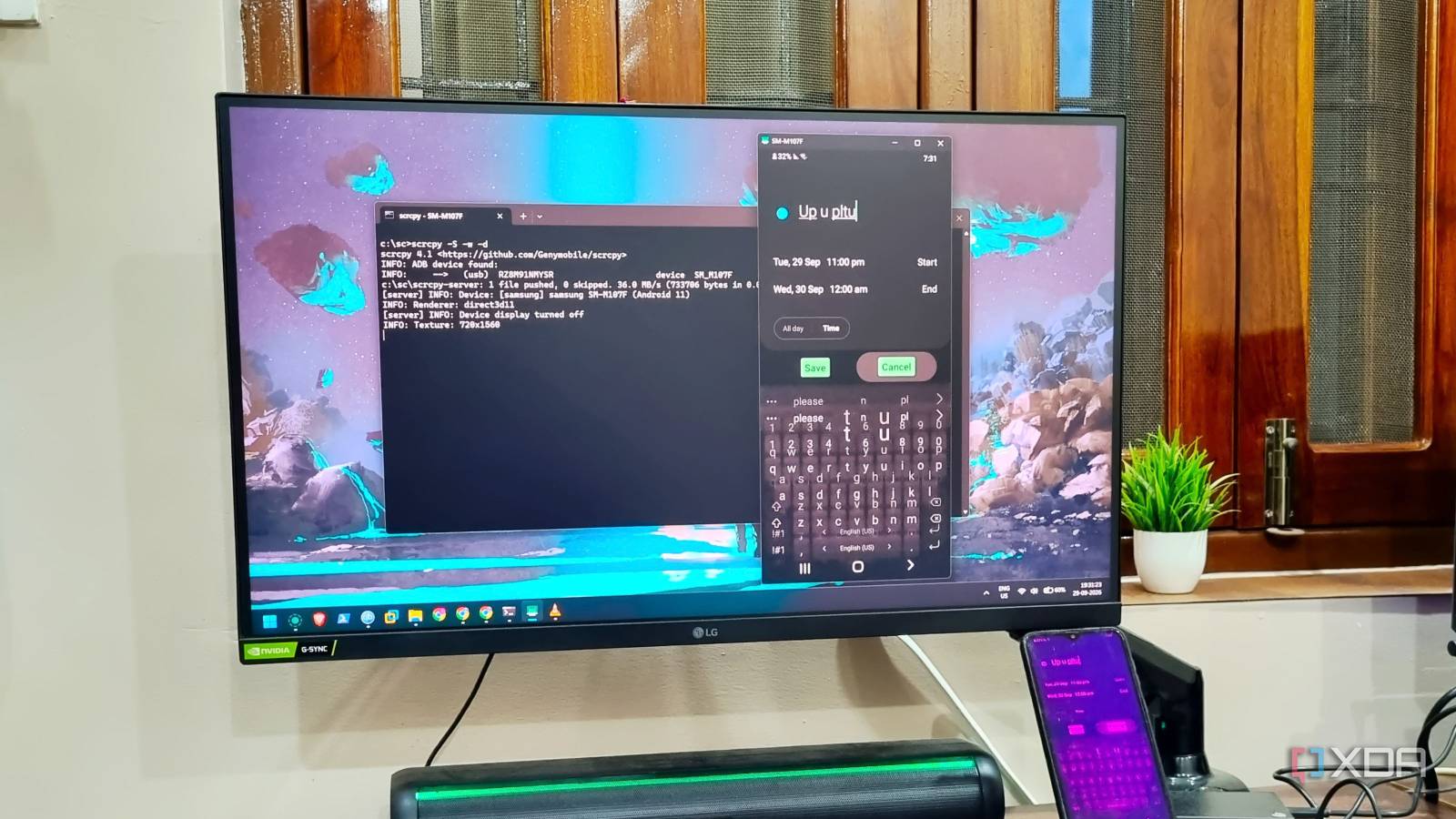
Published Oct 2, 2026, 12:31 PM EDT Abhishek is an author at XDA who covers computing. He has loved computers since he got the Lenovo G570 in 2012. Abhishek holds a master's degree in computer applications and began his writing career in 2018. He loves writing how-to articles, listicles, and informational posts on popular operating systems and web services. He closely follows the Windows Insider program and tests new Insider builds to discover upcoming experimental features and upgrades. His past work includes long-term collaborations with reputed publications like Tom's Hardware, and Windows Latest. When not writing anything, he is busy watching new episodes of One Piece or searching for something binge-worthy. Smartphones have a fairly long lifespan. I have a Redmi phone that's six years old at this point, a Samsung phone that just turned seven, and another that's about three years old. While most of the hardware functions, the first parts to falter usually involve the screen or the USB charging port. The latter is a cheap replacement compared to the screen. A touchscreen phone without a working screen is basically uncontrollable. But I found a workaround with a tool and slowly recovered all the data, emptied the phone, and prepped it for a small home server project. Phone screens are fragile You should be prepared beforehand It's not the first time that I've had a problem with my phone's display. I have had such encounters before where the screen became unresponsive and then blank. There were also accidents when the phone slipped from my hands or pocket and fell on the floor, leaving it with several cracks. But this time, my mum was trying to play a song on YouTube like she always does. The screen appeared purple with visible grid lines and would occasionally go back to white. She couldn't type anything or press the buttons in the app, and asked me to check it. I immediately recognized the state, knowing very well that it wouldn't work. The first thought was to copy the storage contents to the PC. But the screen was so unresponsive that I couldn't even click the notification to enable file transfer. Clearly, the touchscreen route wouldn't work, and I found a tool to mirror the screen to the PC. It needed ADB for it to work, and I hadn't enabled USB debugging on the phone because nobody does. If you're ignorant like me, you'll have to deal with the same ordeal. It's a setting that can open doors to file transfer, troubleshooting, and much more. I connected a mouse to the phone via an OTG adapter and somehow managed to enable developer options and USB debugging. I also enabled MTP after connecting the phone to my PC with a USB cable. Copying personal files Mirroring the phone screen to my PC The first thing that I did was to copy all the files from personal folders to my PC. It was fairly easy and the first thing to do because the phone had a lot of photos and screenshots. Thereafter, I could go the traditional ADB route to connect to the phone and then use commands to modify settings. But that is tedious and requires me to learn a lot of commands. I found a GitHub tool called scrcpy that could mirror the phone screen via ADB. It bundles the ADB packages by default, and I didn't have to deal with any of it. Simply extract the archive and then open a terminal window. Navigate to the tool’s directory and run it with the scrcpy command. It'll automatically start a session, and the phone screen will light up. It caused a new problem because my screen was experiencing ghost touches and was not responding correctly. So, I tweaked the command a bit to make the tool work in locked mode. scrcpy -S -w -d After that, I could access the interface and move on to the rest. For starters, you could remove the apps you don't need, sign out, and remove personal accounts. Additional cleanup jobs include removing personal files or apps. All these things let you tidy the phone if you want to send it for a repair and worry about personal data loss. The tools run the session via the terminal, but you get a GUI interface to work with. Surprisingly, the screen is flipped to the other side, and some controls and toggles feel weird. But it's not a huge problem, and you can easily navigate the interface with a mouse and keyboard. I used it to enable wireless USB debugging and pair the phone with it. You can even use the phone interface to create a backup file and then restore it after you get the screen fixed. However, I had another thing on my mind. Building a home server with an Android phone Removing bloatware to free up space for tools Samsung phones have a lot of bloatware, and it's not easy to remove it via the phone UI route. Scrcpy was very helpful with screen mirroring and makes it incredibly simple for a lot of phone-related actions. For more control, ADB is essential to remove packages. Rather than using ADB commands, I used the Universal Android Debloater (UAD) tool. It categorizes the packages into safe, unsafe, and a few other buckets, and the GUI interface makes it easy to both purge and restore packages when needed. I was able to free up about 14GB of internal storage space with this approach to personal files, apps, and packages. Then I installed Podroid, which uses virtualization to set up a Docker system. I deployed BentoPDF and OmniTools and tested a few other tools, but these two remained permanent. You can build a similar server after a deep package cleanup on your phone to make space for Podroid setup. Easy recovery USB debugging is turned off for security purposes, but it's the most helpful thing when your phone screen malfunctions. Enabling it is the key to opening the door for future phone control. If you notice any kind of screen flickering, spots, or the dreaded green lines, enable USB debugging immediately. Then, you can use scrcpy to mirror the phone screen interface, plan recovery, and enable other settings like MTP for file transfer. Controlling a faulty display becomes painless with scrcpy and a single launch command. You can use it in wireless mode, but it needs initial setup, and the input delay is somewhat frustrating. Samsung Galaxy S26 SoC Snapdragon 8 Elite Gen 5 Display 6.3-inch Dynamic AMOLED 2x The latest flagship series phone with new AI features and improved camera.
I used a free tool to control an Android phone with a malfunctioning screen, and it's a lifesaver for recovery
Full Article
Original Source
Read the full article at Xda-developers →KhanList aggregates and links to publicly available news content. We do not host full articles from third-party sources. Always verify important information with original sources.