
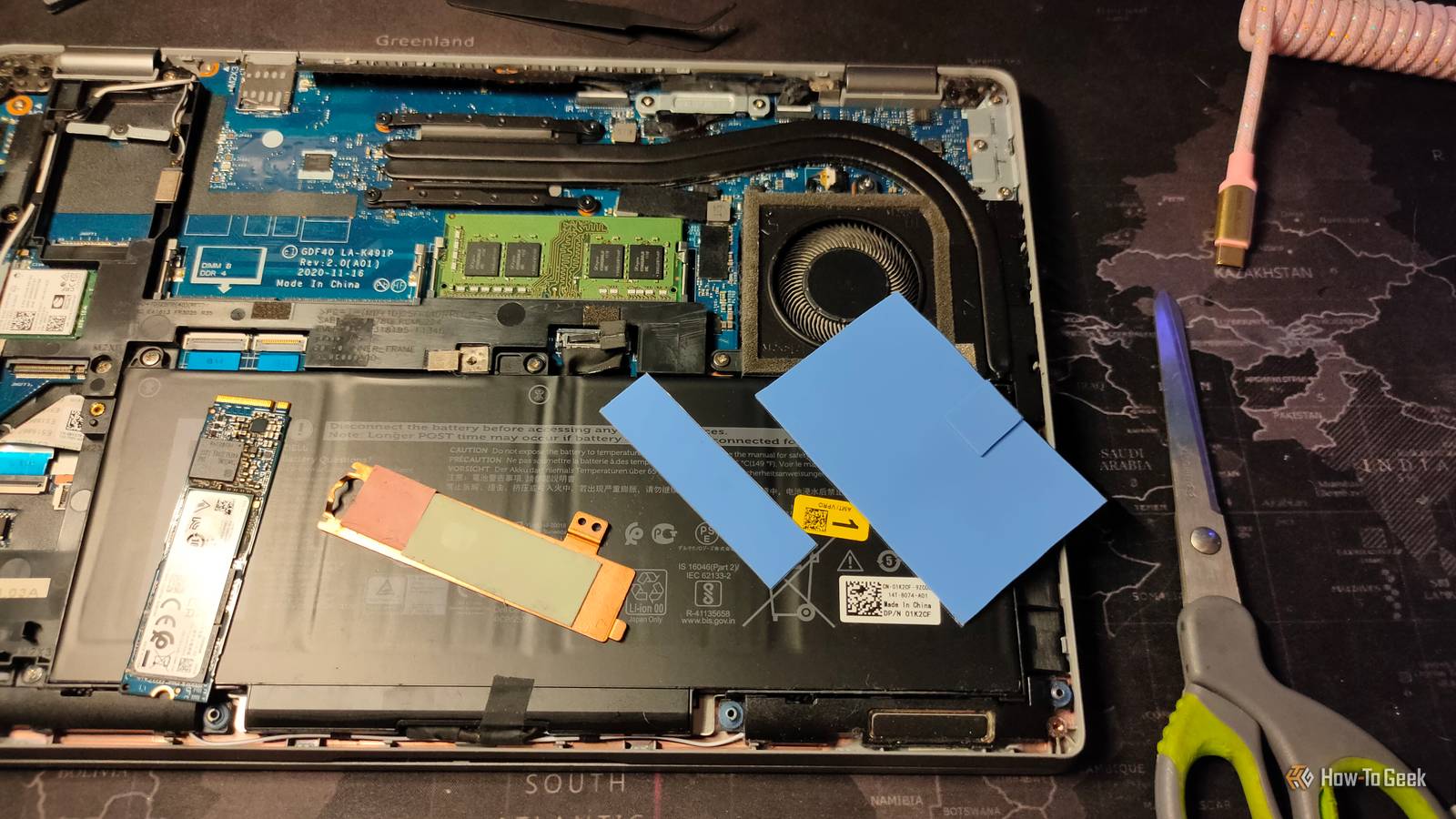
Published Nov 11, 2026, 9:30 AM EST Ismar is a Senior Author at How-To Geek. He previously worked as a writer, editor, and general manager at a content agency before joining the team in 2023. He began his writing career in 2021 after completing a BA in English Language and Literature. Beyond How-To Geek, Ismar has contributed to Red Stag Fulfillment and Authority Hacker. He has also worked on various SEO projects to help clients improve their search visibility. Ismar has been around Windows PCs since the age of three, so friends and family naturally chose him as the resident tech support. His projects often involve tinkering, such as disassembling mechanical keyboards and gaming mice to mod his beloved gear. He also enjoys pushing hardware to the max through overclocking while staying on a reasonable budget. An avid gamer, Ismar has logged thousands of hours across various genres, including first-person shooters, RPGs, racing games, and roguelites. When he is not at his desk, he is probably exploring other people’s phones to discover their quirks and features or experimenting with the latest AI tools. In his free time, Ismar enjoys spending time with his wife, working out at the gym, playing guitar and bass, cooking gourmet meals, and traveling. Above all else, he’s a proud cat owner. Summary Match storage to your workflow: if you work with heavy media, you'll need several TBs, whereas light browser use requires very little. 240GB is the bare minimum for users who don't need a lot of storage. Don’t overspend on built-in storage—you can add an internal NVMe later or use a fast external SSD. When shopping for a new laptop, storage space is one of the most important specs to consider. However, there’s no one-size-fits-all number for how much you’ll need, because storage requirements can vary widely. So, let’s break down a few key factors to help you decide how much laptop storage to get. Your needs determine how much laptop storage you actually need The first step in determining how much storage you'll need is to get a rough idea of how much you currently use. For example, if you're running a 500GB SSD in your laptop and have filled it with programs and files, it’s completely reasonable to get 2TB or more on your next laptop. You’ll probably fill it without much effort. If your work involves handling large files and keeping them for several months at a time, you’ll want as much built-in storage as you can afford. Video editors and photographers, for instance, often work with massive files and may need tens of gigabytes for a single project. If you don’t have the time to offload this data to a long-term storage solution like a NAS, or if you’re working remotely, it’s comforting to have that extra peace of mind. In contrast, if all you do on your laptop is light, browser-based work like reading news, answering emails, and streaming TV shows, or you only handle small files like text documents that don’t need to stay permanently stored, you don’t need much storage beyond what’s necessary for your OS and a few core programs. Credit: LG It’s worth noting that SSDs can slow down as they fill up, particularly if they lack a DRAM cache. That said, with most modern NVMe SSDs, this isn’t something you’ll notice in day-to-day use—at least not until the drive is 80–90% full. For that reason, I recommend a minimum of 240GB for any new laptop, even if you don’t expect to use it all. The good news is that most new laptops (excluding Chromebooks, which require less storage) already come with 240GB or more, so this is rarely an issue unless you’re buying a used laptop. Tell XDB what you want the PC to do and how much you want to spend. We'll find parts that fit, with current prices. What will you use it for? Pick any Games or apps Optional Budget Plan my build Opens XDB, XDA's free PC builder, in a new tab. Most people need less storage than they think A fairly common trend that I've noticed in people shopping for a new laptop is that they tend to overspend, and there is some logic behind that decision. Spending a bit more now means you can probably get an extra year or two out of the laptop down the line, so it makes sense. However, while that logic holds for things like the CPU, display, and especially RAM, it doesn't necessarily apply to storage—at least not for everyone. To give you a first-hand example, my wife and I share a Dell Latitude 5420, which comes with a 256GB NVMe SSD. The storage is upgradeable, which is why I didn’t worry too much going in, but after using it for a while, I don’t actually think I’ll ever need to upgrade it. The SSD currently sits half-empty, and even now, most of the large files stored on the laptop are just a few light video games I like to play on vacation or weekend mornings. I still have enough space for drivers, new apps, or in case Windows releases a major update. Your need for physical on-board storage shrinks even further if you rely on cloud-based apps and storage. If you primarily work in Google Docs and Sheets from a company account with paid cloud storage, you don’t need much local storage. Remember, storage is one of the more expensive specs when buying a laptop directly. For instance, according to Dell’s part picker for the XPS 13, upgrading from a 1TB NVMe SSD to 2TB costs a whopping $200. For that money, you’re better off saving it for other upgrades or reallocating the funds to get a better CPU, more RAM, features like a touchscreen, or even upgrading to a better laptop altogether. You can always add or expand storage later Credit: Jerome Thomas / How-To Geek While some laptops, like ultralights, some 2-in-1 models, and MacBooks, don't have expandable storage, many other models (especially gaming and business ones) allow you to upgrade the storage with a standard M.2 NVMe SSD down the line. This is perfect if the base model meets your current storage needs, but you're worried that you might need more room in the future. Just double-check the manufacturer's documentation to ensure the model you're getting indeed has expandable storage. As a side note, if the laptop does have expandable storage, it's often cheaper to buy an NVMe separately and upgrade the storage yourself. However, before you start prying open your new laptop, confirm with the manufacturer that your warranty won't be void if you add an aftermarket SSD. And if you don't want to do it yourself, you could try phoning a local computer store to see if they'd do it for you and to check the price beforehand, then go from there. If your laptop doesn't have upgradeable storage, or you don't wish to tear open a new laptop, there's always the option of opting for external storage. USB flash drives are cheap and work pretty great, but if you want a faster, more serious storage solution, you can opt for an external SSD. Ideally, get one that supports USB 3.2 Gen 2 or Thunderbolt for snappy file transfers. Crucial X10 Portable SSD 9/10 Storage capacity 1TB, 2TB, 4TB, 6TB, 8TB Hardware Interface USB-C 3.2 Gen 2x2 The Crucial X10 Portable SSD features read speeds of up to 2,100MB/s using its USB-C 3.2 Gen 2x2 interface. With a drop rating of 9.8 feet and IP65 water- and dust-resistance, this drive is ready for whatever you can throw at it. Plus, it comes in storage capacities ranging from 1TB up to 8TB. Brand Crucial Transfer rate 2,100MB/s Dimensions 2.53 x 1.93 x 0.37 inches Weight 37.9 grams Ultimately, how much storage you need on your laptop is something that only you can determine. The good thing is that there's always a way to add more storage, either directly or indirectly. So, don't be afraid of getting "locked" into the base storage that comes with your laptop, as there's a good chance that you can upgrade it for cheap down the line or at least throw an external SSD into your laptop bag.
Stop overspending on laptop storage, here's the smart alternative
Full Article
Original Source
Read the full article at Howtogeek →KhanList aggregates and links to publicly available news content. We do not host full articles from third-party sources. Always verify important information with original sources.