
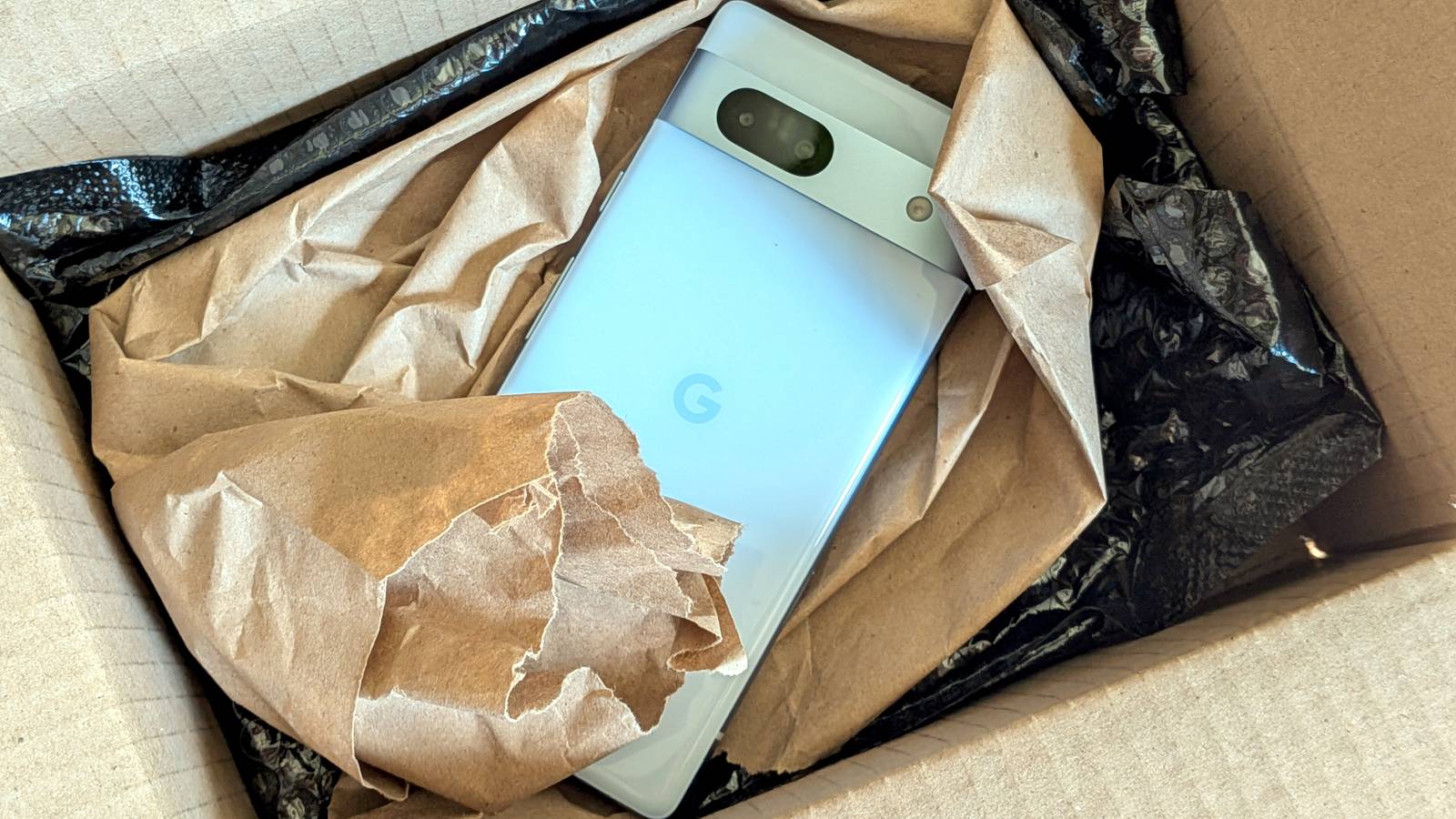
Nothing beats the experience of unboxing a brand-new phone, removing the protective sheets, and turning it on for the first time while you're gliding all over it with your fingers to get a feel for the case's texture. After unboxing dozens of phones in my life, this still hasn't gotten old. But buying refurbished has its perks too, especially if you choose a refurbished Pixel instead of a brand-new one. You can save a nice chunk of change, get more storage for less cash, receive a warranty like you'd get with a new device, and buy a newer Pixel than you'd be able to buy if you shopped for a new phone. Now, before you decide to shop for a refurbished phone, look up whether Google, Amazon, or other sellers are currently running promotions on new Pixel phones. Google runs promotions from time to time as well as a very solid trade-in program, allowing you to snag a new Pixel for less than you'd pay for a refurbished device. Amazon also runs regular sales on Pixel phones, sometimes discounting them by a few hundred bucks, which could also get you a new Pixel for less than what a refurbished one would cost you. If you decide to go down the refurbished route, however, you should be aware that it's generally a riskier option compared to buying new, so it's best to reduce the risk of getting a dud to a minimum. Here are some must-dos you ought to follow before and after buying a refurbished Pixel phone. Firstly, make sure you're buying from a trustworthy seller Check the seller's reviews and refurbished phone policies Credit: Joe Fedewa / How-To Geek Now, the first thing to do is actually purchase the phone from a trustworthy seller. If you decide to shop for a refurbished Pixel directly from the Google Store, you're covered because Google offers both a one-year warranty and free 15-day returns with every refurbished Pixel purchase. If you opt to get the phone from another platform, however, you should do some research before pulling the trigger. For instance, if you're shopping on Amazon, you should be safe purchasing a refurbished phone directly from Amazon (i.e., Amazon is listed as the shipper and seller), since Amazon's Renewed program offers a 90-day limited warranty for most refurbished products, along with a free 90-day return/replacement window. To be sure, visit the listing page for the phone you want to purchase, locate the Product Information section, and expand the Item details tab. There, you should see 90 days limited warranty listed under Warranty Description. On the other hand, if you're buying from a third-party seller on Amazon or some other online store, do your due diligence and read their return policy; for instance, third-party Amazon sellers may offer a shorter return window than Amazon does, and may also charge you restocking fees for various reasons. You should also read customer reviews to see whether the seller honors their warranty and return policies and what the general state of the refurbished items they're selling is. I also strongly advise you to read about renewed conditions and labels, because every store has different labels for the condition of renewed products. For instance, Amazon has three renewed conditions: Excellent, Good, and Acceptable, each with clearly defined body, screen, and battery-life requirements. Other stores have different refurbished labels, which can sometimes be a bit convoluted. A case in point is Walmart, which has multiple condition categories under its Resold program, with different requirements for physical and battery condition. In other words, you have to be extra careful and read every detail about the phone's condition to avoid getting a scuffed device with noticeable wear or one that has subpar battery life. Never buy refurbished without a free return option Read the seller's return policy before pulling the trigger Credit: Joe Fedewa / How-To Geek Before I move on, I have to reiterate that having a free return option is a must when buying any refurbished device, not just a Google Pixel. Since refurbished phones come with a higher degree of uncertainty than new phones, you want to be able to return the device if something's wrong. Even a 15-day return window should be fine because that's plenty of time to thoroughly test the device; just make sure the seller offers free returns. On a related note, I don't recommend buying a refurbished phone if you aren't able to easily return it. For instance, if you don't live in the United States, it's better to check your local market for refurbished or pre-owned Pixels than use Amazon's U.S. store and then get stuck with a faulty phone because you can't return the thing without paying through the nose for shipping costs and other taxes. Check the phone's IMEI number and unlock status as soon as you receive it Two must-dos when buying a refurbished phone Once you pull the trigger and the phone is finally in your hands, the first two things you should do are check its IMEI number as well as its unlock status in case you bought an unlocked phone. Just don't forget that many Pixel phones come with two IMEI numbers because they support multiple SIM cards (either one physical SIM and one eSIM, or two eSIMs, depending on the exact version of the phone). Checking the IMEI on a Pixel phone is simple: either type *#06# in the Dialer app or open Settings, type IMEI in the search box, and tap the first result. After you find the two IMEI numbers, you can submit either one to an online tool such as IMEI Pro to check whether the device has been reported stolen and/or blacklisted. After you finish this, make sure the phone is carrier-unlocked if you bought an unlocked device. You can, naturally, test it with your own SIM card, but you can also use a carrier's IMEI lookup to see whether the phone is compatible with its network and, in some cases, whether it's unlocked. Verizon, T-Mobile, and AT&T all offer IMEI lookups. Next up, inspect its physical condition Check the screen, cameras, buttons, and frame Credit: Bertel King / How-To Geek After checking the IMEI number and making sure the phone is carrier-unlocked, it's time for a detailed physical inspection. If you bought a refurbished phone from Google, one labeled as Excellent on Amazon, or a device that should not include any visible scratches or similar damage according to the seller, the phone should look brand-new on the outside, without any screen scratches and with only minor cosmetic damage to the body. This doesn't only include the lack of any body and screen scratches, but also pristine-looking buttons and camera lenses, as well as a USB-C port without any visible damage. I also recommend testing the physical buttons, making sure they work without issues both when pressed and held, and that they don't get stuck and keep registering inputs when you press them multiple times in quick succession. Once you make sure the physical condition is up to snuff, check the battery health This one's very simple to do Credit: Justin Duino / How-To Geek If all's well with regard to the phone's physical condition, it's time to check the battery health. On Pixels, you can do this by going to Settings > Battery > Battery health. Refurbished phones in general should come with a battery that has retained more than 80% of its original capacity, so that's what you should be looking for. However, the higher the number, the better. Optimally, the battery should be close to or exceed 90% of its original capacity. You can also check the exact number of battery cycles the phone's battery has gone through by going to Settings > About phone > Battery information. Lastly, run a full hardware diagnostic Test everything before the return window closes Once you go through the basics, it's time to run a full hardware diagnostic to make sure every part of the phone, such as the microphone, camera, various sensors, touch screen, and other hardware, works correctly. Now, Google includes a few built-in diagnostic tools that can check whether Bluetooth, touch-screen, and charging work correctly. You can access these by opening Settings and going to the Device health & support menu. The menu also includes general information regarding the state of the phone, but you should test the hardware even if you're getting the Looks good notification, like in the screenshot above. My recommendation is to download Essentials, a powerful app that includes a number of extra settings for Pixel phones, but also a massive number of diagnostic tools. Just note that you'll need to enable sideloading to install the app, since you won't find it on the Play Store. Once you install Essentials, open it and tap the top button or pull the screen down until you open the menu that lists your phone's details. If you want to unlock the full feature set that Essentials offers, I wrote a guide not too long ago showing you how to do that. The Diagnostics menu includes battery health and storage lifetime information, as well as display and touch tests, both of which you should run. The Device Check menu features a ton of diagnostic tests, allowing you to test almost every piece of hardware found in the phone: the sensors, cameras, audio components, display, connectivity, and more. If you ask me, I'd run every test available just to be sure everything's up to snuff. Of course, you can also manually test components. Take some calls, listen to music via Bluetooth buds and on the phone's speakers, shoot photos, run some benchmarks and stress tests, and more. Using the phone to its limits for a few days is the best diagnostic test there is, which is why having that free return window is so important. Google Pixel 11 Brand Google SoC Google Tensor G6 The new Pixel 11 line introduces HiLight feature and storage options starting at 256GB. You shouldn't let your guard down during the return period Going through the motions and performing every single diagnostic test after the phone arrives is great, but you shouldn't stop testing the phone as long as you're inside the return period. These are, after all, refurbished phones, so there's always a chance that something might stop working all of a sudden. I recommend running the tests available in the Essentials app about once a week or so during the return period. You should also keep an eye on the battery by using the phone normally and occasionally running heavier tasks, such as benchmarks or demanding games, to make sure it behaves as expected. Also, watch for rapid drops in battery percentage, which may be a sign that something's wrong even if the battery's health is high. If everything keeps working like clockwork even after a few weeks of using the phone, you're likely in the clear, but you could keep running tests regularly until the return window closes, just to be extra safe.
Refurbished Pixels beat new ones if you avoid these 6 common mistakes
Full Article
Original Source
Read the full article at Howtogeek →KhanList aggregates and links to publicly available news content. We do not host full articles from third-party sources. Always verify important information with original sources.