
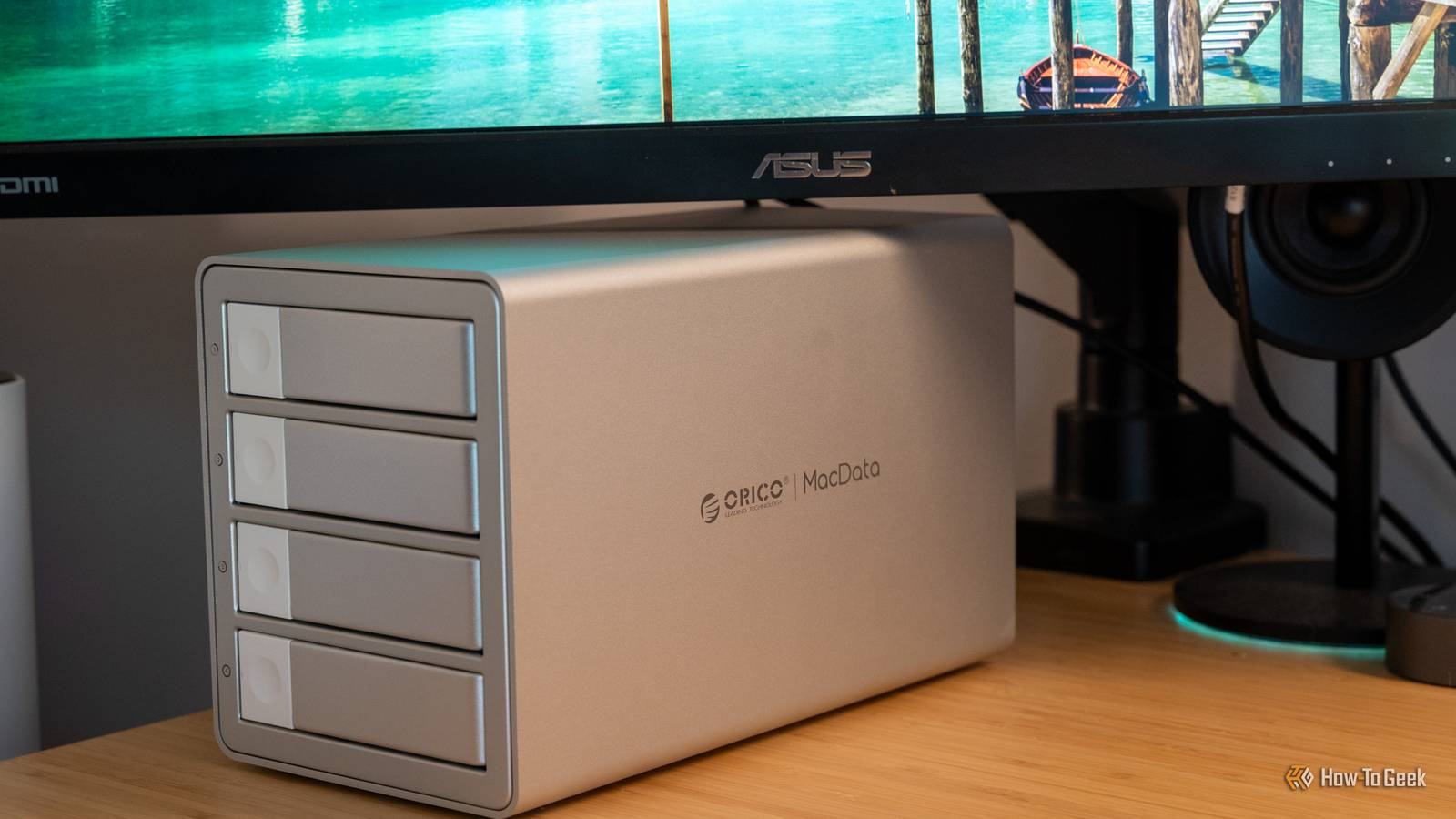
If you've been on the fence with whether to buy a NAS (network-attached storage) or not—let me show you a different way. ORICO's latest 9948RC3 PRO DAS (direct-attached storage) system offers great transfer speeds, RAID, and more, all without a pesky network connection or custom operating system to deal with, and I actually really enjoyed using it. ORICO 4-bay DAS 9948RC3 PRO 8/10 Brand ORICO Drive Bays 4 x 3.5-inch SATA Ports 1 × USB-C (USB 3.2 Gen 2x2, 20Gbps) OS Windows, macOS, Linux compatibility ORICO's 4-bay DAS is the perfect solution for when you need redundant storage without the NAS overhead. There's no CPU or RAM here to bottleneck, just four bays and a 20Gb/s USB 3 Gen 2x2 port that plugs into your computer. With six different RAID modes to choose from, this silent DAS is a great way to expand your computer's storage while staying sleek and minimal in the process. Dimensions 268 × 136 × 163mm Storage Diskless; up to 104TB (26TB per bay) Pros & Cons Simple switch-controlled hardware RAID Solid HDD transfer speeds 20Gb/s USB-C port gives plenty of headroom Quiet during sustained testing Normal mode does not expose all drive data for use with operating systems like Unraid or TrueNAS Price and availability The ORICO 9948RC3 PRO DAS is available to purchase from Amazon for $400. Specifications Brand ORICO Drive Bays 4 x 3.5-inch SATA Ports 1 × USB-C (USB 3.2 Gen 2x2, 20Gbps) OS Windows, macOS, Linux compatibility Dimensions 268 × 136 × 163mm Storage Diskless; up to 104TB (26TB per bay) This DAS gives you redundant storage without the NAS overhead It's just a housing with a bunch of drives in it after all I want to start by getting the obvious out of the way: a DAS (direct-attached storage) is not a NAS (network attached storage). A NAS, which I have reviewed quite a few of, is basically a full-on computer with a normal processor, RAM, networking, and more. A DAS, on the other hand, is essentially a big hard drive enclosure. This ORICO DAS has four drive bays that attach to a SATA backplane with a RAID controller that tells it how to access the drives. It has six different modes, including RAID 0, RAID 1, RAID 5, RAID 10, JBOD, and "normal" which just surfaces each drive independently (more on that later). If you don't actually need the networking side of a NAS, then a DAS really is a better option. This DAS is surprisingly simple when it comes to the hardware side of things. It just has to get the drives together into a RAID and display them to the operating system, after all. One thing to note though is there is no operating system or controller application. Everything is configured on the hardware, which is both simpler and more complex than one would expect. Setting up hardware RAID is surprisingly simple I thought the DIP switches would be more complex than they are Credit: Patrick Campanale / How-To Geek With a normal NAS, you choose the RAID type from within a special storage-focused operating system. With this ORICO DAS, you choose the RAID type with old-fashioned DIP switches on the back. There's a handy sticker on the back right above the DIP switches to show you what orientation to have the switches in to achieve whichever RAID level you want. For instance, all switches in the up position is normal, which means each individual drive is shown, well, individually to the operating system. All switches down except for the far right one is RAID 0, which stripes all the drives together. You get the point. Credit: Patrick Campanale / How-To Geek Once you have the RAID mode selected, you have to use the included pin tool (it looks like an old-fashioned SIM card removal tool) to press the "set" button when you turn it on. This will erase any data that's on the drives, so make sure you're ready before doing this. There's a beep on startup to confirm it's set, but I always held the button for about five seconds to make sure. From there, it was simply plug-and-play. The array is "uninitialized" in this state and requires you to create the filesystem and partition using your computer, which does add one extra step. However, it makes it entirely customizable. If you're a Mac user, then you could format it as APFS. Windows users can choose NTFS. Or, exFAT if you want to use it on both types of systems. I really like this flexibility as it lets me customize the system to be the exact type of filesystem I want it to be, regardless of what operating system you're using. That's just not something most NAS systems offer, and is something that sets a DAS like this apart. The 20Gbps connection is mostly unused headroom when you use hard drives Headroom isn't a bad thing though Credit: Patrick Campanale / How-To Geek One of ORICO's headlining new features for the 9948RC3 PRO DAS here (try saying that model name five times fast) is that it now has a USB 3.2 Gen 2x2 connection, which achieves up to 20Gb/s transfer speeds. Theoretically, this should mean you can get twice the transfer rates on this DAS than a 10Gb/s DAS, and four times the transfer rates as a 5Gb/s DAS, right? In my testing, that's not quite the case. My test setup included four 4TB Seagate IronWolf NAS hard drives, as NAS hard drives are the best choice for a DAS. Regardless of what RAID I used the hard drives in, I couldn't get any transfer speeds faster than 554MB/s. In RAID 5, which would be the ideal RAID to run this in as that gives one drive failure redundancy, I only achieved a maximum transfer speed of 400MB/s write and 420MB/s read. In RAID 0, which is the fastest RAID to use, I hit 553MB/s write, and 554MB/s read. ORICO's marketing materials show achieving speeds much faster than this, but I just don't see it in my testing. It's possible that there are faster drives out there, and larger or higher-performance drives could potentially offer more speed. But, in my testing, that's not what I was able to see. I tested using my M1 Max MacBook Pro, which can only connect at 10Gb/s, but I still was only seeing 50% saturation of that connection speed, so the 10Gb/s USB connection wasn't the limiting factor. Credit: Patrick Campanale / How-To Geek I also tested it with a mini PC I have that's running Linux and has USB4, since ORICO claims it can connect at 20Gb/s over USB4, but I was unsuccessful at making the 20Gb/s connection over USB4. Realistically, though, even a 10Gb/s connection is more than enough for normal hard drives. Unless you're running high-performance drives or SSDs, you're not going to saturate that pipe. At the 400-500MB/s transfer rates I did see though, I was very pleased with the performance. That is about four to five times faster than normal Gigabit Ethernet that a NAS has, and still around two times faster than 2.5G Ethernet. I was able to edit photos and videos off of this DAS like it was native storage on my system, which is exactly how it should function. It was also whisper quiet during operation, and I never heard the fans ramp up, even during benchmark testing. Overall, this DAS definitely delivers on the performance side of things. Headroom is never a bad thing to have, either. Often, those USB transfer speed ratings are theoretical maximums, so it's always better to leave extra room for improvement down the road so you're not limited by the transfer speeds of the USB connection. This DAS is capable of becoming a NAS in the right setup An existing PC can turn this DAS into a NAS real quick Credit: Patrick Campanale / How-To Geek I've spent a lot of time talking about how this DAS isn't a NAS, but could it be? The answer is—kinda. While the DAS sadly doesn't pass through the drives completely to the host when in normal mode like I was hoping it would, it does pass the drives through individually to the host, which is good. But, it doesn't give the individual serial numbers or any other individual drive identifiers that operating systems like Unraid or TrueNAS rely on. However, you could use the ORICO 9948RC3 PRO as a RAID array, like it's designed, and then use a mini PC to share that RAID volume with the network. It's a bit of a workaround, but it does work. All you'd need to do is create an NFS or SMB share that lives on the RAID array. From there, it would function like a normal NAS, but without having to buy a separate NAS appliance. Why would this be useful? Well, it would give you full DAS read and write speeds at your local machine, but with network access. To get 500MB/s read and write speeds from a NAS, you'd need 10Gb/s networking, which can get quite expensive. So, if you need fast read/write speeds at your local computer with network access, then ORICO's DAS is actually a perfect solution. Should you buy the ORICO 9948RC3 PRO? Credit: Patrick Campanale / How-To Geek If you're looking for a way to RAID drives together in a sleek enclosure, then I think ORICO's 9948RC3 PRO is a fantastic choice for you. It's cheaper than a 4-bay NAS, has less overhead than a NAS, and can still function as a NAS if you need to when paired with the computer you'll already plug it into. The one thing I would say though, is that the 20Gb/s connection is largely not used when using this with normal-sized hard drives. ORICO's previous-generation model has a 10Gb/s connection speed and largely does the same thing, just at half the price of this model. If you want the extra USB speed headroom, or plan to use a bunch of SSDs in it RAIDed together, then the latest 9948RC3 PRO is a fantastic choice. Otherwise, get last year's model. It'll give you basically the same experience for half the cost. ORICO 4-bay DAS 9948RC3 PRO 8/10 Brand ORICO Drive Bays 4 x 3.5-inch SATA Ports 1 × USB-C (USB 3.2 Gen 2x2, 20Gbps) OS Windows, macOS, Linux compatibility ORICO's 4-bay DAS is the perfect solution for when you need redundant storage without the NAS overhead. There's no CPU or RAM here to bottleneck, just four bays and a 20Gb/s USB 3 Gen 2x2 port that plugs into your computer. With six different RAID modes to choose from, this silent DAS is a great way to expand your computer's storage while staying sleek and minimal in the process.
ORICO 9948RC3 PRO review: Fast four-drive RAID without NAS overhead
Full Article
Original Source
Read the full article at Howtogeek →KhanList aggregates and links to publicly available news content. We do not host full articles from third-party sources. Always verify important information with original sources.