
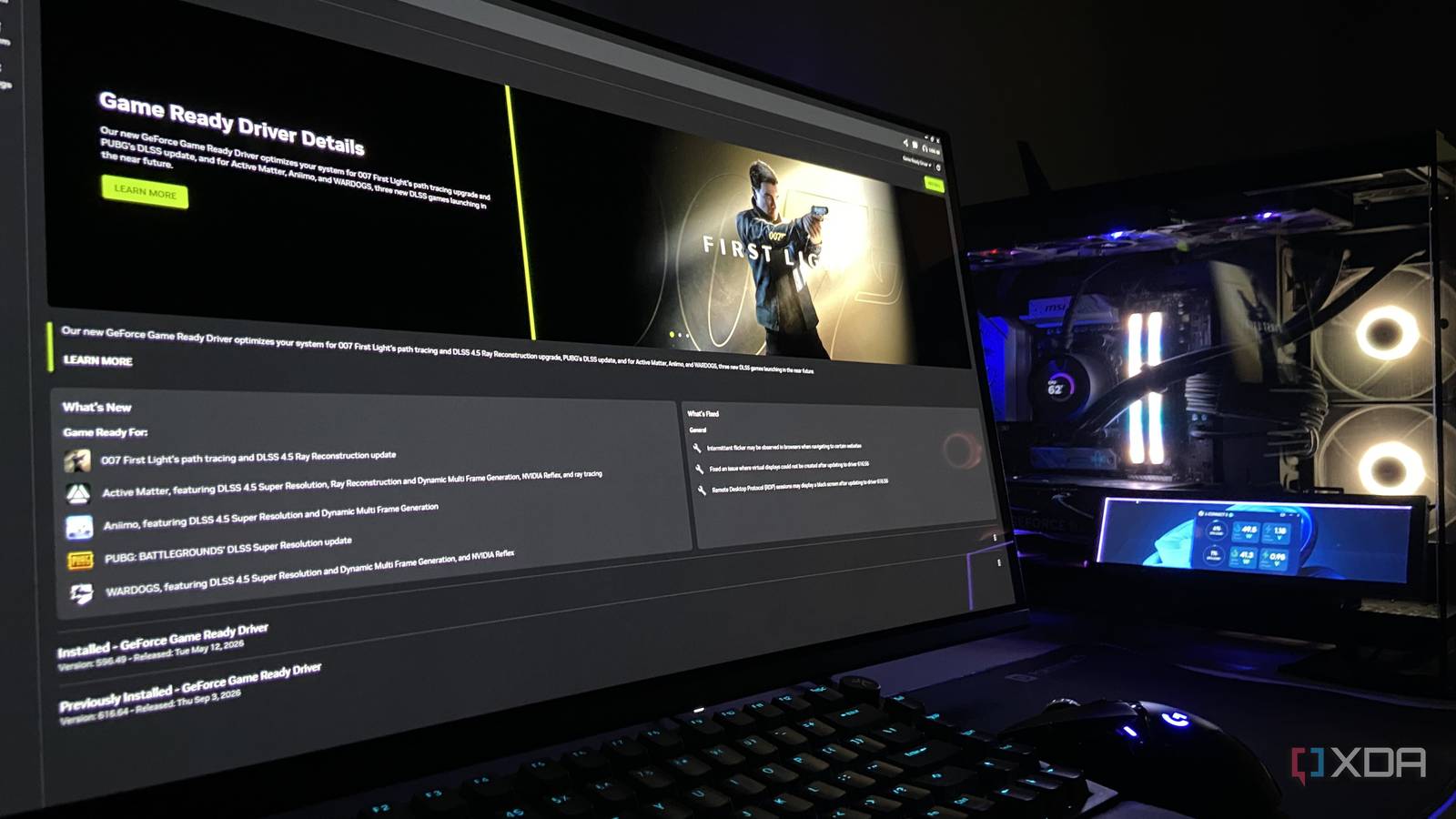
Published Sep 15, 2026, 7:01 AM EDT Abhinav pivoted from a career in banking to pursue his first love in writing. Even while working full-time, he continued contributing as an editor-at-large, a role he has held for more than 7 years. A lifelong tech enthusiast who has built three gaming and productivity powerhouse PCs since 2018, his passion for technology keeps him closely following the semiconductor industry, from NVIDIA and AMD to ARM. His MSc dissertation explored how artificial intelligence will reshape the future of work, reflecting his curiosity about the wider social impact of emerging technologies. When Nvidia's 616.56 driver landed on my Nvidia App at the end of August, I installed it the way I'd installed every single Game Ready driver, which was, without a second thought. That very same evening after work, I booted Microsoft Flight Simulator 2024 like I always do, but after a few minutes of flying, I started seeing strange artefacts across the screen. A few minutes later, the game dropped me on the desktop, ruining over 30-ish minutes of progress. Like any other paranoid user, I assumed the worst. A little after two years of use, my RTX 4070 Ti Super was done for. A few minutes later, though, I found that it hadn't, and I only worked that out after a fellow XDA colleague reported similar problems on his own machine. That ruled out the dead GPU theory, and pointed straight at the update everyone had just installed. The fix, however, wasn't straightforward. Here's how I got my screen to behave fine again after the latest botched driver update. A little about the botched Nvidia driver update in question 616.56 created problems that Nvidia refused to ship a hotfix for Credit: Nvidia. The problematic driver, as widely reported by the community, is GeForce Game Ready 616.56, which Nvidia pushed out at the end of August. Within a few days, its own feedback thread and subreddits were filled with complaints that ranged from display flickering, artefacting, and in some severe cases, dropping to a black screen. This affected multiple GPUs, from GTX 16 series through RTX 30, 40, and 50-series cards. This was widely reported by a number of news outlets. The pattern most users landed on pointed at color depth, and the panels set to 8-bit were most affected. In some cases, switching to 10-bit output or turning on Windows Automatic Color Management stopped it, but of course, Nvidia never confirmed this. Nvidia was quick to take note of the problem, but frustratingly enough, their fix wasn't comprehensive. On September 5, the company shipped a hotfix through 616.86, but it only addressed intermittent browser flickering, broken virtual displays, and black screens in some Remote Desktop sessions. The same fixes were folded into the WQHL 616.92 driver on September 9, but the flickering went untouched in both. So, in some ways, it's still an ongoing issue, which is why it's worth knowing how to fix this. A driver rollback didn't fix the problem for me If it were that simple, the article wouldn't exist With the issue identified, the first, and the most obvious thing to do, was to roll the driver back. If 616.56 broke it, an older release should undo the damage. So, naturally, I reverted through the Nvidia App, rebooted, and waited for the flickering to stop. To my absolute surprise (and sheer horror), it didn't. The problem persisted and the annoying flickering continued on the same apps as though nothing had changed at all. This had my mind going in different directions, such as residual states or perhaps an incomplete cleanup. I also tried switching up the DisplayPort wires to see if it would make a difference, which did not. This result, however, carried a useful clue. If going back a driver branch did nothing, the fault isn't limited just to the driver. Part of the problem was in the Windows environment itself, in the Desktop Window Manager specifically, and how it hands display surfaces to the panel. I now stopped tinkering with drivers altogether and started looking for the setting that governed this behavior directly, and it was a single registry value in Windows. This seemed to be the one setting that finally stopped the flickering for good. The fix was one registry value One DWORD in Windows did what a rollback couldn't The registry workaround to this problem that I was talking about governs something called the Multi-Plane Overlay, or MPO for short. MPO lets the Desktop Window Manager hand certain display surfaces straight to the panel instead of composing them first, and it was this handoff flicking on and off that was producing the flicker. Switching it off came down to a single registry edit, which was the solution that finally worked for me. If the driver rollback didn't work, it's a solution that could fix your flickering as well. The value you are looking for is called OverlayTestMode. It's a DWORD, set to 5, and it can be found under: HKEY_LOCAL_MACHINE\SOFTWARE\Microsoft\Windows\Dwm The fix itself is simple, and can be done in a few minutes. Here is how I did it: Open the Registry Editor by using the combination Windows + R, type regedit, and hit Enter. On the side of caution, it's best to create a System Restore point first. Paste the HKEY_LOCAL_MACHINE\SOFTWARE\Microsoft\Windows\Dwm into the address bar at the top and press Enter. Right-click an empty area in the right pane, choose New, followed by DWORD (32-bit) Value, name it exactly OverlayTestMode. Double-click the new OverlayTestMode file created, enter 5 in the "Value" field, leave the base as Hexadecimal, and click OK. Restart Windows for the change to take effect. This change, of course, is fully reversible, so deleting the value puts Windows back exactly as it was. Although it is always recommended to create a System Restore point to make sure there's a hassle-free way to roll back changes in case there are unintended consequences. When in doubt, check the drivers first An astonishing number of users online were fully convinced that their GPU or the VRAM chip is dying as a result of this driver update, including myself, until I decided to check the root cause of this issue online. Unfortunately, drivers producing unintended consequences on hardware, even from companies like Nvidia, have become a rather common occurrence, and this one was a textbook case. This is primarily the reason why I'm an advocate for keeping frequent system restore points, and where possible, maintaining a log of important changes to your PC.
Nvidia's latest driver update had me thinking my GPU was dead, but this one fix stopped my screen from flickering
Full Article
Original Source
Read the full article at Xda-developers →KhanList aggregates and links to publicly available news content. We do not host full articles from third-party sources. Always verify important information with original sources.