
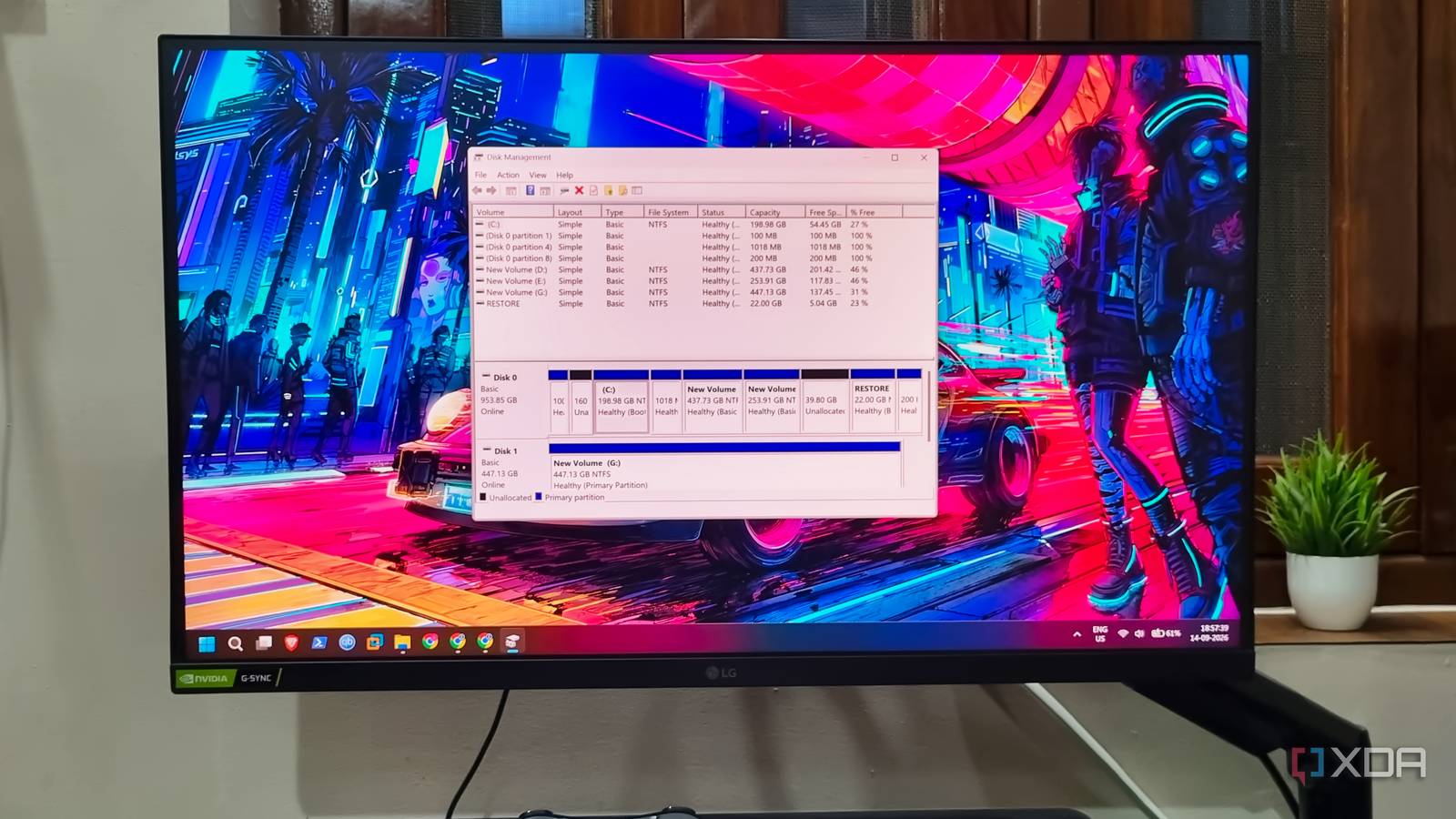
Published Sep 15, 2026, 4:30 PM EDT Abhishek is an author at XDA who covers computing. He has loved computers since he got the Lenovo G570 in 2012. Abhishek holds a master's degree in computer applications and began his writing career in 2018. He loves writing how-to articles, listicles, and informational posts on popular operating systems and web services. He closely follows the Windows Insider program and tests new Insider builds to discover upcoming experimental features and upgrades. His past work includes long-term collaborations with reputed publications like Tom's Hardware, and Windows Latest. When not writing anything, he is busy watching new episodes of One Piece or searching for something binge-worthy. Storage was cheap and accessible a year ago, and I rarely thought about maintaining it. My laptop has an NVMe SSD, and I have a couple of other SATA SSDs inside SATA-to-USB enclosures. My SSD is five years old, and I've been putting as much stress on it as possible. But the landscape changed in 2025, and AI development bolstered the storage and memory prices by a huge margin. As a result, the storage, which felt easily replaceable last year, has now become one of the most expensive upgrades/replacements. Focus on prolonging the SSD's life because it has a limited number of write cycles, to avoid an unnecessary replacement. There are plenty of ways you might accidentally burn through your SSD's write cycles without even realizing it. Windows Fast Startup is an SSD wrecker A barely useful OS feature Microsoft enables Fast Startup by default, and it is one of the most crucial settings you must disable on your PC. Fast Startup arrived with Windows 8, when the majority of computers used an HDD, and boot times were painfully slow. Microsoft came up with the ingenious idea of using hibernation to preserve the state of kernel-level drivers and other files. Since the OS loads these files every time you boot, saving their state in the hibernation file makes the PC boot much faster. But it was an HDD-centric feature that makes little sense in today's SSD era. Your PC already boots much faster than you can ever complain about, and keeping Fast Startup enabled means bad news for your SSD's lifespan. Every time you shut down your system, Windows writes a small amount of data to the SSD, just to help it load the OS faster on the next boot. So, Fast Startup is hammering your SSD just to load the OS faster, which isn't even a concern on modern computers. You can save precious SSD write cycles by turning off Fast Startup using the Control Panel. Additional perks of disabling Fast Startup include fewer kernel and driver errors and fewer glitched processes and services. While most users prefer turning off hibernation as well, I keep it on to occasionally preserve the system state when I’m doing something important. Keeping your SSD nearly full More harm than good Credit: Verbatim A nearly full SSD has to do more garbage collection and deal with write amplification. Unlike HDDs, which had mechanical moving parts, an SSD is flash memory with the ability to store electrical charges. As an SSD ages, its ability to hold charges or release them on demand decreases because of NAND cell degradation. This's a natural part of the SSD's life cycle, but if you keep the SSD nearly full, it has to work harder in the background to keep everything running. An SSD can store data at the page level, but erase operations happen only at the block level. So, when most blocks are full and there are many invalid pages, the SSD has to frequently move data to different blocks and perform garbage collection to reclaim space. So, keep 15–20 percent of storage space free to reduce the SSD's total NAND writes and erase operations. Bulk write operations Not using a scratch disk The concept of a scratch disk is less explored, and that increases the burden on your SSD. If you frequently download and install large games like me, only to play them for a few days and never open them again, it's a sure-shot way to kill your SSD. Writing 50–100GB of files at once, and then removing them just after a few days, takes a toll on storage. Similarly, if you deal with large video files, design renders, or use virtual machines, the NAND write operations can pile up. A scratch disk is an additional storage device, preferably an external USB storage, that can reduce the burden on your main SSD. I use a budget Kioxia SSD 512GB as a scratch disk, and it keeps my main SSD free for important write operations. I save all my downloads on the scratch disk, and even some games and a couple of Linux virtual machines live on it. I’ve stopped downloading huge files on the main SSD. Background OS operations can catch up Search indexing, file syncs, and others Windows performs a lot of background operations to improve the overall user experience. It builds and manages the search index, syncs files to the cloud provider, manages the paging file, stores telemetry, and a lot more. These OS operations sound harmless individually, but when you factor in multiple such write operations running in parallel in the background, the write impact suddenly feels much more significant. The best part is that you can control most of these activities within the OS, and I suggest disabling the ones you don't need. For example, move the paging file to another storage drive on your PC or laptop. This stops the system from using the main SSD for paging file tasks and shifts the burden to another SATA SSD. Similarly, managing file sync for large cloud folders or controlling search indexing locations can reduce OS-related NAND writes that aren't very useful. Save your SSD Ignoring activities that unnecessarily increase NAND writes slowly takes a toll on your SSD, reducing its overall lifespan. Fast Startup and Hibernation are two features that noticeably affect write cycles. I prefer to disable only the first one, but you can turn off Hibernation as well if you don’t use it. Keeping the SSD full is another mistake that can aggressively worsen its performance and make the SSD work harder in the background. You can use a scratch disk to offload most of the write-intensive tasks. It’s a budget-friendly method to reduce the overall write cycles. Lastly, disabling or adjusting OS-level features and background activities can help your SSD last longer. WD Blue SA510 SATA SSD A SATA SSD by WD that's good enough as a boot drive.
Your SSD is dying faster than it should, and these 4 habits are contributing to excessive write cycles
Full Article
Original Source
Read the full article at Xda-developers →KhanList aggregates and links to publicly available news content. We do not host full articles from third-party sources. Always verify important information with original sources.