
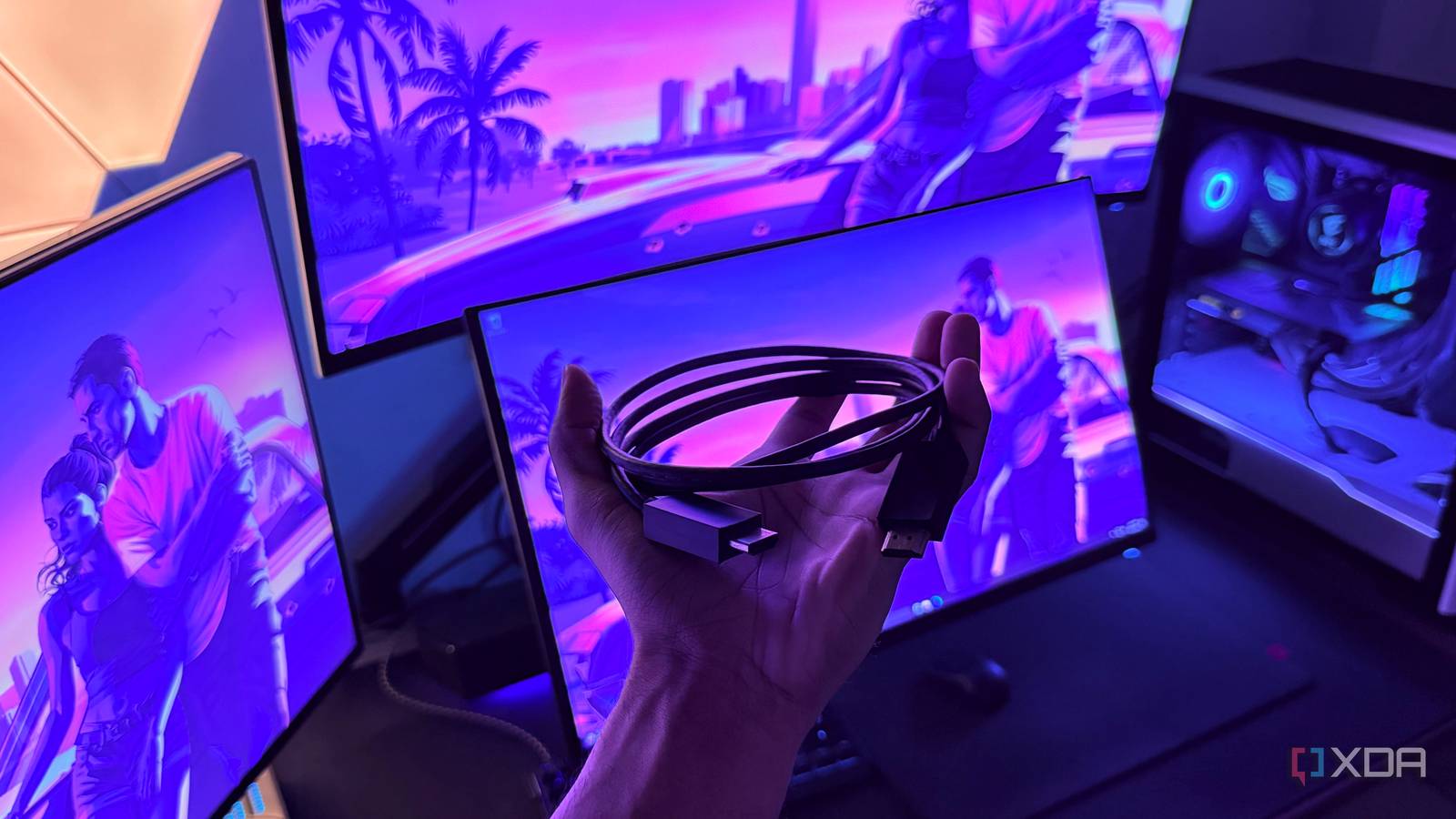
Published Nov 6, 2026, 7:01 AM EST Hamlin has been in the tech field for over nine years. Since 2017, his work has appeared on MakeUseOf, Android Police, OSXDaily, Beebom, and more. He served as the Senior Editor at Valnet's MakeUseOf for over two years before joining XDA. He uses a high-end gaming rig for desktop use and a MacBook for traveling, but dislikes some of the quirks of macOS. You're more likely to catch him at the gym or on a flight than anywhere else. When I upgraded to the Alienware AW2725DF OLED monitor a year ago, I was so eager to start gaming at 360Hz that I barely bothered going through the accessories that came in the box. In fact, I didn't even use the included stand since I already had a monitor arm mounted on my desk. Considering I already had an AW3423DW connected to my RTX 4090 over DisplayPort, I figured I'd just reuse that cable with my new monitor instead of unpacking another one. Since my AW3423DW was going to become my secondary monitor anyway, I just grabbed an old HDMI cable from my drawer and connected it to my GPU. I knew switching to HDMI would limit me to 100Hz instead of 175Hz, but I didn't really care since I wasn't planning to game on it. But then, when I moved my mouse around, the cursor felt sluggish, which made me check Display Settings. That's when I noticed it was stuck at 60Hz with no option to select 100Hz. And the problem turned out to be that old HDMI cable. You can't just use any old cable Especially if you have a high-resolution or high-refresh-rate monitor If you have a standard 1080p/60Hz monitor, you don't have to worry much about which HDMI or DP cable you're using as long as it isn't damaged. Even older cables generally have enough bandwidth to handle that resolution and refresh rate. But as you move up to 1440p and higher refresh rates like 120Hz, things start to get a little more complicated. That's because your GPU has to send considerably more data to your monitor when you're running at, say, 1440p/240Hz or 4K/144Hz. In my case, I used a very old HDMI cable. It had "High Speed" written on the sleeving, which, contrary to what the name suggests, actually means it's rated for up to 10.2Gbps of bandwidth. That's an HDMI 1.4-era cable, which doesn't have the bandwidth to drive a 3440x1440 ultrawide monitor at 100Hz. Even a standard 1440p monitor running at 100Hz would've exceeded the bandwidth my old cable was rated for. What I actually needed was a Premium High-Speed HDMI cable that's rated for up to 18Gbps of bandwidth to get the full 100Hz my AW3423DW's HDMI 2.0 port supported. The cable included with my monitor worked just fine But even that won't be enough if I upgrade I could've just bought a new HDMI cable off Amazon to fix the problem, but then I remembered that my AW3423DW actually came with one in the box, unlike my AW2725DF. I had completely forgotten about it because I'd been using DisplayPort since day one. So, I connected that to the GPU, and sure enough, I could finally select 100Hz in Windows without touching anything else. Looking back, I could've saved myself the trouble if I'd just used the cable that came with it in the first place. That said, one thing worth keeping in mind is that my AW3423DW has an HDMI 2.0 port. Its successor, the AW3425DW, just like most other OLED monitors these days, comes with HDMI 2.1 ports. So if I ever decide to upgrade, the cable Dell included with my monitor won't be enough because it's rated for 18Gbps. I'd need an Ultra High Speed HDMI cable that's rated for 48Gbps to take full advantage of the HDMI 2.1 ports on these newer monitors. Of course, I could always use a DisplayPort cable for higher refresh rates, but that's a different story. Don't be quick to blame your HDMI cable, though Once you've ruled out your settings and ports, it's hard not to Just because your monitor is stuck at 60Hz doesn't automatically mean your HDMI cable is the problem. Even if you're using the right cable, Windows may have set the refresh rate to 60Hz by default. This is more common than you think. I've always had to manually switch to higher refresh rate modes on all my monitors. Other than that, make sure your monitor's HDMI port supports the refresh rate you're trying to use. For example, my AW2725DF has an HDMI 2.1 port, but it can only handle up to 144Hz at 1440p even if I use an Ultra High Speed HDMI cable rated for 48Gbps. That's because Dell uses TMDS signaling instead of FRL, which limits it to HDMI 2.0-level bandwidth. So I have to use DisplayPort to get 360Hz. That said, it's easy to rule out these possibilities, and once you do that, you have every reason to suspect the cable. Swapping it out for a different one is the easiest way to find out, but check the labeling on the sleeving first to make sure it's at least a Premium High Speed HDMI cable. For 4K/144Hz, you'll need an Ultra High Speed cable, though. It'll work even if it isn't good enough, and that's the problem I think that's what makes cable issues like this so easy to overlook. When your monitor gets a signal, and everything seems to be working fine, you don't really have a reason to suspect the cable. And if you're used to 60Hz and haven't experienced a high-refresh-rate monitor before, you may not even notice that you're missing out on a much smoother experience. So, if you can't select higher refresh rates in Windows, make sure that the cable you're using can actually handle them, unlike that ancient HDMI cable I had lying around.
My monitor was stuck at 60Hz over HDMI, and the cable I'd had for years was the reason
Full Article
Original Source
Read the full article at Xda-developers →KhanList aggregates and links to publicly available news content. We do not host full articles from third-party sources. Always verify important information with original sources.