
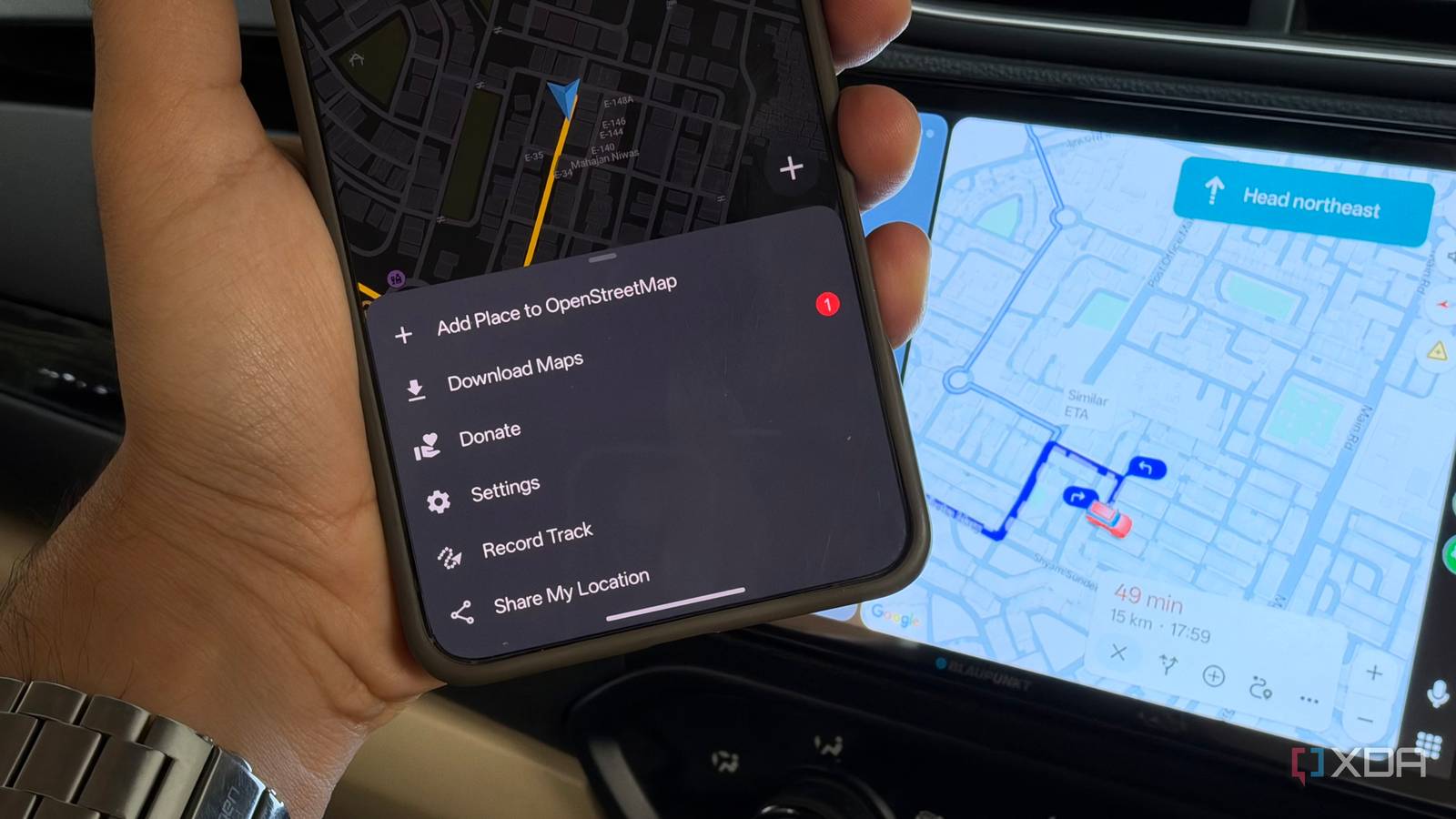
Published Sep 25, 2026, 8:30 AM EDT Dhruv Bhutani has been writing about consumer technology since 2008, offering deep insights into the personal technology landscape through features and opinion pieces. He writes for XDA-Developers, where he focuses on topics like productivity, networking, self-hosting, and more. Over the years, his work has also appeared in leading publications such as Android Police, Android Authority, CNET, PCMag, and more. Outside of his professional work, Dhruv is an avid fan of horror media spanning films and literature, enjoys fitness activities, collects vinyl records, and plays the guitar. I don't drive much, but when I do, it's usually long drives through the countryside where the internet connection is pretty spotty. Often, even when I have a cellular connection, it isn't strong enough to be reliable for streaming. But most importantly, I don't like the idea of being stranded in the middle of a journey and unable to get navigation information because the internet failed. That's a potential recipe for disaster. So, I've built my Android Auto setup around the assumption that my phone might be completely offline. I make sure that my maps are available offline, and so are podcasts on apps like Pocket Casts. Even my favorite playlists are ready to be cranked up offline. And it didn't take as much effort as I thought it would. In doing so, I've built an Android Auto setup that works great with internet connectivity and just as great without it. Two navigation apps for redundancies Organic Maps gives me a fallback option Turn-by-turn navigation is obviously the part of Android Auto that matters most when I might be offline. I can handle not having music for a bit, but losing access to maps can lead to unexpected diversions or detours, which I definitely don't want. To solve this, I've taken a few steps. If you use Google Maps, the app lets you download specific sections for offline use. I usually do this when I'm setting off for a longer trip. Once the map is downloaded, Google Maps can still provide turn-by-turn navigation without needing a data connection. This isn't the full-blown Google Maps experience. You won't be getting conveniences like real-time traffic information or similar features that depend on internet access. But for the purpose, that's a reasonable trade-off. I also keep a second navigation app loaded up on my phone. Organic Maps uses OpenStreetMap data and, like Google Maps, lets you keep entire regions of the world offline. In fact, it has an even better interface to grab cities and regions offline. Anytime I'm setting off on a journey, I make sure to update the maps with the latest data, and I'm ready to go. Between offline maps in Google Maps and Organic Maps, I have all the tools I need to keep going along my journey even when the internet fails. My offline entertainment setup covers music and podcasts Cached and ready to go The other half of my offline setup is entertainment. On a long-enough trip, that's arguably just as important. My preferred entertainment alternates between music and podcasts. Spotify handles both, but I prefer a dedicated podcast app like Pocket Casts. But let's get back to the offline setup for a minute. For Spotify, my go-to method is to download the playlists and albums I'm in the mood for. Using Spotify Premium lets me download albums and playlists for offline playback, and these work perfectly fine in Android Auto as well. Similarly, I've built out a full-fledged offline music library on my server. With Symfonium plugged into Navidrome on my server, I can grab whatever music and playlists I want right on my phone. Like Spotify, this music too plays back perfectly on my car's infotainment system using Android Auto. While Spotify is great for playlists, I turn to Symfonium for my favorite high-res albums and repeat listening. Podcasts are even easier. Pocket Casts lets me download individual episodes or automatically keep a running playlist of podcasts from the shows and playlists I follow. I've set it up so that my preferred podcasts download on schedule every day over Wi-Fi at home. So, whenever I get into my car and connect to Android Auto, my podcasts are ready to go. While I can stream whatever I want using the cellular connection, if I choose to, I have hours of podcasts lined up and ready to listen without any cellular connectivity. The other benefit to this is that I'm not going to burn through gigabytes of data on long drives. Mobile data is a convenience, not an essential Switching over to an offline-optimized approach has certain advantages. The biggest change, of course, is that I'm no longer dependent on persistent internet connectivity for the basics like navigation and entertainment. Data connectivity enhances the experience, but the basics still work regardless, and all I have to do is a few quick checks. Before a long drive, I spend a few minutes downloading the relevant map area and checking that my Spotify and Pocket Casts downloads are ready. I might also check if the latest music that I'm listening to is cached in Symfonium. That's all it takes. Beyond that, I just get into the car, connect to Android Auto, and drive off. For me, that's the key advantage of an offline-first Android Auto setup. It won't eliminate the internet requirement, but losing connectivity doesn't bring the dashboard experience to a grinding halt.
My Android Auto setup works great without data, and it's simpler than you'd think
Full Article
Original Source
Read the full article at Xda-developers →KhanList aggregates and links to publicly available news content. We do not host full articles from third-party sources. Always verify important information with original sources.