
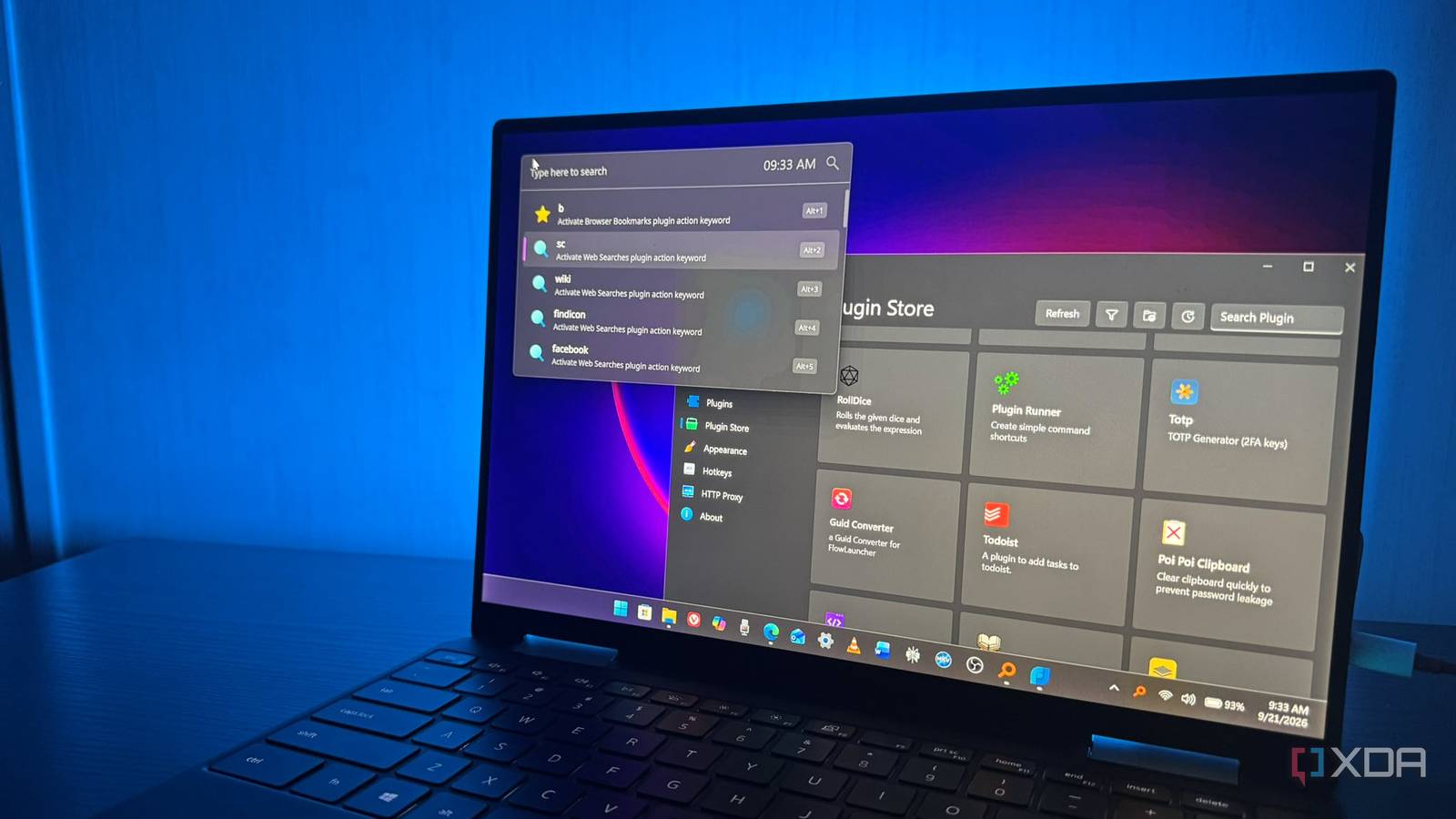
Published Sep 25, 2026, 1:31 PM EDT Based in rural Minnesota, Brian Burgess worked in IT for 10 years before finding his passion for writing about consumer technology. Brian earned his degree in computer and network technology in 2000. He held various IT positions, including help desk support, router installations for IBM, database administration, and other associate network administration roles. He's been a personal technology journalist for 18 years and has written thousands of articles about Microsoft products and services, Android, iOS, streaming, and more. He has written for notable tech sites including XDA, InformationWeek, How-To Geek, Byte, groovyPost, and others. When he is away from the keyboard, you will hear him playing guitar, working outdoors, and watching Star Trek. When it comes to the Windows 11 Start menu, users either love its layout and design or hate that it takes up most of the screen when opened. On top of that, Windows' native search feature is slow and clunky. Luckily, third-party utilities like Everything or File Pilot can improve the experience with better search. Another app lets you overhaul the Start menu and provides a better search experience. Flow Launcher is something you can try if you are fed up with the default Start menu and want to find what you need faster. Get Flow Launcher onboard Flow Launcher is an app launcher and file and folder search utility that I use to virtually replace the Start menu on Windows 11. It's also available for those still running Windows 10 and can be installed like a normal app, or you can use the portable version and run it from a USB Flash drive. It's not only an app launcher; it can also find files and folders more easily than Windows' native search. Windows search is extremely slow and clunky, and it often serves up Bing results instead of the item you're looking for. It relies on a sluggish underlying indexing service that's supposed to mimic Spotlight on macOS, but it does it horribly. I can usually find a file or folder faster by poking around in File Explorer myself by the time the search is half finished — with incorrect results, by the way. Opening Flow Launcher is easy enough with Alt + Space. It also includes keyboard shortcuts for the app's features; they appear while you are installing Flow Launcher. For instance, you can go back to the Context menu with Esc or press Ctrl + Enter to open containing folders. It finds files, folders, and launches apps far faster than Windows Search. Otherwise, it stays hidden unless you want it to show. I like to leave it hidden, so I have more room to work on what I need. Type in what you're looking for and open it — it's that simple. Flow Launcher Flow Launcher is a simple, yet incredibly versatile search bar for Windows that can launch apps, files, and more. Using Flow Launcher It's straightforward and finds what you need fast Once I got the hang of Flow Launcher, I stopped hitting the Windows key to open the Start menu unless it was muscle memory, because I found a better way to find the apps and files I need. Flow Launcher brings the items right to me; there is no reason to hit the Windows key and search for items anymore. Then I discovered the plugins available for it, and one in particular that is quite powerful for search. I also own a Mac, so I am familiar with how Spotlight works, and this is the closest alternative I've found for Windows. It is a minimalist floating box on my desktop that brings up exactly what I'm looking for, along with matching files and settings I might want to access. For instance, if I type in Jellyfin, it brings up the server, tray apps, executables I may want to run, recent searches, and more. I like it because it uses Action Keywords, a more natural language than coding-style prefixes. I can type short prefixes that tell Flow Launcher which tool or plugin should handle my query. I can type a keyword, space, and my query to get the results I want. I don't need to type in code to find and manage data. However, I do need to know a few symbols, like > to run a Command Prompt query or b to search web browser bookmarks, or s for Windows settings. The point is, it's not too complicated to learn the utility, get things done, and work faster in Windows from the keyboard while ignoring the Start menu. Find Everything Search Everything with Flow Launcher Flow Launcher does a great job of finding apps, files, and folders on your local drive. However, you can connect the Everything app to really add search power to Flow Launcher. Once connected, you can search for items across all drives connected to your PC. After I connected Everything to Flow Launcher and tweaked a few settings, I could search other drives for apps, movies, shows, music files, and other items. Once I added it, I could search for items across all my drives, like with Everything, but with a unified, keyboard-first interface. It adds the same indexing and search capabilities of Everything to the launcher — making Flow Launcher a more powerful search tool by pressing Alt + Space to summon the interface. You can still use Everything as a standalone app to search for, well, everything on all your drives. Connecting it to Flow Launcher lets me press the dedicated keyboard combination to decide what I may need next, like an app, a Windows Setting, a command, a bookmark, or another item. Plugin Enhancement An entire store of helpful plugin tools Another incredible addition to this open-source app is the number of available plugins. Press Alt + Space to launch Flow Launcher, type settings, and choose Tweak Flow Launcher's Settings. Open the Plugins tab on the left, and you'll find numerous plugins ready to use out of the box. For example, the File Explorer plugin is where you add Everything. Other plugins can make your work easier, like searching through bookmarks, improving the Calculator app's calculation abilities, and more. There is also a plugin store with even more options to help with your workflow or play. Plugins vary depending on the type of workflow you are looking for. You can use basic ones like the weather plugin to check weather conditions with your keyboard, or more productivity-focused plugins for coders and developers, or to keep track of your work in Obsidian. But there is also room for fun. For instance, the Spotify plugin lets you control music and podcast playback with keyboard strokes. Flow Launcher beats the Start menu by leaps and bounds The Start menu is nothing compared to Flow Launcher's power. Connecting it to the Everything utility makes it more powerful than the Start menu, which just shows apps and lets you click them. Flow Launcher is powerful, stays out of your way, and only appears when you need it. It's a compact tool that every Windows user should have. PowerToys Run comes close, but Flow Launcher is even better and offers more functionality for serious work or when you want to take a break and play. Once I started using it, I've virtually forgotten about the Start menu and have no desire to use it.
I gave Windows 11’s Start menu a complete overhaul with one open-source app
Full Article
Original Source
Read the full article at Xda-developers →KhanList aggregates and links to publicly available news content. We do not host full articles from third-party sources. Always verify important information with original sources.