
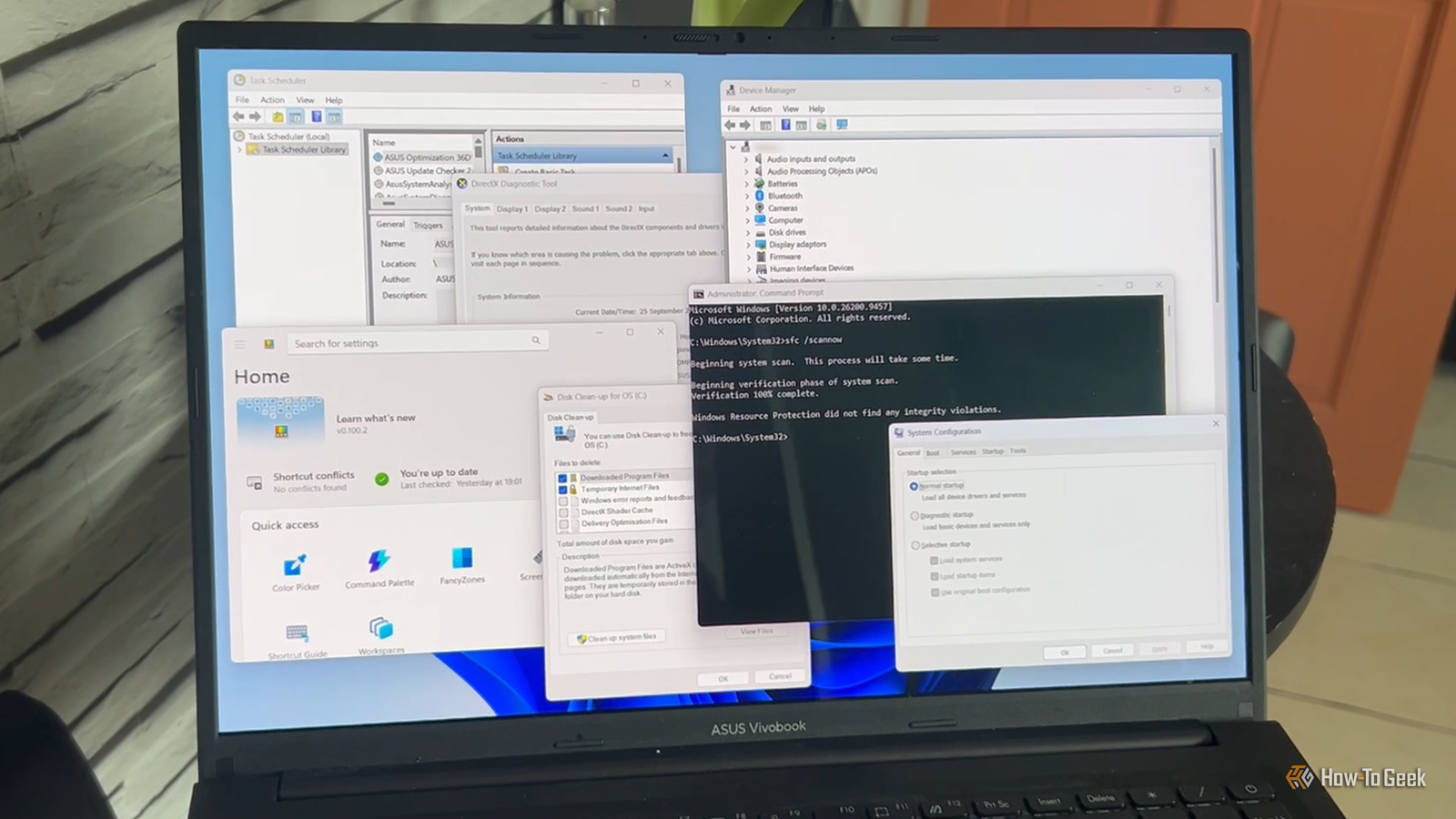
Published Sep 26, 2026, 1:00 PM EDT Tony Phillips is an experienced Microsoft Office user with a dual-honors degree in Linguistics and Hispanic Studies. Prior to starting with How-to Geek in January 2024, he worked as a document producer, data manager, and content creator for over ten years, and loves making spreadsheets and documents in his spare time. Tony is also an academic proofreader, experienced in reading, editing, and formatting over 3 million words of personal statements, resumes, reference letters, research proposals, and dissertations. Before joining How-To Geek, Tony formatted and wrote documents for legal firms, including contracts, Wills, and Powers of Attorney. Tony is obsessed with Microsoft Office! He will find any reason to create a spreadsheet, exploring ways to add complex formulas and discover new ways to make data tick. He also takes pride in producing Word documents that look the part. He has worked as a data manager in a secondary school in the UK and has years of experience in the classroom with Microsoft PowerPoint. He loves to encounter problems in Microsoft Office and use his expertise and legal-level training to find solutions. Outside of the Microsoft world, Tony is a keen dog owner and lover, football fan, astrophotographer, gardener, and golfer. I miss the Windows of the '90s. Microsoft seemed to have a utility for everything, whether you needed to tweak Windows, troubleshoot a problem, automate a task, or simply do something Windows itself didn't make particularly easy. Plenty of those little tools have disappeared over the years, but some survived—and I'm still surprised by how useful they are. Microsoft PowerToys The original Windows toy box PowerToys has a wonderfully scrappy origin story. During Windows 95 development, Microsoft engineers built little programs to test ideas, prototype features, or simply make their own jobs easier. Raymond Chen, who worked on Windows, later described the first collection as being cobbled together from "stuff lying around" and said the name was probably made up because it "sounded neat." After Windows 95 shipped, those little utilities became the first PowerToys collection. The second edition added FindX, Send To X, the Telephony Locator Selector, XMouse, and Tweak UI. Microsoft's kernel team even produced its own Kernel Toys. Chen notes how different the era was: there were no digital signatures, virus checks, or mountains of paperwork to put the downloads online. Today's PowerToys is bigger and shinier, but that same spirit survives. System Configuration Before startup got complicated I've turned to MSConfig more than once when Windows was doing something odd and I wanted to figure out what was happening without immediately reaching for the Registry. That's essentially why Microsoft built it. System Configuration is designed to help isolate configuration and startup problems by letting you selectively load services and startup components. In modern Windows, startup management is handled through Task Manager, while MSConfig remains useful for troubleshooting services and other startup settings. That makes its Windows 9x roots especially appropriate. Back then, Windows startup involved a mess of configuration files and background programs that could be surprisingly difficult to untangle. MSConfig put some of that complexity behind a friendly collection of checkboxes. It's an approach I still appreciate. When something goes wrong, I'd rather have a few things I can switch off and test than immediately start poking around somewhere I might regret visiting. Disk Cleanup When a few hundred megabytes mattered Disk Cleanup belongs to a time when finding several hundred megabytes of wasted space could feel like striking gold. It arrived with Windows 98, when hard drives were measured in hundreds of megabytes or a few gigabytes, not terabytes. Disk Cleanup has always had a slightly nerdier side. Its cleanmgr.exe program supports /sageset and /sagerun, letting you save a cleanup profile and run it later without going through the selection process again. Those switches still work in current versions of Windows 11. There's something reassuringly old-school about that. Pick a category, see what space it represents, and decide for yourself. Task Scheduler Your 1995 PC could already do this Task Scheduler sounds like a thoroughly modern Windows feature, but it dates back to 1995. It first appeared as System Agent in the Microsoft Plus! pack for Windows 95, before evolving into Scheduled Tasks and eventually the Task Scheduler we know today. Think about that for a moment: Microsoft was already giving Windows 95 users a way to tell the computer to run something automatically later. That's still the appeal. You can schedule programs and scripts around times, events, logons, and other triggers, turning Windows into something that quietly gets jobs done in the background. I've always liked utilities like this because they make a computer feel less like an appliance and more like something you can actually train to work for you. System File Checker When Windows starts looking guilty There's a particular stage of Windows troubleshooting when you start wondering whether Windows itself has broken something. That's when sfc /scannow starts looking rather attractive. System File Checker (SFC) goes back to Windows 98, although the utility has changed a lot since its original incarnation. The original version was a graphical utility rather than the command-line tool we're familiar with today, and it could even extract a replacement file from the Windows installation disk. That's very '90s: give the user a little window, a few options, and hope that the Windows 98 CD-ROM is still somewhere nearby. Today's SFC takes a more automated approach, scanning protected Windows resources and replacing incorrect versions with the expected ones. I like the underlying philosophy: instead of expecting you to work out which mysterious system file might be damaged, Windows can check its own files and try to put things right. Device Manager Plug and Pray had a sequel Device Manager might be the most familiar utility here. We've all seen that expanding hardware tree, and many of us have also encountered the yellow warning icon that essentially says, "Good luck." Device Manager makes more sense when you remember how much work Microsoft's Plug and Play system—described by Raymond Chen as one of Windows 95's "significant accomplishments"—was supposed to eliminate. Before Plug and Play, adding hardware such as a sound card or modem could mean configuring jumpers or DIP switches, manually assigning resources such as IRQs and I/O addresses, and hoping you hadn't created a conflict. Windows 95's Plug and Play system was designed to detect hardware and automatically resolve those conflicts. Device Manager gave you somewhere to see what Windows had detected, inspect its drivers, and investigate anything that had gone wrong. The modern version still presents your hardware as an expandable tree, complete with warning icons when something goes wrong. Inside the PC, hardware has become vastly more complicated, but that view remains reassuringly simple. We've gone from worrying about whether Windows could find a sound card to plugging in practically anything and expecting it to work—but that little hardware tree is still waiting for us when it doesn't. Before every game just worked If you played PC games in the late '90s, getting one running could involve considerably more detective work than it does today. Graphics drivers, sound hardware, and DirectX could all become suspects when something refused to work. DxDiag was Microsoft's answer to at least some of that detective work. It gave you a single place to inspect the hardware and software in your DirectX setup, which was especially handy when a new game was blaming your graphics card, sound card, or driver for something you couldn't see. This tiny relic from the era of 3D accelerators and driver CDs survived the trip to Windows 11. Even today, when you need a quick picture of a Windows PC's graphics, sound, and DirectX setup, the same basic utility is still sitting there. The little tools were the point What I miss most about '90s Windows is the feeling that Microsoft was willing to build a small tool for a very specific problem, give it a useful set of options, and let you get on with things. Some of those ideas have been polished, some have moved around, and some look almost exactly as they did decades ago. But when I open one of these old-school Windows utilities and it does exactly what I need, I still get that same little reminder of why I liked Windows in the first place.
Microsoft was better at software in the '90s, and these still-useful Windows utilities prove it
Full Article
Original Source
Read the full article at Howtogeek →KhanList aggregates and links to publicly available news content. We do not host full articles from third-party sources. Always verify important information with original sources.