
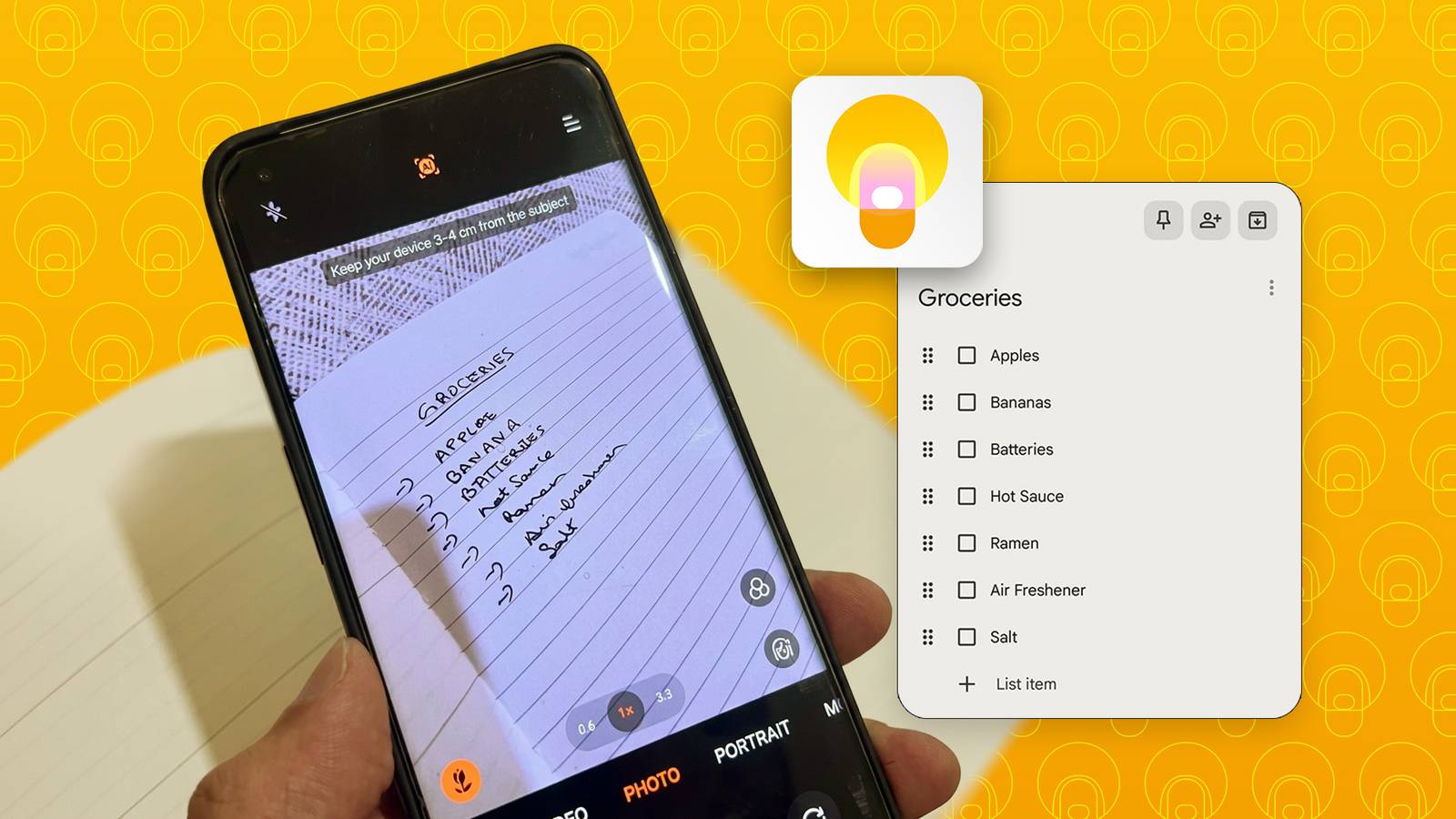
Published Aug 29, 2026, 11:15 AM EDT Akshay Bhalla was the former game guides editor for Screen Rant and the technology editor at MensXP. He has previously written about smartphones, apps, streaming, gadgets and games for print, digital, and TV media outlets. When he isn’t writing about tech, he can often be found playing JRPGs, listening to music or playing with his three dogs. I'm a chronic note-taker and often use a physical notebook to jot down everything I need to remember for the day. This can include grocery lists, tasks, and other lists that I create for my own workflow. But recently I've switched to Gemini's voice feature to make lists in Keep, and it has been working wonders. But I still have a habit of making lists in my notebook, and since I didn't want to lug that around, I decided to try something new. Gemini's image-to-list feature made everything convenient It's faster than typing manually I was reading about Gemini's hidden features and discovered that it supports multimodal image understanding, which can extract information from images. A light bulb went off in my head, and I realized that I could apply this feature to my physical notebook notes and transfer them to Keep. In physical or online meetings, social etiquette doesn't allow me to stare at my phone to take notes. I like to be engaged with the person I'm talking to and prefer to take notes in my notebook for better recall. Since taking physical notes is more socially accepted, I still prefer to use this old-school method. I've tried recording voice memos on Google Keep, but the transcription is never accurate and requires more work to clean it up. But now that Gemini can convert my physical notes into Google Keep checklists, I can access them on every device. This comes in handy when I am making grocery lists and don't have to lug around a notebook to the supermarket. Gemini structures them as a clean checklist and saves it in Google Keep. As shown in the images above, Gemini deciphered my abysmal handwriting and formatted it as a checklist in Google Keep. It worked better than I had hoped, as I had anticipated some gibberish in the conversion given the state of my handwriting. Google Keep prefers to create lists via text or voice. To use this feature, upload images to Gemini and provide a prompt. I do this by uploading a picture of my list, providing a specific prompt, and asking Gemini to save it to Keep. Free-tier users can use this feature, but if you need higher limits, you will need to subscribe to the Gemini Plus/Pro Plan or have access to a Google Pixel device for deeper Keep integration. How to use Gemini's image-to-list feature with Google Keep You need to change some settings first Credit: Lucas Gouveia / Android Police | ProStockStudio / Shutterstock If you take messy notes like me, I encourage you to try Gemini's image-to-list feature when you have the time. It saves a lot of time, as you won't need to type the entire list again in Google Keep. To get started, connect Gemini to Google Keep so they can communicate. Here's how: Open the Gemini app on your phone or laptop. Find and tap Settings. Select Personal Intelligence. Select Connected apps. Turn on the Google Workspace button. After you've connected Gemini and Keep, you are ready to upload your manual lists and transfer them to Google Keep. After taking a clear picture of your physical notes/checklist, upload it to Gemini's chat and paste the prompt below: Transcribe this messy to-do list, clean up the wording, format as checkboxes, and save it to Keep. This prompt never fails me, as it automatically formats everything and keeps the checklist intact as I intended. But for notes that aren't a checklist, you need to tweak the prompt a bit, and Gemini can handle it. You can use the method above for various scenarios, such as recipes or even multi-page notes. I've tested this on one of my older notes, and the prompt above converted my lengthy note into a proper, logically ordered checklist. I have to point out that you need to use clear images of your notes with good lighting. Otherwise, it can get difficult for Gemini to recognize my handwriting. If you want your notes properly formatted, mention it in the prompt and be specific about what you want. To get the hang of things, I recommend starting with basic lists, such as grocery or recipe lists, before moving on to more critical ones. When you get the hang of things, there's a lot you can do now that Gemini is connected with Google Keep. You can even use Gemini to manage your notes in Keep, or recall information from your Keep notes to Gemini when needed. Gemini is making Keep an essential app Google Keep was already a great note-taking app, but with Gemini's integration, it has become an essential app for my daily tasks. Google Keep has many hidden features that keep me coming back, and the ability to convert my notes into checklists is the cherry on top. If you're a power Keep user, I recommend connecting Gemini with Keep and exploring what all you can do. You never know; you might find another hidden feature.
I used Gemini's image-to-list feature to turn my messy notebook photos into Keep checklists
Full Article
Original Source
Read the full article at Androidpolice →KhanList aggregates and links to publicly available news content. We do not host full articles from third-party sources. Always verify important information with original sources.