
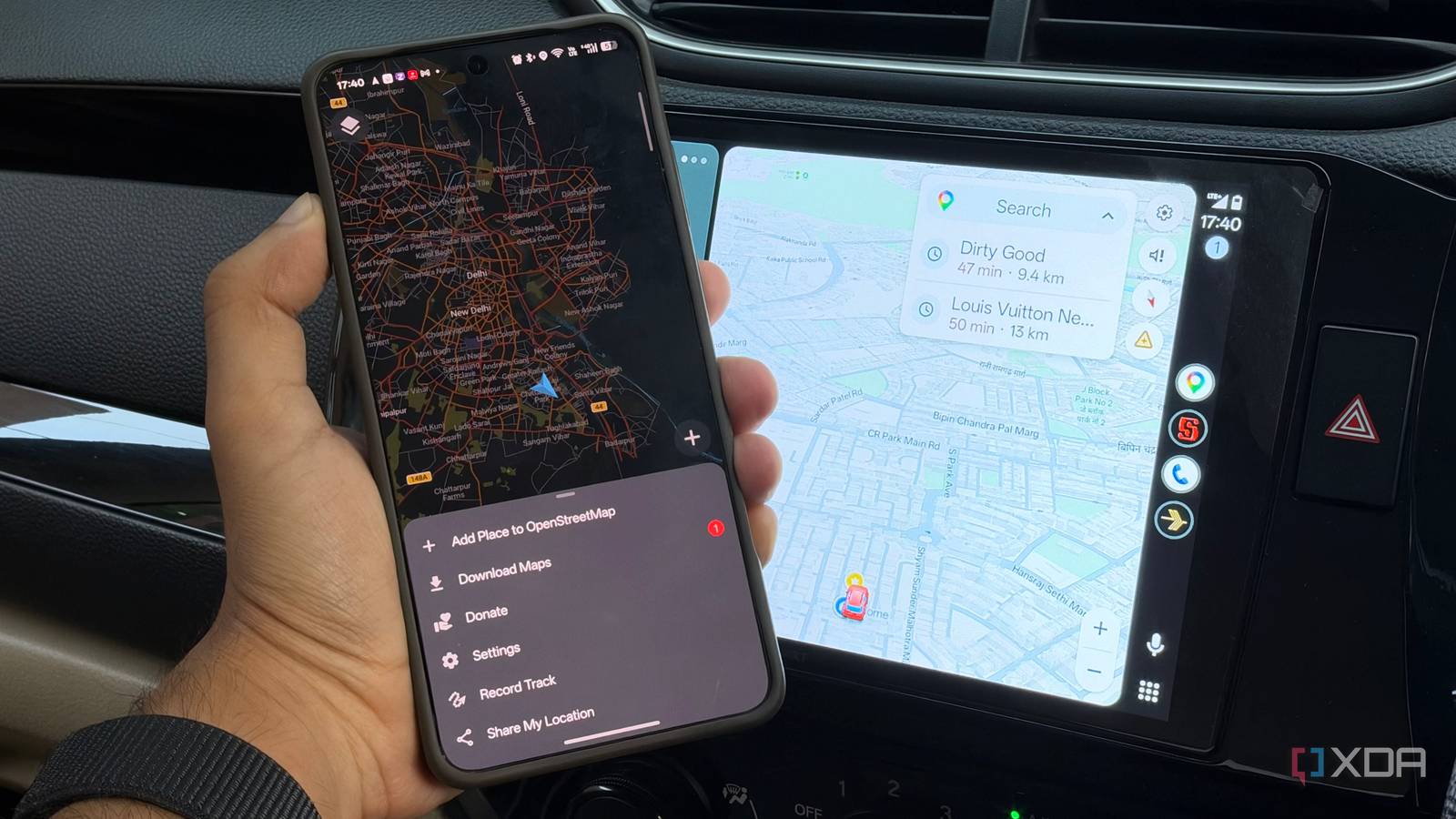
Published Oct 1, 2026, 8:30 AM EDT Dhruv Bhutani has been writing about consumer technology since 2008, offering deep insights into the personal technology landscape through features and opinion pieces. He writes for XDA-Developers, where he focuses on topics like productivity, networking, self-hosting, and more. Over the years, his work has also appeared in leading publications such as Android Police, Android Authority, CNET, PCMag, and more. Outside of his professional work, Dhruv is an avid fan of horror media spanning films and literature, enjoys fitness activities, collects vinyl records, and plays the guitar. Android Auto is non-negotiable in my daily drives, but it has a fairly big issue. Or more specifically, when it doesn't work. If you lose internet connectivity, Android Auto is basically useless. And that's a big problem, because a long road trip may take me through stretches with no signal, and that's precisely where I don't want my navigation to stop working. So, I started looking for solutions. As it turns out, the solutions were staring me right in the face. Google Maps' offline maps work perfectly well with the Android Auto setup. I just had to download the areas I wanted to use during my drive, and Android Auto can continue using that map data even when my phone doesn't have data connectivity. But while Google Maps certainly works, there are more ways to achieve a similar, or even better outcome. How I set up offline maps before a road trip Download a larger area than you might need Before you go hunting for an offline mode toggle in Android Auto, it's worth noting that that's not how any of this works. Most of the changes happen on your phone, and it's deceptively simple. Before a long drive, I open Google Maps, tap my profile picture, and select Offline Maps. From here, select the area you want to travel to. You can move and resize the download area to cover your entire route and save it locally on your phone. That's it. When I'm setting off on a journey, I tend to download a larger area than I initially expected for a few reasons. I want to make sure the map covers the roads connecting two cities and any detours I might end up taking. Life happens, and there might be traffic, or I myself might decide to step off in a different direction to grab lunch en route. That flexibility lets me take a detour without worrying that Google Maps won't be able to route me back on track. Look, you're probably not going to get much use out of this in the city. Data is prevalent and, in fact, preferable with traffic congestion being a thing. But that's not really a concern on the expressway. It's become particularly useful for me on drives through areas with patchy mobile coverage. Some stretches lose connection entirely for miles, or drop to a single unreliable bar. Without an offline map, Google Maps can sit there trying to load information that isn't even available on my phone. Offline navigation works surprisingly well Organic Maps offers a better way to download maps The biggest misconception I had about using offline maps was that it would be a severely compromised experience. It turns out, it isn't. Or at least, not dramatically so. In fact, navigation works exactly as expected. When my phone loses connectivity, Google Maps can continue showing me the correct route using the map data stored locally. And that extends to Android Auto as well, of course, including turn-by-turn navigation. That's not to say that everything works, of course. There's no live traffic to tell me that an accident has slowed down the road ahead. Similarly, Maps cannot pull in the latest traffic conditions or respond to new information from Google's servers while I am offline. Things like business information and opening or closing hours are also not available. Perhaps the one piece of information I miss the most is knowing that there might be roadworks or a road closure ahead. But for the most part, I am okay with the tradeoff. If I am navigating a remote stretch of road, I mostly need to know where I am, when the next turn is, and whether I'm on the right path. Everything else is a nice-to-have extra. An offline map handles all of that with ease. Moreover, even if you decide to go online, an offline map serves as a convenient backup if and when coverage drops. If the relevant data is already downloaded, Maps can fall back to that local data. Now, Google Maps is the default for most, for obvious reasons. But interestingly enough, I've found another app that does it even better. Organic Maps is quickly becoming my go-to because it offers a much better interface for downloading offline maps. Built on OpenStreetMap, it makes it much easier to download regions offline while still offering navigation that compares well to Google Maps. My backup plan for Android Auto Offline mapping wasn't something I thought about too often beyond keeping maps offline when traveling internationally. But it's become critical to my long-distance Android Auto use. The best part is that the setup barely takes minutes. Just download the areas you need, connect your phone to Android Auto, and you're good to go. Once I'm on the road, I don't have to think about it at all. That's the biggest benefit for me.
I used Android Auto's offline maps on a road trip with no signal, and it saved my drive
Full Article
Original Source
Read the full article at Xda-developers →KhanList aggregates and links to publicly available news content. We do not host full articles from third-party sources. Always verify important information with original sources.