
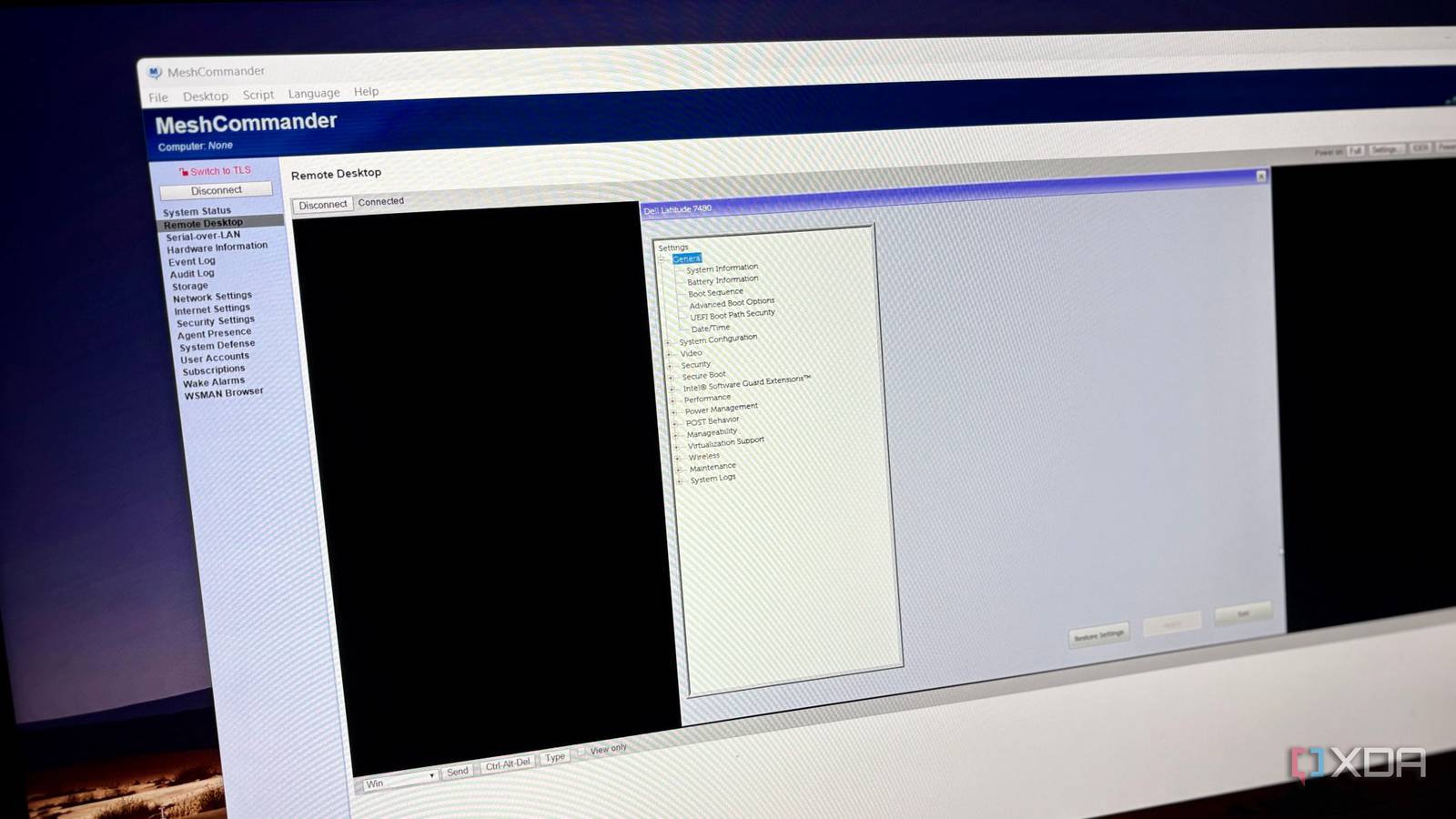
Published Oct 24, 2026, 8:00 AM EDT Shekhar Vaidya is a veteran technology journalist and computer science engineer. He is the founder of TechLatest, where he has spent years providing technical analysis on hardware and Windows ecosystems. Now a Computing Writer at XDA, Shekhar leverages his deep background in NAS, storage solutions, and PC internals to help readers master their tech. I have been running an 8-year-old Dell laptop, repurposed as my home server, for more than a year. You know what is one of the annoying things about it? Whenever I need to access the BIOS, I have to take the laptop out of the corner I tucked it into, open the lid, reboot it, and keep pressing F2 to get in. And if I miss the Dell logo, I have to repeat the steps. A few weeks ago, while doing an ESP32 project, I came across Intel’s built-in remote management system. During that project, I didn’t explore it thoroughly, but later, when I did, I enabled a feature that let me reach the laptop's BIOS from my PC. Finding a feature I wasn’t looking for Two watchdog plans failed, and my chipset had a third I wasn’t even trying to find Intel Active Management Technology (AMT), and honestly, I didn’t know about it before I actually used it. I was building a watchdog using an ESP32 to reboot my server when it freezes. A relay should have been the best choice to cut the power, but since my server is a Dell Latitude laptop, the battery made it pointless. So, I pivoted to the Latitude 7480's built-in Intel iTCO watchdog. But that didn’t work for me either. The relay method was out, the iTCO method failed, and I was almost ready to give up the project, but then I got an idea: a Latitude is a business laptop, so I figured it should have remote management built in. With a little research, I was right. The i5-6300U in my Latitude came with vPro. After that, it was simple; I just had to configure AMT from the MEBx menu. MEBx is the boot-time configuration interface, whereas AMT is the underlying tech. Once enabled, AMT exposes a web interface on port 16992 using HTTP digest-auth. It offers several functions like system status, hardware information, event logs, power controls, and other management options. The web interface was enough for the watchdog, since it could power-cycle the laptop remotely, but it wasn’t good for what I wanted next because it had no remote screen. To use it beyond the watchdog, I needed a remote KVM. I started searching for a dedicated client that supported my AMT version. And after a couple of searches, I landed on MeshCommander. I downloaded it, and the configuration took another few minutes because I needed to enable the Redirection Port and KVM, and turn off user consent. In the end, MeshCommander gave me a working live view of my Debian desktop. Reaching what the OS hides So, what’s next? How is it different from any other remote control client? Then comes AMT: it’s built into the chipset that works independently of the operating system. I could technically access the BIOS and other system-level settings from it, which SSH can’t. The good thing about MeshCommander is that it listed almost all the actions in the interface itself. So I started by testing the only thing I would use long term: the BIOS. It was simple; I selected Power Actions -> Reset to BIOS. Note that the 16992 web interface’s Remote Control page had no boot-to-BIOS option. In a few seconds, I was booted into the BIOS, and the screen appeared in the Remote Desktop tab. It wasn’t just a read-only view; I could actually navigate the BIOS menu using the keyboard and the mouse (yes, Dell supported mouse control way back). And the whole time, my Dell laptop server sat in a corner of my room with the lid closed as usual. And when I exited the BIOS, it reached GRUB as usual and booted Debian. So, nothing out of order per se, but when I tried to boot into the MEBx menu (Ctrl + P) using the PC’s keyboard, it either didn’t register the keystrokes, or MeshCommandar doesn’t support it while booting. Though the client gives a menu with keys to press virtually and send, it didn’t have Ctrl + P, so I didn’t try the virtual menu. What it costs to leave it on I dodged the 2017 flaw, but my home server hangs on one password The remote control, the BIOS access, and no OS dependency — this looks all good, right? But it also comes with a few asterisks. Let's start with a couple of nasty vulnerabilities that are thankfully patched now. CVE-2017-5689 (Intel SA-00075) was a 2017 vulnerability that allowed attackers to bypass AMT auth and gain management access to AMT, including the remote screen. There was another 2017 advisory (Intel SA-00086) regarding Intel ME flaws. Why am I talking about a couple of 2017 vulnerabilities? Because the Latitude 7480 was a 2017 laptop, I assumed that since my relative used it for business, he never updated the firmware, and I could be exposed to those 9-year-old vulnerabilities. But the relief came when I checked the AMT version, and it is an updated version (11.8.X.X), so it is outside the affected version ranges. And the way I checked the AMT version made me think again about security. I simply ran a curl command to the local address, and it exposed the AMT version without logging in. That meant every device on my LAN could see it. I don’t expose those ports to the public, so I was a little safe there, but the connection was being carried via a non-TLS path, plain HTTP on the home LAN. I could enable TLS, but it could break the watchdog recovery path, so I didn’t try. If you remember, I mentioned that I disabled user consent while configuring MeshCommander. What it did was remove the additional step of showing a consent code on the laptop screen before each connection. So, with that disabled, it's just the AMT admin password between anyone on my LAN and my home server’s full access. AMT availability is not certain. It isn’t available on every Intel laptop. It depends on the platform, vPro-capable processor and chipset configuration, firmware, and provisioning. MeshCommander also comes with a maintenance caveat: since it is discontinued software, relying on it blindly isn’t ideal. The obvious alternative is MeshCentral, which is self-hosted and actively maintained. But it is a project for another day. It earned its spot in the homelab AMT is a good tool, but only if I want to bear the asterisks it comes with. It is useful remote firmware access for the hardware I already own. It is not a replacement for a dedicated remote KVM device, but for me, it gets the work done and earns its place in my homelab. My next step would be implementing TLS without breaking the watchdog’s recovery path and ditching MeshCommander for MeshCentral.
I turned on one hidden feature in my old Dell laptop, and now I can see its BIOS from my desk
Full Article
Original Source
Read the full article at Xda-developers →KhanList aggregates and links to publicly available news content. We do not host full articles from third-party sources. Always verify important information with original sources.