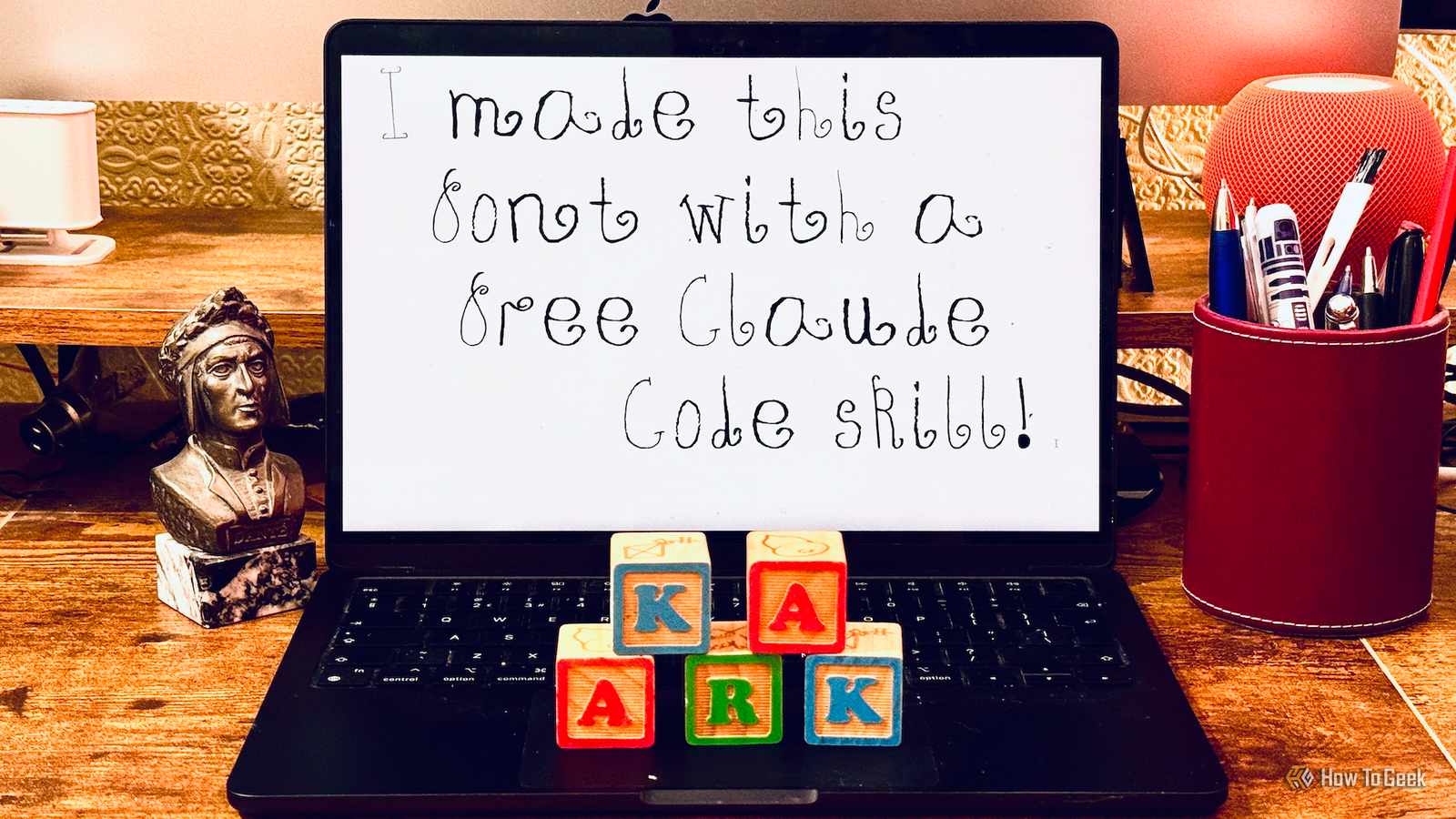
Published Aug 15, 2026, 7:30 AM EDT Adam has a degree in Engineering and has a life-long interest in technology. He has been writing for over a decade for various print and online publications, with a focus on consumer tech. He joined How-To Geek in 2024 while working at Pocket-lint. As well as being a long-term fan of Apple products, he also has a strong interest in smart home tech, running a Home Assistant server at home to automate all his smart home devices. He believes that the ideal smart home should work with minimal interaction from the user, with automations running as if by magic rather than requiring you to push buttons on a control panel. You can find more of his work on Muck Rack. My daughter has incredible handwriting. It genuinely amazes me how beautiful it is when my own scrawl is often barely legible. I'm sure her flowery style will become simpler as she gets older, so I wanted to try to preserve her current handwriting, and a free Claude Code skill was all it took. How the Draw Your Font skill works Write some text and take a photo Credit: Adam Davidson / How-To Geek Draw Your Font is a tool that allows you to write some text, take a photo of it, and then extract the letters from the image and turn it into a TTF/WOFF2 font. It's free and open-source and runs entirely locally on your own hardware. The tool doesn't actually need AI at all. You can run it from the command line by providing your image and listing the characters that you wrote. The software will then try to extract the letters and assign them to the characters that you entered in the command. The Claude Code skill makes things a little simpler by using Claude's visual capabilities to figure out what you wrote without you having to type it all out in the command. Claude Code doesn't actually convert the image to a font itself; it helps to identify and label the characters that appear in the image and orchestrates the underlying conversion process. The benefit of using Claude Code is that it can analyze the generated font, look for any missing or poorly rendered characters, and let you improve the results using natural language prompts. Installing the skill is relatively simple, although there's currently a bug in the skills installer where it drops the skill into a folder Claude Code doesn't check by default. You need one extra command to point Claude Code at it. You can set it up by running the following commands: mkdir my-font-project cd my-font-project npx skills add danilo-znamerovszkij/draw-your-font mkdir -p .claude/skills ln -s ./.agents/skills/draw-your-font .claude/skills/draw-your-font In Claude Code, you can then run the tool using a prompt such as: /draw-your-font here's a photo of my handwriting - make my font: /full/path/to/your/handwriting.jpg My first attempt did not go well I failed to follow instructions Like the idiot that I am, I immediately waded into the project without properly reading the instructions. I got my daughter to write the entire alphabet, writing each letter as both uppercase and lowercase characters. I snapped a photo and ran the /draw-your-font command along with the path to the photo. Claude Code got to work but immediately hit some significant issues. Claude said that 23 of the 52 characters couldn't be traced properly because they were touching their neighbors, meaning that the segmenter fused them into single blobs. I immediately pushed back at this statement, because none of the letters were touching. I pointed this out to Claude, and it was able to trace several more characters without me changing anything. There were still several that weren't tracing correctly. Claude Code helped me to fill in the gaps I was able to get a working font Claude Code then suggested that the best option would be to write out the missing letters again. I got my daughter to redraw the affected letters and uploaded a new photo. The skill was then able to extract most of these letters and add them to the letters it had originally extracted. Some of the letters in the new image still wouldn't extract correctly, and Claude Code stated that some were too faint to accurately extract. It was only then that I noticed that the instructions clearly state to write the letters in dark pen, and this had been done in pencil, which was sometimes too faint for the tool to accurately extract. My daughter wrote out the final missing letters. She still used pencil so that the look would match the rest of the font but pressed down hard to make the pencil marks as dark as possible. The final missing letters were extracted without issue, and Claude Code generated the completed font. The font looks pretty good. Due to using a pencil, some letters are a little off or have small parts of other letters in them, but it doesn't affect the overall look too much. Doing it properly the second time My terrible handwriting became a font in next to no time Having learned my lesson, I decided to try again, this time using a black pen and my own awful handwriting. I wrote out the full alphabet in uppercase and lowercase letters, took the photo, and ran the Claude Code skill. This time, there were none of the issues I'd had with the pencil-drawn letters. The skill ran, and in less than five minutes, a font had been generated from my handwriting. The font works exactly as it should, even if it looks terrible due to the appalling nature of my handwriting. I then tried again, using letters formed from shading in portions of squares. This was a trick a friend had taught me at school, so I wanted to see if I could turn it into a font. Once again, it worked perfectly on the first try and looked great, despite my crudely hand-drawn squares. Turning handwriting into a font is incredibly easy If you've always wanted to create your own font, using this free Claude Code skill is a quick and easy way to do it. Well, it's quick and easy if you actually follow the instructions and use a black pen, at least.
I turned my daughter's handwriting into a font with one free Claude Code skill
Full Article
Original Source
Read the full article at Howtogeek →KhanList aggregates and links to publicly available news content. We do not host full articles from third-party sources. Always verify important information with original sources.