
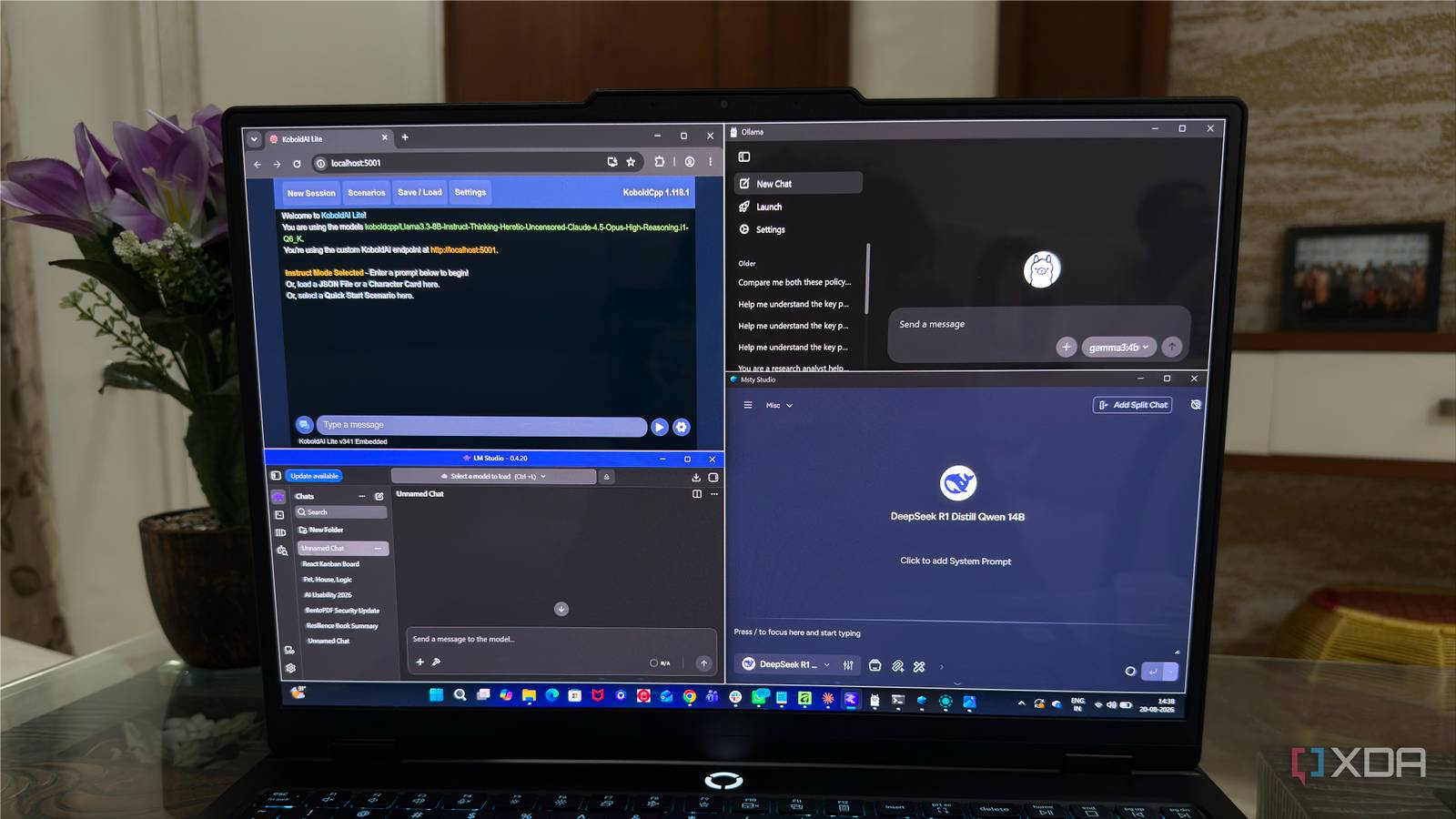
Published Aug 22, 2026, 2:00 PM EDT Beginning his professional journey in the tech industry in 2018, Yash spent over three years as a Software Engineer. After that, he shifted his focus to empowering readers through informative and engaging content on his tech blog – DiGiTAL BiRYANi. He has also published tech articles for MakeTechEasier. He loves to explore new tech gadgets and platforms. When he is not writing, you’ll find him exploring food. He is known as Digital Chef Yash among his readers because of his love for Technology and Food. I've been experimenting with local AI for a while, and one thing that kept bothering me was how difficult it can be to know where to start. There are plenty of tools that promise an easy way to run AI models on your own computer, but they don't all offer the same experience. So, I decided to put some of the most popular options to the test. I spent time using each one and looked at what it was actually like to set them up and use them for everyday tasks. One of them stood out to me as the easiest starting point. Ollama Great engine, basic user experience Ollama takes a more terminal-focused approach to running local AI models. After installing it, I could download a model and start using it with a simple command. Most of the interaction happens through the command line, which worked well for me but felt less approachable when I was just getting started. Ollama does have a basic chat window through its app, but it is extremely minimal. There aren't many controls or settings to explore, and it feels more like a simple interface layered on top of Ollama rather than a full desktop AI app. I mostly used the terminal, especially when switching between models or managing them. That approach is convenient once you're familiar with the commands, but it doesn't feel as beginner-friendly as a traditional AI application where everything is available through a graphical interface. KoboldCPP Flexible, capable, but quite technical KoboldCPP feels more like a tool built for people who already know their way around local AI. I mainly used it to run GGUF models locally, and getting a model running wasn't difficult once I understood the interface. It gives me plenty of control over things like model settings, context size, and other generation options. What stood out to me was how much information and configuration it puts in front of you. I could tweak a lot of things, but I also had to spend more time figuring out what those options actually did. The interface feels functional rather than polished, and the overall experience feels more like configuring a local AI backend than using a typical chat app. LM Studio The easiest local AI experience LM Studio was probably the most polished local AI tool I tried. From the moment I opened it, the experience felt familiar if you've used apps like ChatGPT before. I could browse available models, download one, and start chatting without opening a terminal or remembering commands. I also liked how much of the setup happened inside the app. Model downloads, conversations, and basic settings were all in one place, so I didn't have to jump between different tools. The interface gives me enough options to understand what is happening without throwing too many technical details at me. I could still dig into more advanced settings when I wanted to, but I didn't need to understand them just to get started. That made LM Studio feel much more approachable than the other tools I had tried up to that point. llama.cpp Built for control, not convenience llama.cpp is a little different from the other tools I tried because it feels more like the engine underneath local AI rather than a complete desktop application. I mainly interacted with it through the command line, where I could run supported models and control how they used my hardware. That approach gives me a lot of flexibility, but it also means I have to be more involved in the setup. I needed to understand commands, model files, and different options before I could get the experience I wanted. There isn't much of a polished interface guiding me through the process. I can see why llama.cpp is so popular among people who want more control over how local models run. Msty AI A promising workspace with paid limits Msty AI felt more like a complete desktop AI workspace than a simple local model runner. I could connect local models, start conversations, and manage different AI setups from one interface. The app itself is polished, and I liked having more tools available without relying on the terminal. However, I noticed that many of its useful features are locked behind paid plans. The free version is still usable, but some of the features that make Msty AI more interesting aren't available unless I pay. I also found the interface a little busier than I expected. There are plenty of options to explore, but I didn't need all of them for basic local AI use. After trying it alongside the other tools, I found Msty AI interesting, but the paid limitations made it harder to recommend as the obvious starting point. I’d recommend only one tool to beginners Trying these tools made one thing clear: beginners don't need the most powerful or flexible local AI setup. They need something that gets out of the way and lets them start using AI without a steep learning curve. That's why LM Studio is my pick. It strikes a good balance between simplicity and flexibility, so I can keep things basic when I want to or explore further when I'm ready. I don't have to learn how everything works behind the scenes just to get started. The other tools can be excellent depending on what you're looking for, but LM Studio is the one I'd suggest to anyone taking their first steps into local AI. It makes the whole experience feel much less intimidating. LM Studio LM Studio is a multi-platform application that you can use to converse with an LLM running on your computer. With support for hundreds of models and all kinds of computers, it's the best way to experience LLMs.
I tested 5 local AI tools, and one clearly stands out for beginners
Full Article
Original Source
Read the full article at Xda-developers →KhanList aggregates and links to publicly available news content. We do not host full articles from third-party sources. Always verify important information with original sources.