
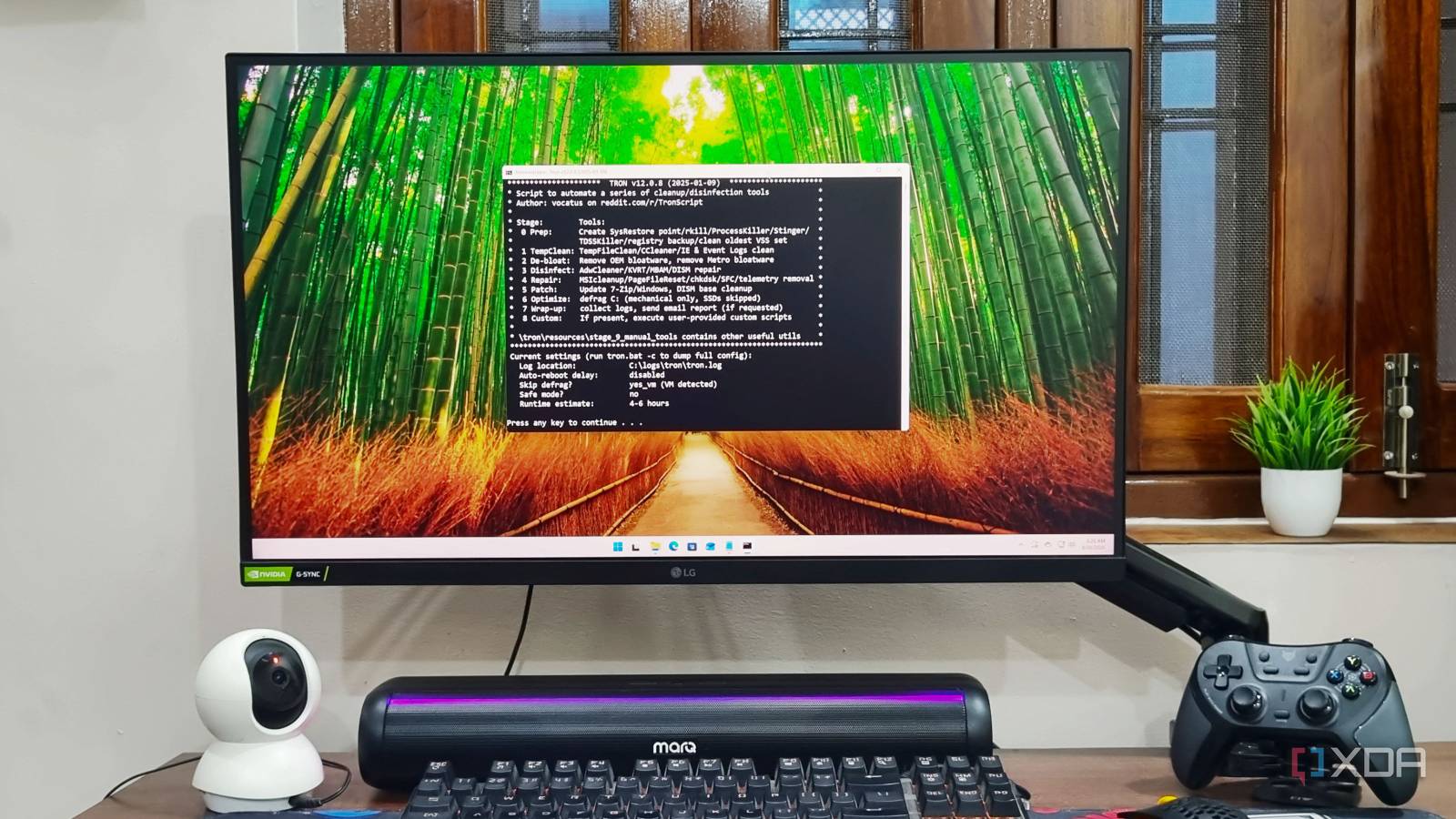
Published Sep 5, 2026, 5:00 PM EDT Abhishek is an author at XDA who covers computing. He has loved computers since he got the Lenovo G570 in 2012. Abhishek holds a master's degree in computer applications and began his writing career in 2018. He loves writing how-to articles, listicles, and informational posts on popular operating systems and web services. He closely follows the Windows Insider program and tests new Insider builds to discover upcoming experimental features and upgrades. His past work includes long-term collaborations with reputed publications like Tom's Hardware, and Windows Latest. When not writing anything, he is busy watching new episodes of One Piece or searching for something binge-worthy. Scripting has always been the backbone of tweaking or forcing Windows to work in a certain way. There are automation scripts, debloating scripts, app migration scripts, and many more. I've used quite a few to trim clutter on my PC or automate actions like backing up parts of a directory to an external storage device. Previously, I used Win11Debloat to wipe out all the unnecessary clutter that Microsoft loves to ship with Windows. But recently, I tried a custom script that takes Windows optimization, cleanup, update, and repair to a whole new level. It's not just a few lines of code that do an action you would usually do from the settings app. Let's look at the script, how it works, and the impact on my test system. TronScript tries to cover most bases A script to fix multiple issues with your PC Usually, when you download and try a script, it's hyper-focused on accomplishing a specific goal. A relatable example is Win11Debloat, which focuses on removing every non-essential thing in the OS. But TronScript tries to restore Windows to a working, lean, and malware-free state where all the necessary system components work without failures. The script doesn't advertise itself as a tool that anyone can use. Instead, it targets advanced users and technicians who need to fix a Windows system with minimal supervision. TronScript does everything itself, from preparation to removing the tools it used to fix the system. It makes sense for users who work with system troubleshooting and repairs, rather than for an everyday user. With that in mind, I spun up a new Windows 11 virtual machine and gave the script a try. Getting TronScript to work is a bit cumbersome Reliance on deprecated Windows tools TronScript isn’t the most fun script to work with, and I learned that while trying to download and run it. While Edge and Windows security often flag tools like these as threats, I still had a hard time downloading a copy. I had to turn off all the security measures, including Tamper Protection and SmartScreen, and only then did I have access to the archive. The script has a long instructions document, and after reading it, I ran it. The terminal window launched, but the tool immediately detected that it didn’t have admin privileges and showed an error. TronScript can be run in normal mode and safe mode, but since it was a fresh system, I re-ran it with admin privileges. There’s not much to select or configure except the initial ‘I AGREE’ phase. After that, the script takes the reins and begins its tasks. But I hit another problem in phase 0, before the script could do anything. TronScript relies on WMIC, but Microsoft deprecated the feature years ago. It encountered an error trying to fetch or repair this component and got stuck in a loop. I couldn’t figure out the problem until I read the Reddit page and the instructions file again. I thought I could skip WMIC altogether, but it's a core element, which the script uses to execute many actions in the next phases. So, skipping it was not an option. I had to download and install WMIC with the DISM tool using the following command: DISM /Online /Add-Capability /CapabilityName:WMIC~~~~ The script requires Windows NET Framework 3.5 and suggests restarting to finish applying any pending updates before execution. Once I did all these steps, TronScript ran without any problems. Since I ran it on a fresh virtual machine with no apps installed or files, it took about 70–80 minutes to complete. Downloads are a major part of TronScript, and it also installs cleaner tools, antivirus tools, and a few other utilities. If you have a slow internet connection or want to run this script on a main, daily-use system, be prepared to wait for hours. Fixing Windows has never been simpler No more running around TronScript is pretty exhaustive and tries to repair Windows components, run file-check scans, find adware and malware, restore the size of the paging file, purge bloatware apps and features, and more. But how are all these actions useful? All these actions might not make sense on a new PC that barely has any files, apps, or misconfigured settings. However, an old, used Windows machine checks most of the boxes the script tries to fix. Your system might not be working as well as before, has broken file extensions, misconfigured settings, or file corruption that you never tried to fix. You can also benefit from turning off telemetry, removing unused Microsoft apps, and running deep drive scans for hidden malware. I like the fact that TronScript doesn’t try to be a one-size-fits-all solution. It’s for highly specialized use cases, when a Windows machine seems like a pile of trash, and you don’t want to download, install, and run every possible tool to fix it. Instead, you can use TronScript to get all of that done automatically, once you grant it the necessary permissions. I suggest using it only if you're familiar with the terminal, have a backup of your necessary files, and understand the risk of running a script. It's also a patience test because scans take longer when storage is nearly full than on the test system I used. TronScript can fix your PC Very rarely, a script tries to be immensely detailed and transparent, like TronScript. You must read the instructions file with complete focus, and reboot your PC once before you start it. Windows Security will act finicky, so you’ll have to deactivate that as well. It’s kind of a last-resort script rather than a quick fix or a frequently used one. Windows 11 Pro A USB installation drive and license key for Windows 11 Pro, with additional features like Hyper-V and Windows Sandbox support.
I stopped running separate Windows repair tools after finding this one lifesaver script that does it all
Full Article
Original Source
Read the full article at Xda-developers →KhanList aggregates and links to publicly available news content. We do not host full articles from third-party sources. Always verify important information with original sources.