
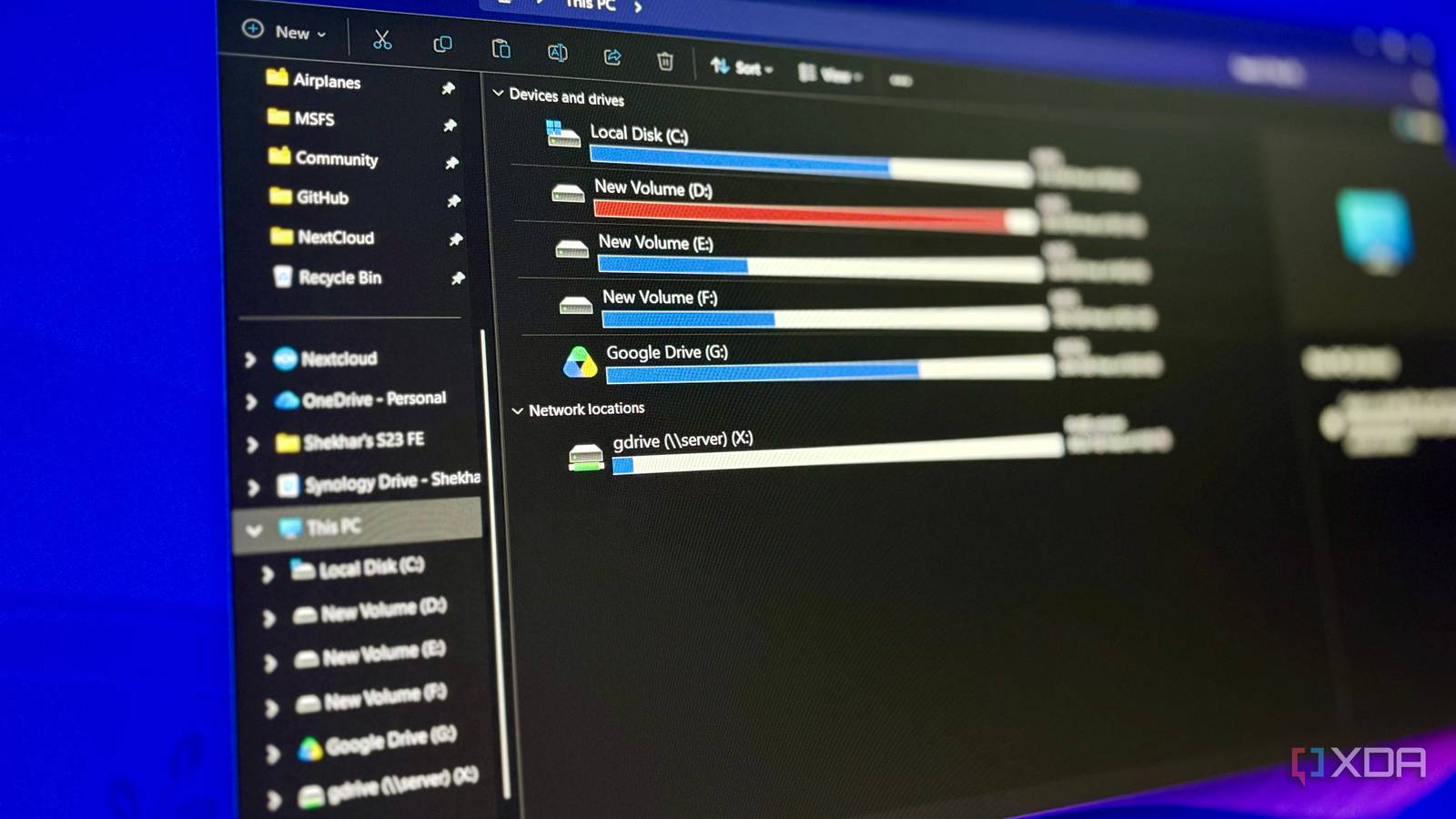
Published Oct 10, 2026, 8:00 AM EDT Shekhar Vaidya is a veteran technology journalist and computer science engineer. He is the founder of TechLatest, where he has spent years providing technical analysis on hardware and Windows ecosystems. Now a Computing Writer at XDA, Shekhar leverages his deep background in NAS, storage solutions, and PC internals to help readers master their tech. I played a video via the rclone mount (on default settings), and when I tried to seek forward by 20-25 seconds, playback stopped, buffered, and then resumed. But when I played the same file in Google Drive’s app, it was fine. While looking for tools to get more out of my Google Drive storage, I came across rclone, a command-line utility that can mount cloud storage as a drive. I was already using the official Google Drive for desktop app and had no complaints. But rclone offered something I couldn't get from the Drive app: more control. My Drive setup was fine, and I still wanted to change it I wanted a reason to switch, and Drive's app didn't give me one My storage system is a mess. From cloud storage to local storage to NAS, everything is scattered. On the Google side, I started with the free 15GB, moved to an org account via my Grad Uni, and after college, came a few Google Workspace seats. Currently, I have more storage than I need — a Google Plus subscription on my personal Gmail, two Workspace seats, and the Uni email. So, I always keep trying different tools and services to use it efficiently. For context, I usually set the Google Drive app to mirror mode, but for this test, I switched to stream mode. Honestly, I have read a lot about rclone, and I was hoping it would replace the Google Drive app. Google Drive’s stream mode is simple. The files always live in Google’s cloud and are fetched and stored in my system’s cache when I open them. Before the test, I cleared the cache completely for an apples-to-apples comparison. I started by copying a ~1.2 GB video file from the Google Drive mount to my internal SSD to create a baseline. The cold copy took 63.8 seconds to complete the 1,181 MB; that means roughly 18.5 MB/s. And then I copied the same file again to check the cached speed, and it took 0.83 seconds. At this point, the Google Drive didn’t seem unreasonable. It gave a drive mount (G:). I could navigate through all the files and only fetch the ones I needed. But there was one thing I was expecting rclone would give me: control over cache and fetch. rclone gave me a drive, just a much slower one The mount worked on the first try, and then I timed a copy As usual, I installed rclone through the CLI. It also needed WinFsp to work properly. The installation was straightforward, but the initial setup came with a long list of questionnaires. I normally don’t cover the installation steps, but I need to mention one so the comparison is fair. In the case of Google Drive, rclone requires a Google Cloud Console (GCC) client ID and secret. Either I could use rclone’s credentials, which, by the way, are retiring soon, or I could set up my own application in the GSC, configure OAuth, publish it, and then use those credentials. Normally, I’d use my credentials, but since this was only for testing purposes, I went with rclone’s shared credentials. Once it was configured, I mounted the same Google Drive through WinFsp. rclone mount gdrive: X: --vfs-cache-mode full --vfs-cache-max-size 20G --cache-dir E:\rclone-cache --network-mode A new drive was mounted in File Explorer, just like with the Google Drive app. But I instantly noticed a disadvantage: the mount lived inside the terminal window. So, if I closed the window or rebooted the PC, it would be unmounted. It can be a pro as well as a con for some people. For me, it was a con because it was my personal computer, and I would want the drive to be there after each restart. So, mounting each time and keeping a terminal window open was an extra step. I copied the same video file I did with the Google Drive app, and it was much slower. It took 166.6 seconds to copy the same 1,181 MB video to the same SSD, so roughly 7.1 MB/s, about 2.6 times slower than the Drive app. The warm copy was better, though, by a few milliseconds; it took 0.6 seconds. I wasn’t expecting that. But the good thing about rclone is that it let me control the mount through a number of customization flags. The moment I started playing with the flags, the results started to shift. A few flags fixed the stall, but not the wait The flags fixed my video, and left one problem behind I wasn’t chasing numbers and benchmarks; they only tell half the story, so I was looking for a genuine day-to-day experience. I started by navigating through various folders. It was a little laggy, and each new folder took a few seconds to open. And the video playback was rather unsettling. I played a small ~500 MB file and tried to seek 20-25 seconds at a time; each time, it stopped, buffered, and then resumed. I did the same on the Google Drive app (G:) mount side by side, and the experience was completely different. With the official Drive mount, the experience was so smooth that it felt like a real local drive. That was when I decided to experiment with rclone flags. I tried various flags together, from larger read-ahead and a bigger buffer to larger read chunks, a higher chunk-size limit, and a much longer directory cache. And finally, after several tries, I settled with this mount: rclone mount gdrive: X: --vfs-cache-mode full --vfs-cache-max-size 20G --cache-dir E:\rclone-cache --network-mode --vfs-read-ahead 256M --buffer-size 64M --vfs-read-chunk-size 64M --vfs-read-chunk-size-limit 512M --dir-cache-time 1000h Honestly, towards the end, I was so frustrated that I stopped tracking which flag did the heavy lifting, but at least it matched what I was getting with the Google Drive app. Even though I wasn’t really chasing the numbers, I copied the same ~1.2 GB video again, and that initial 166.6 seconds came down to 74.6 seconds, roughly 15.8 MB/s. Again, numbers and experience are two different things. The numbers looked closer, but the overall experience didn't improve nearly as much. Even after the tuning, folder navigation and file opening time didn’t improve, but the video playback was much better now. I did find a fix for the navigation delay: the --vfs-refresh flag, as it fills the directory cache in the background right after mounting the drive. Note that on each mount, it will refresh the whole library, and with tens of gigabytes of data, it can throttle the GCC. Worth trying, not worth replacing After tuning rclone, I got similar results and control over how my files are cached, but for me, it didn’t make a strong case as a clean Drive app replacement. I didn’t want to babysit the mount and remember exact flags just to get my files. If you're someone who seeks more control over the cache and wants to mount your Google Drive on a machine that has no Drive app, rclone is worth a try. Rclone Open-source command-line program for copying, syncing, and mounting cloud storage as a local drive.
I spent hours tuning rclone to replace Google Drive desktop app, but the real bottleneck wasn't what I thought
Full Article
Original Source
Read the full article at Xda-developers →KhanList aggregates and links to publicly available news content. We do not host full articles from third-party sources. Always verify important information with original sources.