
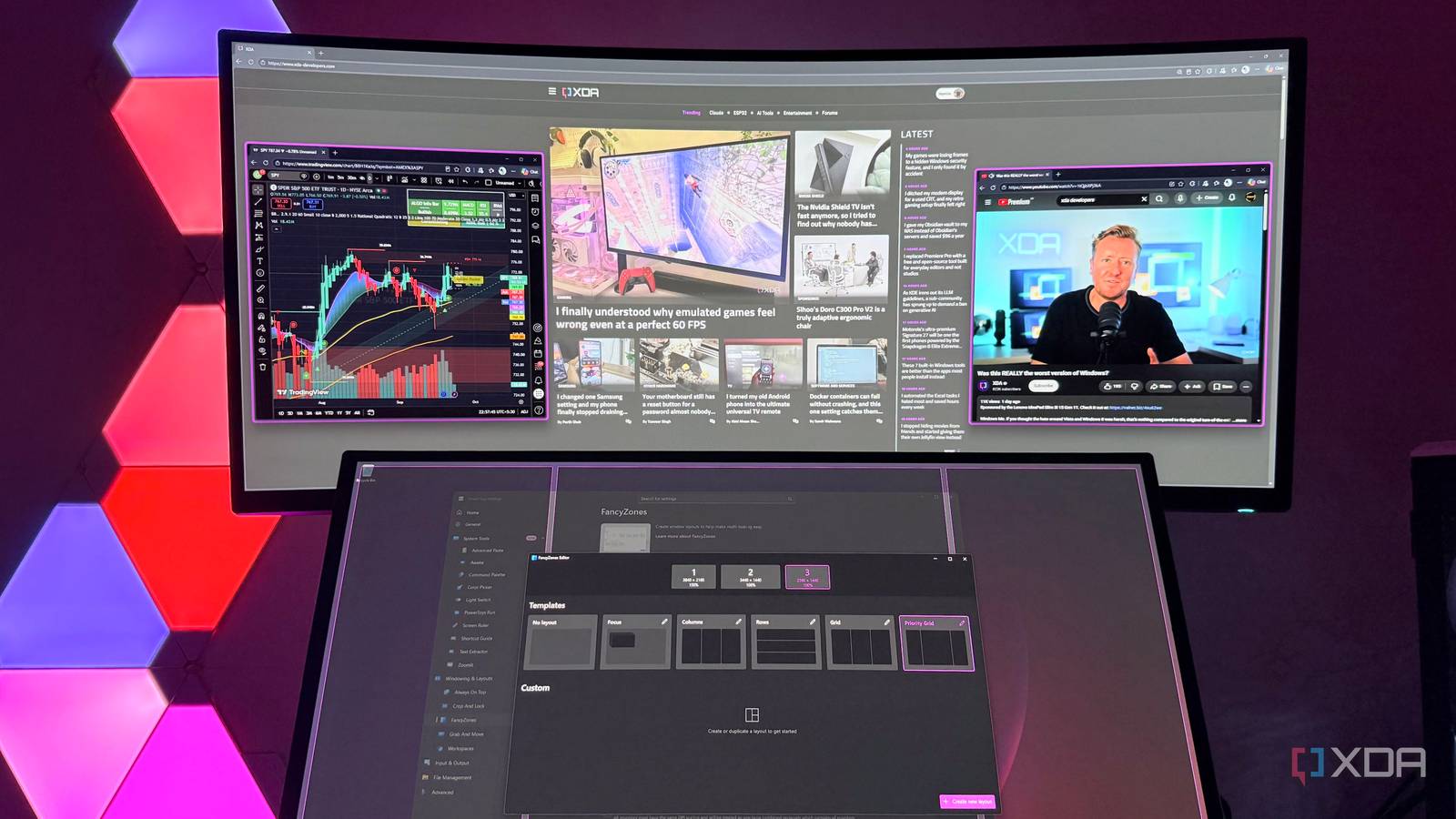
Published Sep 25, 2026, 8:00 PM EDT Hamlin has been in the tech field for over nine years. Since 2017, his work has appeared on MakeUseOf, Android Police, OSXDaily, Beebom, and more. He served as the Senior Editor at Valnet's MakeUseOf for over two years before joining XDA. He uses a high-end gaming rig for desktop use and a MacBook for traveling, but dislikes some of the quirks of macOS. You're more likely to catch him at the gym or on a flight than anywhere else. I still remember installing PowerToys for the first time last year just because I wanted to try out Command Palette and see if I could ditch Windows Search once and for all. I've never really been happy with Windows Search and the Start menu in particular, and Command Palette was the solution to both of them. Fast forward to today, and I've moved on to Raycast because it just goes the extra mile with community-driven extensions and AI integration. You'd think I have no use for PowerToys now, but I actually use it more often than I did when I first installed it for Command Palette. And that's because some of its lesser-known tools have become a huge part of how I use Windows every day. Interestingly enough, all of them have one thing in common: they make managing windows so much easier. Considering I have a multi-monitor setup, I've gotten so used to these little conveniences that it's almost impossible for me to go back now. Always On Top Ridiculously simple, but extremely valuable I want to start off with the simplest tool that had the biggest impact on how I use Windows. As the name suggests, Always On Top lets you pin any window so that it stays above everything else on your screen no matter what. As someone who has several windows open at once across three monitors, this functionality is a godsend. For the longest time, I kept losing smaller windows behind whatever I was working on, and then I'd have to dig them out of the taskbar again. Always On Top fixes that with a simple Win + Ctrl + T shortcut (which you can change if you want to). The pinned window is immediately highlighted, and you hear a sound to confirm that the shortcut worked. And when you want to unpin it, you just select that window and hit the same shortcut again. I've enabled the option to show Always On Top in the title bar context menu for quicker access whenever my hand is already on my mouse. Personally, I use it to keep a TradingView chart in view while I'm browsing in Chrome. While writing articles, I sometimes use it to compare specs, too. At this point, I'm just surprised Microsoft hasn't made this a native feature yet. FancyZones Call it advanced Snap Layouts I was fine with Windows 11's Snap Layouts for years because I just needed a quick way to arrange two or three windows side by side. But that changed when I got my hands on an ultrawide monitor. I wanted to align four windows horizontally and take advantage of the extra width, but none of the preset layouts gave me that option. Sure, I can just resize them manually, but doing that every time completely defeats the point of using Snap Layouts in the first place. FancyZones solved this problem for me, and now I don't even bother with Snap Layouts. For starters, FancyZones lets me create custom layouts from scratch with its layout editor, so I can mess around and see what works best for my monitor and use case. I've made different layouts for each one of my three monitors since they serve different purposes when I'm working. All I need to do is hold the Shift key while dragging a window to bring up the zones I've created, and then drop it wherever I want. I'm glad that I don't have to drag windows all the way to the top edge of the screen like I used to with Snap Layouts. Grab And Move Who has the time to aim for the title bar? Dragging windows is pretty straightforward for the most part, until you realize that you have to aim for the title bar every time. If you have a 1080p monitor, this probably isn't something you've ever thought about. But I use two 4K monitors and a 1440p ultrawide, so there's a lot of screen real estate to work with. Having to look for the tiny title bar every time I want to move a window gets tiring after a while. That's when Grab And Move comes in. And it works for both dragging and resizing windows. One modifier key (Alt by default) turns the entire window into a draggable or resizable area. Left-click to drag and right-click to resize the window. No more spending an extra second or two pointing the cursor at the title bar. This makes a huge difference for me since I'm constantly moving windows around across all three of my monitors, and that time I save definitely adds up over the course of a day. I've gotten so used to it that dragging windows the normal way feels unnecessarily tedious now. It's the little things that make PowerToys worth keeping around Honestly, I'm barely scratching the surface of what PowerToys has to offer, and I'm sure many of you will have your own favorites, like File Locksmith, Shortcut Guide, and more. For the way I use my PC, though, these tools have had the biggest impact, as they've addressed some of the quirks that have always bothered me about Windows 11. If it weren't for Command Palette, I probably wouldn't have known what I was missing. It's funny that I've replaced it with Raycast now, but I don't see anything replacing PowerToys when it has so many useful tools under one roof. Microsoft PowerToys is a collection of free, open-source tools that can improve Windows productivity.
I installed PowerToys for one feature, but these 3 tools made me keep it
Full Article
Original Source
Read the full article at Xda-developers →KhanList aggregates and links to publicly available news content. We do not host full articles from third-party sources. Always verify important information with original sources.