
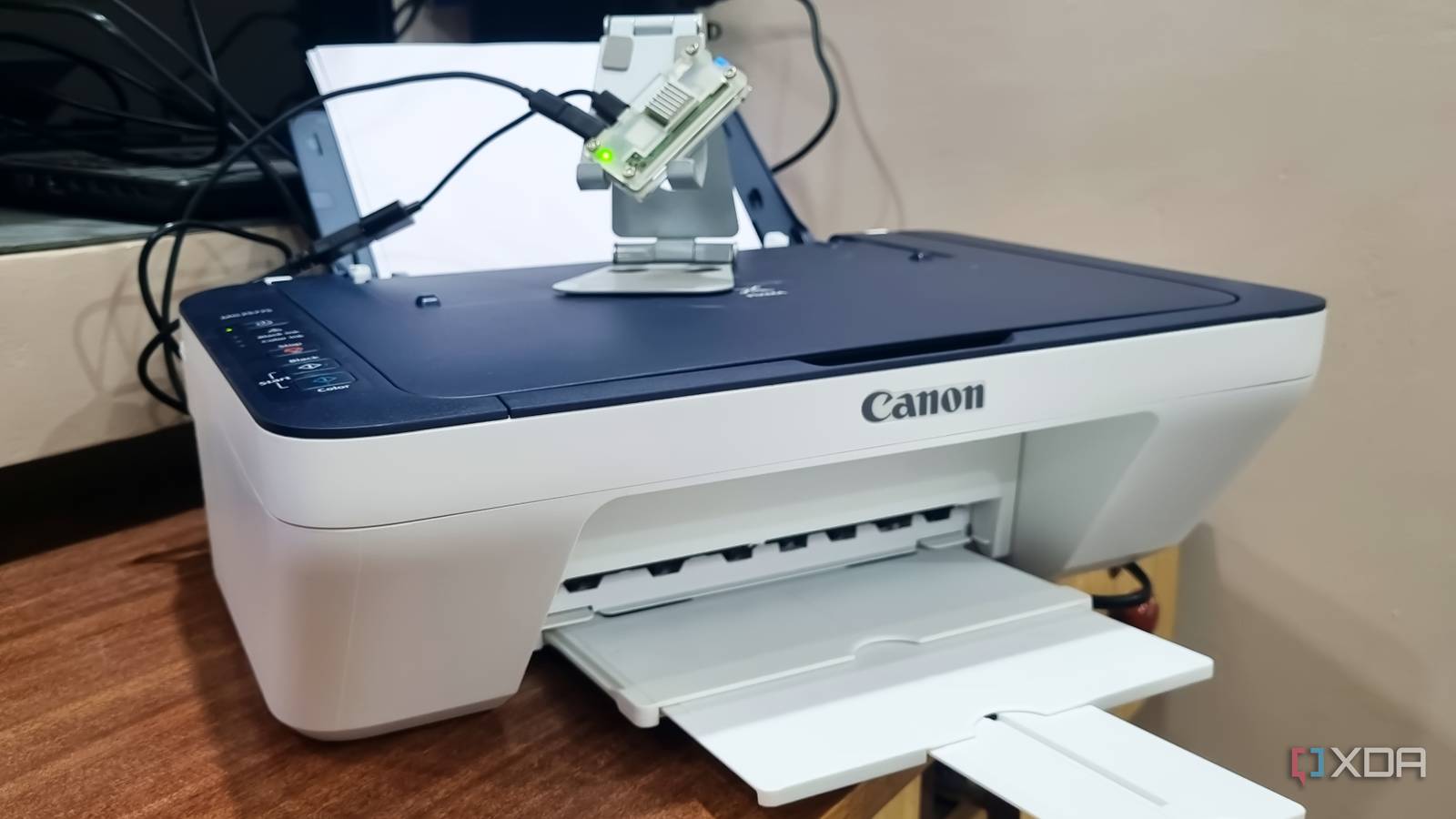
Published Nov 18, 2026, 11:01 AM EST Abhishek is an author at XDA who covers computing. He has loved computers since he got the Lenovo G570 in 2012. Abhishek holds a master's degree in computer applications and began his writing career in 2018. He loves writing how-to articles, listicles, and informational posts on popular operating systems and web services. He closely follows the Windows Insider program and tests new Insider builds to discover upcoming experimental features and upgrades. His past work includes long-term collaborations with reputed publications like Tom's Hardware, and Windows Latest. When not writing anything, he is busy watching new episodes of One Piece or searching for something binge-worthy. Raspberry Pi boards are my absolute favorites for reviving old gadgets that have lost their relevance in the modern age. I've used a Raspberry Pi Zero 2 W to bring back old speakers to life. They sound great even today and offer wireless and remote playback. Similarly, you can repurpose other old gadgets, but a printer was the last thing on my mind. I have an old USB printer that was a frequently used peripheral during my college days. There are occasional instances where I need to make a copy or print for bank or post office-related tasks. But its usage has increased in the last few months, and the USB capabilities are holding it back. I started craving wireless connectivity, and a spare Raspberry Pi Zero 2 W turned out to be the best fit. USB printing is not bad But it's a pain for multi-user environments I have a Windows 11 laptop and monitor setup as a daily driver, and most of my USB ports are not vacant. I keep testing ESP32 projects and have a few peripherals connected to it, including a couple of external hard drives. So, I always need to unplug something and connect the printer before I can actually print a page. You can imagine how infuriating it is, as it tends to break my workflow. My cousin has been back for a few months, and along with my occasional printer needs, he uses it as well. His work role requires generating invoices and quotations, and that means a lot more print jobs than usual. He either sends the document to me or comes and makes a final edit on my PC for last-minute changes. I cannot spare my system at all times, and it becomes a waiting game for him to print something or bring his laptop up. My Canon PIXMA MG2577S doesn't have any wireless capabilities, and that's bad when you have multiple users in a single home. So, I decided to host a print server on it using the Raspberry Pi Zero 2 W. Despite being an entry-level SBC, it's great for single-purpose roles like this. I chose Common UNIX Printing System (CUPS), which is an open-source printing system. It can turn a Linux system into a network print server. Building the print server on the Raspberry Pi Zero 2 W A combination of CUPS and Avahi If you've ever used a Raspberry Pi to deploy and host any kind of server, be it a media server or anything else, setting up CUPS is not difficult. My SBC had a version of Raspberry Pi OS Lite running on it, and after a quick cleanup job, it was ready for CUPS installation. I used the following commands to install both the tools, enable the service, and grant the necessary permissions: sudo apt install cups avahi-daemon -y sudo usermod -aG lpadmin "$USER" sudo systemctl enable --now cups Then I connected my printer’s USB cable to the Raspberry Pi Zero 2 W via a micro-USB to USB-A adapter. I did a couple of checks to verify if the printer appeared on the devices list. The next task was to find a working driver for the printer, and I wasn't very hopeful. Gutenprint is your holy grail for finding a usable driver for an old printer, and I installed it too. Its search results showed an experimental driver, and I decided to give it a try. There were a few additional things I had to do, including creating a print queue and setting up the default printer. You can use the terminal or the web portal, which uses port number 631. I was delighted when the printer successfully churned out the standard CUPS test page. With local printing setup complete, I enabled printer sharing in CUPS, using the following command: sudo cupsctl --share-printers sudo lpadmin -p Canon_MG2577S -o printer-is-shared=true The benefit of using Avahi is to avoid a tedious printer-adding process on each system using the server's IP address. Avahi makes the printer discoverable by a simple device name using mDNS/DNS-SD and makes it feel as if the device was a network printer all along. My Canon printer is available over the home network No more cables I first tried to set up the printer on my main Windows PC, and it appeared in the search list without any manual effort. It took a couple of minutes to add it via the Settings app, and then I could issue print commands to it. A couple of test prints with a Notepad file and an image worked without any errors. So I can now place the printer in a common area, and it remains available to me and other computers in the home. Even the Android devices recognize the printer without any additional steps. I could never print files from my phone to the printer due to a lack of wireless support, but a Raspberry Pi Zero 2 W and CUPS solved it. I only enabled the Default print service setting on my Samsung Galaxy phone and then could issue print commands from it. The best part is that you don’t need any proprietary software to use the printer on a phone or PC. CUPS handles the backend, and Avahi helps with printer discovery, while you only need to add it once. Even if you don’t use Avahi, adding it using the IP address is not a very difficult task. Repurpose your old printer My USB printer is now an easily accessible peripheral because of a Raspberry Pi Zero 2 W. It can run CUPS and Avahi without any issues and doesn’t run out of memory for normal print jobs. I didn’t have to invest in a new printer because of a spare SBC, and you can build one too without any complex software setup. There’s no electronic tinkering required to enable network access, which is a bonus. Raspberry Pi Zero 2 W The Raspberry Pi Zero 2 W is a small SBC with Wi-Fi and Bluetooth connectivity.
I gave my seven-year-old USB printer wireless printing with a $15 Raspberry Pi Zero 2 W and CUPS
Full Article
Original Source
Read the full article at Xda-developers →KhanList aggregates and links to publicly available news content. We do not host full articles from third-party sources. Always verify important information with original sources.