
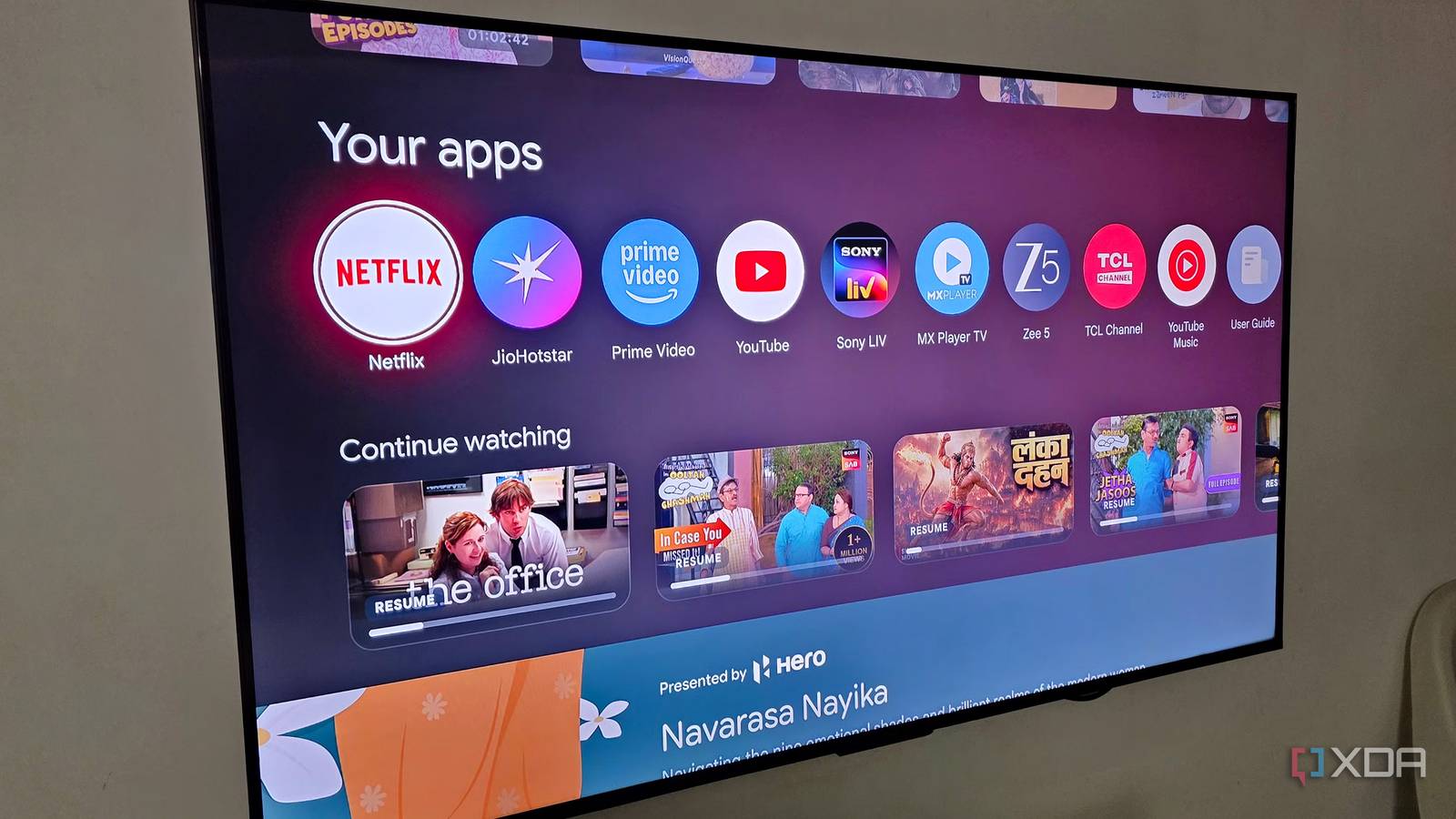
Published Oct 17, 2026, 11:30 AM EDT Parth, a seasoned tech writer, wields the keyboard (or pen) with finesse to unravel the intricacies of both Windows and Mac operating systems. He has covered evergreen content on mobile devices and computers for multiple publications over the last six years. You can find his work on AndroidPolice, GuidingTech and TechWiser. Whether it’s demystifying system updates, deciphering error codes, or exploring hidden features, Parth’s prose guides readers through the binary maze. When not immersed in tech jargon, you’ll find him sipping chai, pondering the next software review, and occasionally indulging in a friendly debate about mechanical keyboards. Nothing ruins a movie night faster than endless buffering, blurry visuals, and streaming apps that take forever to load. That’s exactly what I was dealing with on my TCL Google TV. At first, I blamed my internet connection and even considered upgrading to a faster plan. However, everything worked perfectly fine on my phone, MacBook, and Windows desktop. That’s when I realized my internet speed wasn’t a problem. I dug into my TV’s settings and network setup, and a few simple changes made a noticeable difference. I checked my TV’s actual internet speed Switching Wi-Fi bands made a difference Before upgrading my internet plan, I ran a network test on my Android TV. My phone and laptop were getting excellent download speeds, but I wanted to know how much bandwidth my Smart TV was actually receiving. Here, I used a third-party app called Analiti to do the job. If you don’t want to deal with a third-party app, head to Netflix > Get Help > Check your network menu and glance over the network speeds. To my surprise, the TV was getting slower speeds even though it was connected to the same network. That’s when I headed to the Wi-Fi menu on my TV and found that it was connected to my home Wi-Fi’s 2.4GHz frequency. While it offers better range, it can become crowded with other devices, including home gadgets and neighboring Wi-Fi networks. The 5GHz band generally offers faster speeds and less interference. I switched to 5GHz, and the difference was noticeable. Videos started loading more consistently, and I experienced fewer hiccups during streaming sessions. I optimized my router’s placement It also plays a major role in deciding internet speeds I had always assumed that as long as my smart TV showed a strong Wi-Fi signal, that router’s placement didn’t matter much. However, I realized that signal strength alone doesn’t tell the whole story. Walls, furniture, electronic devices, and even the router’s position can affect connection quality and streaming performance. My router was tucked away in a corner, surrounded by furniture. It wasn’t an ideal location, especially when I needed a stable 5GHz connection. Instead of investing in a Wi-Fi extender or upgrading my router, I decided to experiment with its placement. I moved it to a more open, elevated position and made sure there weren’t too many obstacles between the router and my TV. If you have a mesh Wi-Fi setup, try moving an existing satellite node closer to your entertainment area. Just make sure it still has a strong connection to the main router. The goal isn’t necessarily the highest possible download speed, but a stable connection that doesn’t struggle every time you start a 4K movie. Some of my streaming apps needed maintenance I stopped ignoring software updates I had been using apps like Netflix, YouTube, and Prime Video on my smart TV for years without paying much attention to their maintenance. Over time, I noticed that some apps were taking longer to launch, menus felt sluggish, and videos occasionally took longer than expected to start playing. I initially blamed my internet connection, but the apps themselves were contributing to the frustrating experience. I started by clearing the cache of my frequently used streaming apps. Depending on your TV’s OS, you can usually find this option under Settings > Apps. Clearing the cache removes temporary files without deleting your account information and preferences. Of course, clearing the cache won’t magically improve your internet speed, but it can resolve app-specific performance issues that sometimes look like network problems. I am usually quick to install software updates on my phone and laptop, but my smart TV was a different story. As long as Sling TV, YouTube TV, and Netflix were working, I rarely bothered checking for updates. However, while troubleshooting the streaming issues, I realized that outdated firmware and streaming apps could also cause the problem. I opened my TV’s settings and checked for available system updates. I also made sure my streaming apps were up to date. I gave my smart TV network priority A wired connection is also worth testing I have several devices connected to my home network. When multiple devices download files, stream videos, or run updates simultaneously, they can compete for available bandwidth. That’s where my router’s Quality of Service (QoS) feature came in handy. I opened my ASUS router’s settings and navigated to Adaptive QoS. I enabled QoS and selected Cake, which intelligently manages bandwidth when multiple devices compete for the same connection. This doesn’t increase my internet speed or give my TV exclusive priority, but it helps reduce network congestion when I am downloading large files on my desktop while streaming 4K content on my TV. Better streaming was just settings away My favorite part is that none of these fixes required technical expertise or expensive equipment. I didn’t have to invest in a new router, pay more for a monthly internet plan, or deal with any kind of developer options. If your smart TV frequently buffers, struggles to load videos, or drops streaming quality for no reason, try these tweaks before reaching for your wallet.
I fixed my smart TV’s slow video streaming without upgrading my internet
Full Article
Original Source
Read the full article at Xda-developers →KhanList aggregates and links to publicly available news content. We do not host full articles from third-party sources. Always verify important information with original sources.