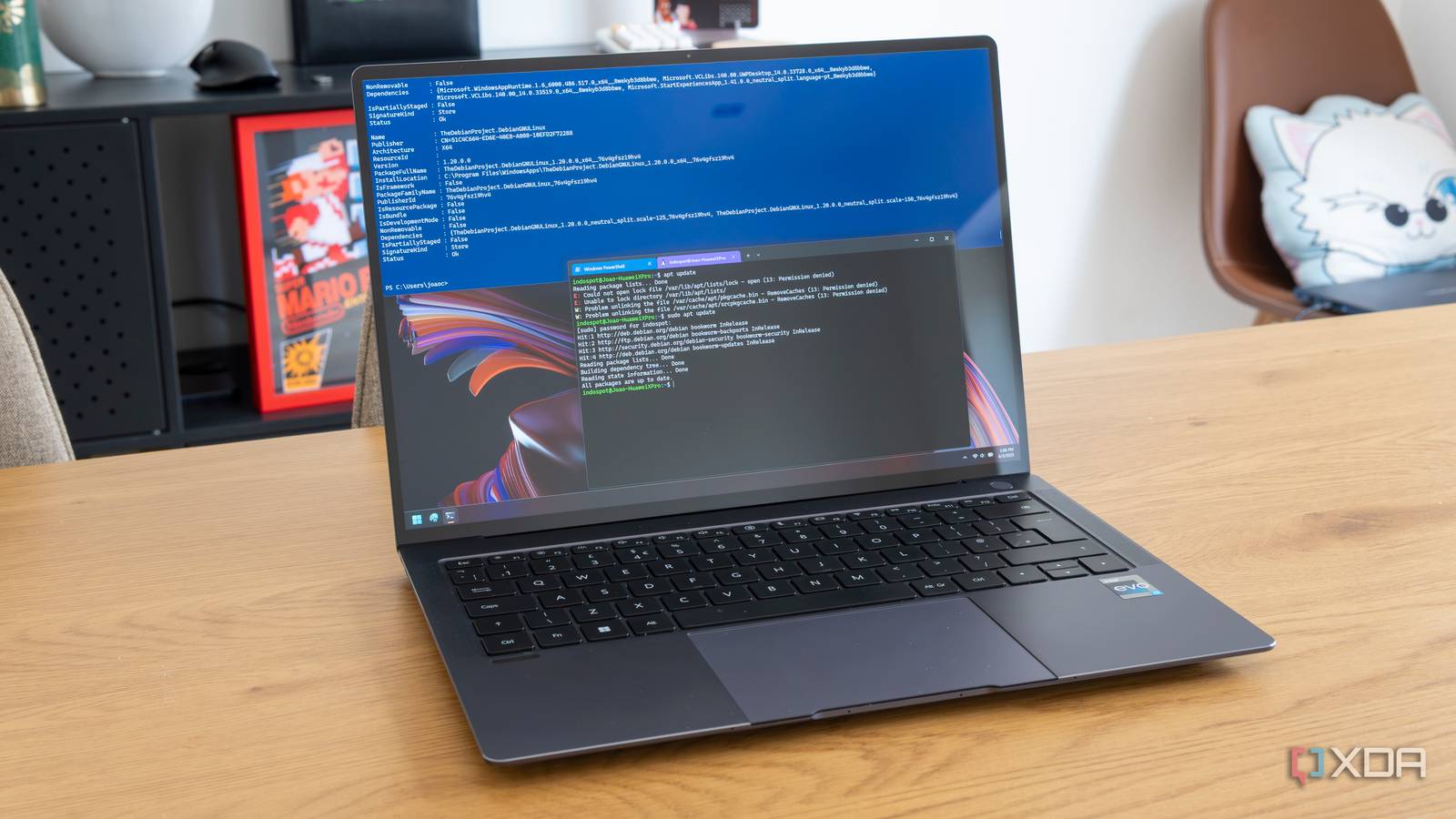
Published Jul 26, 2026, 5:30 PM EDT Korbin is a Linux system administrator who spends most of his time in a terminal figuring out how things actually work. Over the last decade he's written hundreds of articles about Linux configuration, troubleshooting weird problems, and using open-source tools in the real world. He also works a lot with Windows systems and networking, especially in mixed environments where things don't always behave the way the documentation says they should. Writing things down is how he makes sense of it all and hopefully saves someone else a few hours. Until recently, getting a proper Unix shell within Windows meant that I had to reach for a workaround. Windows doesn't come with the best commands I'm used to finding on Linux, such as grep, find, ls, and others. Whenever I wanted to work with these tools, I'd need to run an entire Linux environment for them. WSL eventually became my go-to answer to that problem, but it still required me to use a different OS, even when I just wanted access to a few commands. I've had a WSL tab permanently pinned in Windows Terminal for years now, and I mostly click into the Linux environment for something simple, like running grep against a log file. That's a lot of overhead for such a trivial task, so the context switching seems like overkill. Microsoft's Coreutils for Windows has changed that. It's a native build of the everyday Unix tools that Windows never had a good substitute for. After using Coreutils for a few weeks, my Windows Terminal finally feels on par with what I'm used to on Linux and macOS. What Coreutils does for your Windows system A small install gives you dozens of Linux commands Almost every Linux distro bundles GNU Coreutils and Findutils with the installation, which is what a lot of people refer to as "Linux commands" — cat, xargs, touch, and all the other common staples you expect in a Linux terminal. In reality, those packages are maintained separately from Linux and can be found on most Unix-like systems, including BSD and macOS. They're freely available to be included with any operating system, and Microsoft has finally hopped on board. Installing Coreutils for Windows is really easy, since it only takes a single WinGet command. Opening PowerShell and executing the following command will install the package: winget install Microsoft.Coreutils After restarting your terminal (or opening a new one), the new commands are available to use. What this package actually includes is the more interesting part. Microsoft bundled uutils, which is a Rust reimplementation of GNU coreutils, together with findutils for find and xargs, and a newly written GNU-compatible grep. Since this implementation is originally based on the same one that Linux distros use, the commands behave the same way you'd expect them to on a Linux box. There are some obvious omissions from the package, which makes sense because of the fundamental differences between Windows and Linux. Commands like chmod, chown, and chroot are missing because Windows file permissions don't work the way those tools are meant for. One thing that initially gave me pause was the older batch scripts I have that rely on the original syntax for commands like sort and find. But after some testing, the new Unix versions don't conflict with the Windows commands. I can still use the original Windows commands alongside the Unix versions. Where this actually changes how I work No more WSL tab just to run a one-liner The difference in having these commands natively available has shown up in the small, constant tasks I used to tab into WSL for. Things like grepping a log file, piping the result through wc, running find on a project directory to hunt down a particular file. None of that stuff requires me to open a separate WSL session anymore. I can run the commands in the terminal I'm already working in, rather than switching tabs all the time. Scripting is probably where this change pays off the most, though. Plenty of the scripts I write assume GNU behavior, and they can now run on a Windows machine without being modified. It's the first time that I've been able to write a script that'll cover both Windows and Linux, without me needing to rewrite flags or account for minor differences in sort order. Previously, I had to manually translate most lines of a script if I wanted them to be portable to Windows. The other big advantage is performance. WSL has to route filesystem access through a kernel translation layer, and that overhead is noticeable on commands like grep and find when you're working with a directory of a few thousand files or more. Running those same commands natively skips that translation layer, and the difference is obvious when I run recursive commands across massive directories. Coreutils lets me skip WSL for the simple things But it still doesn't completely replace WSL I never technically needed Coreutils, but it sure is nice to have. WSL already gives users a full Linux kernel and access to all the Linux software they could possibly want. Coreutils didn't really provide anything new that WSL didn't already have. In a lot of ways, Coreutils is just a smaller and more limited version of something that WSL was already doing. Coreutils definitely can't replace WSL for heavy Linux workloads. I still need WSL for running a full dev environment that relies on various containers and services. Coreutils exists for the lightweight stuff, like a quick grep or a GNU-compatible script. It beats launching a separate environment and leaving the current terminal I'm in when all I need is brief access to a command that I'd ordinarily take for granted on Linux systems. My terminal finally feels complete Dividing my terminal into two tabs, both of which can run a certain set of commands without overlap, was never an ideal workflow. Coreutils removes the WSL tax I'd been paying every time that I wanted to run a quick grep or find a stray file, since I no longer have to stop and decide which tab actually has the tool I need. Now my terminal feels like one cohesive environment that combines the best of both worlds.
I ditched my WSL tab after Microsoft added real Unix commands to Windows
Full Article
Original Source
Read the full article at Xda-developers →KhanList aggregates and links to publicly available news content. We do not host full articles from third-party sources. Always verify important information with original sources.