
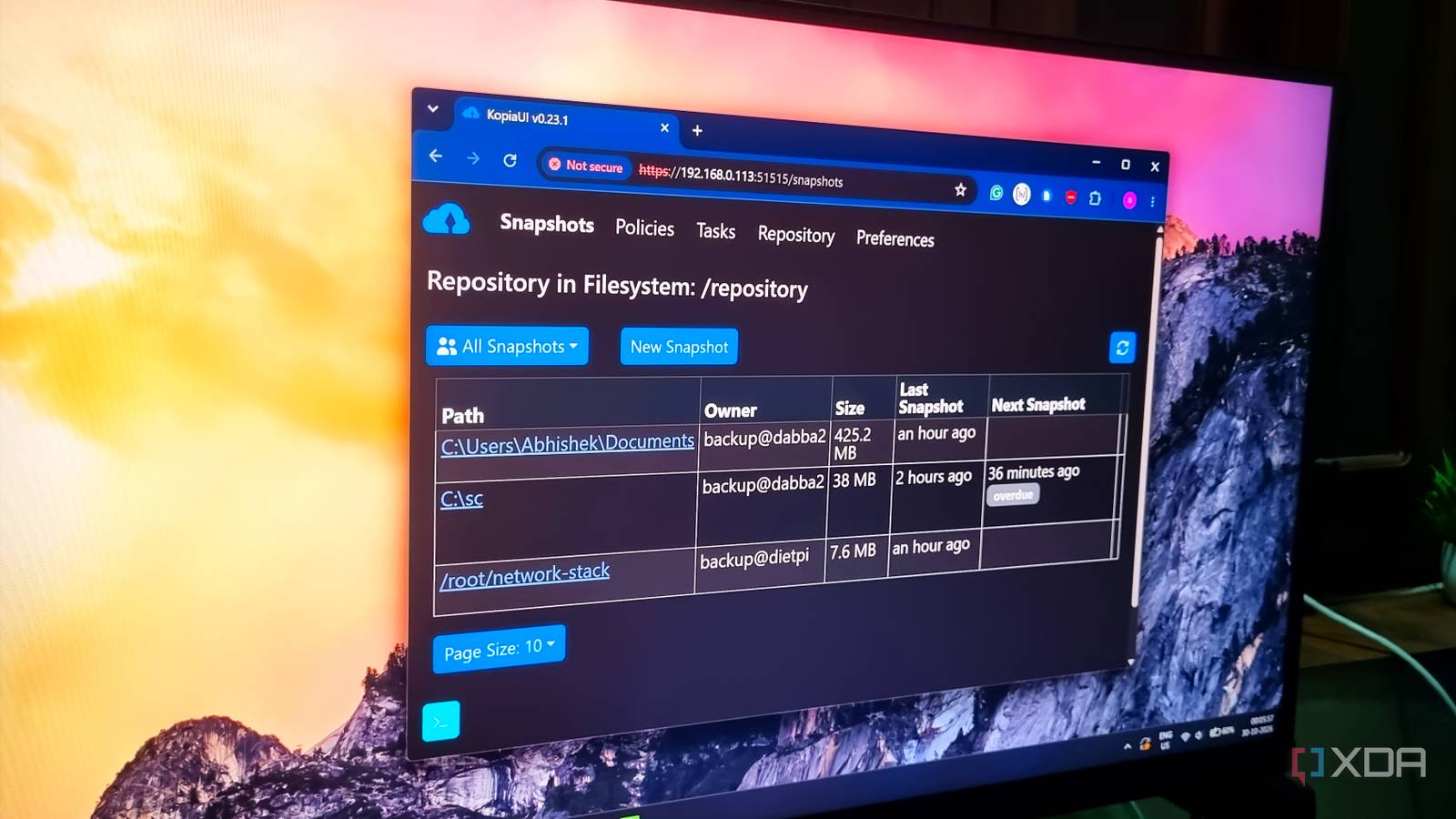
Published Nov 1, 2026, 7:30 AM EST Abhishek is an author at XDA who covers computing. He has loved computers since he got the Lenovo G570 in 2012. Abhishek holds a master's degree in computer applications and began his writing career in 2018. He loves writing how-to articles, listicles, and informational posts on popular operating systems and web services. He closely follows the Windows Insider program and tests new Insider builds to discover upcoming experimental features and upgrades. His past work includes long-term collaborations with reputed publications like Tom's Hardware, and Windows Latest. When not writing anything, he is busy watching new episodes of One Piece or searching for something binge-worthy. Cloud storage services aren't as cheap as they used to be. Platforms like Google Drive and OneDrive love to change their policies, and that doesn't work for me. I crave a more private experience and prefer a local backup strategy rather than a paid cloud storage service. I've tried a few self-hosted backup tools. Nextcloud is a popular one, but I prefer simplicity. I'm not a fan of its app suite and need a simple backup strategy that copies the folder I want to a target drive. It can be done by simply doing a network transfer and a script, but Kopia is a better, more configurable solution. Now, all my devices back up crucial folders to a single Kopia server. Its deduplication features save precious disk space, and I can't imagine a more comfortable option. Setting up a Kopia server Creating an encrypted repository My server choice for building this project was an HP t620 thin client that I bought and upgraded for $45. It has 8GB DDR3 memory and a 128GB M.2 SATA SSD, which is more than enough to run a Kopia server in Docker. My complete software stack and OS use only 400MB of memory, and the DietPi x86 edition (without a desktop environment) plays a huge role in this. It made the Docker setup a piece of cake; I just installed Kopia and configured it. I intended to use this server for backing up certain folders from my main Windows PC, like scripts, documents, and a few more files. I also needed a backup server to copy my Raspberry Pi’s Docker files to, for later use or in case of reinstallation. I could have used DietPi's built-in installation tool to back up the whole system to an external drive. But I would need one USB drive for each device I wanted to back up. So, building one server felt a lot more sensible. Simply copying files to another server isn't a good idea. I built an encrypted repository in Kopia that would secure all the files marked for backup, and OpenSSL helped in generating strong encryption passwords. I created a private password file to store used credentials and this encryption password. I took an additional step and restricted normal root user access to the file. After a quick Docker Compose file modification, the Kopia Docker container was running without a problem. The encryption part was complete, and the next part was to configure TLS for a secure connection. Enabling TLS on the Kopia server Secure access to select few users OpenSSL also helped me generate a self-signed certificate for the Kopia server. Then, I had to update the Docker Compose file for Kopia and add TLS support to it. After that, I recreated the container, and Kopia started using TLS. The web UI asks for user credentials every time I access the web portal. The next part was to set up my Windows PC and Raspberry Pi to use the Kopia server for backups. Windows has GUI and CLI versions of Kopia, and I chose the GUI for simplicity. All you need to do is select the Kopia server repository option, then enter the user credentials. My server is available via an HTTPS connection on port 51515. I had to supply the SSHA-256 certificate fingerprint to access the server. One peculiar thing was that I had to manually add users before I could connect the devices to the server. So, I created one for the Windows PC and one for the Raspberry Pi. After that, the connection process produced no new errors, and the server became accessible. The only thing that was left was to pick the folders I wanted to back up to the server. Kopia makes it very easy to specify the snapshot frequency, retention, and a lot of other attributes. But the biggest advantage is how Kopia stores and manages the snapshots. Kopia doesn't waste storage space New snapshots reuse existing data A simple backup strategy is to keep saving snapshots even if the files remain the same. But that's a sheer waste of storage space because you'll end up with multiple copies of the same thing. So, Kopia offers a policy to ignore identical snapshots even if you've configured a recurring schedule. This forces the client device to save a snapshot only when files change inside it. Kopia also refers to the previous backup and only saves the changed files in a new snapshot. For example, if I saved two new files in my Documents folder, the next time Kopia backup runs, it'll build a leaner snapshot. The snapshot includes the newly added files but references the ones from the previous snapshot. Whenever I try to restore this snapshot, it will restore all the files. It's a genius system to save space and is the reason why I prefer it. Even if I want to keep multiple snapshots, the later ones are much smaller than the first snapshot. If my Windows PC or Raspberry Pi goes down, my server will come in handy for restoring them. Kopia might not look impressive GUI-wise, but that's not a concern for me. A single backup server My Kopia server handles backup requests from multiple devices and doesn't need much compute power to do so. I've connected the router and the backup server to an inverter outlet. So the server remains active even in case of frequent power outages. You can also build a Kopia server on an SBC or mini PC, and my thin client doesn't need much power. For additional security, you can create a secondary backup of the Kopia server on a USB SSD or HDD. It'll ensure that the encrypted files remain safe even if the internal SSD fails. Kopia Kopia is an open-source backup software you can self-host and point to your favorite local or cloud storage location.
I backed up every device in my house to one Kopia server, and deduplication saved more space than I expected
Full Article
Original Source
Read the full article at Xda-developers →KhanList aggregates and links to publicly available news content. We do not host full articles from third-party sources. Always verify important information with original sources.